
Moving from a Windows PC to a MacBook Air isn’t just a hardware change—it’s a shift in ecosystem, workflow, and mindset. For years, users have debated whether Apple’s macOS presents a steep learning curve for those accustomed to Windows. The truth is nuanced: while some aspects feel intuitive, others require adjustment. But with the right approach, most users adapt within days, not weeks. This article breaks down what actually changes, where friction occurs, and how to navigate the transition smoothly—without frustration.
The Core Differences Between Windows and macOS
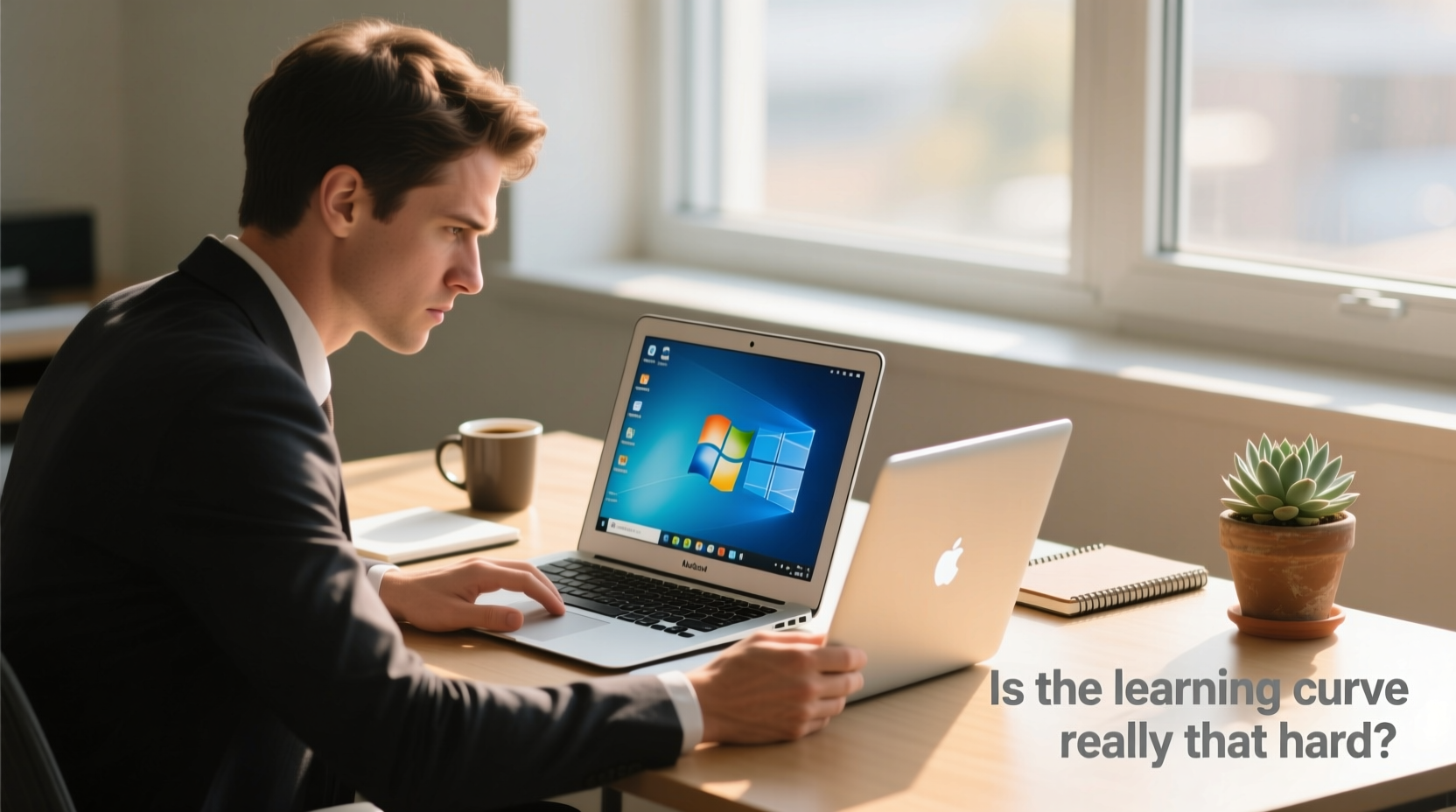
At first glance, both operating systems offer desktops, folders, apps, and browsers. But beneath the surface, design philosophies diverge. Windows prioritizes flexibility and broad compatibility across hardware. macOS emphasizes integration, consistency, and streamlined user experience—especially when paired with other Apple devices.
Key differences include:
- File Management: macOS uses Finder instead of File Explorer, with a cleaner but less immediately customizable interface.
- System Preferences vs. Settings: What Windows calls “Settings” is split between “System Settings” and deeper controls in older-style panes on macOS.
- Right-Click Behavior: MacBooks traditionally used single-button trackpads; now, two-finger taps simulate right-clicks, which takes getting used to.
- Window Controls: Close, minimize, and zoom buttons are on the left side of windows—not the right.
- Application Lifecycle: Closing a window doesn’t always quit the app. Many apps continue running unless explicitly quit (Cmd+Q).
These shifts aren’t inherently better or worse—they’re just different. Recognizing them early reduces confusion later.
What Actually Feels Unfamiliar (and How to Adapt)
The initial hours with a MacBook Air can be disorienting. Menus appear at the top of the screen, not inside each window. Keyboard shortcuts use Command instead of Control. And shutting down isn’t as obvious as clicking a Start button.
Here’s a breakdown of common pain points—and practical solutions:
Menu Bar Location
On macOS, the menu bar is fixed at the top of the screen and changes based on the active application. If you're looking for \"File\" or \"Edit,\" don't search within the app window—look up. This takes time to internalize, especially if you rely heavily on menus.
Keyboard Shortcuts
Most Windows users press Ctrl+C and Ctrl+V to copy and paste. On macOS, it’s Command+C and Command+V. The Command key (⌘) replaces Ctrl for most actions. Other essentials:
- Command+Tab: Switch between open applications
- Command+Space: Open Spotlight search
- Command+H: Hide the current app
- Command+Q: Quit the app completely
- Control+Command+Q: Lock screen instantly
Avoid muscle memory errors by keeping a sticky note of these until they become second nature.
Trackpad Gestures
The MacBook Air’s trackpad is one of its strongest features—but only if you learn to use it. Swiping with three fingers switches spaces, pinching zooms, and swiping down with four fingers opens Notification Center. These gestures boost efficiency once mastered.
“Users who invest 20 minutes learning trackpad gestures save hours in daily navigation.” — David Lin, Productivity Consultant at TechFlow Labs
Transition Checklist: First 7 Days on Your MacBook Air
To accelerate adaptation, follow this structured checklist during your first week:
- Set up iCloud and sync contacts, calendar, and photos. Seamless integration starts here.
- Customize Mission Control and Spaces. Organize workflows by creating separate desktops for work, browsing, and communication.
- Install essential apps: Google Chrome, Microsoft Office, Zoom, or alternatives like Brave, LibreOffice, and Slack.
- Enable Handoff and Continuity. Use Universal Clipboard to copy text on iPhone and paste on Mac.
- Learn Spotlight Search. Press Command+Space and type anything—apps, files, calculations, definitions.
- Adjust keyboard repeat rate. Go to Keyboard settings and increase key repeat speed if typing feels sluggish.
- Backup with Time Machine. Connect an external drive and enable automatic backups.
Real User Experience: Sarah’s Shift from Dell to MacBook Air
Sarah, a freelance graphic designer, used Windows machines for over a decade. Her clients praised her Adobe Photoshop skills, but she grew frustrated with slow boot times and inconsistent performance. After hearing colleagues praise the M1 MacBook Air’s battery life and stability, she made the switch.
“The first day was rough,” she admits. “I couldn’t find where my files were saved, I accidentally hid apps instead of closing them, and I kept pressing Ctrl+C out of habit. But by day three, I was using Spotlight to launch apps faster than I ever did with the Start menu. The trackpad alone changed how I worked—I stopped carrying a mouse.”
Within two weeks, Sarah reported fewer crashes, longer editing sessions without charging, and smoother collaboration with iOS-based clients via AirDrop. “It wasn’t the OS that won me over—it was the ecosystem. Now I can start a sketch on my iPad, refine it on the Mac, and send it via iMessage without touching a USB drive.”
Windows vs. Mac: Feature Comparison Table
| Feature | Windows 10/11 | macOS Sonoma (MacBook Air) |
|---|---|---|
| Default Browser | Microsoft Edge | Safari |
| Search Tool | Start Menu Search / Cortana | Spotlight (Command+Space) |
| File Manager | File Explorer | Finder |
| Copy-Paste Shortcut | Ctrl+C / Ctrl+V | Command+C / Command+V |
| App Installation | EXE installers, Microsoft Store | Drag-to-applications, Mac App Store |
| System Updates | Frequent, sometimes disruptive | Rare, usually seamless |
| Battery Life (Average) | 6–8 hours | 15–18 hours (M1/M2 models) |
| Integration with Mobile | Limited (Your Phone app) | Strong (AirDrop, Handoff, iMessage) |
This table highlights why many users cite battery life and cross-device harmony as decisive advantages—even if the learning curve exists.
Common Misconceptions About Switching
Several myths deter potential switchers. Let’s address them directly:
- “You need to be tech-savvy to use a Mac.” False. macOS is designed for simplicity. Most users find it easier to maintain than Windows due to fewer viruses and cleaner system architecture.
- “All your files and programs will be lost.” No. You can transfer documents via external drive, cloud storage, or Apple’s Migration Assistant. While Windows-only software won’t run natively, alternatives exist for nearly every major application.
- “Macs are fragile and expensive to repair.” While repairs cost more, modern MacBook Airs are built with durability in mind. More importantly, fewer hardware issues occur thanks to optimized software-hardware integration.
- “You can’t play games on a Mac.” True for AAA titles, but false for casual gaming. Steam supports macOS, and cloud services like GeForce NOW allow high-end gaming regardless of local specs.
Step-by-Step: Migrating Your Data Safely
Transferring your digital life should be stress-free. Follow this timeline:
- Day 1: Backup Everything
Use an external hard drive or cloud service (Google Drive, OneDrive) to back up all personal files from your Windows PC. - Day 2: Set Up MacBook Air
Turn it on, connect to Wi-Fi, sign in with your Apple ID (or create one), and choose “From Mac, Time Machine, or Startup Disk” during setup. - Day 3: Run Migration Assistant
Located in Utilities, this tool pulls users, applications, and data from your old machine via network, Thunderbolt, or Wi-Fi. - Day 4: Verify Transfers
Check Documents, Desktop, Photos, and Downloads folders. Ensure emails (if using Outlook) and browser bookmarks migrated correctly. - Day 5: Install Missing Software
Download macOS versions of essential tools. Replace discontinued apps with equivalents (e.g., Parallels for Windows virtualization). - Day 6–7: Optimize Settings
Fine-tune notifications, enable Dark Mode, set up Touch ID (if available), and explore Automator or Shortcuts for automation.
By the end of the week, your MacBook Air should feel personalized and functional.
FAQ: Answering Top Concerns
Can I run Windows programs on a MacBook Air?
Yes, but not natively. Use virtualization software like Parallels Desktop or VMware Fusion to run Windows inside macOS. Alternatively, try free options like CrossOver or rely on web-based versions of tools (e.g., Office 365 online).
Will my Windows peripherals work with a Mac?
Most USB keyboards, mice, printers, and external drives are plug-and-play. Bluetooth devices pair easily through System Settings. Some specialized hardware (like certain drawing tablets or gaming controllers) may require macOS drivers—check manufacturer support before switching.
Is customer support better for Macs?
Apple offers direct access to Genius Bar appointments at Apple Stores, plus phone and chat support. Third-party Windows PCs depend on manufacturer policies, which vary widely. Apple’s unified hardware-software model often leads to faster, more accurate troubleshooting.
Conclusion: Embrace the Curve, Enjoy the Payoff
The learning curve when switching from Windows to MacBook Air is real—but shallow. It lasts about 3 to 7 days for most users. During that time, minor frustrations arise: misplaced clicks, forgotten shortcuts, or confusion over app behavior. Yet, these fade quickly as muscle memory develops and the benefits emerge.
Long-term advantages—exceptional battery life, silent operation, tight security, and seamless Apple ecosystem integration—often outweigh short-term discomfort. The MacBook Air, particularly M1 and M2 models, delivers reliability and performance that many former Windows users didn’t expect.
If you’ve been considering the switch, don’t let fear of adjustment hold you back. Approach it with patience, use the tips outlined here, and give yourself permission to learn gradually. Within a week, you’ll likely wonder why you waited so long.




 浙公网安备
33010002000092号
浙公网安备
33010002000092号 浙B2-20120091-4
Comments
No comments yet. Why don't you start the discussion?