
Sending a text message should be one of the most reliable ways to communicate. Yet when your messages fail to send—whether on an Android or iPhone—it can lead to frustration and missed connections. The issue might stem from network problems, incorrect settings, software glitches, or carrier limitations. The good news is that most texting failures can be resolved with systematic troubleshooting. This guide provides actionable steps to diagnose and fix why your texts aren’t going through, whether you're using SMS, MMS, or iMessage.
Check Your Network Connection First
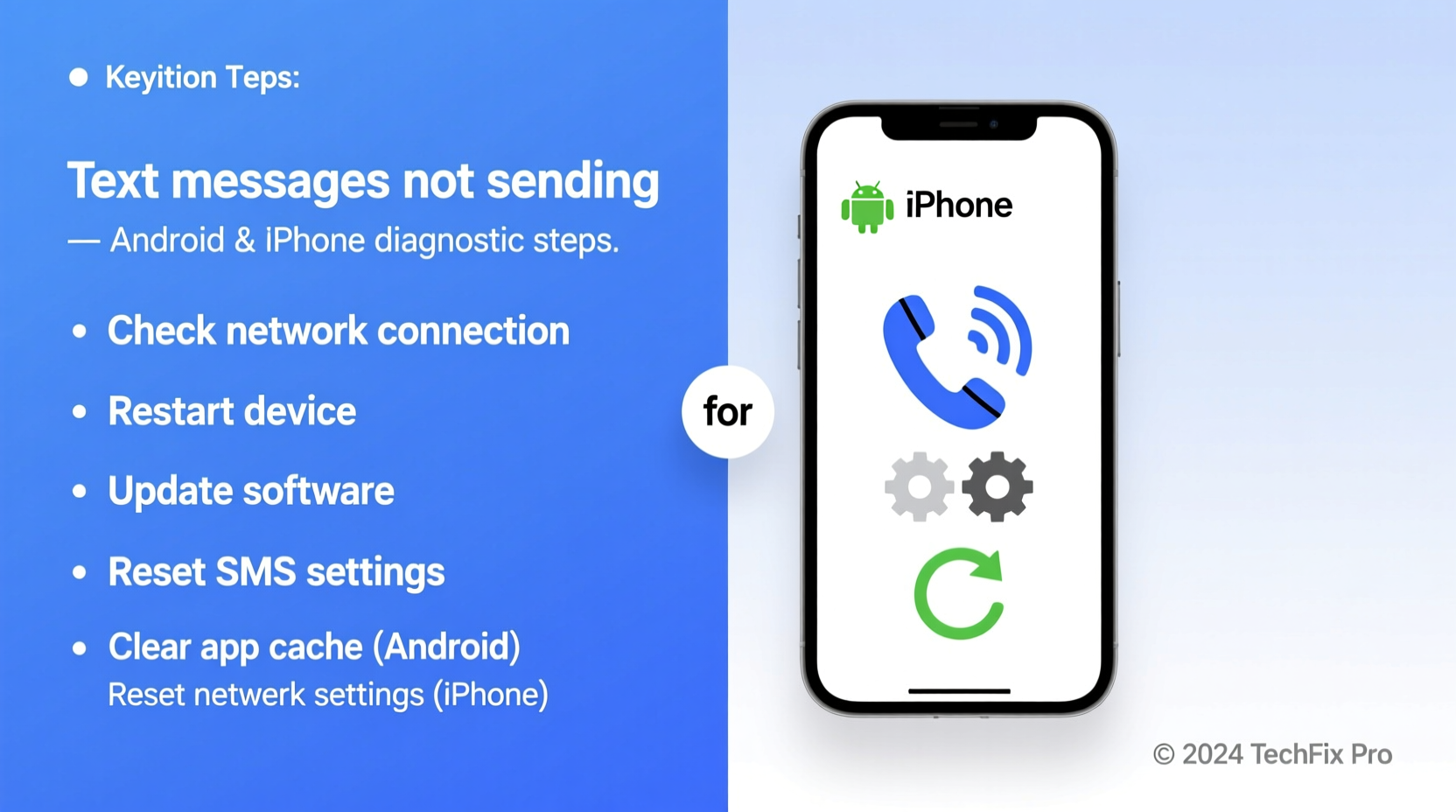
The foundation of any successful text message is a stable network connection. Without adequate signal strength or active data service, both SMS and MMS will fail. Start by verifying your device’s connectivity status.
- Ensure you have at least one bar of cellular signal.
- Confirm mobile data is enabled in your settings.
- If using Wi-Fi only (especially for iMessage), make sure you’re connected to a working network.
For MMS (multimedia messages containing photos or videos), mobile data is required—even if SMS works fine over voice networks. If MMS fails while SMS succeeds, the problem is likely related to data connectivity or APN settings.
Verify Messaging Settings by Platform
Differences between Android and iPhone mean that troubleshooting must account for platform-specific features like iMessage, RCS, and default messaging apps.
iPhone: iMessage and SMS Settings
iMessage uses Apple’s internet-based system, while standard SMS falls back to your carrier. Misconfigurations here are common causes of failed delivery.
- Go to Settings > Messages.
- Ensure Send as SMS is toggled on. This allows fallback when iMessage isn’t available.
- Check that iMessage is turned on and signed in with your Apple ID.
- Confirm your phone number is selected under “Start New Conversations From.”
“Many users don’t realize that iMessage requires internet access. If Wi-Fi is down and data is disabled, even green SMS won’t send unless properly configured.” — Lisa Tran, Mobile Network Consultant
Android: Default App and RCS Configuration
On Android, Google Messages is the default app for many devices and supports RCS (Rich Communication Services), which enhances texting with read receipts and typing indicators. However, misconfigured defaults can block message delivery.
- Open Messages > Settings > Advanced > Chat Features to ensure RCS is enabled (if supported).
- Set Google Messages as your default SMS app in Settings > Apps > Default Apps > SMS App.
- Disable any third-party messaging apps that may interfere.
Troubleshooting Checklist: Step-by-Step Guide
Follow this logical sequence to isolate and resolve the root cause of undelivered messages.
- ✅ Confirm cellular signal or Wi-Fi connection
- ✅ Restart your phone
- ✅ Check Do Not Disturb or Focus modes
- ✅ Ensure recipient’s number is correct
- ✅ Verify date, time, and time zone settings
- ✅ Update carrier settings (iPhone) or APN (Android)
- ✅ Clear messaging app cache (Android)
- ✅ Sign out and back into iMessage/FaceTime (iPhone)
- ✅ Contact carrier to confirm SMS/MMS plan coverage
Each step eliminates a potential failure point. Skipping ahead can waste time. For example, restarting your phone resolves temporary software hiccups in over 40% of cases reported by tech support teams.
Carrier and Account-Level Issues
Sometimes the problem isn’t with your device at all—it’s with your carrier or account status. Common overlooked factors include:
- Exceeded data or messaging limits
- Outstanding bill leading to service suspension
- Number blocked by recipient or carrier
- Roaming restrictions when traveling
Contact your carrier directly to verify your account status and SMS/MMS capabilities. Request updated APN (Access Point Name) settings if MMS fails consistently—a frequent issue after software updates.
| Issue | Android Fix | iPhone Fix |
|---|---|---|
| SMS not sending | Check APN, default app, signal | Enable Send as SMS, check Do Not Disturb |
| MMS failing | Verify mobile data & APN settings | Ensure cellular data is on for Messages |
| iMessage stuck sending | N/A | Turn iMessage off/on, sign out of Apple ID |
| Green vs Blue bubbles confusion | N/A | Blue = iMessage (internet), Green = SMS (cellular) |
| Delayed delivery | Restart phone, check background data | Reset network settings |
Real-World Example: Maria’s International Trip
Maria traveled to Spain and found her iPhone wouldn’t send texts to family back home. iMessage showed \"Not Delivered,\" and SMS didn’t appear to go through either. She assumed it was a network issue but didn’t consider settings.
After checking signal strength and Wi-Fi, she discovered that Cellular Data was turned off to avoid roaming charges. While this saved data, it also disabled iMessage and MMS. Enabling cellular data temporarily—and turning off large attachments—restored messaging. She later activated her carrier’s international texting plan for uninterrupted SMS.
This case highlights how user preferences (like disabling data) can inadvertently disrupt core functions. Always reassess recent changes when troubleshooting.
Advanced Fixes When Basic Steps Fail
If standard methods don’t work, deeper interventions may be necessary.
Reset Network Settings
This clears saved Wi-Fi networks, Bluetooth pairings, and cellular configurations—but often resolves persistent connectivity issues.
- iPhone: Settings > General > Transfer or Reset iPhone > Reset > Reset Network Settings
- Android: Settings > System > Reset Options > Reset Wi-Fi, Mobile & Bluetooth
Update Software and Carrier Settings
Outdated OS versions or carrier bundles can break messaging protocols.
- Check for system updates under Software Update (iOS) or System Update (Android).
- On iPhone, inserting a new SIM or restarting sometimes triggers automatic carrier setting updates.
Reinstall or Replace Messaging App (Android)
If using a third-party app, uninstall and reinstall it. Alternatively, switch back to Google Messages to rule out compatibility bugs.
Frequently Asked Questions
Why do my texts say “Sending…” but never deliver?
This usually indicates a network or authentication issue. Check your connection first. If iMessage shows blue bubbles stuck on “Sending…”, sign out of your Apple ID under Messages and sign back in. On Android, ensure the correct APN is set and mobile data is active.
Can a full message inbox prevent new texts from sending?
Rarely. Modern phones handle thousands of messages efficiently. However, extremely old devices with low storage may experience performance issues. Deleting old threads can help free up space and improve responsiveness.
Why do some people receive my texts and others don’t?
This points to a recipient-specific issue. Their number might be blocked, their phone could be off, or they’ve filtered your messages. Try contacting them via another method to verify. Also, ensure you’re not accidentally sending iMessages to non-Apple users who don’t have internet access.
Final Thoughts and Next Steps
Text messages not sending is a common but solvable issue. By methodically checking network status, settings, carrier plans, and software health, most problems can be diagnosed and fixed within minutes. Remember that Android and iPhone handle messaging differently—understanding these distinctions is key to effective troubleshooting.
Don’t accept constant message failures as normal. A well-maintained smartphone should reliably send and receive texts under standard conditions. If all else fails, contact your carrier or visit an authorized service center to rule out hardware faults like a damaged SIM card or radio module.




 浙公网安备
33010002000092号
浙公网安备
33010002000092号 浙B2-20120091-4
Comments
No comments yet. Why don't you start the discussion?