
If you've ever been typing a document, email, or message only for your cursor to suddenly dart across the screen—erasing text, highlighting paragraphs, or clicking in random places—you're not alone. This frustrating issue affects countless laptop users and can severely disrupt productivity. The culprit is usually the touchpad reacting to unintended palm or wrist contact during typing. While modern laptops come with built-in mechanisms to prevent this, they don't always work perfectly. Understanding why it happens and knowing the right fixes can restore smooth, distraction-free typing.
Why Does My Cursor Jump While Typing?
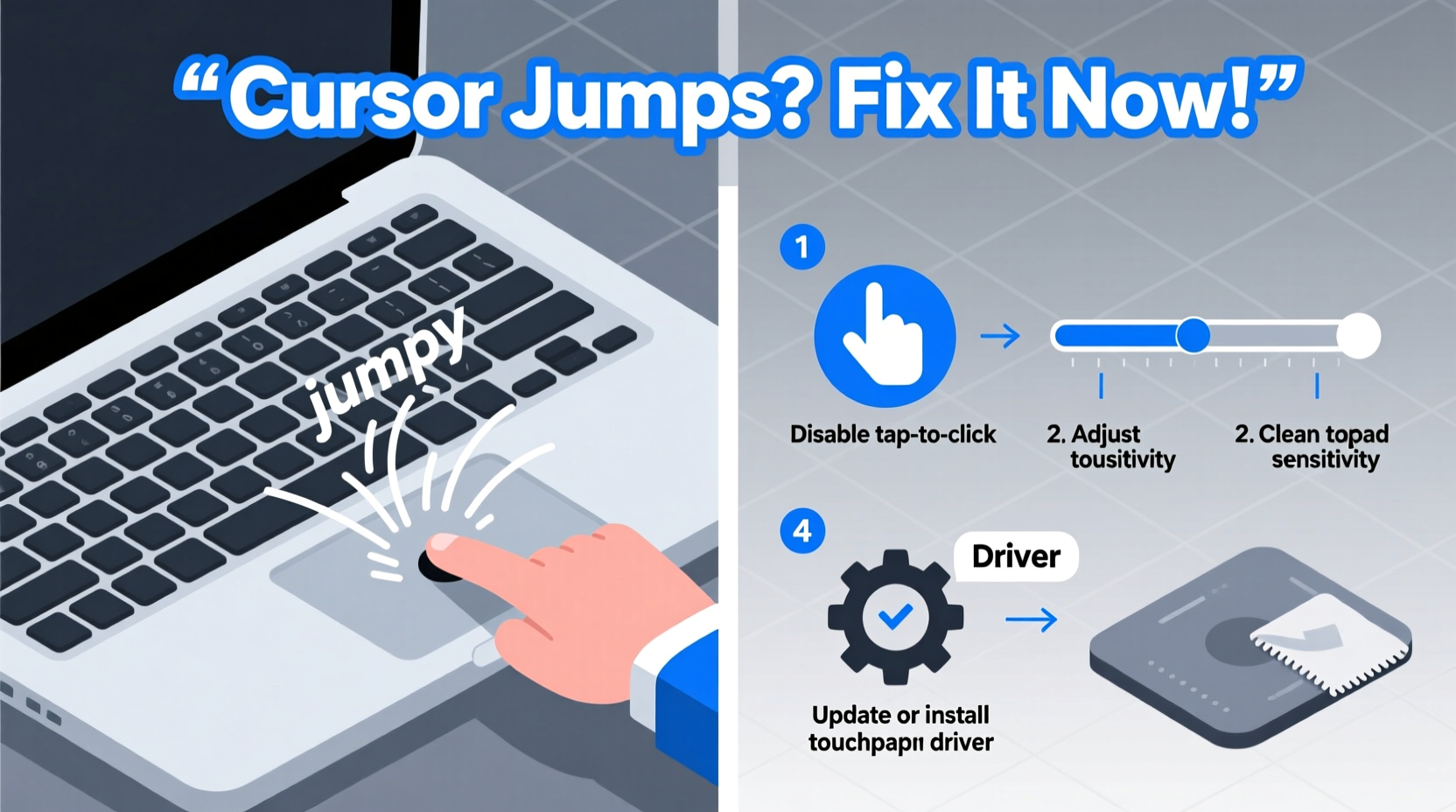
The primary reason for cursor jumping on a laptop is accidental touchpad interaction. As your hands move across the keyboard, your palms or wrists may lightly brush against the touchpad—especially on compact or poorly positioned models. Most operating systems include a feature called \"palm rejection\" or \"tap-to-click prevention,\" designed to ignore brief or light touches when typing is detected. However, this system isn’t foolproof and can fail due to outdated drivers, incorrect settings, hardware sensitivity, or software conflicts.
Other contributing factors include:
- Overly sensitive touchpad settings – High sensitivity increases the chance of false inputs.
- Damaged or dirty touchpad surface – Debris, moisture, or wear can cause erratic behavior.
- Outdated or corrupted drivers – Touchpad performance relies heavily on proper driver functionality.
- Third-party mouse utilities interfering – Some external tools override default behaviors unpredictably.
- Firmware bugs – Rare but possible firmware-level issues can affect responsiveness.
“Palm rejection technology has improved significantly, but user habits and hardware variations still create challenges.” — Dr. Lin Wei, Human-Computer Interaction Researcher at MIT Media Lab
Step-by-Step Fixes to Stop Cursor Jumping
Resolving cursor drift requires a methodical approach. Start with simple software adjustments before moving to deeper system changes. Follow this sequence for best results.
1. Enable or Adjust Palm Rejection Settings
Most Windows and macOS systems have built-in palm detection features. Ensure they are activated and properly configured.
- On Windows: Open Settings > Devices > Touchpad.
- Look for options like “Ignore touchpad when typing” or “Palm check” (varies by manufacturer).
- Increase the palm detection threshold if adjustable.
- Ensure “Tap to click” is enabled only if you use it intentionally.
On macOS: Go to System Settings > Trackpad > Point & Click, and make sure “Ignore accidental input” is turned on.
2. Update or Reinstall Touchpad Drivers
Outdated drivers are a common cause of erratic touchpad behavior.
- Press Windows + X and select Device Manager.
- Expand the “Mice and other pointing devices” section.
- Right-click your touchpad (often labeled as Synaptics, ELAN, or I2C HID Device) and choose Update driver.
- Select “Search automatically for updated driver software.”
- If no update is found, visit your laptop manufacturer’s support site (e.g., Dell, HP, Lenovo) and download the latest touchpad driver manually.
- If problems persist, right-click the device and choose Uninstall device, then restart your laptop. Windows will reinstall the driver automatically.
3. Adjust Touchpad Sensitivity
Reducing sensitivity can minimize false touches without sacrificing usability.
- Navigate to Settings > Devices > Touchpad.
- Look for “Touchpad sensitivity” or similar (may appear under “Additional settings” or via the manufacturer’s control panel like Synaptics or Precision Touchpad).
- Set sensitivity to “Low” or “Medium” instead of “High.”
- Test typing behavior afterward to see if the issue improves.
4. Disable Touchpad While Typing (if available)
This feature temporarily disables the touchpad for a few seconds after each keystroke.
- In Windows, go to Settings > Devices > Touchpad.
- Find the option labeled “Leave touchpad on when a mouse is connected” or “Disable touchpad while typing.”
- Enable the latter if available.
- If not visible, install your laptop manufacturer’s touchpad utility (e.g., Dell Touchpad, Lenovo Vantage, HP Mouse Utility) to access advanced settings.
5. Clean the Touchpad Surface
A grimy or oily touchpad can misread inputs.
- Power off your laptop.
- Use a microfiber cloth slightly dampened with water or isopropyl alcohol (70% solution).
- Gently wipe the entire touchpad surface and surrounding area.
- Let it dry completely before turning the laptop back on.
Do’s and Don’ts When Fixing Touchpad Issues
| Action | Do | Don’t |
|---|---|---|
| Driver Management | Download drivers from the official manufacturer website. | Install third-party driver updaters that may bundle malware. |
| Cleaning | Use a soft, lint-free cloth with minimal moisture. | Use abrasive cleaners or submerge the touchpad. |
| Settings Adjustment | Test one change at a time to identify what works. | Change multiple settings at once and lose track of improvements. |
| Hardware Testing | Try an external mouse to confirm the issue is touchpad-specific. | Assume hardware failure without testing software solutions first. |
Real-World Example: A Student’s Productivity Breakthrough
Sophia, a university student using a mid-range HP laptop, struggled daily with her cursor jumping mid-sentence while writing essays. She often lost paragraphs due to accidental selections and clicks. Frustrated, she initially assumed her laptop was defective. After researching online, she followed a step-by-step process: first cleaning the touchpad, then updating her Synaptics driver through HP’s support portal. She discovered that the “disable touchpad while typing” option was turned off. Once enabled, the problem vanished. Her typing accuracy improved instantly, and she completed her thesis two days ahead of schedule. Sophia later shared her experience in a campus tech workshop, helping several peers resolve similar issues.
Checklist: How to Fix a Jumping Cursor
Follow this concise checklist to systematically eliminate the issue:
- ✅ Clean the touchpad surface with a dry or slightly damp microfiber cloth.
- ✅ Check and enable “Disable touchpad while typing” in system settings.
- ✅ Adjust touchpad sensitivity to medium or low.
- ✅ Update touchpad drivers via Device Manager or manufacturer’s website.
- ✅ Restart your laptop after making changes.
- ✅ Test with an external USB mouse to isolate the problem.
- ✅ Install or update your laptop’s touchpad control software (e.g., Synaptics, ELAN, Precision Touchpad).
- ✅ If all else fails, consider disabling the touchpad entirely and using an external mouse.
Advanced Solutions for Persistent Problems
If basic fixes don’t resolve the issue, consider these deeper interventions:
Use Third-Party Touchpad Managers
Tools like Touchpad Blocker (Windows) or SteerMouse (macOS) offer enhanced control over touchpad behavior. Touchpad Blocker, for example, allows you to set a delay after typing before the touchpad becomes active again, effectively eliminating accidental touches.
Modify Registry Settings (Windows Only – Use Caution)
For advanced users, tweaking the Windows registry can improve palm detection. Navigate to:
HKEY_LOCAL_MACHINE\\SOFTWARE\\Synaptics\\SynTP\\TouchPadPS2\\{Your_Touchpad_ID}\\MultiFingerGestures
Look for values related to “PalmCheck” and increase the threshold (e.g., from 4 to 6). Always back up the registry before making changes.
Reset BIOS/UEFI Settings
In rare cases, corrupted BIOS settings can interfere with input devices. Restart your laptop and enter BIOS (usually by pressing F2, F10, or Del during boot). Choose “Load Default Settings,” save, and reboot. This resets hardware configurations to factory defaults, which may resolve underlying communication issues with the touchpad.
FAQ: Common Questions About Cursor Jumping
Can a virus cause my cursor to jump around?
While extremely rare, malware that hijacks input devices could cause erratic cursor movement. However, most cases are hardware or driver-related. Run a full antivirus scan if you suspect malicious software, but prioritize checking touchpad settings first.
Should I disable the touchpad permanently?
If you primarily use an external mouse and find the touchpad more trouble than it’s worth, disabling it is a valid solution. In Windows, go to Settings > Devices > Touchpad and toggle it off. You can re-enable it anytime. Alternatively, many laptops allow disabling the touchpad via a function key (e.g., Fn + F9).
Does the issue occur more on certain laptop brands?
Some brands historically had better touchpad integration than others. Lenovo ThinkPads and Apple MacBooks are known for superior palm rejection. Budget models from various manufacturers may use lower-quality touchpad sensors with less accurate gesture recognition. However, most modern laptops—regardless of brand—can be optimized with proper settings and driver updates.
Conclusion: Take Control of Your Typing Experience
A jumping cursor doesn’t have to be a permanent annoyance. With the right combination of settings, maintenance, and driver updates, you can reclaim smooth, uninterrupted typing. Start with the simplest fixes—cleaning the surface and enabling built-in palm rejection—and progress to driver updates and third-party tools if needed. Most users resolve the issue within minutes using just one or two adjustments. Don’t accept frustration as normal; your laptop should support your workflow, not hinder it.




 浙公网安备
33010002000092号
浙公网安备
33010002000092号 浙B2-20120091-4
Comments
No comments yet. Why don't you start the discussion?