
Staying connected means having instant access to your email—whether it’s personal, work-related, or tied to online accounts. Smartphones are designed to keep your inbox at your fingertips, but setting up an email account isn’t always straightforward. With multiple platforms, authentication methods, and email providers, confusion can arise. This guide walks you through everything you need to know to add your email to any smartphone, whether you're using an iPhone or an Android device, and regardless of your provider.
Understanding Email Types: IMAP vs. POP3 vs. Exchange
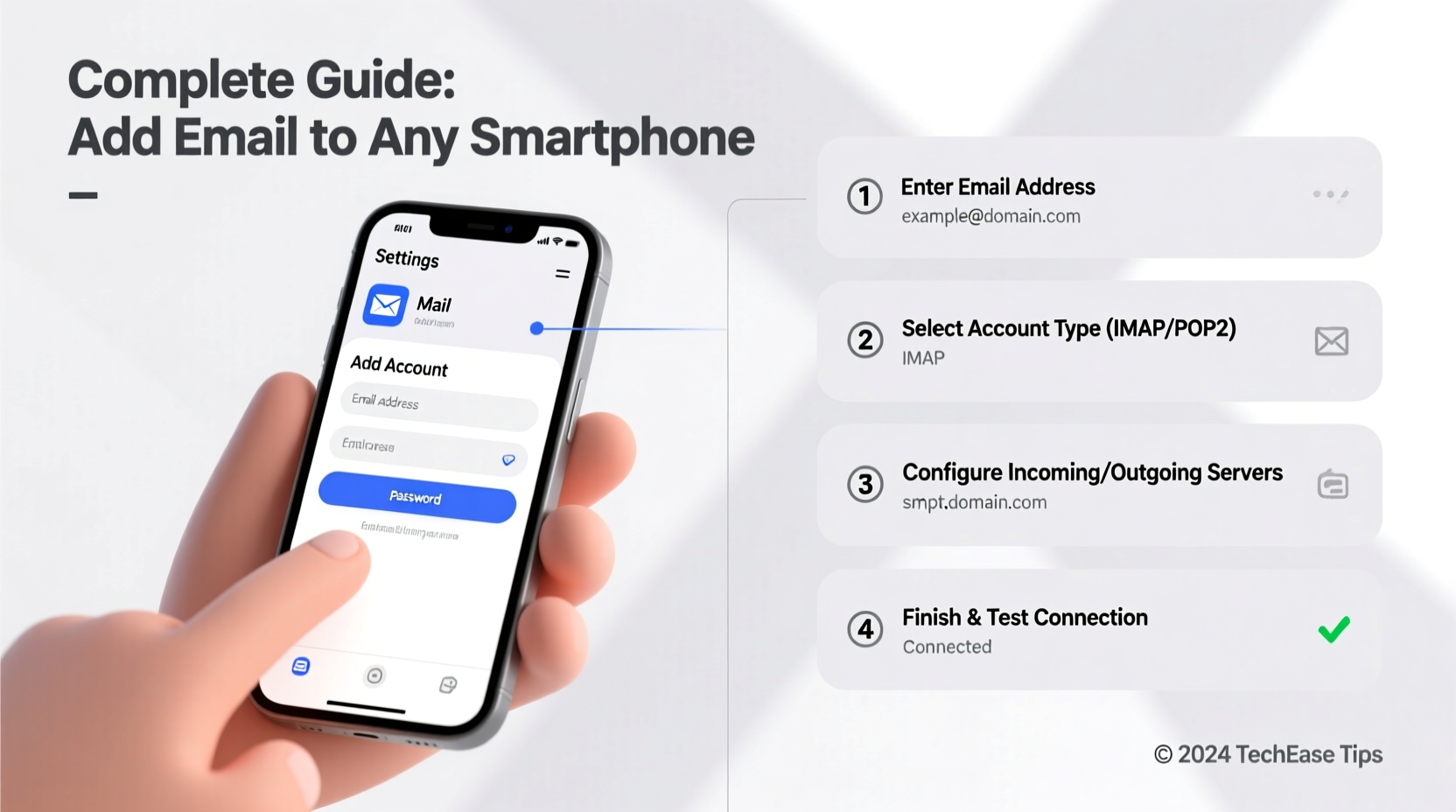
Email setup depends on the type of email protocol your provider uses. The three most common are IMAP, POP3, and Microsoft Exchange (or ActiveSync). Knowing which one applies to your account determines how your emails sync across devices.
- IMAP (Internet Message Access Protocol): Keeps emails synced across all devices. Actions like deleting or moving a message on your phone reflect on your desktop and vice versa. Ideal for users who check email from multiple devices.
- POP3 (Post Office Protocol): Downloads messages to one device and often removes them from the server. Best for single-device users but not recommended for smartphones if you also use a computer.
- Exchange/ActiveSync: Used primarily by corporate or Microsoft 365 accounts. Offers full synchronization of email, calendar, contacts, and tasks, along with remote security policies.
Step-by-Step Guide: Adding Email to iPhone (iOS)
iOS simplifies email setup with automatic configuration for major providers. Here’s how to add your account:
- Open the Settings app on your iPhone.
- Scroll down and tap Mail, then select Accounts.
- Tap Add Account.
- Select your email provider (e.g., Gmail, Yahoo, Outlook, iCloud, or “Other” for custom domains).
- Enter your full email address and password.
- If prompted, allow Apple to access your credentials. iOS will attempt to auto-configure settings.
- If automatic setup fails, choose IMAP and manually enter the incoming and outgoing server details provided by your email host.
- Choose what data to sync—Mail, Contacts, Calendars—and tap Save.
Once saved, open the Mail app to see your inbox. New emails will arrive automatically based on your fetch settings.
Adding Email to Android Devices
Android offers flexibility through both the Gmail app and the dedicated Email app, depending on your device manufacturer. Here’s the universal method:
- Open the Gmail app or your device’s Email app (such as Samsung Email).
- Tap your profile picture or icon in the top right, then select Add another account.
- Choose your account type: Google, Outlook.com, Yahoo, or Other (IMAP/POP3).
- Enter your email address and tap Next.
- Enter your password and proceed.
- If the app doesn’t auto-detect settings, you’ll be prompted to input server information manually.
- Review sync options—email frequency, contacts, calendar—and confirm.
Some Android devices may prompt for additional security verification, especially if two-factor authentication is enabled.
Common Setup Issues and How to Fix Them
Even with clear instructions, issues can occur. Here are frequent problems and their solutions:
| Issue | Possible Cause | Solution |
|---|---|---|
| “Authentication Failed” | Wrong password or 2FA blocking access | Double-check password; use an app-specific password if 2FA is enabled |
| Emails not syncing | Incorrect IMAP settings or disabled background refresh | Verify server settings; enable Fetch New Data in iOS or Auto-sync in Android |
| Sent emails not appearing on other devices | Outgoing server (SMTP) misconfigured | Ensure SMTP settings match your provider; test sending |
| Account keeps disconnecting | Expired password or security policy enforcement | Re-enter credentials; check if your organization requires periodic re-authentication |
“We’ve seen a 40% reduction in user-reported sync errors when people use app-specific passwords for third-party email clients.” — Jordan Lee, Mobile Infrastructure Engineer at CloudInbox Solutions
Security Best Practices When Adding Email
Your email is a gateway to sensitive information. Protect it during and after setup:
- Enable Two-Factor Authentication (2FA): Even if your phone stores your password, 2FA adds a critical layer of security.
- Use App-Specific Passwords: For accounts like Gmail or iCloud with 2FA enabled, generate unique passwords for each device instead of using your main password.
- Avoid Public Wi-Fi for Setup: Entering credentials on unsecured networks increases the risk of interception.
- Review Permissions: After setup, ensure the email app only accesses necessary data like mail and calendar—not unnecessary sensors or files.
Checklist: Secure Email Setup on Any Smartphone
- ✅ Confirm your email provider supports mobile access
- ✅ Enable two-factor authentication
- ✅ Generate an app-specific password if required
- ✅ Use IMAP for multi-device syncing
- ✅ Verify incoming (IMAP) and outgoing (SMTP) server settings
- ✅ Test sending and receiving a message post-setup
- ✅ Enable automatic backups or cloud sync for account settings
Real Example: Setting Up a Custom Domain Email
Sophia runs a small business using a custom email (hello@herbrand.com) hosted with a third-party provider. She recently switched to an iPhone and needed to set up her email.
The process didn’t auto-configure because her domain wasn’t a major provider. She visited her hosting service’s support page and found the IMAP and SMTP settings: incoming server imappro.zoho.com on port 993 (SSL), outgoing smtp.zoho.com on port 587 (TLS). She entered these manually in the \"Other\" account section on her iPhone, used her full email and password, and successfully synced her inbox. Within minutes, she was replying to customer inquiries directly from her phone.
This example shows why having accurate server details is essential—especially for non-Gmail or non-Outlook addresses.
Frequently Asked Questions
Can I add multiple email accounts to one smartphone?
Yes. Both iOS and Android support multiple email accounts. You can switch between them in the Mail or Email app, and even set a default account for composing new messages.
Why does my phone ask for server settings when my friend’s didn’t?
Major providers like Gmail and Outlook have pre-configured settings in smartphones. Custom domains or smaller email hosts require manual entry because they aren’t recognized automatically.
Is it safe to store my work email on my personal phone?
It can be, provided your phone has a passcode, biometric lock, and remote wipe capability. Some companies enforce mobile device management (MDM) policies to protect data. Check your organization’s IT guidelines before proceeding.
Final Steps and Ongoing Maintenance
After successfully adding your email, take a moment to customize your experience. Adjust notification settings so important emails get attention without constant interruptions. Set up signatures for professional replies. Periodically review account settings—especially after password changes or software updates—to ensure continued connectivity.
Remember, email setup isn’t a one-time task. As security standards evolve, you may need to re-authenticate or update app permissions. Staying proactive ensures seamless access and protects your digital identity.




 浙公网安备
33010002000092号
浙公网安备
33010002000092号 浙B2-20120091-4
Comments
No comments yet. Why don't you start the discussion?