
Your video card, also known as a graphics processing unit (GPU), is one of the most critical components in your computer when it comes to visual performance. Whether you're gaming, editing video, or working with 3D modeling software, the GPU handles rendering images, animations, and video for your display. Yet, many users don’t know which GPU they have, how to check its specifications, or why it matters. This guide walks through everything you need to know—from identifying your video card across different operating systems to interpreting technical details and making informed decisions about upgrades.
Why Knowing Your Video Card Matters
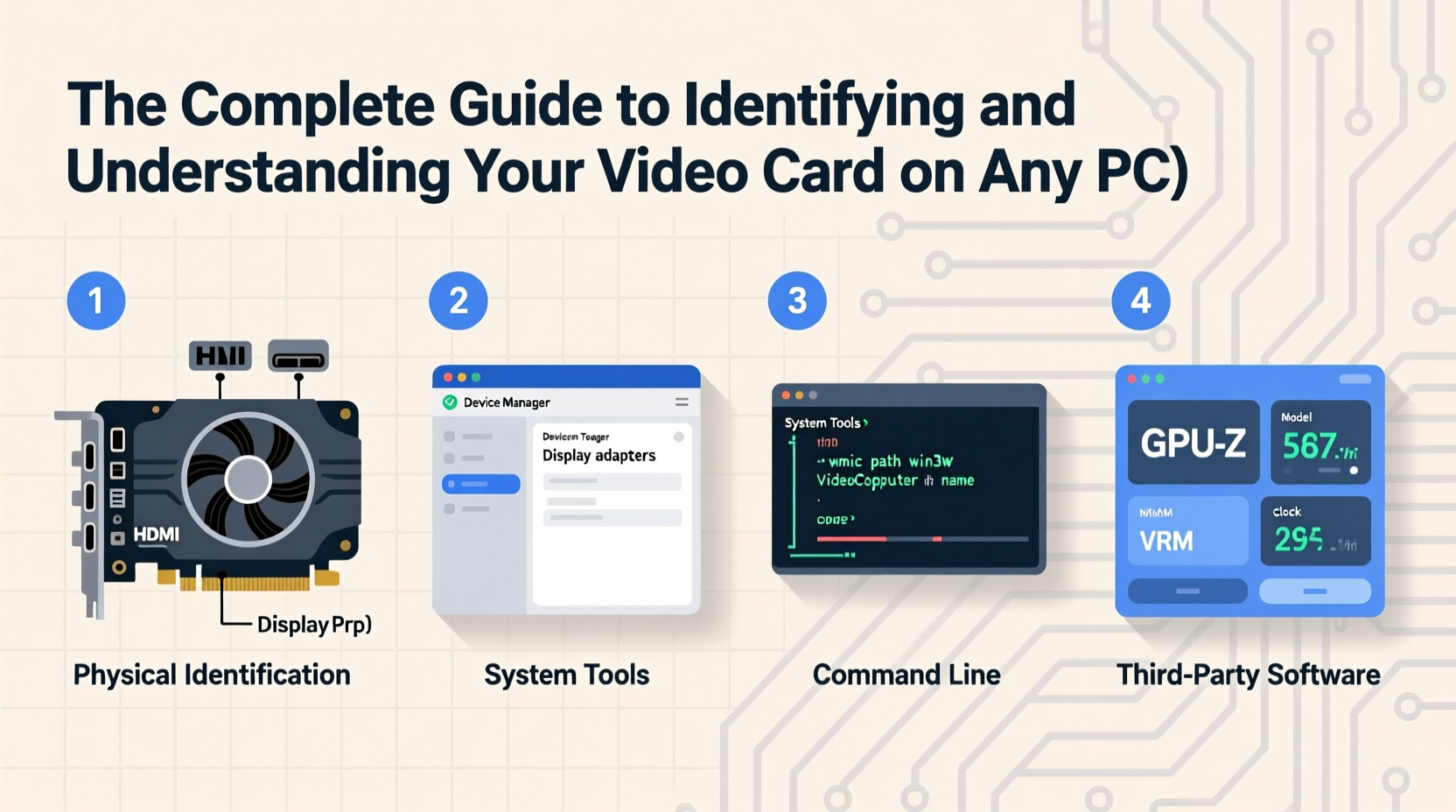
Understanding your GPU goes beyond curiosity. It directly affects system compatibility, driver updates, troubleshooting display issues, and determining whether your machine can run specific applications or games. For example, Adobe Premiere Pro recommends at least 4GB of GPU memory for smooth 4K timeline playback, while modern AAA games often require dedicated GPUs with 6GB or more VRAM. Without knowing what’s inside your system, you risk underperformance, crashes, or unnecessary hardware purchases.
“90% of gaming performance bottlenecks stem from either an outdated GPU or incorrect driver configuration.” — Mark Tran, Senior Systems Engineer at TechFront Labs
How to Identify Your Video Card on Windows
Windows offers several built-in tools to help you identify your GPU quickly and accurately.
Method 1: Using Device Manager
- Press Windows + X and select Device Manager.
- Expand the Display adapters section.
- The listed entry (e.g., NVIDIA GeForce RTX 3060, AMD Radeon RX 6700 XT, Intel UHD Graphics 730) is your video card.
Method 2: Through DirectX Diagnostic Tool
- Press Windows + R, type
dxdiag, and press Enter. - Navigate to the Display tab.
- Look for “Chip Type” or “Device” to see your GPU model and driver version.
Method 3: System Information
- Open Start menu and search for System Information.
- Under Components > Display, find the “Adapter Description” field.
Third-Party Tools for Deeper Insights
For advanced users, tools like GPU-Z or Speccy provide detailed metrics including clock speeds, temperature, memory type (GDDR5, GDDR6), bus width, and BIOS version. These are invaluable when overclocking or diagnosing thermal throttling.
Finding Your GPU on macOS and Linux
macOS and Linux handle GPU detection differently than Windows, but both offer reliable command-line and GUI-based options.
On macOS
- Click the Apple logo in the top-left corner and select About This Mac.
- Click System Report… then navigate to Graphics/Displays in the sidebar.
- You’ll see all active graphics processors, including integrated and discrete units if applicable.
Note: Recent Macs with Apple Silicon (M1, M2, etc.) use unified memory architecture, where the GPU shares RAM with the CPU. The chip itself (e.g., Apple M1 Pro) will be listed instead of a traditional GPU model.
On Linux
Linux users have powerful terminal commands at their disposal:
lspci | grep -i vga– Displays basic GPU information.lshw -C display– Shows detailed output including driver in use and memory size.glxinfo | grep \"OpenGL renderer\"– Reveals the rendering device used by OpenGL.
Desktop environments like GNOME or KDE also include system settings panels that list graphics hardware under “Details” or “About.”
Understanding Key GPU Specifications
Once you’ve identified your video card, interpreting the specs is essential for assessing performance. Here are the most important terms:
| Specification | What It Means | Why It Matters |
|---|---|---|
| VRAM (Video Memory) | Memory dedicated to the GPU for storing textures and frame data. | More VRAM allows higher resolutions and texture quality in games and creative apps. |
| GPU Clock Speed | Processing speed of the graphics core (measured in MHz/GHz). | Higher clocks generally mean faster rendering, though architecture plays a bigger role. |
| Memory Bus Width | How much data can move between GPU and VRAM per cycle (e.g., 128-bit, 256-bit). | A wider bus improves bandwidth, crucial for high-resolution workloads. |
| Architecture | The design generation (e.g., NVIDIA Ampere, AMD RDNA 2, Intel Xe). | Newer architectures deliver better efficiency and feature support (ray tracing, AI upscaling). |
| Driver Support | Software that enables communication between OS and GPU. | Outdated drivers cause instability; regular updates unlock performance and fixes. |
Real-World Example: Troubleshooting Game Performance
Samantha, a digital artist and casual gamer, noticed her laptop stuttered badly in Cyberpunk 2077 despite having “a good processor.” She followed this process:
- Used
dxdiagto discover she had an NVIDIA GeForce GTX 1650 with 4GB VRAM. - Checked minimum requirements: the game recommends at least 6GB VRAM for 1080p Ultra settings.
- Lowered in-game resolution and disabled ray tracing, which brought playable frame rates.
- Updated her NVIDIA drivers using GeForce Experience, gaining a 15% performance boost.
This case illustrates how simply identifying the GPU and cross-referencing specs with software demands leads to practical solutions without immediate hardware upgrades.
Checklist: What to Do After Identifying Your GPU
- ✅ Confirm whether it's integrated (built into CPU) or dedicated (separate card).
- ✅ Note the exact model number (e.g., RTX 4070, not just “NVIDIA card”).
- ✅ Check current driver version and visit manufacturer site for updates.
- ✅ Verify VRAM and compare against recommended specs for your key applications.
- ✅ Research upgrade paths if performance falls short of needs.
Frequently Asked Questions
Can I have more than one video card?
Yes. Some desktops support multiple GPUs via technologies like NVIDIA SLI or AMD CrossFire (though these are largely deprecated now). More commonly, systems combine integrated and dedicated GPUs that switch automatically based on workload (hybrid graphics).
What’s the difference between integrated and dedicated graphics?
Integrated graphics are built into the CPU and share system RAM. They’re energy-efficient and suitable for everyday tasks. Dedicated GPUs are separate chips with their own VRAM, offering significantly higher performance for gaming, rendering, and AI workloads.
How do I know if my GPU is failing?
Warning signs include screen flickering, graphical glitches (artifacts), sudden crashes during heavy use, overheating, or loud fan noise. Monitoring tools like MSI Afterburner can help track temperatures and stability over time.
Conclusion: Take Control of Your Visual Computing Experience
Knowing your video card isn't just for tech enthusiasts—it's a fundamental part of maintaining and optimizing your computer. From ensuring compatibility with creative software to maximizing gaming performance, the insights gained from identifying and understanding your GPU empower smarter decisions. Whether you're troubleshooting, upgrading, or simply curious, take a few minutes to explore your system’s graphics capabilities. You might be surprised at what you find—or what you’ve been missing.




 浙公网安备
33010002000092号
浙公网安备
33010002000092号 浙B2-20120091-4
Comments
No comments yet. Why don't you start the discussion?