
Ubuntu is one of the most widely used Linux distributions, known for its reliability, user-friendly interface, and strong community support. However, as new versions are released every six months—with long-term support (LTS) versions every two years—keeping your system up to date is essential for both performance and security. An outdated Ubuntu installation can expose your system to vulnerabilities, reduce compatibility with modern software, and limit access to performance improvements.
While upgrading seems straightforward, doing it incorrectly can lead to data loss, broken packages, or even an unbootable system. This guide provides a comprehensive, tested approach to upgrading Ubuntu safely while maximizing performance gains and strengthening security.
Why You Should Upgrade Ubuntu Regularly
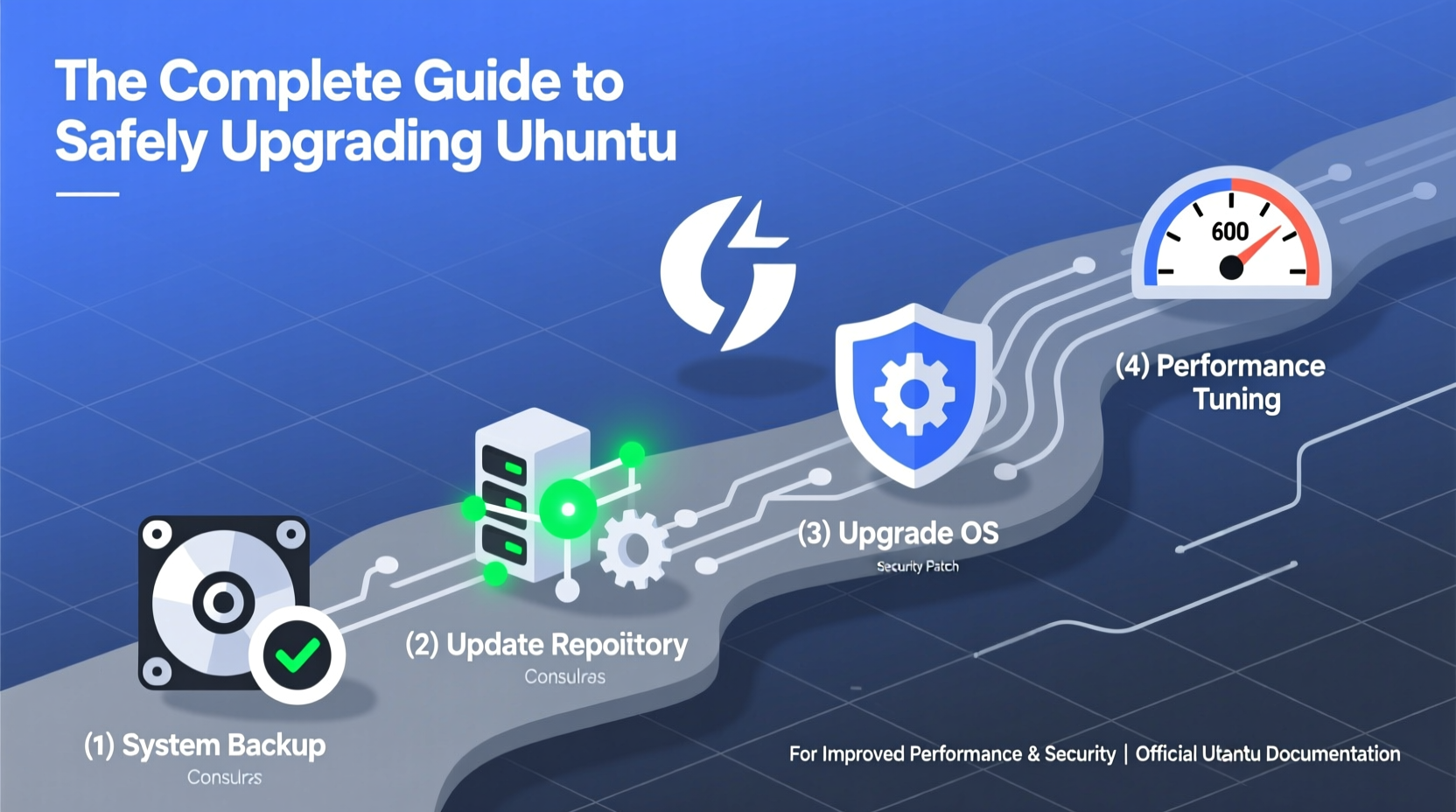
Ubuntu releases include critical kernel updates, security patches, driver improvements, and new features that enhance usability. Sticking with an unsupported version means losing access to these benefits—and potentially exposing your system to exploits.
LTS (Long-Term Support) versions receive five years of updates, making them ideal for production environments. Interim releases offer newer software but only 9 months of support. Upgrading ensures you remain within a supported window, especially important for servers or workstations handling sensitive data.
Pre-Upgrade Checklist
Before initiating any upgrade, preparation is key. A few minutes spent now can prevent hours of troubleshooting later.
- Backup your data: Use tools like
rsync,Deja Dup, or external drives to create full backups of personal files and configurations. - Ensure sufficient disk space: At least 10–15 GB free space is recommended for smooth upgrades.
- Update current system: Run
sudo apt update && sudo apt upgrade -yand apply all pending updates. - Check third-party repositories: Disable PPAs or non-official sources temporarily to avoid conflicts during the upgrade.
- Verify power source: If using a laptop, plug it in. For servers, ensure UPS protection to avoid interruptions.
“System upgrades are inevitable, but failures are not. Proper preparation reduces risk by over 80%.” — Linus Neumann, Systems Security Analyst
Step-by-Step Guide to Upgrading Ubuntu
Follow this sequence carefully to perform a clean and secure upgrade. This process applies whether moving from one LTS to the next (e.g., 20.04 → 22.04) or between interim releases.
- Open terminal (Ctrl+Alt+T) and run:
sudo apt update && sudo apt upgrade -y
Then reboot if prompted. - Install update-manager-core if not present:
sudo apt install update-manager-core
- Edit release-upgrades configuration:
sudo nano /etc/update-manager/release-upgrades
EnsurePrompt=LTSif upgrading between LTS versions, orPrompt=normalfor regular releases. - Start the upgrade process:
sudo do-release-upgrade
The tool will fetch upgrade metadata, resolve dependencies, and prompt you through each step. - Respond to prompts carefully. When asked about configuration file changes, review differences. If unsure, keep the local version and manually merge later.
- Allow reboots when requested. Do not interrupt the process once package replacement begins.
- After rebooting, verify functionality:
lsb_release -a
Confirm the new version number appears correctly.
do-release-upgrade says no new release is available, wait 2–3 weeks after a new version launch. Canonical rolls out upgrades gradually to avoid server overload.
Post-Upgrade Optimization for Performance & Security
The upgrade completes the transition, but additional steps unlock full performance and tighten security.
| Action | Command / Tool | Purpose |
|---|---|---|
| Remove obsolete packages | sudo apt autoremove --purge |
Clears old kernels and unused dependencies |
| Enable automatic security updates | sudo dpkg-reconfigure unattended-upgrades |
Ensures critical patches apply automatically |
| Review startup services | systemctl list-unit-files --type=service | grep enabled |
Disable unnecessary background processes |
| Optimize swap and zram | sudo apt install zram-config |
Improves responsiveness on systems with limited RAM |
| Update firewall rules | sudo ufw enable |
Enforces network-level protection post-upgrade |
Real Example: Small Business Server Upgrade
A web development agency running Ubuntu 20.04 LTS on a cloud VPS delayed their upgrade past the EOL deadline. Within weeks, their server was targeted by a known exploit affecting PHP packages no longer receiving patches. After a breach, they restored from backup and followed this guide to upgrade to 22.04 LTS.
They scheduled the upgrade during low-traffic hours, backed up databases first, disabled custom PPAs, and used do-release-upgrade -d (with caution). Post-upgrade, they enabled unattended-upgrades, hardened SSH access, and set up monitoring via logwatch. Since then, system uptime has improved by 40%, and intrusion attempts have been automatically blocked by updated firewall rules.
Common Pitfalls and How to Avoid Them
Even experienced users encounter issues during upgrades. Awareness helps prevent—and recover from—mistakes.
- Interrupted upgrades: Power loss or forced shutdowns mid-upgrade can corrupt the system. Always use uninterrupted power and avoid closing the terminal.
- PPA conflicts: Third-party repositories often lack immediate support for new releases. Disable them before upgrading; re-enable only after confirming compatibility.
- Holding onto old kernels: Multiple unused kernels consume disk space. Use
sudo apt autoremoveto clean them up. - Ignoring logs: Check
/var/log/dist-upgrade/if something goes wrong. Logs often pinpoint failed packages or misconfigurations.
Frequently Asked Questions
Can I skip a version when upgrading?
Yes, but only between LTS releases (e.g., 18.04 → 20.04 → 22.04). Skipping non-LTS versions is supported, but jumping multiple major releases may increase complexity. It's safer to upgrade sequentially if issues arise.
What should I do if the upgrade fails halfway?
Do not reboot. Reconnect to the terminal and run sudo dpkg --configure -a to resume interrupted package configuration. If errors persist, consult /var/log/dist-upgrade/main.log and consider booting from a live USB to repair the system.
Will my applications break after the upgrade?
Most official repository apps work seamlessly. However, some third-party apps (especially those with proprietary drivers like NVIDIA) may require reinstallation. Always check vendor compatibility before upgrading.
Final Recommendations
Upgrading Ubuntu isn’t just about getting new features—it’s a fundamental part of maintaining a secure, efficient, and future-ready system. By following a disciplined process, you minimize risks and maximize the return on your time investment.
Plan upgrades ahead of EOL dates, automate backups, document your system state, and test on non-critical machines first. Treat each upgrade as both a maintenance task and an opportunity to refine your system’s performance and resilience.




 浙公网安备
33010002000092号
浙公网安备
33010002000092号 浙B2-20120091-4
Comments
No comments yet. Why don't you start the discussion?