
If your internet slows to a crawl or disconnects every evening, you're not imagining things. Many households experience the same frustrating pattern: everything runs smoothly during the day, but by 7 PM, video calls freeze, games lag, and streaming buffers endlessly. This isn’t just bad luck — it’s often the result of predictable network strain and environmental factors that peak after sunset. The good news is that most nighttime Wi-Fi issues can be diagnosed and resolved with practical, low-cost solutions. Understanding the root causes and applying targeted fixes can restore reliable performance when you need it most.
Why Nighttime Is Worse for Your Wi-Fi
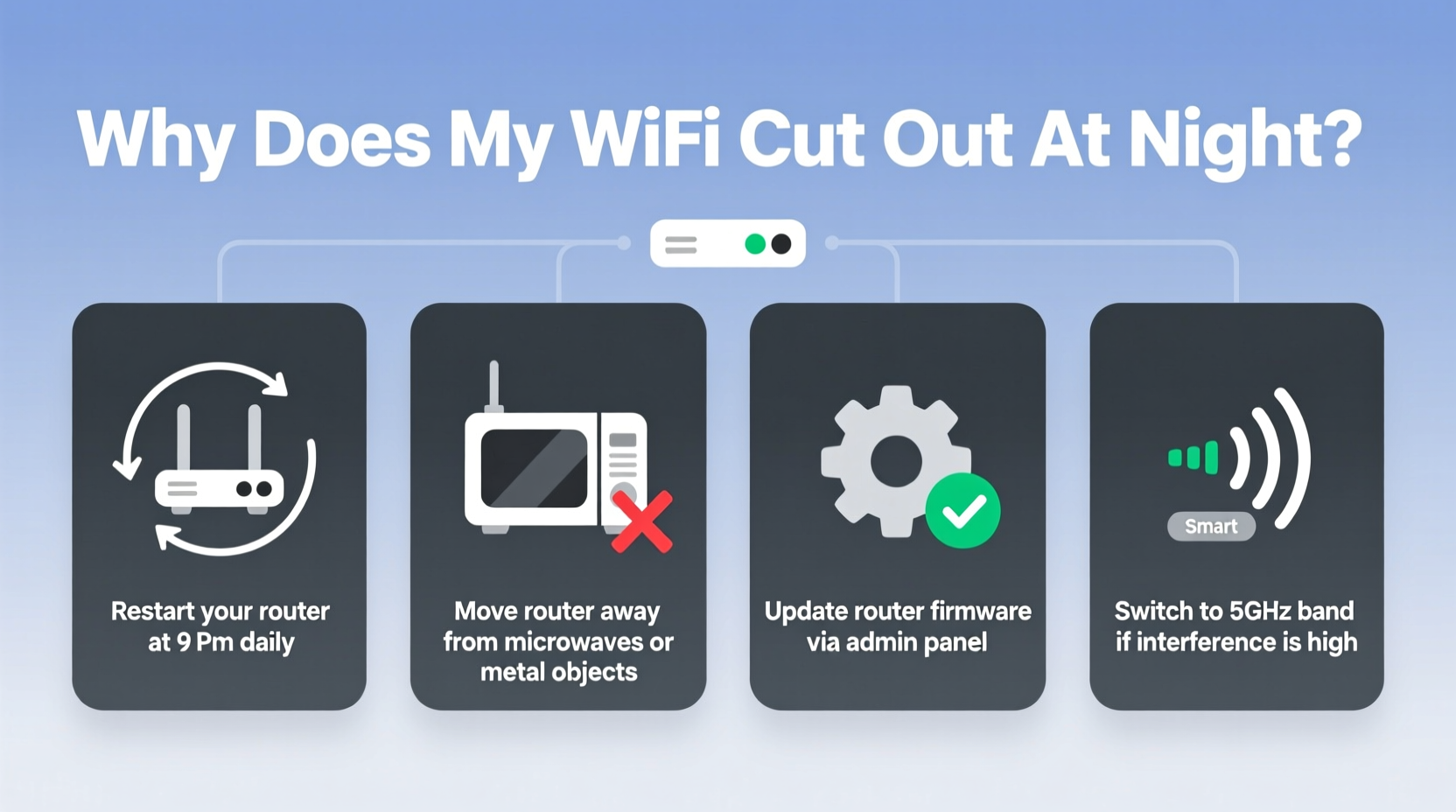
Wi-Fi performance doesn't degrade simply because the sun goes down. Instead, several interrelated factors converge in the evening hours, creating what's known as \"network congestion.\" During the day, household members are typically away—at work, school, or running errands. Devices are idle, bandwidth demands are low, and your router operates efficiently. But once everyone returns home, the digital load increases dramatically.
Multiple users begin streaming HD content, downloading files, gaming online, and joining video meetings—all simultaneously. This surge in demand overwhelms many standard routers, especially older models or those provided by ISPs. Additionally, neighbors are likely doing the same, increasing interference on shared wireless channels. Even physical changes in temperature and humidity at night can subtly affect signal propagation through walls and floors.
“Even a high-speed internet plan can feel slow if your network infrastructure can’t handle concurrent usage.” — David Lin, Network Engineer at Broadband Insights Group
Common Causes of Nighttime Wi-Fi Dropouts
To fix recurring disconnections, you must first identify the underlying cause. Here are the most frequent culprits:
- Network Congestion: Too many devices using bandwidth-heavy applications at once.
- Router Overheating: Routers left on 24/7 can overheat, especially in poorly ventilated areas like entertainment centers or closets.
- Channel Interference: Nearby networks operating on the same Wi-Fi channel create signal clashes, worsening during peak hours.
- ISP Throttling or Peak-Time Slowdowns: Some providers reduce speeds during high-usage periods to manage network load.
- Firmware Issues: Outdated router software may contain bugs that trigger instability under stress.
- Signal Obstruction: Physical barriers like walls, appliances, or even mirrors can weaken signals, and their impact may become more noticeable when demand is high.
Step-by-Step Guide to Stabilize Your Nighttime Connection
Follow this structured approach to diagnose and resolve your Wi-Fi issues systematically.
- Monitor Device Usage
Use your router’s admin interface (usually accessible via 192.168.1.1 or similar) to see how many devices are connected and which are consuming the most bandwidth. Look for unexpected users or background downloads. - Restart Your Router Daily
Power cycling clears memory leaks and resets connections. Set a smart plug to reboot your router automatically at 8 AM and 8 PM to prevent stagnation. - Update Router Firmware
Log into your router settings and check for firmware updates. Manufacturers regularly release patches for stability and security improvements. - Switch to 5 GHz Band
If your router supports dual-band, connect devices that support 5 GHz. It’s faster and less crowded than 2.4 GHz, though with shorter range. Reserve 2.4 GHz for smart home gadgets. - Change Wi-Fi Channel
Use a free app like Wi-Fi Analyzer (Android) or NetSpot (Windows/Mac) to find the least congested channel. Manually set your router to use channel 1, 6, or 11 on 2.4 GHz, or choose a clear 5 GHz channel. - Limit Bandwidth-Hungry Applications
Enable Quality of Service (QoS) settings on your router to prioritize video calls or gaming over automatic backups or cloud syncs. - Test Your Internet Speed
Run speed tests at different times using fast.com or speedtest.net. If speeds drop significantly at night, contact your ISP with evidence.
Do’s and Don’ts of Home Wi-Fi Optimization
| Do | Don’t |
|---|---|
| Place your router centrally, elevated, and away from metal objects | Hide your router in a cabinet or behind the TV |
| Use wired Ethernet for stationary devices like desktops or smart TVs | Rely solely on Wi-Fi for high-bandwidth devices |
| Set up a guest network for visitors to reduce main network load | Share your primary password freely with guests |
| Upgrade to a mesh system if you have dead zones | Assume a new router will fix everything without optimizing placement |
| Schedule large downloads for off-peak hours (e.g., overnight) | Start massive file transfers while streaming 4K video |
Real Example: How One Family Fixed Their Evening Outages
The Thompson family in Austin, Texas, struggled nightly with buffering Netflix and dropped Zoom calls. Their kids couldn’t finish homework, and parents couldn’t wrap up remote work. After testing, they discovered their ISP delivered full speed during the day but dropped from 100 Mbps to 18 Mbps after 7 PM. They also found their router—wedged behind a bookshelf—was overheating and stuck on a crowded Wi-Fi channel.
They took three key steps: moved the router to an open shelf in the living room, updated its firmware, and manually switched to channel 1 on 2.4 GHz. They also contacted their ISP with speed test data, which prompted a line inspection. A technician found a faulty node in their neighborhood circuit and repaired it. Within a week, their evening speeds stabilized at 90+ Mbps. No longer did dinner mean downtime.
When Hardware Upgrades Make Sense
Not all problems can be solved with tweaks. Sometimes, your equipment is simply outdated. Consider upgrading if:
- Your router is more than 3–4 years old.
- It only supports 802.11n or earlier standards.
- You frequently lose signal beyond one floor or a single wall.
- It lacks QoS, parental controls, or guest network features.
Modern Wi-Fi 6 (802.11ax) routers offer better handling of multiple devices, improved efficiency, and stronger encryption. For larger homes, a mesh Wi-Fi system (like Eero, Google Nest Wifi, or TP-Link Deco) provides seamless coverage by using multiple nodes to eliminate dead zones. These systems also allow for centralized management, automatic updates, and intelligent band steering.
“Mesh networks aren’t just for big houses—they’re ideal for any home where reliability matters more than cost.” — Lena Patel, Senior Product Manager at NetSecure Systems
Checklist: Quick Fixes for Immediate Improvement
Before investing in new gear, try these proven adjustments:
- ✅ Restart your router and modem every evening.
- ✅ Move the router to a central, elevated location.
- ✅ Switch to the 5 GHz band for compatible devices.
- ✅ Change your Wi-Fi channel to avoid neighbor interference.
- ✅ Enable QoS to prioritize critical traffic.
- ✅ Update router firmware to the latest version.
- ✅ Limit background downloads during peak hours.
- ✅ Test speeds at different times and document results.
- ✅ Contact your ISP with evidence if speeds are inconsistent.
- ✅ Use Ethernet cables for high-demand devices.
Frequently Asked Questions
Can my neighbors really affect my Wi-Fi?
Yes. In densely populated areas like apartments or suburban neighborhoods, nearby Wi-Fi networks can interfere with yours, especially on the 2.4 GHz band. Using a Wi-Fi analyzer app helps identify crowded channels so you can switch to a clearer one.
Should I leave my router on all the time?
While routers are designed for continuous operation, constant use without breaks can lead to overheating and memory buildup. Scheduling a daily restart via a smart plug can improve stability without inconvenience.
Is my internet provider slowing me down on purpose?
Some ISPs engage in “traffic shaping” or throttling during peak hours to manage network congestion. This is more common with lower-tier plans or capped data packages. Running speed tests at various times can reveal patterns. If confirmed, you can request a service upgrade or switch providers.
Conclusion: Take Control of Your Connection
Nighttime Wi-Fi dropouts don’t have to be a daily frustration. With a methodical approach, most issues can be resolved using simple adjustments to your setup, habits, and hardware. Start by observing when and how the problem occurs, then apply the fixes in order of complexity—from repositioning your router to upgrading your network infrastructure. Consistent connectivity isn’t reserved for tech experts; it’s achievable through awareness, small changes, and informed decisions.




 浙公网安备
33010002000092号
浙公网安备
33010002000092号 浙B2-20120091-4
Comments
No comments yet. Why don't you start the discussion?