
For millions of users, Google’s ecosystem powers everything from email and calendars to cloud storage and video calls. But simply downloading an app isn’t enough. To truly unlock efficiency, you need a strategic setup that integrates Google services deeply into your iPhone experience. Whether you're managing personal tasks or handling professional workflows, configuring Gmail, Calendar, Drive, Keep, and Meet correctly ensures you stay productive without switching between devices or platforms.
iOS doesn't natively favor Google like Android does, but with the right configuration, your iPhone can become a powerful hub for all things Google. This guide walks through every step—from installing core apps to syncing contacts, optimizing notifications, and enabling smart integrations—so you get the most out of Google on Apple hardware.
Install and Configure Core Google Apps
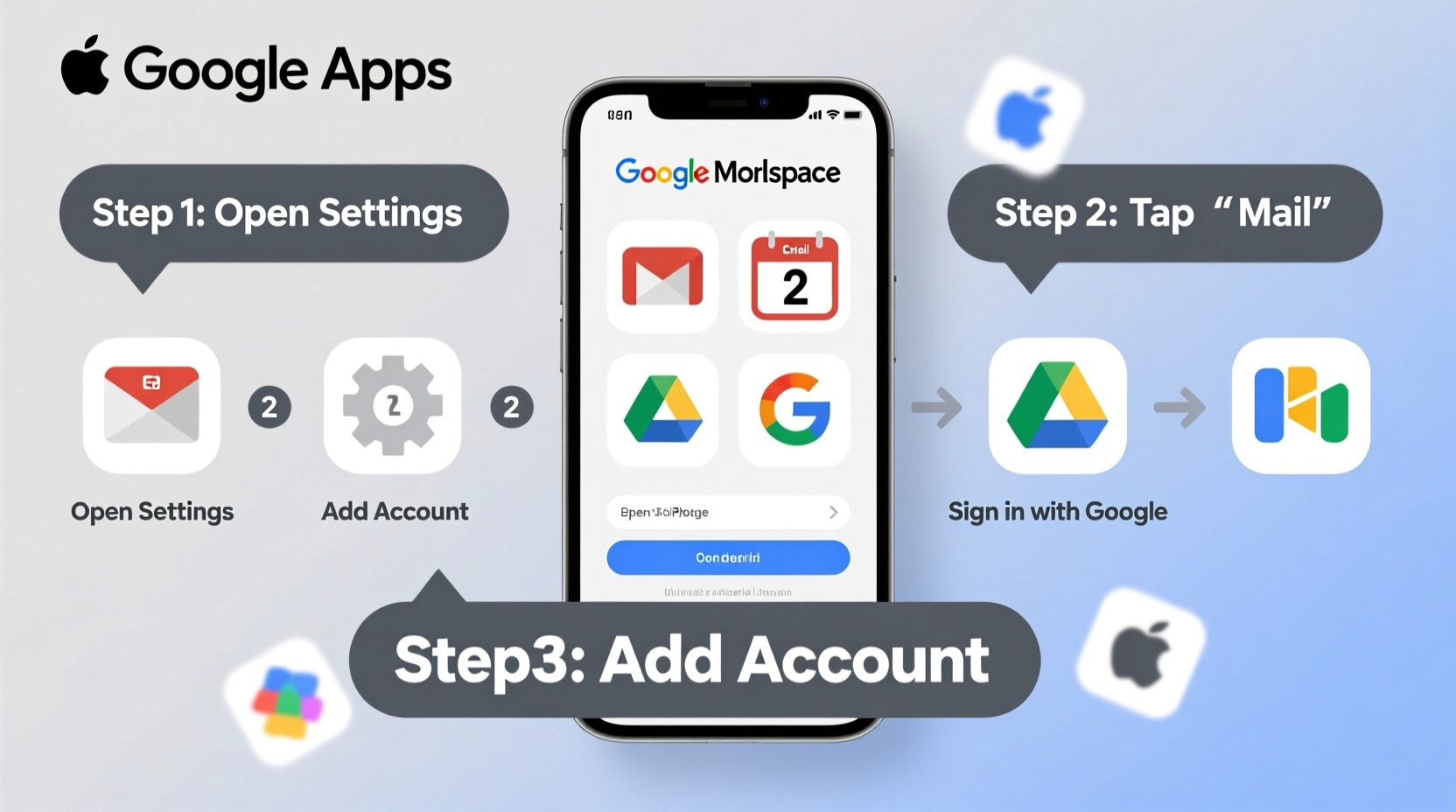
The foundation of a seamless Google experience starts with installing and properly configuring five essential apps: Gmail, Google Calendar, Google Drive, Google Keep, and Google Meet. While these are available in the App Store, installation is only the beginning.
- Gmail: Set up multiple accounts (personal, work, school) under one interface. Enable swipe gestures and choose inbox categories (Primary, Social, Promotions) to reduce clutter.
- Google Calendar: Sync across devices and share availability with others. Use color-coding for different types of events (work, fitness, family).
- Google Drive: Access files offline by marking folders for local storage. Integrate with Apple’s Files app for quick access without opening Drive separately.
- Google Keep: Turn voice memos into text notes automatically. Pin important lists to the top for daily visibility.
- Google Meet: Schedule video calls directly from Calendar invites and receive reminders within the app.
Sync Contacts, Calendars, and Mail via iOS Settings
To avoid duplication and ensure real-time updates, integrate Google accounts at the system level—not just within individual apps. This allows native iOS features like Siri, Phone, and Reminders to interact with your Google data.
Navigate to Settings > Mail > Accounts > Add Account > Google. Choose “Sign in with Google” and grant permissions for Mail, Contacts, Calendars, and Notes. Once linked:
- Your Gmail will appear alongside other mail accounts in the default Mail app.
- Contacts synced from Google will update across your iPhone and iCloud (if desired).
- Events from Google Calendar will show in the native Calendar app, including alerts and time-zone adjustments.
This dual-layer approach—using both dedicated Google apps and system-level sync—gives you flexibility. You can use Gmail as your primary inbox while still receiving calendar alerts through Apple’s native notification system.
Best Practices for Sync Frequency and Data Usage
By default, iOS checks for new mail every 15 minutes. For faster delivery, switch to Push under Mail > Accounts > Fetch New Data. Note that Push may increase battery consumption slightly, so balance speed with device longevity.
| Synchronization Type | Frequency | Battery Impact |
|---|---|---|
| Push | Instant | Moderate |
| Fetch (every 15 min) | Frequent | Low |
| Manually | User-initiated | Minimal |
“Integrating Google at the OS level reduces friction between platforms. It’s how power users maintain continuity across devices.” — David Lin, Mobile Productivity Consultant
Optimize Notifications and Focus Modes
One of the biggest challenges with using Google apps on iPhone is notification overload. Without proper filtering, you might miss critical emails amid promotional updates or event reminders.
In Settings > Notifications, customize each Google app individually:
- Gmail: Enable notifications only for Primary inbox. Disable banners for Promotions and Social tabs.
- Calendar: Allow alerts 10–15 minutes before events. Enable sound only for high-priority meetings.
- Drive: Turn off non-essential sharing notifications; keep file comment alerts active for collaboration.
Pair this with iOS Focus modes. Create a “Work” focus that silences non-Google notifications and surfaces only Gmail and Calendar alerts during business hours. Assign a custom home screen page featuring only productivity apps when the focus is active.
Mini Case Study: Remote Worker Streamlines Workflow
Sarah, a freelance designer based in Portland, used to toggle between six apps daily—missing deadlines due to missed calendar invites. After following this guide, she configured her iPhone to sync Google Calendar with Siri reminders, set up priority-only Gmail notifications, and pinned urgent Keep notes to her widget stack. Within two weeks, her task completion rate improved by 40%, and client follow-ups became automatic thanks to scheduled Meet links embedded in Calendar events.
Enable Cross-App Integration and Automation
The true value of Google’s suite lies in how its apps work together. With a few tweaks, your iPhone can automate routine actions and minimize manual input.
Use the Google Drive plugin in the Files app to attach documents directly from Drive when composing emails. In Safari, install the Google extension to quickly save articles to Keep or upload web pages to Drive. Even better, leverage Shortcuts (iOS automation tool) to create custom workflows:
- “Save to Drive”: Automatically upload screenshots to a designated folder.
- “Morning Brief”: At 7 AM, read aloud your day’s agenda from Google Calendar and unread emails from Gmail.
- “Meeting Prep”: One minute before a Meet call, open the meeting link, mute phone ringer, and display the agenda note from Keep.
Security and Privacy Considerations
Linking Google services to your iPhone requires trust in both ecosystems. Protect your data with these steps:
- Enable two-factor authentication (2FA) on your Google account.
- Review app permissions regularly under Passwords & Accounts in iOS settings.
- Use Face ID or passcode lock within sensitive apps like Gmail and Drive.
- Log out of unused accounts, especially on shared or public devices.
Also, consider disabling background app refresh for Google apps if you notice excessive battery drain. Go to Settings > General > Background App Refresh and toggle off non-essential services.
FAQ
Can I use Google Calendar as my default calendar on iPhone?
Yes. While iOS defaults to iCloud Calendar, you can make Google Calendar your primary by setting it as the default account in Calendar > Default Calendar. All new events will then save to Google unless changed manually.
Why aren’t my Google Contacts showing up in Messages?
This usually happens if contact sync isn’t enabled. Go to Settings > Mail > Accounts > Google and ensure Contacts is toggled on. Then force a sync by turning the account off and back on.
Is it safe to store Google credentials in iOS Keychain?
Absolutely. Apple’s iCloud Keychain encrypts passwords end-to-end. Storing your Google login here allows seamless re-authentication after updates and protects against phishing attempts.
Final Checklist Before You Finish
Before considering your setup complete, verify the following:
- All core Google apps are installed and updated.
- Your Google account is added in iOS Settings with Mail, Contacts, and Calendars enabled.
- Notifications are customized per app to prevent distractions.
- Google Drive is accessible via the Files app.
- Shortcuts or automations are in place for recurring tasks.
- Two-factor authentication is active on your Google account.
- You’ve tested sending an email, scheduling a calendar event, and joining a Meet call.
Conclusion
Setting up Google apps on your iPhone isn’t just about convenience—it’s about creating a unified digital environment where information flows effortlessly between tools. When configured thoughtfully, your iPhone becomes more than an Apple device; it transforms into a versatile command center powered by Google’s intelligent ecosystem.




 浙公网安备
33010002000092号
浙公网安备
33010002000092号 浙B2-20120091-4
Comments
No comments yet. Why don't you start the discussion?