
Capturing what’s on your phone screen is one of the most common tasks smartphone users perform daily. Whether you’re saving a text message, sharing a social media post, or documenting an error message, knowing how to take a screenshot efficiently saves time and frustration. Despite its simplicity, the method varies across devices and operating systems. This guide breaks down every major platform—iOS, Android, Samsung, Google Pixel, and even older models—so you can capture your screen in seconds, no matter what device you're using.
How Screenshots Work: A Quick Overview
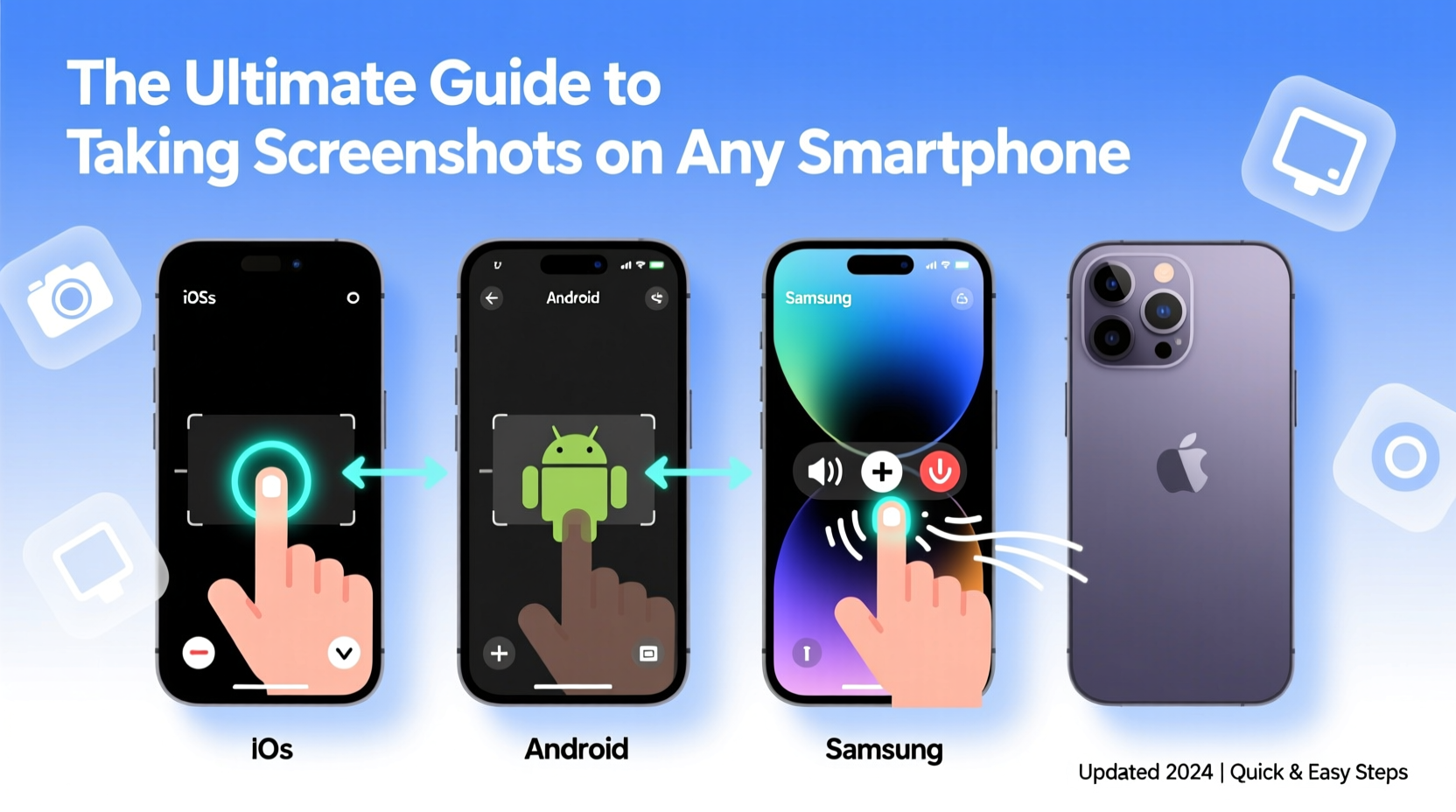
A screenshot is a digital image of whatever is currently displayed on your phone’s screen. It gets saved automatically to your device’s photo gallery or a dedicated “Screenshots” folder. Most modern smartphones support hardware button combinations, gesture controls, or voice commands to trigger a screenshot. The key is knowing which method applies to your model.
While the core function remains consistent, manufacturers often add unique variations. Apple uses a different button combo than most Android phones, and some Samsung devices allow palm-swipe gestures. Understanding these differences ensures you never miss a moment worth capturing.
Taking a Screenshot on iPhone (All Models)
Apple has maintained a relatively consistent approach across recent iPhone models, though button placement changed with the removal of the Home button.
iPhones with Face ID (iPhone X and later)
- Press and quickly release the Side Button (power button) and the Volume Up button at the same time.
- You’ll see a flash and hear a camera shutter sound (if not muted).
- A thumbnail will appear in the lower-left corner of the screen—tap it to edit, mark up, or share instantly.
- The screenshot saves automatically to your Photos app under the “Screenshots” album.
iPhones with a Home Button (iPhone 8 and earlier)
- Press and quickly release the Top (or Side) Button and the Home Button simultaneously.
- Same visual and audio feedback applies.
- Edit via the thumbnail or find it later in your photo library.
“With iOS updates, Apple has made screenshot editing more intuitive than ever—annotating, cropping, and sharing directly from the preview cuts steps significantly.” — Jordan Lee, Mobile UX Designer
Android Devices: Universal and Brand-Specific Methods
Android offers multiple ways to take screenshots, depending on the manufacturer and software version. The standard method works across most devices, but brands like Samsung and Google add extra features.
Standard Android Method (Most Phones)
- Press and hold the Power Button and the Volume Down button together for about a second.
- Release when you see the screen flash.
- The image saves to your Gallery or Files app in the “Screenshots” folder.
Samsung Galaxy Phones (One UI)
Samsung supports the standard button combo but also includes advanced options:
- Palm Swipe to Capture: Enable in Settings > Advanced Features > Motions and Gestures. Swipe your palm sideways across the screen to take a screenshot.
- Scroll Capture: After taking a regular screenshot, tap “Capture More” to scroll and capture extended content (e.g., long web pages or messages).
- S Pen Shortcut: On Note and Ultra models, press the S Pen button and select “Screen Write” to capture and annotate instantly.
Google Pixel Phones
Pixel devices use the standard button method but also integrate AI-powered tools:
- After taking a screenshot, Pixel suggests actions like copying text with Live Text or searching objects in the image.
- No palm swipe, but gesture sensitivity is high—ensure buttons aren’t stuck or delayed.
Alternative Ways to Take a Screenshot
Not all situations allow easy access to buttons. Some users have motor impairments, while others simply prefer hands-free options. Here are reliable alternatives:
Voice Commands
- iPhone: Say “Hey Siri, take a screenshot.”
- Android: Say “Hey Google, take a screenshot.” (Available on most newer devices.)
Using Built-in Assistive Tools
- iOS: Enable “Back Tap” in Settings > Accessibility > Touch. Set double-tap or triple-tap on the back of the phone to trigger a screenshot.
- Android: Use “Accessibility Menu” or “Floating Menu” to activate a screenshot shortcut without pressing buttons.
Third-Party Apps (For Advanced Needs)
Apps like Screenshot Easy (Android) or Lightshot (cross-platform) offer timed captures, scrolling screenshots, and cloud saving. However, most modern phones don’t require them unless you need automation or scheduled screenshots.
| Device Type | Primary Method | Secondary Method | Special Features |
|---|---|---|---|
| iPhone (Face ID) | Side + Volume Up | Hey Siri | Instant markup, Live Text (iOS 15+) |
| iPhone (Home Button) | Power + Home | Back Tap | Thumbnail edit, crop, share |
| Android (Standard) | Power + Volume Down | Hey Google | Text extraction, quick share |
| Samsung Galaxy | Power + Volume Down | Palm swipe | Scroll capture, Screen Write |
| Google Pixel | Power + Volume Down | Voice command | AI suggestions, Live Text |
Real-World Example: Capturing a Ride Confirmation
Maria was booking a last-minute Uber after a late meeting. The app glitched, showing two different fare estimates within seconds. She needed proof for customer support. Using her Samsung Galaxy S23, she pressed Power + Volume Down to capture both screens. Then, she used the “Scroll Capture” feature to combine the entire ride details into one long image. Within minutes, she had filed a clear report with visuals. Without knowing the extended screenshot trick, she would have struggled to show the full context.
This scenario highlights why mastering your device’s full screenshot capabilities matters—not just for convenience, but for documentation and problem-solving.
Frequently Asked Questions
Why isn’t my phone taking a screenshot?
First, ensure you’re pressing the correct buttons simultaneously—not holding too long or too short. If that fails, restart your phone. If the issue persists, check for physical damage or enable accessibility shortcuts as a workaround.
Where do screenshots get saved?
On both iOS and Android, screenshots are saved in the default Photos or Gallery app, usually in a folder named “Screenshots.” You can search “screenshot” in your file browser to locate them quickly.
Can I take a screenshot of a video or protected content?
Some apps (like Netflix or banking apps) block screenshots for security. If you attempt one, you’ll see a black screen or an error. This is intentional and cannot be bypassed without violating terms of service.
Final Checklist: Master Your Screenshot Skills
- Identify your phone model and OS version.
- Practice the correct button combination until it becomes instinctive.
- Enable voice commands if you frequently use hands-free operation.
- Explore extended features like scroll capture or markup tools.
- Check your screenshot folder periodically to manage storage.
Start Capturing with Confidence
Taking a screenshot should never be a guessing game. With the right knowledge, it becomes a seamless part of your digital routine. Whether you’re an iPhone loyalist, an Android enthusiast, or switching between devices, the methods above ensure you’re always ready to preserve information, share moments, or troubleshoot issues. Don’t wait for a critical moment to figure it out—practice now, save time later.




 浙公网安备
33010002000092号
浙公网安备
33010002000092号 浙B2-20120091-4
Comments
No comments yet. Why don't you start the discussion?