
Over time, smartphones accumulate clutter—cached files, outdated apps, fragmented storage, and background processes that slow performance. When your device starts lagging or you're preparing to sell or recycle it, formatting (or factory resetting) can be the most effective solution. However, doing it incorrectly risks permanent data loss, security exposure, or even bricking your device. This guide walks you through every step of safely and effectively formatting your phone, whether Android or iOS, while preserving what matters and ensuring a clean, reliable reset.
Why Formatting Your Phone Makes Sense
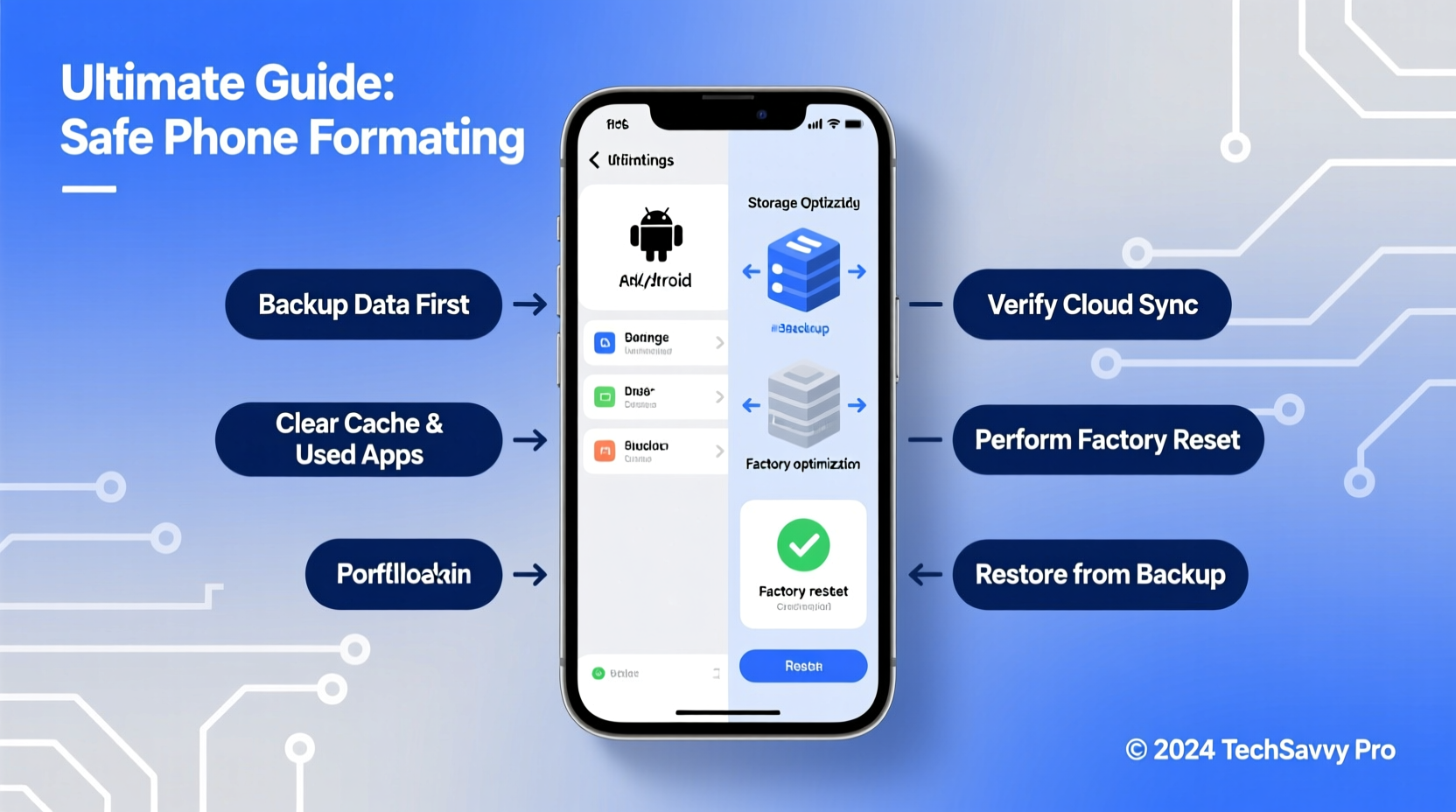
Formatting, also known as a factory reset, returns your smartphone to its original out-of-the-box state. All user-installed apps, settings, media, and accounts are erased. While this may sound drastic, it's often necessary for several legitimate reasons:
- Performance restoration: Clearing system clutter can revive a sluggish phone.
- Selling or donating: A full reset ensures your personal data isn’t left behind.
- Troubleshooting: Resolves persistent bugs, crashes, or boot loops.
- Security cleanup: Removes malware or unauthorized access in compromised devices.
Despite its benefits, formatting is irreversible without proper preparation. The key lies in understanding when and how to do it correctly.
Step-by-Step: How to Format Your Phone Safely
The process varies slightly between operating systems, but the core principles remain the same. Follow this timeline to ensure a secure and complete reset.
- Back up all essential data – Photos, messages, contacts, documents, app data.
- Sign out of critical accounts – Especially Google, Apple ID, banking, and authentication apps.
- Remove external storage – SD cards or USB drives should be ejected or backed up separately.
- Ensure full battery charge or connect to power – Prevent interruptions during reset.
- Initiate factory reset from settings – Use the official method, not third-party tools.
- Verify completion and test the clean system – Check for residual files or login prompts.
For Android Devices
Navigate to Settings > System > Reset options > Erase all data (factory reset). Confirm your choice and wait 5–15 minutes. Some devices may require entering your PIN or password.
For iPhones (iOS)
Go to Settings > General > Transfer or Reset iPhone > Erase All Content and Settings. You’ll need to enter your passcode and Apple ID credentials. The device will reboot and display the initial setup screen when done.
“Factory resetting is one of the most powerful tools users have—but only if they back up first. I’ve seen too many people lose years of photos because they assumed cloud sync was automatic.” — Daniel Reyes, Mobile Security Analyst at TechShield Labs
Data Backup Checklist Before Formatting
Before proceeding, confirm each item below has been addressed. Missing even one could result in irreversible loss.
- ✅ Sync photos and videos to Google Photos or iCloud
- ✅ Export contacts to SIM or cloud account
- ✅ Back up SMS/messages using built-in tools or third-party apps
- ✅ Save important documents to cloud storage (Drive, Dropbox, etc.)
- ✅ Note down Wi-Fi passwords or save them in a password manager
- ✅ Deauthorize devices linked to streaming services (Spotify, Netflix)
- ✅ Unpair Bluetooth devices like smartwatches or headphones
- ✅ Disable Find My iPhone (iOS) or Find My Device (Android)
Common Mistakes to Avoid When Formatting
Even experienced users make errors that compromise security or recovery. The table below outlines frequent missteps and their safer alternatives.
| Mistake | Why It’s Risky | Safe Alternative |
|---|---|---|
| Skipping cloud backup verification | You might assume files uploaded when they didn’t | Log into your cloud account from another device to confirm upload |
| Leaving SIM card inserted | No data risk, but new owner may misuse number temporarily | Remove SIM before handing over device |
| Using third-party \"cleaner\" apps | Some install malware or fail to wipe securely | Use only built-in factory reset options |
| Not disabling lock screen protections | New user may face activation lock (especially on iOS) | Turn off Find My iPhone and remove Apple ID |
| Resetting while on low battery | Power loss mid-reset can corrupt the OS | Charge to at least 80% or plug into power |
Real-World Example: Recovering a Frozen Device
Mark, a freelance photographer, noticed his Samsung Galaxy S21 freezing during photo edits. After failed attempts to clear cache and uninstall recent apps, he decided on a factory reset. He first uploaded 1,200 images to Google Photos and verified the upload on his laptop. He then signed out of Adobe Creative Cloud, removed his microSD card, and disabled Smart Lock. Following the reset, his phone booted smoothly, and app performance improved dramatically. Two weeks later, he sold the phone confidently, knowing no client photos remained on the device.
This case illustrates how a structured approach prevents data loss and maximizes the benefit of formatting. Without the backup verification step, Mark could have lost irreplaceable work.
Frequently Asked Questions
Will formatting remove the operating system?
No. A factory reset reinstalls the default OS version currently on the device. It does not downgrade or upgrade the system. The phone remains fully functional and ready for setup.
Can deleted data be recovered after formatting?
In most cases, yes—initially. Data isn’t instantly erased; it’s marked for overwrite. Specialized software can recover fragments until new data fills the space. For maximum privacy, enable encryption before resetting, or use secure erase tools available on some Android devices under “Secure Folder” or enterprise settings.
Do I need internet to format my phone?
Not for the reset itself, but you’ll need connectivity afterward to reactivate the device. On newer phones, especially iPhones and Google Pixel models, reactivation requires signing into your account (Google or Apple), which needs Wi-Fi or cellular data.
Final Tips for a Smooth Post-Reset Experience
After formatting, take time during setup to restore selectively. Avoid immediately reinstalling every old app. Instead, assess which ones you truly use. Enable two-factor authentication, update the OS to the latest version, and consider setting up automated backups from day one.
If you’re keeping the device, monitor performance over the next few days. If issues persist post-reset, the problem may be hardware-related—such as failing storage—and warrant professional repair.
Conclusion: Take Control of Your Device’s Lifecycle
Formatting your cell phone doesn’t have to be intimidating. With careful planning, the right tools, and attention to detail, it becomes a powerful maintenance strategy—not a last resort. Whether you’re refreshing an aging device or preparing to pass it on, a safe and effective reset protects your privacy, restores functionality, and extends the useful life of your technology.




 浙公网安备
33010002000092号
浙公网安备
33010002000092号 浙B2-20120091-4
Comments
No comments yet. Why don't you start the discussion?