
Retro gaming has evolved far beyond blowing into cartridges and swapping discs. With modern compression formats like RVZ, enthusiasts can store entire GameCube and Wii libraries in significantly smaller file sizes without sacrificing quality. The RVZ format, developed by Dolphin emulator developers, uses advanced compression and metadata embedding to preserve game integrity while saving space. However, not all devices or emulators support RVZ natively. That’s where conversion to ISO—the standard disc image format—becomes essential. Whether you're preparing games for a modded console, using older software, or simply want broader compatibility, converting RVZ to ISO unlocks flexibility without compromising authenticity.
Understanding RVZ and ISO: What You Need to Know
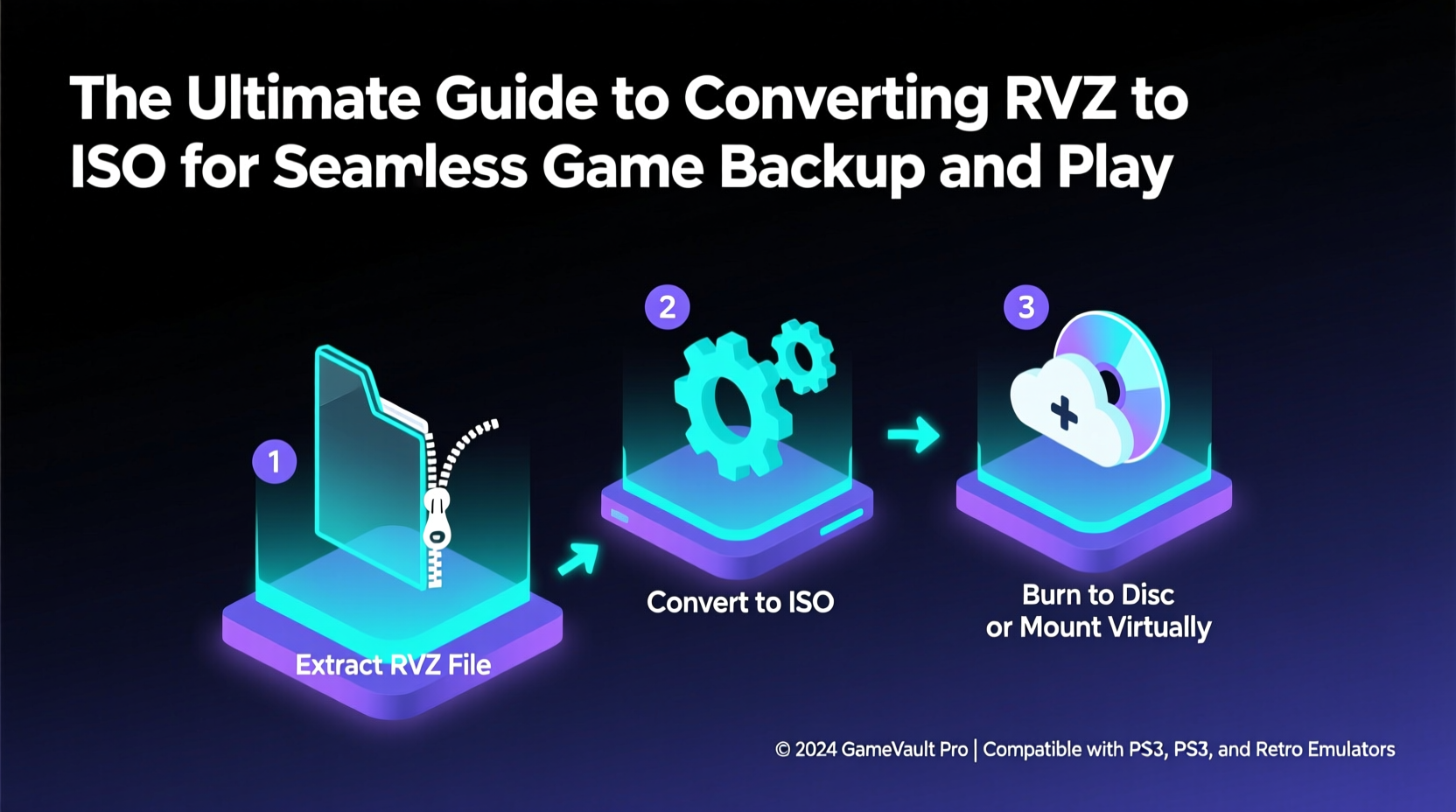
The RVZ file format is a compressed archive specifically designed for GameCube and Wii games. Unlike traditional ISO files, which are full-size disc images, RVZ files use lossless compression to reduce storage needs by up to 60% while retaining all data, including audio streams and filesystem structures. This makes RVZ ideal for long-term archiving and cloud storage.
In contrast, ISO files are raw disc images that replicate the original layout of a game disc exactly. They are universally supported across emulators, homebrew launchers, and modded consoles like the Wii or GameCube with USB loaders. While larger in size, ISOs offer plug-and-play compatibility that RVZ files often lack outside the Dolphin ecosystem.
Converting from RVZ to ISO isn’t about improving quality—it's about expanding usability. The process decompresses the RVZ back into its original binary structure, restoring it to a standard ISO that any compatible system can read.
“RVZ was built for efficiency, but ISO remains the lingua franca of retro game compatibility.” — Alex Tran, Emulation Software Developer
Step-by-Step Guide to Converting RVZ to ISO
Converting an RVZ file to ISO requires specialized tools capable of reading the proprietary compression algorithm. The most reliable and officially supported method uses Dolphin’s built-in extraction tool, ensuring accuracy and integrity throughout the process.
- Download and Install Dolphin Emulator
Visit the official Dolphin website (dolphin-emu.org) and install the latest version for your operating system. Even if you don’t plan to use Dolphin for gameplay, it includes the necessary backend tools for RVZ handling. - Launch Dolphin and Access the Tools Menu
Open Dolphin and navigate to Tools > Extract RVZ File. This opens a dedicated window for conversion tasks. - Select Your RVZ File
Click “Browse” to locate the RVZ file you wish to convert. Ensure the file is not corrupted and is fully downloaded. - Choose Output Location and Format
Set the destination folder for the output ISO. By default, Dolphin will create a .iso file with the same base name as the original. - Start the Conversion Process
Click “Extract” and allow the process to complete. Depending on the game size and your drive speed, this may take several minutes. Larger titles like Super Smash Bros. Brawl can exceed 4GB when decompressed. - Verify the Output
Once complete, check the resulting ISO file for correct size and integrity. Load it into an emulator or transfer it to a USB loader to confirm functionality.
Best Practices for Managing Converted Game Files
After conversion, proper organization ensures longevity and ease of access. Consider these strategies when managing your growing library:
- Name files consistently: Use clear naming conventions such as
[Game Name] (Region).isoto avoid confusion. - Store backups separately: Keep original RVZ archives on external drives or cloud storage as master copies.
- Validate checksums when possible: For critical preservation, verify MD5 or SHA-1 hashes against known good databases like Redump.org.
- Avoid repeated conversions: Each unnecessary extract-recompress cycle risks data corruption or metadata loss.
Do’s and Don’ts of RVZ-to-ISO Conversion
| Do’s | Don’ts |
|---|---|
| Use official Dolphin tools for extraction | Use unverified third-party converters that may alter data |
| Keep original RVZ files archived safely | Delete RVZ files immediately after conversion |
| Verify ISO functionality post-conversion | Assume all extracted ISOs will work flawlessly |
| Organize files with consistent naming | Mix RVZ and ISO versions without labeling |
Real-World Example: Preparing Games for a Wii Homebrew Setup
Consider Mark, a retro enthusiast who owns a modded Wii with USB Loader GX installed. He downloads several GameCube titles in RVZ format due to their small size and fast download times. However, USB Loader GX does not support RVZ directly. To play them, Mark must convert each file to ISO.
Using Dolphin on his Windows PC, he extracts three RVZ files: The Legend of Zelda: The Wind Waker, Metroid Prime, and Paper Mario: The Thousand-Year Door. After conversion, he transfers the ISOs to a formatted USB drive. Upon booting his Wii, all three games appear in the loader menu and run without issues. His original RVZ files remain stored on a NAS device, preserving the compact backups for future use.
This scenario highlights how RVZ excels in storage efficiency, while ISO delivers universal playback—making conversion a practical bridge between archiving and accessibility.
Frequently Asked Questions
Can I convert ISO back to RVZ?
No, there is currently no official or widely trusted tool that converts ISO files back to RVZ. The RVZ compression process involves specific encoding steps only available during initial dumping. Once converted to ISO, the opportunity to re-compress into RVZ is lost unless you have the original dump source.
Will converting RVZ to ISO affect game performance?
No. The conversion is lossless and restores the exact data structure of the original disc. Performance depends on the playback environment—such as emulator settings or USB read speeds—not the conversion itself.
Are there alternatives to Dolphin for RVZ conversion?
While some experimental tools claim RVZ support, Dolphin remains the only recommended solution. Third-party utilities may misread metadata or fail on encrypted sectors, risking incomplete or unplayable ISO outputs.
Conclusion: Unlock Compatibility Without Sacrificing Quality
Converting RVZ files to ISO is more than a technical task—it's a strategic move toward broader compatibility and hassle-free gameplay. Whether you’re setting up a retro console, sharing games with friends, or migrating to new hardware, ISO remains the most universally accepted format. By leveraging Dolphin’s robust extraction tools, you preserve every byte of your favorite titles while gaining the freedom to play them anywhere.
Now that you understand the why and how of RVZ-to-ISO conversion, take the next step: audit your current collection, identify incompatible files, and begin building a versatile, future-proof game library. Share your experience or ask questions in the community forums—your insights could help others make the most of their retro setups.




 浙公网安备
33010002000092号
浙公网安备
33010002000092号 浙B2-20120091-4
Comments
No comments yet. Why don't you start the discussion?