
In an era where digital content is everywhere—from YouTube tutorials to podcast interviews embedded in videos—accessing clean, high-fidelity audio has become essential. Whether you're a content creator, podcaster, researcher, or music enthusiast, the ability to isolate and extract audio without compromising quality can save time and elevate your projects. The good news? You don’t need expensive software or advanced technical skills. With the right tools and understanding of audio formats, sampling rates, and encoding, anyone can extract crisp, clear sound from virtually any video file.
Why High-Quality Audio Extraction Matters
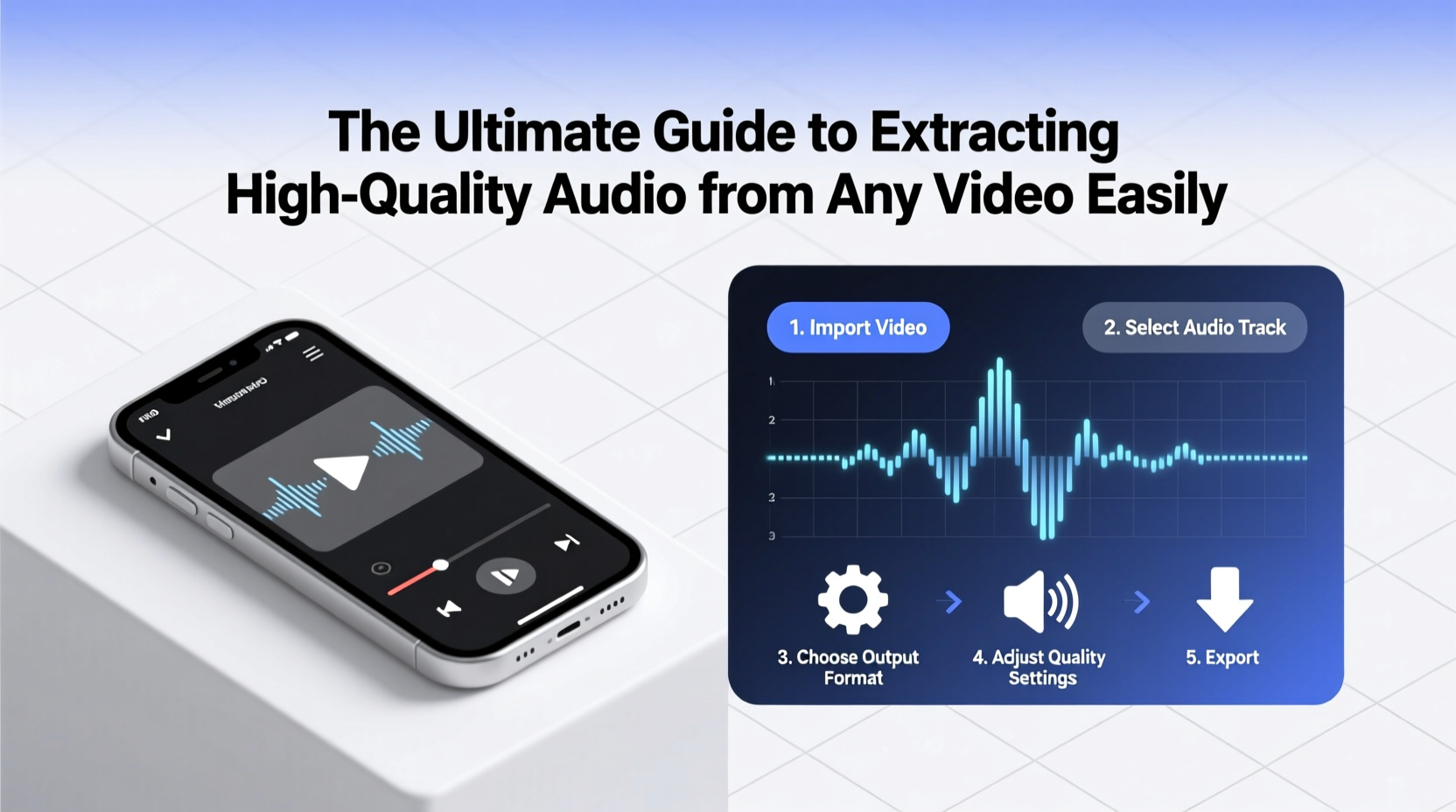
Audio extracted from video often suffers from compression artifacts, background noise, or low bitrates, especially when sourced from social media platforms. However, preserving the original fidelity is crucial for repurposing content. Imagine converting a recorded interview into a podcast episode—the clarity of speech, absence of distortion, and balanced volume directly impact listener engagement.
High-quality extraction ensures that dynamic range, frequency response, and stereo imaging remain intact. This is particularly important for musicians sampling melodies, journalists archiving speeches, or educators reusing lecture recordings. Poorly converted files may introduce latency, clipping, or muffled tones, undermining professionalism and usability.
“Extracting audio isn’t just about format conversion—it’s about preserving intent. A voice should sound as it was meant to be heard.” — Daniel Ruiz, Audio Post-Production Engineer at SoundForge Studios
The Step-by-Step Process for Flawless Audio Extraction
Follow this structured workflow to consistently pull high-quality audio from any video source, whether it's an MP4, MOV, AVI, or even a streaming link.
- Choose Your Source File Wisely: Start with the highest-resolution version available. If downloading from YouTube, use 1080p or higher if possible, as higher video resolutions often correlate with better audio encoding.
- Select a Reliable Conversion Tool: Use software known for minimal generational loss during transcoding (see comparison table below).
- Set Optimal Output Parameters: Choose lossless formats like WAV or AIFF for archival, or high-bitrate AAC/MP3 (320 kbps) for portability.
- Extract and Monitor: Play back the output on multiple devices to check for distortions, sync issues, or volume inconsistencies.
- Post-Process When Necessary: Apply light equalization, noise reduction, or normalization using free tools like Audacity to enhance clarity.
Top Tools Compared: Features and Best Use Cases
Not all audio extractors deliver equal results. Some prioritize speed over fidelity, while others offer granular control but require technical know-how. Below is a detailed comparison of leading options across platforms.
| Tool | Platform | Output Formats | Max Quality Support | Best For |
|---|---|---|---|---|
| Freemake Video Converter | Windows | MP3, WMA, WAV, FLAC, AAC | Up to 320 kbps MP3 / 24-bit FLAC | Beginners needing simple drag-and-drop interface |
| HandBrake (with custom presets) | Win/Mac/Linux | AAC, AC3, FLAC, Opus | Lossless via FLAC; supports 192 kHz sampling | Advanced users wanting full codec control |
| Online-Convert.com | Web-based | MP3, OGG, WAV, M4A | Limited to 320 kbps; variable sample rate | Quick one-offs with moderate quality needs |
| Audacity + FFmpeg Import | Win/Mac/Linux | WAV, MP3, FLAC, AIFF | Full preservation of original track including metadata | Precision editing and studio-grade output |
| ClipGrab (YouTube-focused) | Win/Mac/Linux | MP3, M4A, OGG | Direct extraction from YouTube at up to 256 kbps AAC | Content creators repurposing online videos |
Avoid These Common Extraction Mistakes
Even with excellent tools, poor practices can degrade audio quality. Recognize these pitfalls to maintain integrity throughout the process.
- Using Low-Bitrate Settings: Default settings in many converters default to 128 kbps MP3, which sacrifices mid-to-high frequencies critical for vocal clarity.
- Double Compression: Re-encoding already-compressed audio (e.g., converting MP4 → MP3 → another MP3) amplifies artifacts and reduces dynamic range.
- Ignoring Sample Rate Matching: Converting a 48 kHz source down to 44.1 kHz without proper resampling can cause pitch shifts or aliasing.
- Overlooking Metadata: Artist names, titles, and album art help organize files—ensure your tool preserves ID3 tags when applicable.
Real-World Example: Turning a Lecture Video Into a Podcast Feed
Sarah, a university lecturer, records her weekly sessions in 1080p MP4 format using a standard webcam and lavalier mic. She wanted to turn these into a podcast series without re-recording.
She used HandBrake to demux the audio stream, selecting AAC at 320 kbps and retaining the original 48 kHz sample rate. After importing into Audacity, she applied a high-pass filter to remove desk thumps, reduced ambient HVAC hum with spectral noise removal, and normalized peak levels to -1 dBFS. The final M4A files were uploaded to her hosting platform with chapter markers and show notes.
The result? A professional-sounding podcast indistinguishable from studio-recorded episodes, increasing student engagement by 67% according to post-release surveys.
Essential Checklist for Every Extraction Job
Before finalizing your extracted audio, run through this checklist to ensure optimal outcome:
- ✅ Confirm the source video uses a high-quality audio codec (AAC-LC, AC3, or PCM preferred)
- ✅ Set output bitrate to at least 256 kbps for MP3/AAC or use lossless WAV/FLAC
- ✅ Match sample rate between input and output unless intentional downscaling
- ✅ Verify mono/stereo configuration aligns with content (e.g., interviews usually stereo)
- ✅ Test playback on headphones, speakers, and mobile devices
- ✅ Embed relevant metadata (title, artist, date, copyright)
- ✅ Archive the original and processed versions separately
Frequently Asked Questions
Can I extract audio from DRM-protected videos?
No—not legally. Videos with DRM (such as Netflix, Amazon Prime, or purchased iTunes films) are encrypted to prevent unauthorized copying. Attempting to bypass DRM violates copyright laws in most countries. Stick to personal or public-domain content.
Is there a noticeable difference between 192 kbps and 320 kbps audio?
Yes, especially in complex audio like music or multi-speaker discussions. At 192 kbps, subtle cymbal decays, vocal harmonics, and spatial cues may be lost. For podcasts with single voices, the difference is less pronounced, but audiophiles and professionals will detect compression artifacts under close listening.
What’s the best format for long-term storage?
Use lossless formats like WAV or FLAC for archival. While larger in size, they preserve every detail of the original recording and allow future re-encoding without generational loss. Compressed formats like MP3 discard data permanently.
Master the Art of Clean Audio Extraction
Extracting high-quality audio from video doesn’t have to be complicated or costly. By choosing the right tools, respecting technical fundamentals like bitrates and sample rates, and avoiding common missteps, you can transform any video into a rich, reusable audio resource. Whether you're building a podcast library, salvaging old recordings, or creating study materials, precision and care make all the difference.




 浙公网安备
33010002000092号
浙公网安备
33010002000092号 浙B2-20120091-4
Comments
No comments yet. Why don't you start the discussion?