
PDFs are a universal format for sharing documents, contracts, reports, and forms. But what happens when you receive a single PDF with multiple unrelated sections and need to split them into individual files? Whether you're organizing scanned receipts, extracting pages from a report, or dividing a multi-chapter eBook, knowing how to separate PDF files efficiently saves time and improves workflow. This guide covers proven methods—from beginner-friendly online tools to advanced desktop solutions—that let you extract pages precisely and securely.
Why Splitting PDFs Matters
Combining documents into one PDF is convenient, but it can create clutter. Separating a large file into smaller, focused ones enhances accessibility, reduces email attachment sizes, and simplifies archiving. For example, a 50-page legal document might contain several agreements that each need to be sent to different parties. Extracting only the relevant pages avoids confusion and maintains confidentiality.
Professionals in law, finance, education, and administration rely on clean document separation daily. The key is doing it accurately without compromising formatting or security.
Step-by-Step Guide to Splitting PDFs
Separating a PDF doesn’t require technical expertise. Follow this clear sequence to extract pages safely, regardless of your preferred method.
- Identify the pages to split: Determine which pages belong in each new file. Note page ranges (e.g., pages 1–5, 6–12).
- Choose your tool: Decide between an online service, desktop application, or command-line utility based on security and volume needs.
- Upload or open the file: Load the PDF into your selected platform.
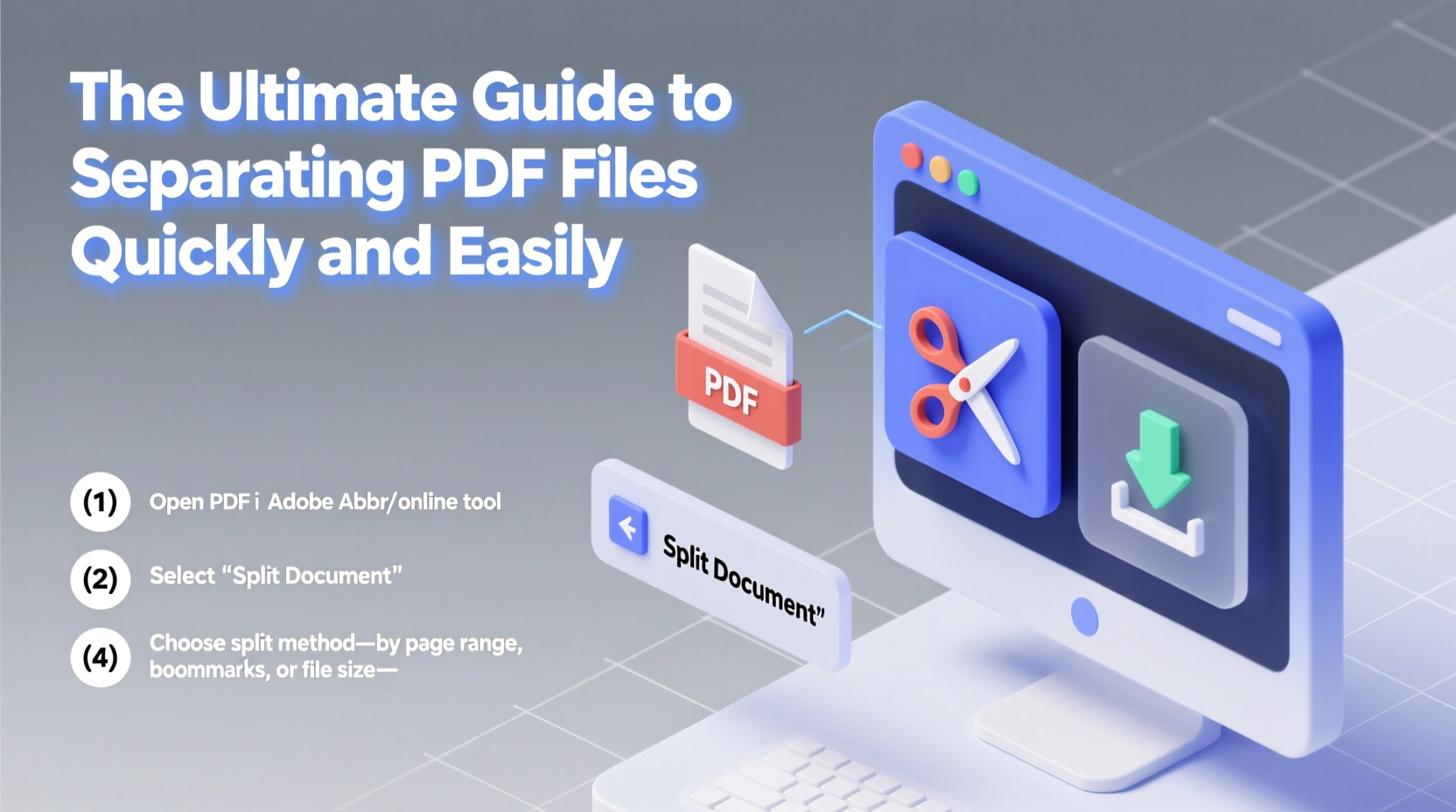
- Select split mode: Choose whether to split by page range, every N pages, or at bookmarks.
- Extract and save: Generate the new files and save them with descriptive names.
- Verify output: Open each new PDF to ensure layout, fonts, and images appear correctly.
Common Splitting Scenarios
- Extract a single page: Pull out a signature page or invoice from a larger document.
- Split into individual pages: Convert each page into a standalone file for batch processing.
- Divide by chapters or sections: Use bookmarks or predefined page ranges to separate logical parts.
Best Tools for Separating PDF Files
Different situations call for different tools. Here’s a breakdown of reliable options across platforms.
Online Tools: Fast and Free
Websites like Smallpdf, ILovePDF, and PDF24 offer intuitive interfaces for quick splits. They work directly in your browser—no installation needed.
- Pros: Accessible from any device, user-friendly, instant processing.
- Cons: File size limits (often 50–100 MB), privacy concerns with sensitive data.
For non-confidential documents, these services deliver excellent results in under a minute.
Desktop Software: Power and Privacy
Adobe Acrobat Pro remains the industry standard for PDF manipulation. It allows precise control over page extraction, batch processing, and security settings.
Alternatives like PDFsam Basic (free, open-source) and Foxit PDF Editor provide robust splitting features with offline functionality. These are ideal for frequent use or handling confidential material.
Command-Line Tools: For Advanced Users
If you process hundreds of PDFs regularly, automation is essential. Tools like pdftk and Ghostscript let you script batch operations.
Example using pdftk:
pdftk input.pdf cat 1-5 output part1.pdf
pdftk input.pdf cat 6-10 output part2.pdf
This approach is fast, repeatable, and perfect for integration into workflows.
Do’s and Don’ts When Splitting PDFs
| Do’s | Don’ts |
|---|---|
| Always back up the original file before editing. | Don’t upload sensitive documents to untrusted online tools. |
| Name output files clearly (e.g., “Contract_Section1.pdf”). | Don’t assume all tools preserve hyperlinks and bookmarks. |
| Use desktop apps for bulk or recurring tasks. | Don’t ignore file size limits on web-based splitters. |
| Verify extracted pages retain correct orientation and quality. | Don’t overwrite the original unless intentional. |
“Efficient document management starts with the ability to break down complex files into purpose-driven pieces.” — Daniel Reeves, Digital Workflow Consultant
Real-World Example: Streamlining Client Onboarding
A financial advisor receives a 30-page client packet containing disclosure forms, risk assessments, and investment proposals—all merged into one PDF. To streamline onboarding, she needs to send only specific sections to compliance, the client, and internal teams.
Using PDFsam Basic, she opens the file and selects “Split by Page Ranges.” She creates three outputs: pages 1–8 (disclosures), 9–18 (assessments), and 19–30 (proposals). Each file is renamed accordingly and securely emailed. The entire process takes less than four minutes, replacing what used to involve printing and scanning.
This not only speeds up communication but also ensures no irrelevant information is shared accidentally.
Checklist: How to Separate PDF Files Safely and Efficiently
- ✅ Identify exact page ranges for separation
- ✅ Back up the original PDF file
- ✅ Choose a secure, appropriate tool (online vs. desktop)
- ✅ Upload or open the file in your chosen editor
- ✅ Select split method (by range, every N pages, or bookmarks)
- ✅ Preview or confirm extraction settings
- ✅ Save output files with meaningful names
- ✅ Verify content integrity in each new PDF
- ✅ Delete uploaded files from online tools after download
- ✅ Organize new files in a dedicated folder
Frequently Asked Questions
Can I split a password-protected PDF?
Yes, but you must enter the correct password first. Most tools—including Adobe Acrobat and PDFsam—prompt for authentication before allowing edits. Without the password, splitting is not possible unless the restriction is removed legally.
Will splitting affect image quality or formatting?
No. When done correctly, splitting preserves all visual elements exactly as they appear in the original. However, poorly coded online tools may compress images. Stick to reputable platforms to maintain fidelity.
Is it safe to use free online PDF splitters?
For public or non-sensitive documents, yes. But avoid uploading confidential files (tax returns, contracts, IDs) to unknown websites. Reputable services claim to delete files within hours, but there’s always a risk. For sensitive data, use offline software.
Final Thoughts and Next Steps
Separating PDF files is a small task with big implications for productivity and organization. With the right tools and habits, you can transform unwieldy documents into streamlined, shareable assets in moments. Whether you're a student managing research papers, a freelancer delivering project milestones, or an office manager handling invoices, mastering PDF splitting gives you control over your digital workspace.
The methods outlined here scale from one-off uses to automated systems. Start with a trusted free tool to get comfortable, then explore desktop or command-line options as your needs grow. Precision, consistency, and caution are your allies.




 浙公网安备
33010002000092号
浙公网安备
33010002000092号 浙B2-20120091-4
Comments
No comments yet. Why don't you start the discussion?