
Your network name, also known as the Service Set Identifier (SSID), is the key to connecting your devices to Wi-Fi. Whether you're setting up a new smartphone, troubleshooting connectivity issues, or securing your home network, knowing how to locate your SSID is essential. Yet many users struggle to find this information—especially when switching between devices or managing multiple networks. This guide walks you through reliable methods to identify your network name on any device and router, with practical steps, expert insights, and real-world examples.
Understanding the Network Name (SSID)
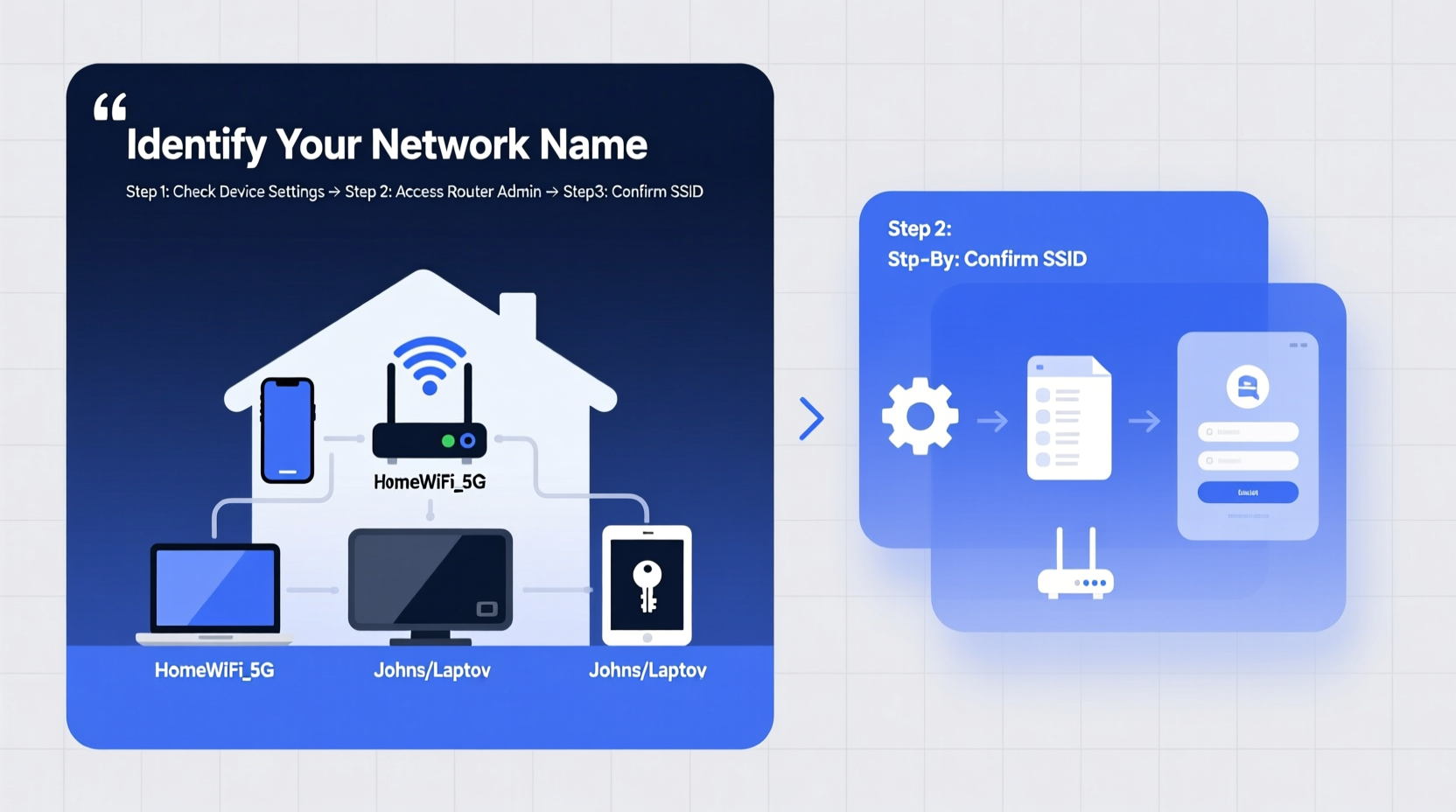
The SSID is the human-readable name assigned to a wireless network. It differentiates one Wi-Fi network from another in your vicinity. When you see a list of available networks on your phone or laptop, each entry is an SSID. Most home networks use default names like \"NETGEAR123\" or \"Linksys0001,\" but these can be customized for easier identification.
Routers broadcast their SSID so nearby devices can detect them. However, some networks are set to “hidden,” meaning they don’t appear in scan results and must be manually entered. While hiding an SSID adds a minor layer of obscurity, it does not enhance security significantly.
“Your SSID is more than just a label—it's the first point of contact between your device and your internet connection.” — Dr. Lena Torres, Network Infrastructure Analyst
How to Find Your Network Name on Common Devices
Different operating systems display network information in distinct ways. Below are step-by-step instructions for locating your current or nearby SSIDs across major platforms.
On Windows 10 and 11
- Click the Wi-Fi icon in the system tray (bottom-right corner).
- Look under “Connected” to see the name of your current network.
- To view other available networks, click “Properties” next to your connection or open Network & Internet Settings.
- For advanced details, open Command Prompt and type:
netsh wlan show interfaces. The “SSID” field will display your active network.
On macOS
- Click the Wi-Fi symbol in the menu bar at the top of the screen.
- The currently connected network appears with a checkmark.
- Hold the Option (Alt) key while clicking the Wi-Fi icon to reveal technical details including signal strength and BSSID.
- Alternatively, go to System Settings > Network > Wi-Fi and view the connected network name.
On iOS (iPhone and iPad)
Navigate to Settings > Wi-Fi. The network you’re connected to will have a checkmark and appear at the top of the list. If you're not connected, simply scan the list of visible networks to identify available SSIDs.
On Android
Open Settings > Network & Internet > Wi-Fi. The connected network is labeled with a lock icon and “Connected” status. Tap the gear icon next to it for additional details such as security type and IP address. Available networks are listed below.
On Smart TVs and Streaming Devices
Smart TVs (Samsung, LG, Roku, etc.) typically display network names during initial setup or within network settings. Navigate to Settings > General > Network or similar, then select “Network Status” or “Wi-Fi Settings” to view the current SSID.
Accessing Your Router’s Admin Panel to Confirm the SSID
If device-based methods fail—or if you suspect your network name has been changed—you can always retrieve the SSID directly from your router’s admin interface. This method provides full visibility into both primary and guest networks.
Step-by-Step: Log Into Your Router
- Connect to your network via Wi-Fi or Ethernet.
- Open a web browser and enter your router’s IP address. Common addresses include:
192.168.1.1192.168.0.110.0.0.1
- Log in using the admin username and password. Default credentials are often printed on a sticker on the router (e.g., “admin/admin” or “admin/password”).
- Navigate to Wireless Settings or Network Configuration.
- Locate the fields labeled “Network Name (SSID)” for the 2.4 GHz and 5 GHz bands.
“Never assume your SSID hasn’t been altered—especially after firmware updates or third-party technician visits.” — Marcus Reed, Senior Network Engineer
Do’s and Don’ts of Managing Your Network Name
| Do’s | Don’ts |
|---|---|
| Use a unique, recognizable name that doesn’t reveal personal info (e.g., “SmithFamily_WiFi” instead of “JohnsHome”) | Avoid using your full name, address, or birth year in the SSID |
| Enable WPA3 encryption alongside a strong password | Don’t rely on a hidden SSID as a security measure |
| Set separate SSIDs for 2.4 GHz and 5 GHz bands if needed for device compatibility | Don’t use spaces or special characters that may cause connection issues |
| Regularly check your router settings to ensure no unauthorized changes | Don’t leave default SSIDs unchanged—they make targeting easier for attackers |
Real-World Scenario: Troubleshooting a Lost Connection
Sarah returned from vacation to find her smart home devices offline. Her phone showed no familiar networks. She tried rebooting the router, but still saw only unfamiliar SSIDs. Confused, she logged into her router using 192.168.1.1 and discovered that a recent firmware update had reset the SSID to the default “TP-Link_5G_EF12.” After restoring her custom name “SarahsHouse_Net” and rejoining her devices, everything resumed normal operation.
This case illustrates how automatic updates or power surges can unexpectedly alter network settings. Knowing how to access the router admin panel saved Sarah hours of frustration.
Quick Checklist: Finding and Verifying Your Network Name
- ✅ Check your device’s Wi-Fi settings for the currently connected network
- ✅ Use command-line tools (
netshon Windows,airport -Ion Mac via Terminal) for technical verification - ✅ Locate the router’s IP address and log in using admin credentials
- ✅ Navigate to Wireless Settings to view or modify the SSID
- ✅ Ensure both 2.4 GHz and 5 GHz bands are properly labeled if dual-band is enabled
- ✅ Update default login credentials and disable remote administration for security
Frequently Asked Questions
Can two routers have the same network name?
Yes. Multiple routers can broadcast the same SSID, which is commonly done in mesh networks or range extenders to create a seamless roaming experience. However, overlapping signals without proper configuration can cause interference and connection drops.
Why can’t I see my network in the list of available Wi-Fi options?
Your network might be hidden, out of range, or experiencing a router malfunction. First, restart the router. Then verify the SSID is being broadcast by logging into the admin panel. If necessary, temporarily disable “Hide SSID” to make it visible during setup.
Is it safe to change my network name?
Yes, changing your SSID is safe and often recommended for clarity and security. Just remember that all devices will need to reconnect using the new name. Avoid names that could attract unwanted attention (e.g., “FBI Surveillance Van” or “HackMeIfYouCan”).
Final Thoughts and Action Steps
Identifying your network name is a foundational skill in managing modern digital life. From troubleshooting dropped connections to securing your home network, knowing where and how to find your SSID empowers you to take control. Whether you're using a smartphone, laptop, or accessing your router directly, the tools and steps outlined here provide reliable access to critical network information.
Take a few minutes today to verify your current SSID, ensure it's properly configured, and store your router login details in a secure place. These small actions prevent bigger headaches tomorrow.




 浙公网安备
33010002000092号
浙公网安备
33010002000092号 浙B2-20120091-4
Comments
No comments yet. Why don't you start the discussion?