
Merging images is no longer reserved for professional graphic designers or Photoshop wizards. Whether you're blending vacation photos into a panoramic view, creating surreal digital art, or designing marketing visuals, seamless image merging can elevate your work from ordinary to exceptional. The key lies not just in having the right tools, but in understanding light, perspective, color harmony, and composition. This guide breaks down the essential techniques, software options, and pro strategies to help you combine images so naturally that viewers won’t suspect any manipulation.
Understanding the Fundamentals of Seamless Image Merging
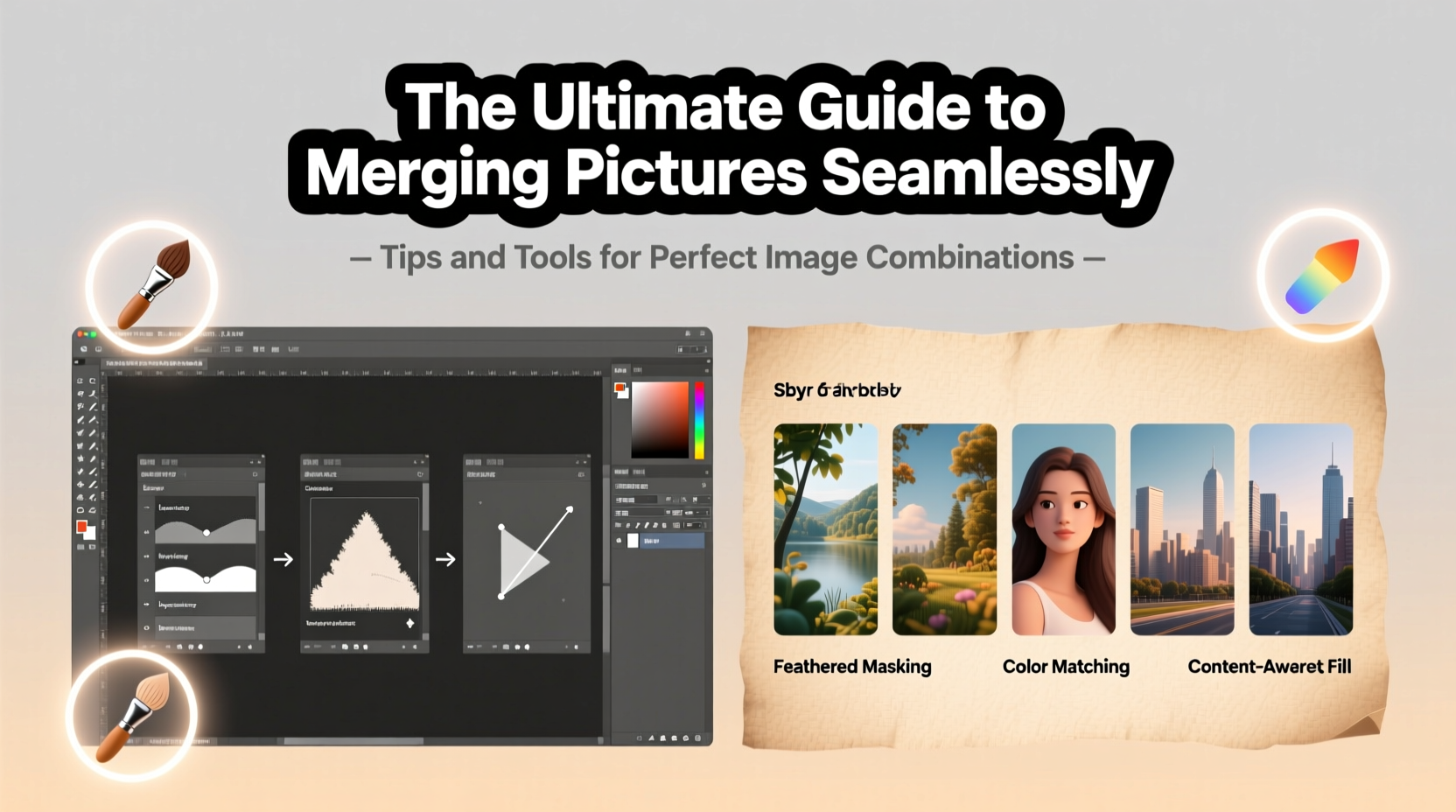
Before diving into tools and editing steps, it’s crucial to grasp the foundational principles that make image merging look authentic. A poorly merged image often suffers from mismatched lighting, inconsistent colors, or jarring perspective shifts. These inconsistencies break immersion and signal artificial editing.
Successful merging relies on three core elements:
- Lighting Direction: Shadows should fall consistently across all elements. If one image was shot under midday sun (top-down shadows) and another at golden hour (long horizontal shadows), they won’t blend without adjustment.
- Color Temperature: Indoor shots often have warmer tones (yellowish), while outdoor scenes may be cooler (bluish). Use white balance correction to unify the mood.
- Perspective and Scale: Objects must align with the vanishing point and relative size. A person pasted into a cityscape should match the scale of buildings and follow the same horizon line.
Essential Tools for Merging Pictures Like a Pro
The right software can dramatically simplify the merging process. While some tools are designed for beginners, others offer granular control for advanced users. Below is a comparison of leading options based on functionality, learning curve, and output quality.
| Tool | Best For | Learning Curve | Key Feature |
|---|---|---|---|
| Adobe Photoshop | Advanced compositing, masking, layer control | High | Content-Aware Fill, Layer Masks, Smart Objects |
| Adobe Lightroom | Blending HDR and panoramas | Medium | Auto-stitching, tone matching |
| GIMP | Budget-friendly alternative to Photoshop | Medium-High | Free, open-source, supports layer masks |
| Photopea | Web-based Photoshop-like editor | Medium | No download required, PSD compatible |
| Canva | Quick social media graphics | Low | User-friendly drag-and-drop interface |
“Seamless merging isn’t about hiding edits—it’s about making them invisible through technical precision and artistic judgment.” — Lena Torres, Digital Compositing Artist
Step-by-Step Guide to Blending Images Perfectly
Follow this structured workflow to merge two or more images with professional results:
- Select Compatible Source Images: Choose photos with similar resolution, lighting conditions, and focal length. Avoid mixing wide-angle and telephoto shots unless correcting distortion.
- Import and Align Layers: Open your primary image in your editing software. Import additional images as new layers. Use alignment tools or manual positioning to match horizons and perspectives.
- Mask Unwanted Areas: Use layer masks to hide parts of the top image. Paint with black to erase, white to reveal. Soft brushes work best for natural transitions like skies or hair.
- Match Colors and Exposure: Apply adjustment layers (e.g., Curves, Color Balance, Hue/Saturation) to harmonize tones. Match highlights, midtones, and shadows across all elements.
- Refine Edges and Add Shadows: Use the Refine Edge tool (in Photoshop) or feathering to soften hard borders. Create realistic drop shadows using duplicate layers, blurs, and opacity adjustments.
- Final Blend Check: Zoom out and view the image at 50% or smaller. Flip the canvas horizontally—this reveals asymmetries and unnatural contrasts.
Real-World Example: Creating a Dream Landscape Composite
Photographer Mark Chen wanted to create a fantasy scene featuring a lone tree on a cliff overlooking a stormy ocean beneath a starry sky. He had three separate images: a desert tree, coastal cliffs, and a night sky timelapse. Initially, the tree looked pasted in—its warm daylight tone clashed with the cool blue environment.
He used Photoshop to:
- Reposition the tree to align with the cliff’s perspective.
- Apply a gradient map set to blue tones over the tree layer with low opacity.
- Add a soft shadow beneath the tree using a blurred black ellipse at 30% opacity.
- Use luminosity painting to subtly darken the base of the tree, grounding it in the scene.
The final composite received acclaim on photography forums for its realism. Viewers assumed it was a single long-exposure shot taken at dusk.
Checklist for Flawless Image Merging
Use this checklist before finalizing your merged image:
- ✅ Are lighting directions consistent across all elements?
- ✅ Do color temperatures match? (Use eyedropper tools to sample and compare)
- ✅ Are edges softened appropriately? (Avoid harsh lines)
- ✅ Is perspective aligned? (Check horizon lines and object scaling)
- ✅ Have I added depth cues like shadows, fog, or blur gradients?
- ✅ Did I review the image on multiple screens or devices?
- ✅ Is the file saved in a high-quality format (TIFF or PNG) for archival purposes?
Frequently Asked Questions
Can I merge pictures on a smartphone?
Yes. Apps like Snapseed, PicsArt, and Adobe Photoshop Express allow basic layering and blending on mobile devices. While they lack the precision of desktop software, they’re suitable for quick edits and social media content.
Why does my merged image look “flat” or fake?
This usually happens due to missing depth cues. Real scenes have atmospheric perspective—distant objects appear lighter and less saturated. Add subtle gradients, mist effects, or vignettes to enhance dimensionality.
How do I avoid halos around masked objects?
Halos occur when there’s a color fringe between the subject and background. To fix this, use the “Decontaminate Colors” option (in older Photoshop versions) or manually paint over fringes with a clone stamp set to current & below mode. Feathering masks slightly (1–2 pixels) also helps.
Conclusion: Turn Vision Into Reality
Merging pictures seamlessly is both a technical skill and an artistic discipline. With practice, attention to detail, and the right tools, anyone can create compelling composites that tell stories, evoke emotion, or solve visual challenges. Don’t be discouraged by early attempts that fall short—every expert once struggled with mismatched lighting or jagged edges. What matters is persistence and a willingness to learn from each edit.




 浙公网安备
33010002000092号
浙公网安备
33010002000092号 浙B2-20120091-4
Comments
No comments yet. Why don't you start the discussion?