
Printing text messages from an iPhone may seem straightforward, but Apple’s ecosystem doesn’t offer a native print option within the Messages app. Whether you need transcripts for legal documentation, personal records, or sentimental keepsakes, extracting and printing SMS and iMessage conversations requires specific techniques. This guide walks you through reliable, secure, and high-fidelity methods to preserve your message history with clarity and precision.
Why Print iPhone Text Messages?
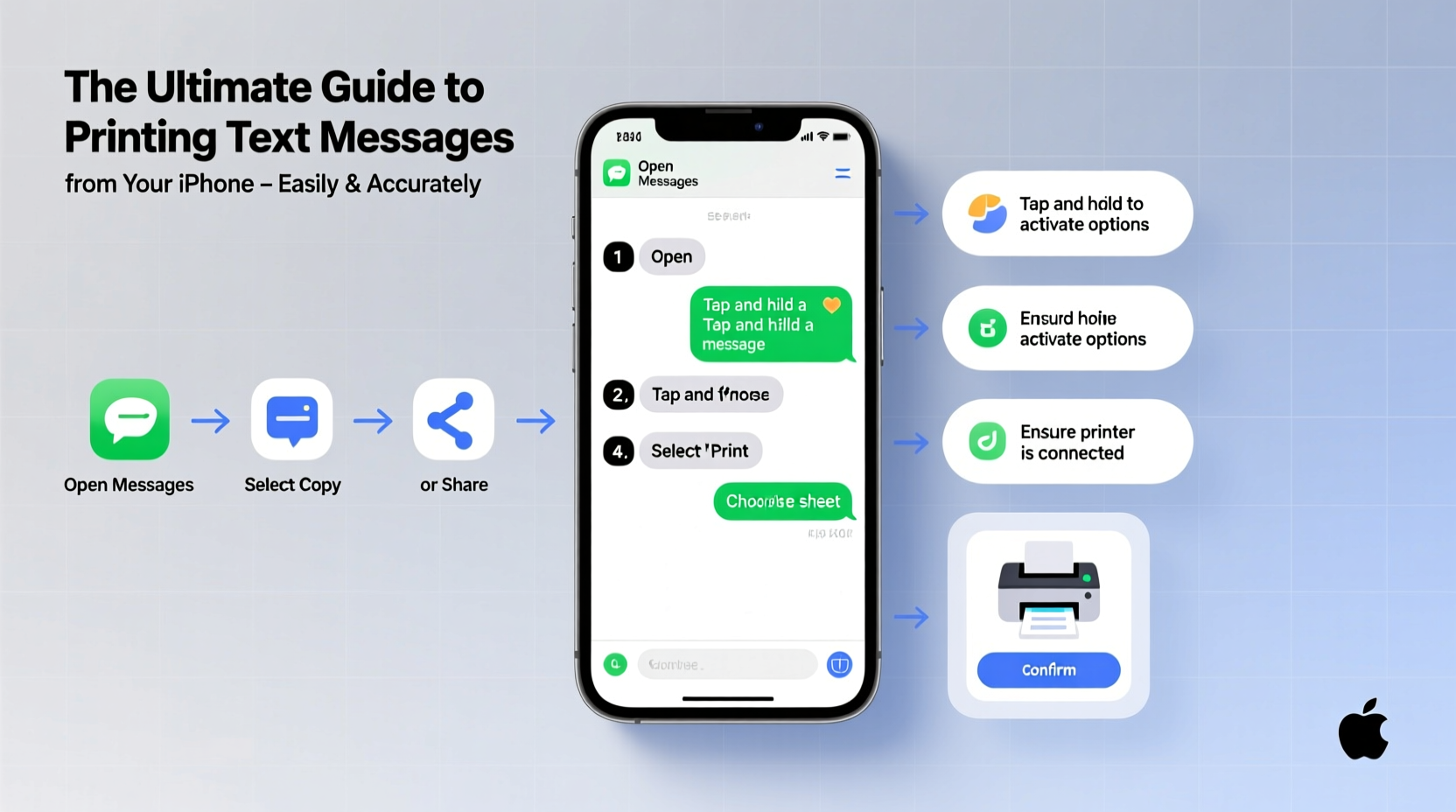
There are numerous practical reasons to print text messages. Legal professionals often require printed transcripts as evidence in court cases involving harassment, custody disputes, or contract disagreements. Individuals may want to archive heartfelt exchanges or travel itineraries shared via messaging. Others use printed logs for business recordkeeping or dispute resolution. Regardless of the reason, accuracy and readability are critical—especially when timestamps, sender names, and message order must remain intact.
Method 1: Use Apple’s Built-in Screen Capture + PDF Export
The simplest way to create a printable version of a conversation is by combining screen captures with PDF compilation. While manual, this method preserves visual fidelity exactly as seen on your iPhone.
- Open the Messages app and navigate to the conversation you want to print.
- Scroll through and take screenshots using the Side Button + Volume Up combination (on iPhone X and later).
- Ensure each screenshot overlaps slightly to avoid missing any messages between captures.
- After capturing all messages, open the Photos app and select all relevant screenshots.
- TAP the Share icon and choose “Print.” Your iPhone will generate a PDF preview automatically.
- Select “Save as PDF” instead of sending to a printer immediately.
- Name the file and store it in Files or email it for future printing.
This approach works best for short to medium-length conversations. For longer threads, consider automated tools to maintain consistency and reduce user error.
Method 2: Export Messages via Third-Party Apps
Dedicated apps like Decipher TextMessage, iMazing, or AnyTrans allow users to export entire message histories directly to PDF, CSV, or HTML formats. These tools connect your iPhone to a computer and extract data without altering originals.
Here’s how to use Decipher TextMessage as an example:
- Download and install Decipher TextMessage on your Mac or Windows PC.
- Connect your iPhone via USB and unlock it when prompted.
- Allow the software to access your backup or read messages directly (if supported).
- Select the contact or conversation you wish to export.
- Click “Export as PDF” — the app retains formatting, including bubbles, timestamps, and attachments.
- Review the exported file and send it to your preferred printer.
These applications support batch exports and can filter messages by date, contact, or keyword—ideal for legal or investigative purposes.
“Using trusted third-party tools ensures chain-of-custody integrity when preserving digital communications for legal use.” — David Lin, Digital Forensics Consultant
Comparison of Message Export Methods
| Method | Accuracy | Time Required | Best For | Cost |
|---|---|---|---|---|
| Screenshot + PDF | High (visual match) | Medium to High | Short conversations, quick needs | Free |
| Decipher TextMessage | Very High | Low | Legal, detailed archives | $30–$50 one-time |
| iMazing | Very High | Low | Business or frequent users | From $40/year |
| Email Forwarding (manual) | Low | High | Informal sharing only | Free |
Avoid These Common Mistakes
- Skipping timestamps: Never crop out time/date indicators—context matters.
- Using blurry screenshots: Low-resolution captures degrade print quality.
- Altering message content: Editing texts invalidates authenticity, especially in legal settings.
- Relying solely on forwarding: Forwarded messages lose formatting and metadata.
- Ignoring encryption warnings: Only use reputable apps to prevent data leaks.
Real-World Example: Preserving Evidence for a Small Claims Case
Sarah rented out her basement apartment and had ongoing communication with her tenant about late rent payments. After months of unmet obligations, she decided to file in small claims court. The judge required written proof of prior warnings and agreements.
Sarah used iMazing on her MacBook to export six months of iMessage exchanges with the tenant. She filtered messages containing keywords like “rent,” “late,” and “payment.” The resulting PDF showed clear timestamps, read receipts, and even a photo of the signed lease referenced in chat. When submitted, the printed transcript was accepted as credible evidence, contributing to a favorable ruling.
This case illustrates how structured export tools not only save time but also enhance credibility through organized, searchable output.
Step-by-Step Checklist for Printing iPhone Messages
- Back up your iPhone before using third-party extraction tools.
- Determine the purpose: legal, personal, or archival.
- Choose your method: screenshots for simplicity, software for completeness.
- Capture or export the conversation with full metadata.
- Review the document for clarity, sequence, and completeness.
- Save as PDF first to test layout and readability.
- Print on high-quality paper or share digitally as needed.
- Store a secure copy in cloud storage or encrypted drive.
Frequently Asked Questions
Can I print iMessages directly from my iPhone?
No, iOS does not include a built-in print function for messages. You must either use screenshots, export via computer software, or forward messages manually (though the latter lacks formatting and completeness).
Are printed text messages admissible in court?
Yes, but only if they are authentic, unaltered, and properly documented. Include sender information, dates, times, and device context. Using verified export tools strengthens validity.
Will exporting messages delete them from my phone?
No reputable tool deletes data during export. Most operate by reading backups or syncing non-destructively. Always confirm the software's permissions and review user reviews before installation.
Final Thoughts: Clarity, Accuracy, and Integrity Matter
Printing text messages from your iPhone isn’t just about convenience—it’s about preserving truth. Whether you’re safeguarding memories or supporting a legal claim, the method you choose impacts reliability and professionalism. Manual screenshots work in a pinch, but for serious needs, investing in trusted desktop software delivers superior results.
Take control of your digital footprint. Apply these strategies carefully, maintain data privacy, and ensure every printed page reflects the exact truth of your conversations.




 浙公网安备
33010002000092号
浙公网安备
33010002000092号 浙B2-20120091-4
Comments
No comments yet. Why don't you start the discussion?