
Finding a YouTube video ID is more than just a technical task—it’s a necessity for embedding videos, tracking analytics, building apps, or sharing content in streamlined formats. While the process may seem trivial at first, confusion often arises from varying URL structures, shortened links, and platform-specific changes. Whether you're a developer integrating YouTube APIs, a marketer managing video campaigns, or a content creator cross-posting clips, knowing how to extract a video ID efficiently saves time and prevents errors.
The YouTube video ID is a unique 11-character string that identifies each video on the platform. It appears in URLs and is required for API calls, embed codes, and third-party integrations. Despite its simplicity, many users struggle with inconsistent formats and hidden parameters. This guide delivers clear, tested methods to locate any video ID—fast, accurately, and without relying on guesswork.
Understanding the YouTube Video ID Format
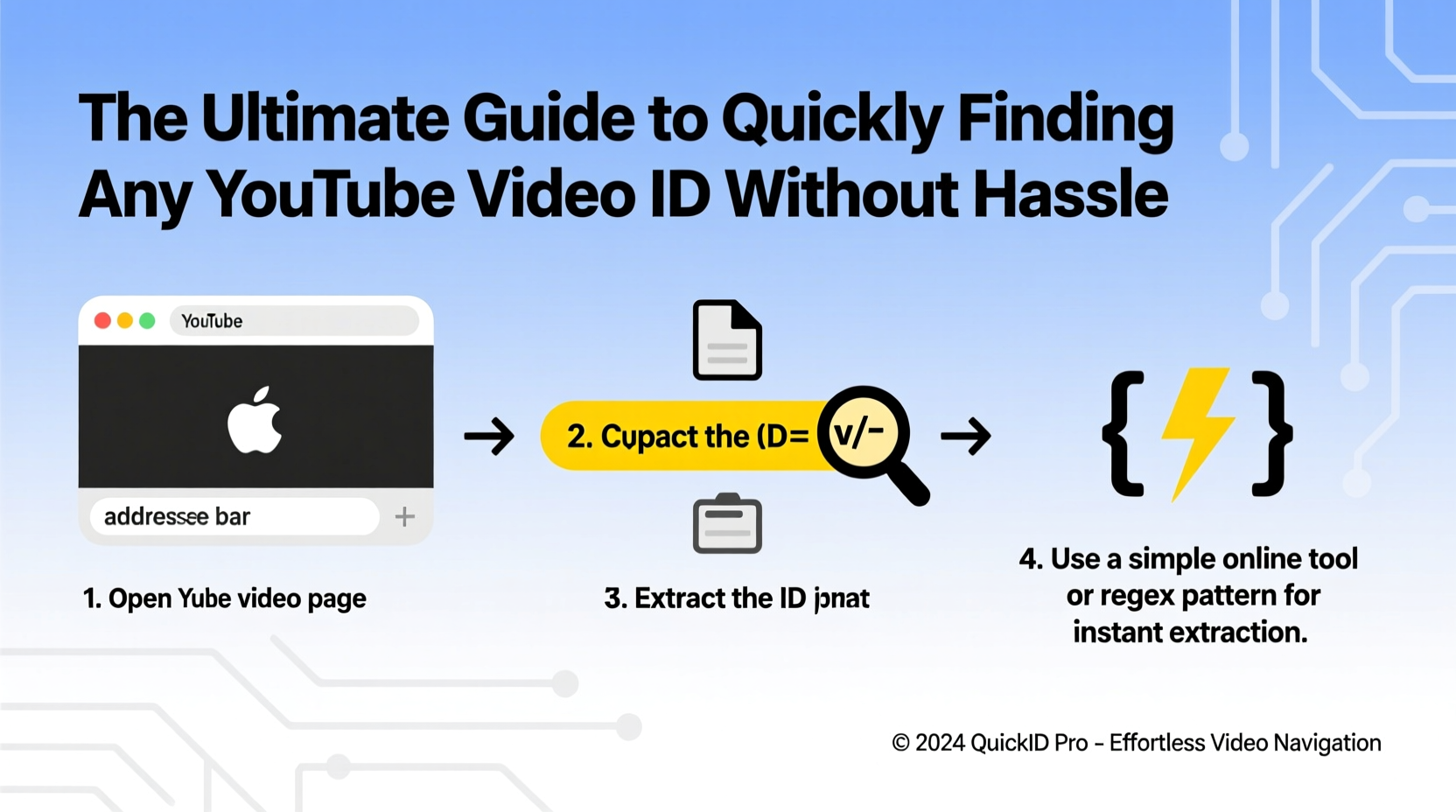
Every publicly available YouTube video has a globally unique identifier composed of 11 characters. These IDs use a base-64 character set, including uppercase letters (A–Z), lowercase letters (a–z), numbers (0–9), and the symbols - and _. For example: dQw4w9WgXcQ or oHg5SJYRHA0.
This ID appears in multiple places across YouTube's ecosystem:
- In standard watch URLs:
https://www.youtube.com/watch?v=[ID] - In embedded players:
https://www.youtube.com/embed/[ID] - In shortened links:
https://youtu.be/[ID] - In playlist entries and API responses
Despite variations in URL presentation, the core 11-character ID remains consistent. Recognizing where it sits within different link types is the first step toward mastering quick retrieval.
v= parameter in full URLs or comes immediately after
youtu.be/ in short links.
Step-by-Step Methods to Extract the Video ID
Here are five reliable techniques to isolate a YouTube video ID from any given link, regardless of format.
- From Standard Watch Links: If the URL looks like
https://www.youtube.com/watch?v=dQw4w9WgXcQ, locate thev=parameter. Everything after=up to the next special character (&, #, etc.) is your video ID. - From Shortened youtu.be Links: In URLs like
https://youtu.be/dQw4w9WgXcQ, the portion after the final slash is the complete ID. - From Embedded Player URLs: When viewing an embedded player source (
https://www.youtube.com/embed/dQw4w9WgXcQ), the path segment directly following/embed/is the ID. - From Playlist or Timestamped Links: Complex URLs such as
https://www.youtube.com/watch?v=dQw4w9WgXcQ&list=PLABC&t=30sstill contain the samev=parameter. Isolate the value before any additional parameters (like&list). - From Shared Mobile or App Links: Some mobile shares generate deep links with extra routing (e.g.,
youtube://watch?v=dQw4w9WgXcQ). Strip protocol and subpaths; focus only on thev=value.
“Consistency in ID extraction ensures reliability in automation, especially when processing large batches of videos.” — Lena Torres, Senior API Engineer at MediaStack
Common Pitfalls and How to Avoid Them
Even experienced users make mistakes when parsing video IDs manually. Below are frequent issues and their solutions.
| Issue | Description | Solution |
|---|---|---|
| ID Truncation | Copied only part of the 11-character string | Double-check length; verify all 11 characters are present |
| Extra Parameters Included | Copying beyond the ID (e.g., &t=1m20s) | Stop extraction at the first & or # |
| Confusing Playlist ID with Video ID | Mistaking list= for v= |
Always confirm the parameter starts with v= |
| URL Encoding Errors | Special characters misinterpreted in scripts | Use proper decoding functions in code (e.g., JavaScript’s URLSearchParams) |
Tools and Automation for Bulk Processing
When dealing with dozens—or hundreds—of YouTube links, manual extraction isn’t practical. Fortunately, several tools streamline the process.
- Browser Extensions: Add-ons like “YouTube ID Display” highlight the current video’s ID in the address bar or page header.
- Online Parsers: Websites such as getyoutubethumbnail.com or extractvideo.com allow pasting a URL and instantly return the ID and other metadata.
- Custom Scripts: Developers can write lightweight utilities using JavaScript or Python to parse URLs programmatically.
For instance, here’s a simple JavaScript snippet to extract the video ID from any URL:
function getYouTubeID(url) {
  const regExp = /^.*(youtu.be\\/|v\\/|u\\/\\w\\/|embed\\/|watch\\?v=|\\&v=)([^#\\&\\?]*).*/;
  const match = url.match(regExp);
  return (match && match[2].length === 11) ? match[2] : null;
}
// Example usage:
console.log(getYouTubeID(\"https://www.youtube.com/watch?v=dQw4w9WgXcQ\")); // Output: dQw4w9WgXcQ
Real-World Use Case: Marketing Team Streamlines Campaign Reporting
A digital marketing agency managing client video performance struggled with inconsistent reporting due to mismatched video references. Team members were copying full URLs into spreadsheets, making it impossible to automate thumbnail generation or pull analytics via the YouTube Data API.
They implemented a standardized workflow: whenever a video was added to a campaign tracker, the team used a bookmarklet that parsed the URL and auto-filled the 11-character ID into a dedicated column. This small change enabled automatic thumbnail fetching, view tracking, and reduced data entry errors by 90%. Within two weeks, report accuracy improved significantly, and setup time per campaign dropped from 20 minutes to under 5.
Checklist: How to Verify a Correctly Extracted Video ID
Follow this checklist to ensure every video ID you retrieve is accurate and usable:
- ✅ Confirm the ID is exactly 11 characters long
- ✅ Ensure it contains only valid characters: A–Z, a–z, 0–9, hyphen (-), underscore (_)
- ✅ Test it by visiting
https://youtu.be/[YOUR_ID]—if the video loads, the ID is correct - ✅ Cross-check against the official video page if uncertainty remains
- ✅ Avoid spaces or line breaks when copying
Frequently Asked Questions
Can a YouTube video have more than one ID?
No. Each public video has a single, immutable 11-character ID assigned at upload. Even if the title, description, or thumbnail changes, the ID remains the same.
What happens if I extract the wrong ID?
Using an incorrect ID typically results in a \"Video not found\" error when embedding or calling the API. Double-check the source URL and ensure no extra characters were included.
Do private or unlisted videos have IDs?
Yes. Private and unlisted videos still have unique IDs. However, access depends on permissions—even with the correct ID, unauthorized users cannot view the content.
Master the Basics, Multiply Your Efficiency
Knowing how to quickly and accurately find a YouTube video ID transforms tedious tasks into seamless workflows. Whether you're coding integrations, managing social media calendars, or compiling video libraries, precision in ID extraction prevents downstream errors and boosts productivity.
Adopt one or more of the methods outlined—bookmark a parser tool, create a browser shortcut, or integrate a script into your workflow. The goal isn’t just speed, but consistency. With practice, identifying a video ID becomes second nature, freeing your focus for higher-value work.




 浙公网安备
33010002000092号
浙公网安备
33010002000092号 浙B2-20120091-4
Comments
No comments yet. Why don't you start the discussion?