
Moving to a new phone should be exciting, not stressful. Yet, many people hesitate at the thought of losing messages, photos, or app settings during the transition. The good news is that transferring your phone data has never been easier—provided you know the right tools and techniques. Whether switching from iPhone to Android, upgrading within the same ecosystem, or helping a family member set up a new device, this guide delivers actionable strategies to ensure every contact, photo, message, and preference makes the journey intact.
Why Seamless Data Transfer Matters
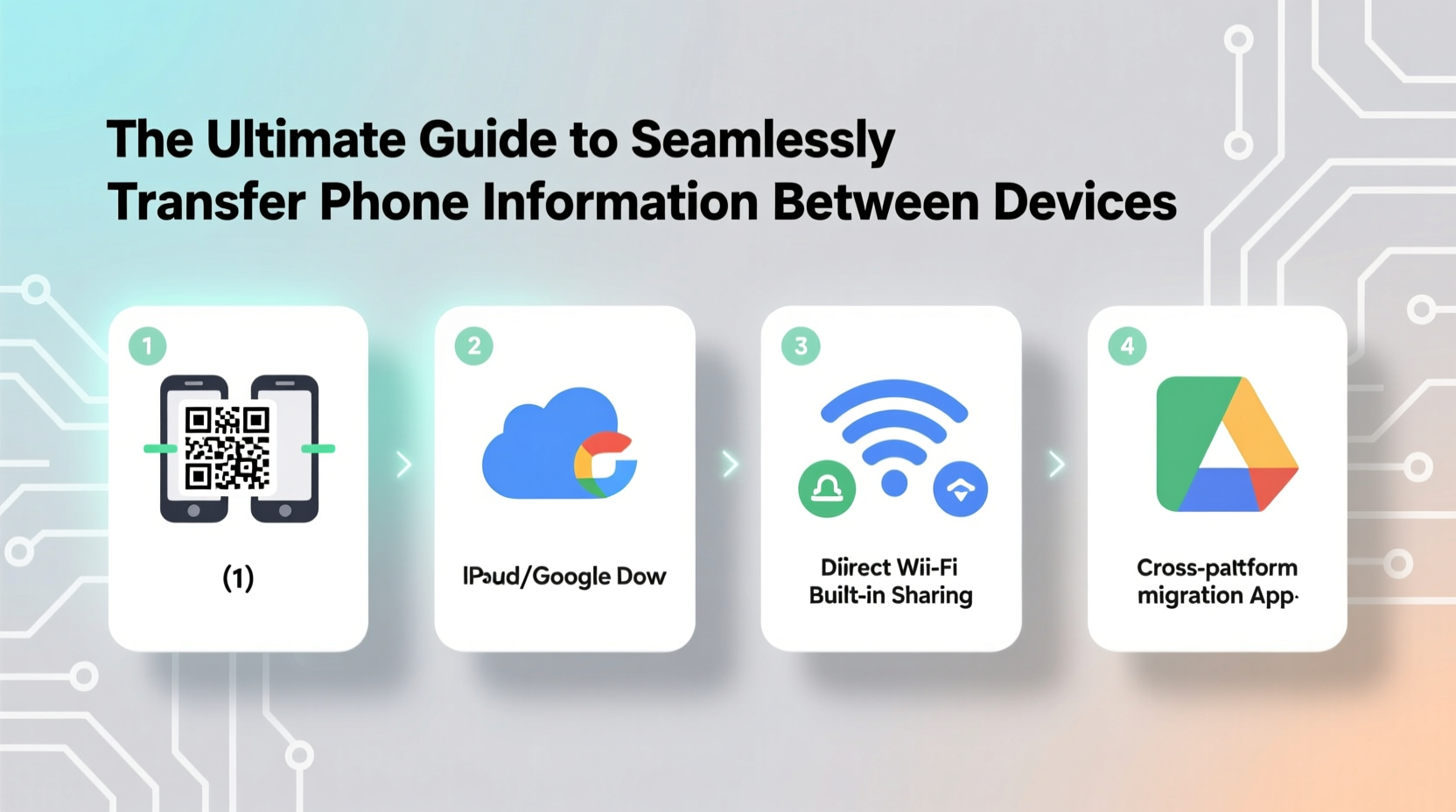
Your smartphone holds more than just apps—it’s a digital extension of your life. Calendar events, two-factor authentication tokens, saved Wi-Fi passwords, health data, and years of conversations all contribute to your personal ecosystem. A flawed transfer can disrupt workflows, compromise security, or result in irreversible data loss. The goal isn’t just moving files; it’s preserving continuity. That means ensuring your new device feels familiar the moment you unlock it.
Modern operating systems have made significant strides in simplifying migration. Apple’s Quick Start and Move to iOS (by Google) are designed to minimize friction. But knowing when and how to use each method separates a smooth switch from a frustrating one.
Step-by-Step: Transferring Data by Platform
The approach you take depends on your current and target devices. Below are the most reliable workflows for common transitions.
iPhone to iPhone: Using iCloud and Quick Start
- Back up your old iPhone to iCloud: Go to Settings > [Your Name] > iCloud > iCloud Backup and tap “Back Up Now.”
- Ensure both devices are charged and near each other.
- Turn on your new iPhone. When prompted, hold your old iPhone near it to activate Quick Start.
- Follow the on-screen prompts to authenticate with Face ID or Touch ID.
- Choose “Set Up from iCloud Backup” and sign in with your Apple ID.
- Wait for the restore process to complete—this may take minutes to hours depending on backup size.
Android to Android: Google Account Sync & Direct Transfer
Google’s ecosystem thrives on synchronization. If you’re already signed into your Google account, much of your data will auto-sync to the new device. However, for a full transfer:
- On your old Android, go to Settings > System > Backup and enable “Back up to Google Drive.”
- Ensure contacts, calendar, photos (via Google Photos), and apps are syncing.
- Power on the new device and follow setup steps until you reach “Copy Apps & Data.”
- Select “From your current phone” and choose either cable (USB) or wireless (Wi-Fi Direct).
- Confirm the connection on both devices and wait for completion.
iPhone to Android: Use “Move to iOS” App
Apple and Google collaborated on this tool to ease cross-platform migration. It securely transfers contacts, messages, photos, videos, calendars, and free apps.
- During Android setup, select “Copy apps & data,” then “Move from iPhone.”
- On your iPhone, download the “Move to iOS” app from the App Store.
- Open the app and tap “Continue.” Agree to terms and wait for a code.
- Enter the code on your Android device.
- Select the content to transfer and wait. Do not close the app or lock either phone.
“Over 70% of users who attempt manual transfers miss critical data like message history or app preferences. Tools like Move to iOS reduce human error significantly.” — David Lin, Mobile Systems Engineer at TechSync Labs
Data Transfer Comparison Table
| Transfer Type | Best Method | What’s Included | Time Required |
|---|---|---|---|
| iPhone → iPhone | iCloud Backup + Quick Start | Apps, messages, settings, Health data, iMessages | 30 min – 2+ hours |
| Android → Android | Google Sync + Nearby Share | Contacts, photos, app data, accounts | 15 min – 1 hour |
| iPhone → Android | Move to iOS app | Messages, photos, contacts, calendars, free apps | 20 min – 90 min |
| Android → iPhone | Quick Start (during iOS setup) | Contacts, message history, photos, Wi-Fi settings | 10 min – 1 hour |
Checklist: Prepare for a Flawless Transfer
- ✅ Charge both devices to at least 80% before starting.
- ✅ Connect to a stable Wi-Fi network.
- ✅ Disable biometric locks temporarily if prompted.
- ✅ Back up critical data externally (e.g., computer or cloud).
- ✅ Sign out of sensitive accounts (banking, work email) after transfer.
- ✅ Update both devices to the latest OS version.
- ✅ Remove SIM card if required by carrier.
Avoid These Common Transfer Mistakes
Even with robust tools, errors happen. Here are frequent pitfalls and how to avoid them:
- Interrupting the process: Never lock your phone or close the transfer app mid-migration. This can corrupt data.
- Ignoring storage space: Ensure your new device has enough room. A 64GB phone cannot accept a 100GB backup.
- Forgetting two-factor apps: Authenticator apps (like Google Authenticator) don’t transfer automatically. Use built-in export features or migrate manually.
- Skipping post-transfer verification: Always check that messages, photos, and app logins are intact.
Real Example: Sarah’s Cross-Platform Switch
Sarah had used iPhones for a decade but switched to a Pixel 7 for its camera and AI features. She was anxious about losing her 8-year message history with her sister. Using the Move to iOS app, she connected her iPhone 12 and new Pixel. The transfer took 45 minutes over Wi-Fi. After setup, she found all her texts, contacts, and even her wallpaper intact. One hiccup: her banking app didn’t carry over. She re-downloaded it and logged in manually—a minor step, but one she now includes in her checklist for future moves.
FAQ: Common Questions About Phone Data Transfer
Can I transfer WhatsApp chats between iPhone and Android?
Yes, but not through standard tools. Use WhatsApp’s built-in chat transfer feature via QR code (available since 2021). Both phones must have the latest WhatsApp version and be on the same Wi-Fi network.
What happens to my old phone after transfer?
Erase all content and settings before selling or recycling. On iPhone: Settings > General > Transfer or Reset iPhone > Erase All Content and Settings. On Android: Settings > System > Reset > Erase all data.
Will my app subscriptions transfer automatically?
In-app purchases and subscriptions tied to your Apple ID or Google account will remain active, but you may need to log in to re-access them on the new device.
Expert Tips for a Smoother Transition
Conclusion
Transferring phone information doesn’t have to be daunting. With the right preparation and tools, you can move your entire digital life in under an hour—intact and organized. Whether staying within an ecosystem or switching platforms, modern technology supports seamless migration. The key is planning ahead, using trusted methods, and verifying results.




 浙公网安备
33010002000092号
浙公网安备
33010002000092号 浙B2-20120091-4
Comments
No comments yet. Why don't you start the discussion?