
Data loss can strike at any moment—whether from hardware failure, malware attacks, accidental deletion, or natural disasters. For Windows 10 users, having a reliable backup strategy isn't optional; it's essential. A well-executed backup ensures that your personal files, system settings, and critical applications remain safe and recoverable. This guide walks through the most effective methods for backing up your Windows 10 PC, combining built-in tools, external solutions, and proven best practices to keep your data secure.
Why Regular Backups Are Non-Negotiable
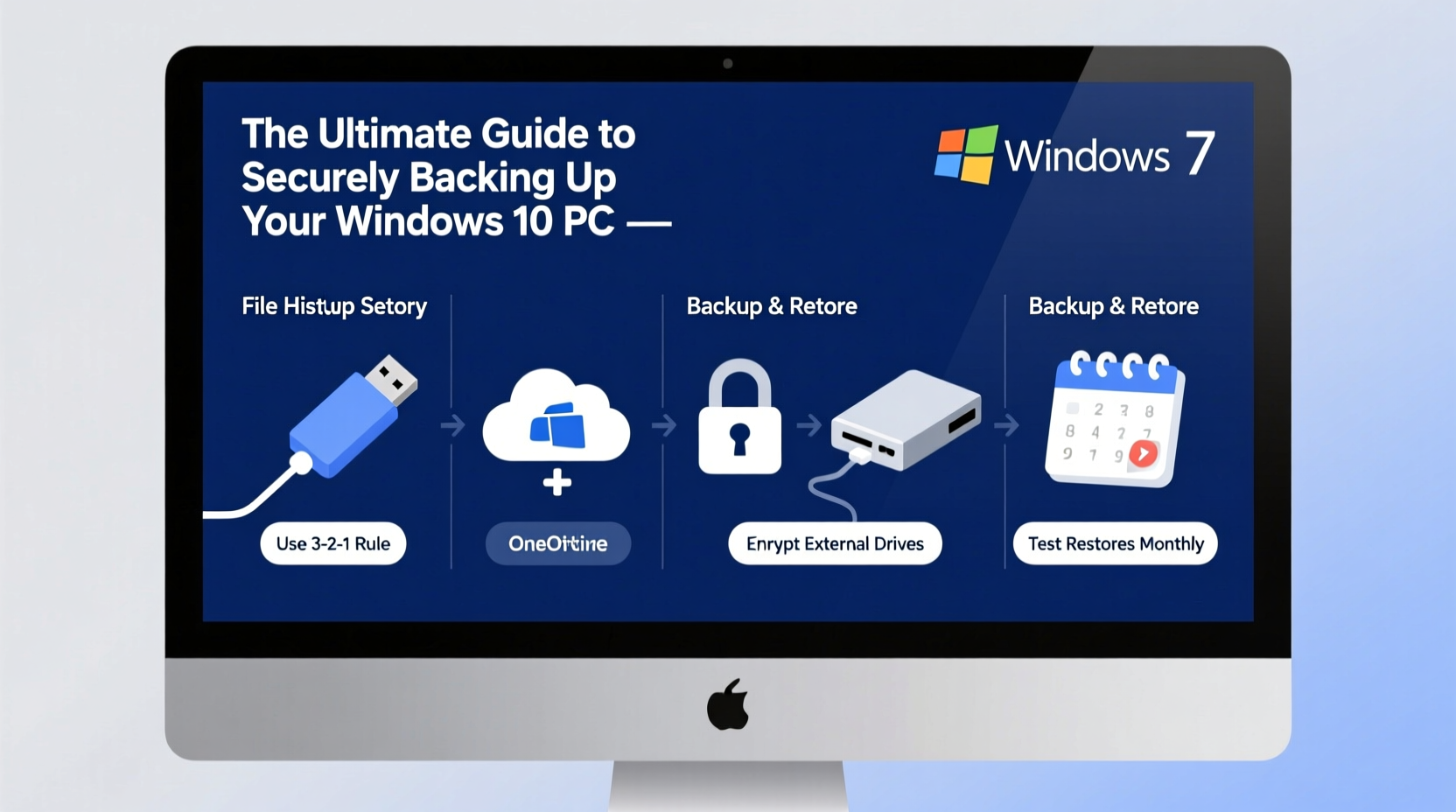
Despite increasing cybersecurity awareness, many users still neglect regular backups until it’s too late. According to the National Institute of Standards and Technology (NIST), over 60% of small businesses that lose critical data close within six months. While this statistic focuses on enterprises, individuals face similar risks. A single hard drive crash can erase years of photos, documents, and projects in seconds.
Windows 10 offers several native tools designed to simplify the backup process, but knowing which method suits your needs—and how to use it properly—is key. Whether you're a casual user storing family memories or a remote worker managing sensitive files, a structured backup plan provides peace of mind and operational continuity.
Step-by-Step: Setting Up File History Backup
File History is one of Windows 10’s most accessible backup features, ideal for protecting personal files like documents, pictures, music, and desktop contents. It automatically saves versions of your files over time, allowing recovery from accidental edits or deletions.
- Connect an external drive or network location dedicated to backups.
- Navigate to Settings > Update & Security > Backup.
- Under “Back up using File History,” click Add a drive.
- Select your connected drive and confirm.
- Toggle File History to On.
- To customize settings, click More options. Here, you can adjust how often backups occur (default: every hour) and how long versions are kept (up to forever).
- Click Back up now to initiate the first full backup.
Creating a Full System Image with Backup and Restore (Windows 7)
While File History protects individual files, a system image captures everything: operating system, installed programs, settings, and all data. This is crucial for complete disaster recovery, such as replacing a failed drive or restoring after a ransomware attack.
Despite its name, the \"Backup and Restore (Windows 7)\" tool remains fully functional in Windows 10 and is the only built-in option for creating system images.
- Open Control Panel and navigate to System and Security > Backup and Restore (Windows 7).
- Click Set up backup and choose your external drive.
- Select Let me choose to include specific drives or folders.
- Ensure the system reserved partitions are included automatically.
- Proceed and allow the initial image creation to complete—this may take hours depending on data volume.
- Schedule recurring images weekly or monthly under Change settings.
“System images provide the fastest path to full recovery when hardware fails. They should be part of every serious backup strategy.” — David Lin, Senior Systems Engineer at TechRescue Labs
Best Practices for Secure and Reliable Backups
A backup is only as good as its reliability and accessibility during emergencies. Following these best practices ensures your efforts pay off when needed most.
- Follow the 3-2-1 Rule: Keep three copies of your data (primary + two backups), on two different media types, with one copy stored offsite (e.g., cloud storage).
- Encrypt backup drives: Use BitLocker to protect external drives from unauthorized access if lost or stolen.
- Test restoration regularly: Verify backups by restoring a few files annually to confirm integrity.
- Use versioning: Maintain multiple file versions to roll back changes or recover previous drafts.
- Disconnect drives after backup: Prevent malware infection by unplugging external devices post-backup.
| Backup Method | Best For | Limits |
|---|---|---|
| File History | Personal files, continuous versioning | Does not back up apps or OS |
| System Image | Full system recovery, disaster preparedness | Large size, slower restores |
| OneDrive Integration | Cloud sync, cross-device access | Requires subscription for large storage |
| Third-party Tools (e.g., Macrium Reflect) | Advanced scheduling, compression, automation | Learning curve, cost |
Real-World Example: Recovering After a Ransomware Attack
Sarah, a freelance graphic designer, opened a phishing email that deployed ransomware encrypting her entire C: drive. Fortunately, she had been using File History to an external drive nightly and had created a system image two weeks prior. She disconnected the infected machine immediately, booted from a Windows USB installer, and restored her system using the image. Her latest design files were recovered via File History. Although stressful, downtime lasted less than four hours. Without backups, she would have lost client work worth thousands of dollars.
This case underscores the importance of layered protection: automated file-level backups combined with periodic full system images offer both flexibility and resilience.
Integrating Cloud Solutions: OneDrive and Beyond
Microsoft integrates OneDrive deeply into Windows 10, making it easy to back up critical folders like Desktop, Documents, and Pictures automatically. To enable this:
- Sign in to your Microsoft account in Settings > Accounts.
- Go to Update & Security > Backup > More options.
- Scroll to “Sync your settings” and ensure folder backup is enabled.
- Open OneDrive settings and select “Back up my files” to start syncing.
For enhanced security, consider supplementing OneDrive with third-party encrypted cloud services like IDrive or pCloud, especially if handling sensitive financial or health records. These platforms offer end-to-end encryption, ensuring even the provider cannot access your data.
Essential Backup Checklist
- ✅ Connect and format an external drive for backups
- ✅ Enable File History and set hourly intervals
- ✅ Create a system image using Backup and Restore
- ✅ Schedule monthly system images
- ✅ Turn on OneDrive folder backup for cloud redundancy
- ✅ Encrypt backup drives with BitLocker
- ✅ Test restore a document and verify system image bootability
- ✅ Store one backup offsite (cloud or secondary location)
Frequently Asked Questions
How often should I back up my Windows 10 PC?
Daily backups are ideal for active users. File History can run hourly, while system images should be updated monthly or after major software changes. Adjust frequency based on how frequently you create or modify important data.
Can I use the same drive for File History and system images?
Yes, but not recommended. Combining both increases risk—if the drive fails, both backups are lost. Use separate drives or partition a large drive to isolate backups.
What happens if my backup drive runs out of space?
File History automatically deletes older versions to make room. System Image backups will fail unless space is freed. Monitor drive usage and upgrade capacity proactively.
Final Thoughts: Make Data Protection a Habit
Securing your digital life doesn’t require expensive tools or technical expertise—it requires consistency. By leveraging Windows 10’s built-in features and following the 3-2-1 backup principle, you build a safety net that withstands hardware failures, cyber threats, and human error. The few minutes spent setting up and maintaining backups today could save days of recovery—or worse, permanent loss—tomorrow.




 浙公网安备
33010002000092号
浙公网安备
33010002000092号 浙B2-20120091-4
Comments
No comments yet. Why don't you start the discussion?