
In an age where smartphones hold everything from personal messages to banking details, securing your device is non-negotiable. The screen lock is your first line of defense—yet many users rely on weak patterns or skip protection altogether. Whether you're using a budget phone or the latest flagship, Android offers robust tools to secure and personalize your lock screen experience. This guide walks through every option, explains their trade-offs, and shows how to customize them effectively across different Android versions and manufacturers.
Understanding Your Screen Lock Options
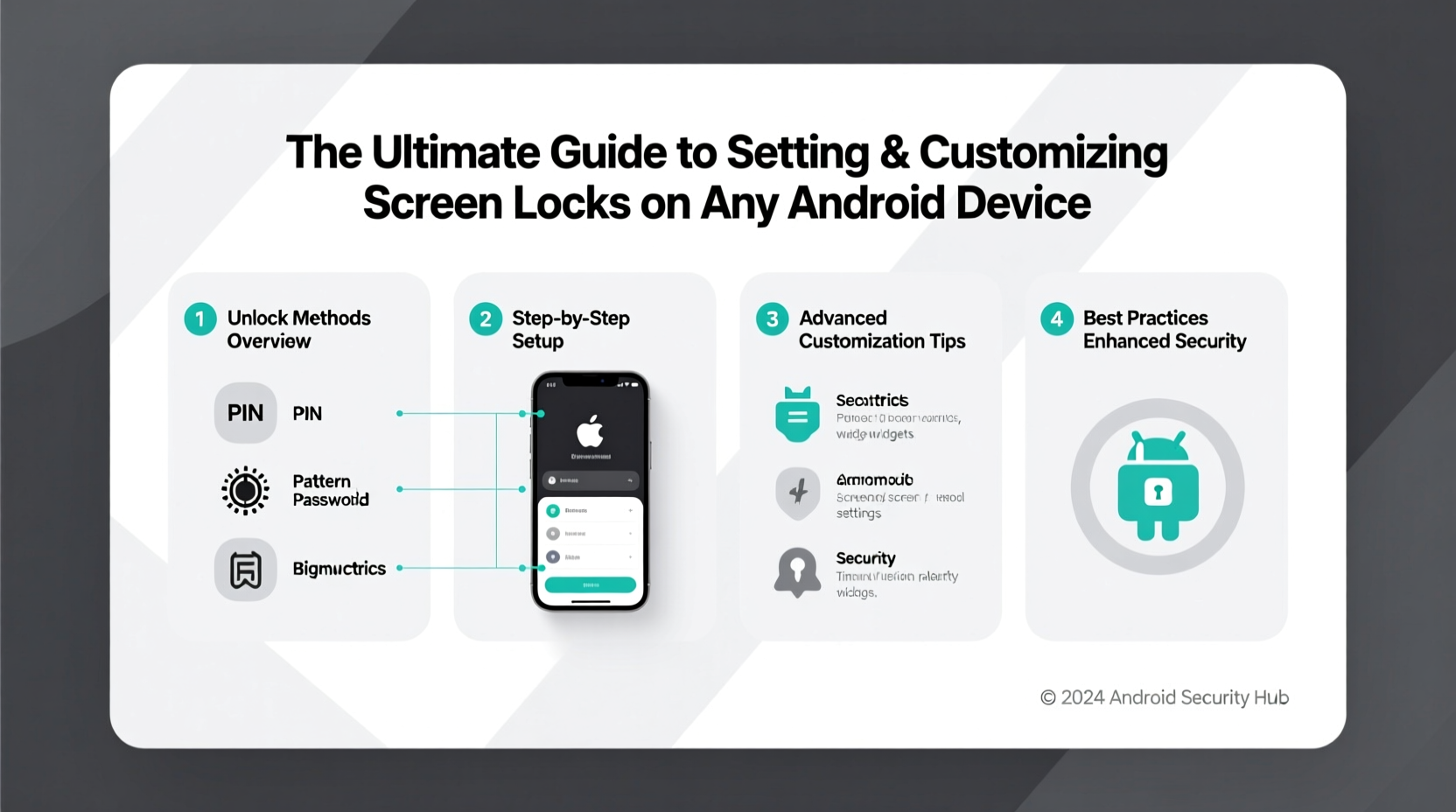
Android provides several types of screen locks, each balancing security, convenience, and usability differently. Knowing what’s available helps you choose the right one for your lifestyle.
- Swipe: No real security—just a wake-up gesture. Avoid if privacy matters.
- Pattern: Connect dots in a sequence. Faster than typing but vulnerable to shoulder surfing.
- PIN: Numeric code (4–16 digits). Offers strong protection with ease of use.
- Password: Alphanumeric + symbols. Most secure but slower to enter.
- Biometrics: Fingerprint, face unlock, or iris scanning. Convenient and increasingly reliable.
Security vs. Convenience Trade-Offs
A complex password may deter intruders, but it also discourages frequent locking. The goal is finding equilibrium: strong enough to protect sensitive data, yet practical enough that you’ll actually use it.
“Most breaches occur not because encryption failed, but because no lock was in place.” — Dr. Lena Torres, Mobile Security Researcher at CyberShield Labs
How to Set Up a Screen Lock: Step-by-Step Guide
The process varies slightly depending on your device manufacturer (Samsung, Google Pixel, OnePlus, etc.), but the core steps remain consistent across stock Android.
- Open Settings.
- Navigate to Security & Privacy or Biometrics and Security.
- Select Screen Lock Type (you may need to verify current credentials).
- Choose your preferred method: Pattern, PIN, Password, or Biometric option.
- Follow prompts to set and confirm your lock.
- Review additional options like automatic lock delay and emergency information.
After setup, test the lock by pressing the power button. Ensure it activates as expected after screen timeout.
Enabling Biometric Authentication
Fingerprint and facial recognition add speed without sacrificing much security. To enable:
- Add a fingerprint via Settings > Biometrics > Fingerprint.
- Register multiple fingers for flexibility (e.g., left index, right thumb).
- For face unlock, ensure good lighting during enrollment and avoid wearing hats or glasses unless normally worn.
Customization Features Across Devices
Modern Android skins—like Samsung One UI, Xiaomi MIUI, or stock Android—offer unique ways to personalize the lock screen beyond just unlocking.
Personalize Lock Screen Content
You can control what appears before unlocking:
- Show/hide notifications (with optional preview)
- Add shortcuts (camera, flashlight)
- Change wallpapers (some allow dual wallpapers: one locked, one unlocked)
- Enable always-on display (AOD) with time, battery, and alerts
To adjust these:
- Go to Settings > Home Screen & Lock Screen (varies by brand).
- Select Lock Screen Preferences.
- Toggle visibility of notifications, widgets, or quick tools.
Manufacturer-Specific Enhancements
| Brand | Unique Feature | How to Access |
|---|---|---|
| Samsung | Secure Folder accessible from lock screen | Settings > Biometrics > Secure Folder |
| Google Pixel | Now Playing auto-detects music even when locked | Settings > Sound > Now Playing |
| Xiaomi | Double-tap to draw custom unlock gestures | Settings > Lock Screen > Gesture Unlock |
| OnePlus | Coolify – animated weather-based lock screens | Wallpaper & Style > Lock Screen Animation |
Best Practices Checklist
Follow this checklist to maximize both security and usability:
- ✅ Use a minimum 6-digit PIN or strong alphanumeric password
- ✅ Enable biometrics as a secondary unlock method
- ✅ Disable “Smart Lock” in public or shared environments
- ✅ Review connected devices (wearables, cars) that bypass lock
- ✅ Hide sensitive notification content on the lock screen
- ✅ Set auto-lock to engage within 30 seconds of inactivity
- ✅ Regularly update your device—security patches fix lock-related vulnerabilities
Real-World Example: Securing a Shared Family Tablet
Maria uses a Samsung Galaxy Tab A8 at home with her two children. She wanted a balance between accessibility and safety. Initially, she used no lock, but noticed her kids accidentally deleted important emails. After reading about parental controls, she implemented a pattern lock combined with Samsung Kids Mode.
She configured the tablet so that only she could exit Kids Mode using a 6-digit PIN. Notifications were hidden on the lock screen, and she disabled Smart Lock when away from home. Now, her children enjoy supervised access while Maria retains full control over privacy and app usage.
This case illustrates how thoughtful lock configuration supports both usability and digital boundaries—even outside traditional phone use.
Frequently Asked Questions
Can someone bypass my screen lock with a photo or mold?
Face unlock on lower-end phones can sometimes be fooled by high-resolution photos. Fingerprint sensors vary—optical ones are less secure than ultrasonic (found in premium devices). For maximum safety, combine biometrics with a strong backup PIN or password.
What happens if I forget my screen lock?
If you forget your lock and have enabled “Find My Device,” you can remotely reset it via google.com/android/find. Otherwise, a factory reset may be required—which erases all data. Always back up regularly.
Is Smart Lock safe to use?
Smart Lock (trusted places, devices, voice, face) improves convenience but reduces security. It's acceptable at home or with trusted wearables, but disable it in workplaces, public transit, or shared spaces where unauthorized access is more likely.
Conclusion: Take Control of Your Digital Front Door
Your screen lock isn’t just a gatekeeper—it’s a reflection of how seriously you treat your digital life. With Android’s flexible options, there’s no excuse for leaving your device unprotected. From choosing a secure PIN to fine-tuning notification previews and leveraging biometrics wisely, small adjustments yield significant gains in privacy and peace of mind.




 浙公网安备
33010002000092号
浙公网安备
33010002000092号 浙B2-20120091-4
Comments
No comments yet. Why don't you start the discussion?