
Your Mac is designed to handle complex tasks with speed and elegance, but even the most powerful machine slows down when storage runs low. Unlike traditional PCs, macOS uses a sophisticated storage management system that includes local snapshots, cache files, and optimized storage tiers. Many users only realize they have a problem when they see the dreaded “Your startup disk is almost full” alert. By then, performance may already be suffering. Understanding how storage works on your Mac—and taking proactive steps to manage it—can prevent slowdowns, extend hardware life, and keep your workflow smooth.
How macOS Manages Storage
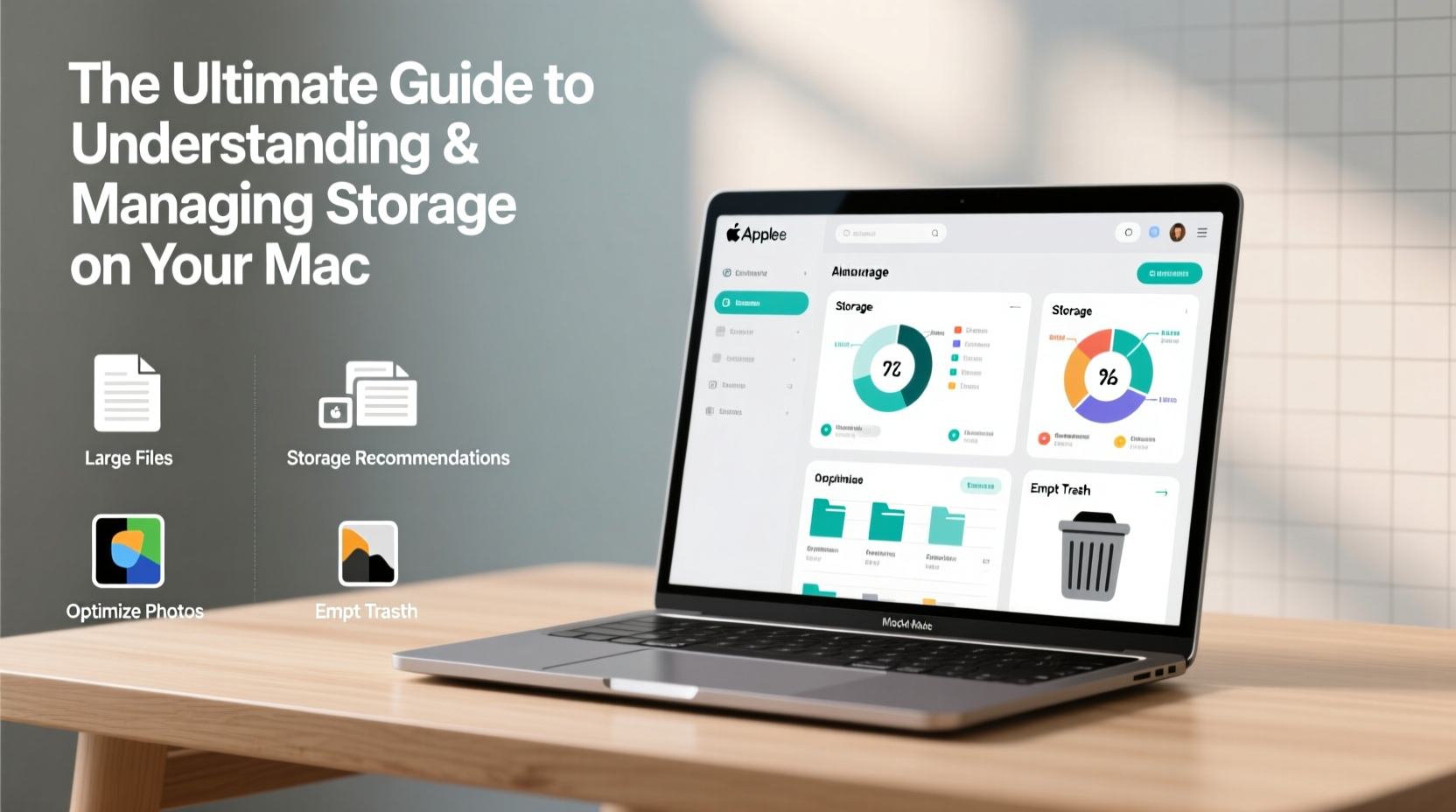
macOS doesn’t just treat storage as a static container; it actively manages space through features like Optimized Storage, iCloud integration, and automatic file purging. When you enable Optimize Mac Storage in iCloud settings, your Mac automatically offloads older files—such as documents, photos, and mail attachments—to iCloud, keeping only placeholders locally. This allows you to access everything seamlessly while preserving valuable SSD space.
The system also categorizes files into four main buckets visible in About This Mac > Storage: Apps, Photos, System, and Other. Each category behaves differently:
- Apps: Includes installed applications and their support files.
- Photos: Encompasses your entire photo library, including originals and edits.
- System: Core operating system files, caches, logs, and virtual memory.
- Other: A catch-all for files not easily categorized—often where hidden clutter accumulates.
Apple recommends keeping at least 10–15% of your drive free for optimal performance. This space is used for swap files, temporary data, and system operations. When free space drops below this threshold, your Mac may begin to stutter or freeze during multitasking.
Step-by-Step: Analyze and Free Up Space
Begin reclaiming space with a methodical approach. Follow this timeline to identify and eliminate unnecessary data without risking important files.
- Check storage usage: Click the Apple logo > About This Mac > Storage. Wait a moment for the bar to populate.
- Use built-in recommendations: Click \"Manage\" to open the Storage Management window. Here, macOS offers tailored suggestions based on your usage.
- Review large files: In the Storage tab, select \"Documents\" and sort by size. Identify old project folders, video files, or duplicates consuming gigabytes.
- Purge downloads: Open Finder > Downloads folder. Sort by date and delete outdated installers, archives, and temporary files.
- Empty Trash securely: Right-click the Trash icon and choose \"Empty Trash.\" For sensitive files, use \"Secure Empty Trash\" (available via Terminal or Finder preferences).
- Clear cache files: Navigate to ~/Library/Caches and delete contents of subfolders (e.g., com.apple.Safari). Avoid deleting the folders themselves.
“Storage isn’t just about capacity—it’s about efficiency. A well-maintained Mac with limited space can outperform a cluttered one with double the storage.” — Jordan Lee, Senior Systems Engineer at MacSupport Pro
Common Culprits of Hidden Storage Bloat
Some of the biggest space hogs are invisible in everyday use. These include:
- Local Time Machine snapshots: When you back up using Time Machine, macOS creates local snapshots if your drive is disconnected. These can accumulate over time.
- Mail attachments: Emails with embedded images or PDFs store copies locally, especially if you sync multiple accounts.
- Old iOS backups: Stored in ~/Library/Application Support/MobileSync/Backup/, these can take up tens of gigabytes per device.
- Log files and crash reports: Found in ~/Library/Logs/, these grow silently over weeks or months.
- Duplicate files: Especially common in photo libraries and document folders after migrations.
| File Type | Average Size | Safe to Delete? | Location |
|---|---|---|---|
| Time Machine Local Snapshots | 5–20 GB | Yes (if backed up) | /\\.MobileBackups |
| iOS Backups | 10–50 GB | After updating device | ~/Library/Application Support/MobileSync/Backup/ |
| Mail Downloads | 1–10 GB | Yes (attachments only) | ~/Library/Mail/Downloads/ |
| System Caches | 2–8 GB | Yes (contents only) | ~/Library/Caches/ |
| Old Simulator Data (Dev) | 3–15 GB | Yes | ~/Library/Developer/CoreSimulator/ |
Optimization Checklist for Long-Term Maintenance
To maintain peak performance, integrate these actions into your routine. This checklist ensures you stay ahead of storage issues before they impact usability.
- ✅ Review storage breakdown in About This Mac
- ✅ Run Optimize Storage suggestions
- ✅ Delete unused apps and their leftover files
- ✅ Clear browser caches and download folders
- ✅ Offload old photos to external drive or iCloud+
- ✅ Remove outdated iOS backups via Finder or iTunes
- ✅ Restart your Mac to clear volatile system data
Real Example: Recovering 42GB from a Sluggish MacBook
Sarah, a freelance graphic designer, noticed her 2019 MacBook Pro was taking minutes to launch Photoshop. The system reported only 8GB free on a 512GB SSD. After running the Storage Management tool, she discovered 27GB in local snapshots and 12GB in old iPhone backups from a device she no longer owned. She connected her current iPhone, created a fresh backup, and deleted the obsolete folder manually. She also cleared her Downloads folder, which held 3 years of archived client assets. Total reclaimed space: 42.6GB. Her Mac resumed normal responsiveness within hours.
This case illustrates how digital clutter accumulates invisibly. Without targeted intervention, even power users can fall victim to self-inflicted bottlenecks.
Frequently Asked Questions
Can I delete items in the “System” category to free up space?
Direct deletion is not recommended. The System category includes essential OS files. However, you can reduce its footprint by removing language packs, disabling hibernation (via Terminal), or resetting the System Management Controller (SMC). Use tools like OnyX or CleanMyMac X cautiously if you're experienced.
Why does “Other” storage take up so much space?
“Other” includes non-standard file types such as disk images (.dmg), firmware updates, custom fonts, and third-party app data. It often grows due to incomplete uninstallations or fragmented media files. To reduce it, search for large files by type using Finder’s “Other” filter or use a utility like DaisyDisk to visualize hidden directories.
Is it safe to use third-party cleaning apps?
Some are reputable—like OmniClean or AppCleaner—but many aggressive tools risk removing critical dependencies. Stick to apps with transparent logging and undo functions. Never allow automated cleaners to run unattended. Manual review is always safer.
Final Recommendations for Sustainable Storage Health
Managing storage on your Mac isn't a one-time cleanup task—it's an ongoing practice. Think of your SSD like a high-performance engine: it needs regular tuning to deliver its best. Prioritize automation where possible (iCloud syncing, auto-empty Trash), but remain vigilant about what accumulates behind the scenes. Regular audits, disciplined file organization, and smart backup habits form the foundation of a responsive, reliable machine.
Don’t wait for warnings. Schedule a quarterly deep dive into your storage usage. You’ll preserve not just space, but also the longevity and efficiency of your Mac.




 浙公网安备
33010002000092号
浙公网安备
33010002000092号 浙B2-20120091-4
Comments
No comments yet. Why don't you start the discussion?