
Upgrading your desktop PC’s RAM is one of the most cost-effective ways to breathe new life into an aging system. Whether you're experiencing slow multitasking, lag during gaming, or long load times in creative software, increasing your memory capacity can deliver immediate improvements. Unlike speculative hardware upgrades, RAM enhancements offer measurable gains in responsiveness and system stability. This guide walks you through every phase—from checking compatibility to installing modules—with precision and clarity.
Why RAM Matters for Performance
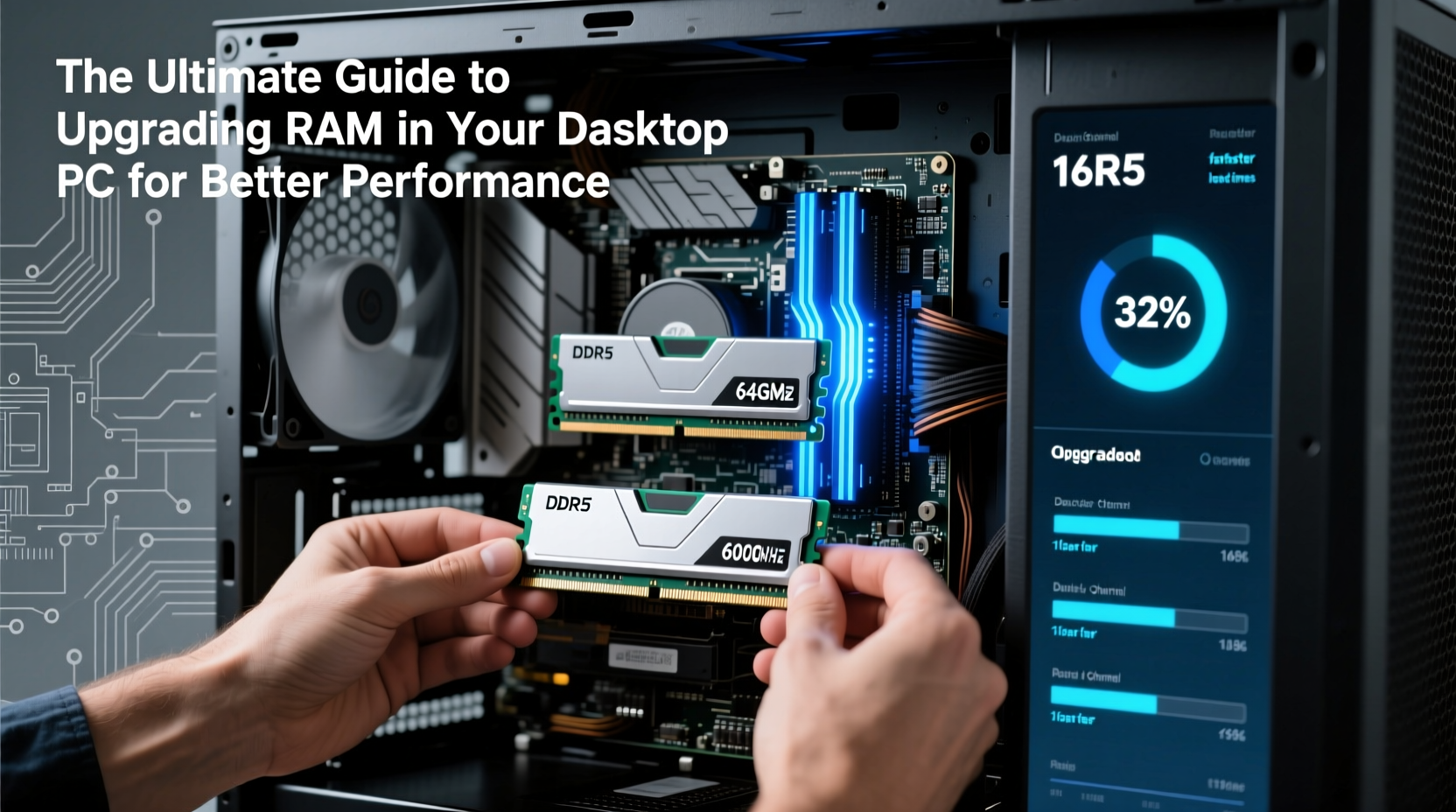
Random Access Memory (RAM) acts as your computer’s short-term workspace. When you open a browser, launch Photoshop, or play a game, data is pulled from your storage drive and loaded into RAM for quick access by the CPU. The more demanding the task, the more memory it consumes. Insufficient RAM forces your system to rely on virtual memory stored on slower drives, resulting in stuttering, freezing, and reduced efficiency.
Modern operating systems like Windows 11 or Linux distributions typically use 2–4 GB just at idle. Add multiple Chrome tabs, a music streamer, and a video conferencing app, and you can easily exceed 8 GB. Creative professionals working with 4K video or large datasets may need 32 GB or more. Upgrading RAM ensures that your system keeps pace with your workload instead of holding it back.
“Memory isn’t just about speed—it’s about headroom. More RAM means fewer bottlenecks when switching between applications.” — Dr. Lin Zhao, Hardware Systems Engineer
Step-by-Step: How to Upgrade Your Desktop RAM
Before touching any hardware, follow this structured process to ensure a smooth upgrade.
- Determine current RAM configuration: Open Task Manager (Ctrl+Shift+Esc), go to the Performance tab, and select Memory. Note the amount installed, speed (e.g., 3200 MHz), and how many slots are in use.
- Check motherboard compatibility: Identify your motherboard model via System Information (type “msinfo32” in Start menu) or by opening the case. Visit the manufacturer’s website to find supported RAM types (DDR4 vs DDR5), maximum capacity, and speed limits.
- Choose the right RAM kit: Match the form factor (DIMM for desktops), generation (DDR4/DDR5), voltage, and ideally, the same speed and timings as existing sticks if adding to current setup.
- Power down and prepare your workspace: Shut down the PC, unplug the power cable, and press the power button once to discharge residual electricity. Work on a non-static surface using an anti-static wrist strap if available.
- Open the case and locate RAM slots: Remove the side panel (usually secured by two screws). RAM slots are long, thin connectors near the CPU, often covered by heat spreaders.
- Install new modules: Gently push down the retention clips at both ends of the slot. Align the notch on the RAM stick with the key in the slot, then press firmly but evenly until the clips snap into place. <7> Power up and verify installation: Reconnect everything, boot the system, and recheck Task Manager. Confirm the full upgraded amount is recognized. If not, reseat the modules or test individually.
Compatibility Checklist Before Buying
Purchasing incompatible RAM is a common mistake. Use this checklist to avoid wasted money and frustration.
- ✅ Confirm whether your motherboard uses DDR4 or DDR5
- ✅ Check maximum supported capacity (e.g., 64 GB total)
- ✅ Verify number of available DIMM slots (typically 2 or 4)
- ✅ Match voltage requirements (DDR4 standard is 1.2V; some high-performance kits require 1.35V)
- ✅ Ensure physical clearance if using tall heat spreaders
- ✅ Consider dual-channel mode: Install RAM in matching pairs (e.g., 2x8GB) for optimal bandwidth
DDR4 vs DDR5: What You Need to Know
The shift from DDR4 to DDR5 brings notable improvements—but only if your platform supports it. Most Intel 12th Gen and AMD Ryzen 6000-series motherboards support DDR5, while older boards remain DDR4-only.
| Feature | DDR4 | DDR5 |
|---|---|---|
| Typical Speed Range | 2133 – 3200 MHz | 4800 – 7200+ MHz |
| Voltage | 1.2V | 1.1V |
| Banks per Channel | 16 | 32 (improved efficiency) |
| Max Module Size | 32 GB per stick | 128 GB per stick (emerging) |
| Platform Compatibility | Intel 10th Gen and earlier, AMD AM4 | Intel 12th Gen+, AMD AM5 |
While DDR5 offers higher speeds and better power efficiency, real-world gains in everyday tasks are modest unless paired with high-end CPUs. For most users on DDR4 platforms, maximizing capacity (e.g., upgrading from 8GB to 32GB) delivers greater benefits than chasing newer standards.
Real-World Example: A Productivity Transformation
Consider Mark, a freelance graphic designer using a 5-year-old desktop with 8GB of DDR4 RAM. He frequently worked with layered Photoshop files and Adobe Premiere projects. His system regularly froze when rendering timelines or applying filters. After researching, he upgraded to 32GB (2x16GB) DDR4-3200 CL16 RAM—a $120 investment.
The results were immediate. Application switching became seamless, 1080p timeline scrubbing improved dramatically, and system crashes dropped to zero. Boot time didn’t change, but active workflow fluidity did. Mark regained hours each week previously lost to waiting and restarting. For him, the RAM upgrade was more impactful than a GPU boost would have been at that stage.
Frequently Asked Questions
Can I mix different RAM sizes or speeds?
You can, but it's not ideal. When mixing sizes (e.g., 8GB + 16GB), dual-channel mode operates in \"asymmetric\" mode, reducing efficiency. Mixing speeds forces all modules to run at the speed of the slowest stick. For best results, use identical kits.
Does RAM speed really affect gaming performance?
Yes, but within limits. In CPU-intensive titles like CS2, Starfield, or Microsoft Flight Simulator, faster RAM (e.g., 3600 MHz over 2666 MHz) can improve frame rates by 5–15%, especially with AMD Ryzen processors. However, the gains diminish beyond certain thresholds. Capacity remains more critical than speed for overall system performance.
What if my PC doesn’t recognize the new RAM?
First, reseat the modules—ensure they’re fully clicked in. Try booting with one stick at a time to isolate faulty units. Update your BIOS, as older versions may not support higher-capacity or faster RAM. Also, check if XMP (Extreme Memory Profile) is enabled in BIOS for rated speeds.
Final Tips for Long-Term Success
Keep your BIOS updated—motherboard manufacturers regularly release updates that improve memory compatibility. If you plan future upgrades, leave at least one slot free. And always buy from reputable brands like Crucial, Corsair, G.Skill, or Kingston, which offer strong warranties and reliable support.
Take Control of Your PC’s Performance
Upgrading RAM is a straightforward yet powerful way to extend your desktop’s lifespan and enhance daily usability. With minimal tools, under $150, and less than 20 minutes of effort, you can eliminate slowdowns and restore confidence in your machine. Don’t let outdated memory limit your potential. Assess your needs, choose compatible modules, and install with care. The difference will be immediate—and lasting.




 浙公网安备
33010002000092号
浙公网安备
33010002000092号 浙B2-20120091-4
Comments
No comments yet. Why don't you start the discussion?