
Screen mirroring has become an essential feature in modern digital life—whether you're presenting a work report, streaming a movie from your phone to the TV, or sharing gameplay with friends. Despite its convenience, many users encounter frustrating interruptions: lag, dropped connections, no signal detection, or complete failure to connect. These issues often stem from overlooked settings, outdated firmware, or environmental interference. The good news is that most screen mirroring problems can be resolved with systematic troubleshooting and a few key adjustments.
This guide walks through practical, tested solutions to restore seamless screen mirroring across devices like smartphones, tablets, laptops, smart TVs, and streaming sticks. From network optimization to device compatibility checks, these strategies will help you regain control over your wireless display experience.
Understanding Common Causes of Screen Mirroring Failures
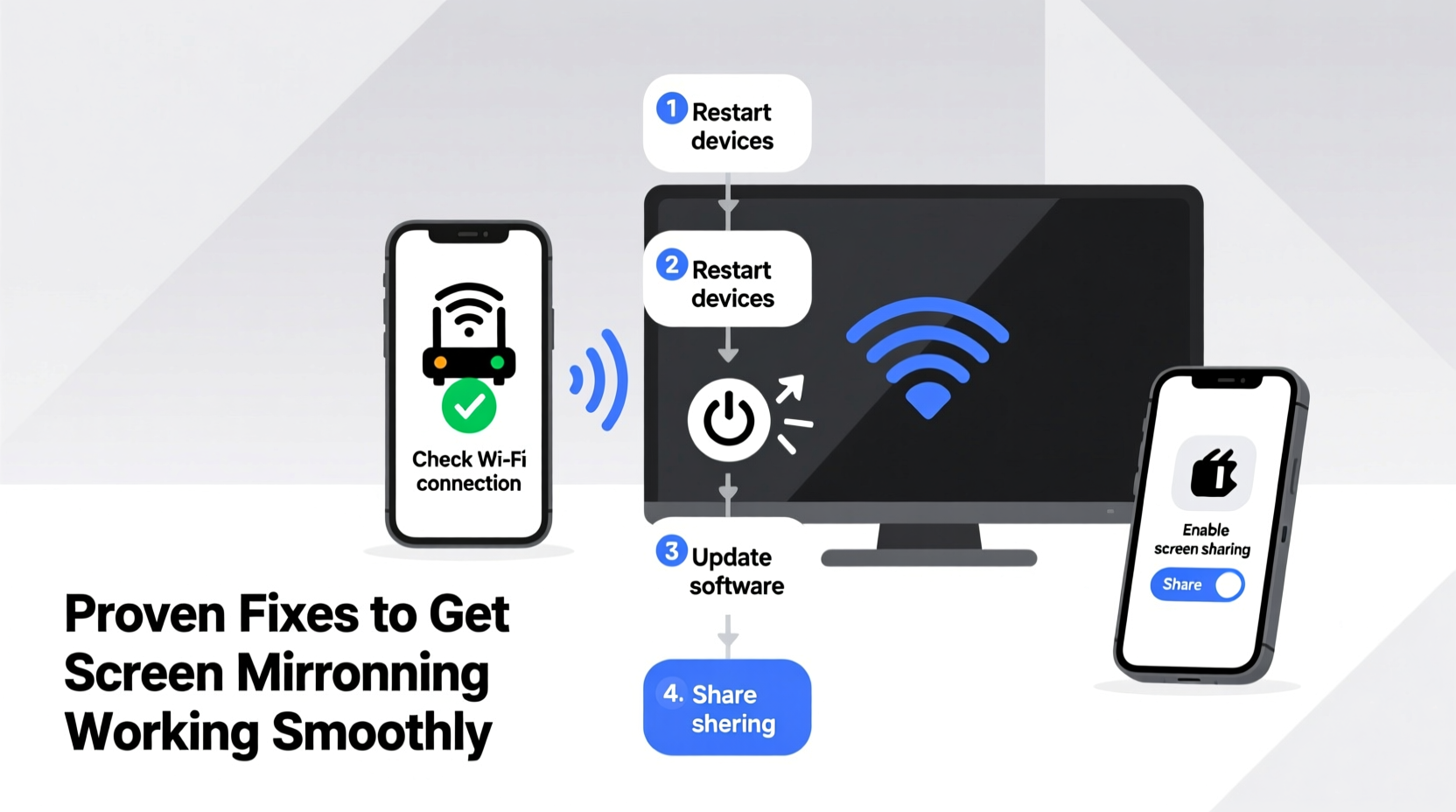
Before diving into fixes, it's important to recognize what typically disrupts screen mirroring. Unlike wired HDMI connections, wireless display relies on several interconnected systems—all of which must function correctly:
- Network congestion: A crowded Wi-Fi network slows data transmission, causing stuttering or disconnections.
- Incompatible protocols: Devices may support different standards (Miracast, AirPlay, Google Cast), leading to pairing failures.
- Outdated software: Missing OS updates or firmware patches can break connectivity features.
- Firewall or security settings: Corporate or home networks may block peer-to-peer communication required for mirroring.
- Distance and interference: Physical obstructions or competing signals (microwaves, Bluetooth) degrade wireless performance.
Identifying the root cause streamlines the fix. For example, if your phone sees the TV but won’t connect, the issue is likely protocol-related. If both devices are on the same network but fail to detect each other, router configuration might be at fault.
Step-by-Step Guide to Restore Screen Mirroring Functionality
Follow this structured approach to diagnose and resolve screen mirroring issues efficiently:
- Verify device compatibility. Check whether your source (phone/laptop) and receiver (TV/streaming box) support the same mirroring standard. iPhones use AirPlay; Android uses Miracast or Google Cast; Windows supports Miracast natively.
- Connect both devices to the same Wi-Fi network. Even if using direct casting (like Samsung Smart View), being on the same subnet reduces latency and improves reliability.
- Restart all involved devices. Power cycle your phone, TV, router, and any streaming dongle. This clears temporary glitches in network services.
- Update operating systems and firmware. Install pending updates on both sending and receiving devices. Manufacturers frequently patch bugs affecting wireless display drivers.
- Enable screen mirroring on the receiver. On your TV or projector, manually turn on “Screen Share,” “Wireless Display,” or “AirPlay” via settings—don’t assume it’s always active.
- Initiate connection from the source device. Use the correct method: Control Center (iOS), Quick Settings (Android), or Connect (Windows 10/11).
- Test with another app or device. Try mirroring a different device to isolate hardware vs. software faults.
If the problem persists after completing these steps, move to deeper diagnostics such as adjusting router settings or resetting network configurations.
Do’s and Don’ts When Troubleshooting Wireless Display
| Do’s | Don’ts |
|---|---|
| Use 5 GHz Wi-Fi band for lower interference and higher bandwidth | Don’t rely solely on public or guest networks—they often block local device discovery |
| Keep devices within line of sight and under 30 feet apart | Don’t place routers or TVs behind metal cabinets or thick walls |
| Disable VPNs or firewalls temporarily during testing | Don’t ignore error messages like “Connection Failed” or “Not Supported” |
| Clear cache on casting apps (e.g., Google Home, Samsung SmartThings) | Don’t assume newer models automatically work together without setup |
| Check manufacturer-specific requirements (e.g., Apple TV for AirPlay 2) | Don’t repeatedly retry failed connections without rebooting first |
Real-World Example: Fixing Office Presentation Failures
A marketing team preparing for a client pitch encountered repeated screen mirroring failures between their Windows laptops and a conference room LG webOS TV. Despite showing up in the device list, connections would drop seconds after starting. Initial attempts included restarting both devices and reselecting the display—without success.
The breakthrough came when the IT lead checked the office router. The 2.4 GHz and 5 GHz bands were split under different names. While the TV was on the 5 GHz network, some laptops defaulted to 2.4 GHz, preventing proper handshake. After renaming both bands identically to enable seamless roaming and disabling multicast filtering (which was blocking Miracast packets), the mirroring stabilized immediately. Additionally, updating the TV’s firmware resolved occasional audio sync issues.
This case highlights how seemingly minor network policies can derail functionality—even when individual devices appear to be working correctly.
“Wireless display isn’t magic—it’s a precise exchange of data governed by protocols, timing, and network health. Most failures aren’t broken hardware, but misaligned conditions.” — Raj Patel, Senior Network Engineer at TechSync Solutions
Advanced Fixes for Persistent Issues
When basic steps don't resolve the issue, consider these advanced remedies:
- Reset network settings on mobile devices. On iOS, go to Settings > General > Transfer or Reset iPhone > Reset > Reset Network Settings. On Android, navigate to System > Reset Options > Reset Wi-Fi, Mobile & Bluetooth.
- Assign static IP addresses. For mission-critical setups (e.g., classrooms or boardrooms), assign fixed IPs to casting devices to avoid DHCP conflicts.
- Enable UPnP (Universal Plug and Play) on your router. This allows devices to discover each other more easily. Access your router’s admin panel (usually http://192.168.1.1) and turn on UPnP under Advanced Settings.
- Use a dedicated access point. In large homes or offices, deploy a secondary Wi-Fi access point near the display device, isolated from heavy traffic.
- Try third-party mirroring apps. Tools like ApowerMirror, LetsView, or Vysor offer cross-platform compatibility and sometimes bypass native limitations.
FAQ: Common Screen Mirroring Questions Answered
Why does my screen mirroring keep disconnecting?
Intermittent disconnections are usually caused by Wi-Fi instability, power-saving modes on devices, or network congestion. Ensure both devices remain powered and connected to a stable 5 GHz network. Disable battery saver or auto-sleep settings during use.
Can I mirror my screen without Wi-Fi?
Yes, some technologies allow direct peer-to-peer connections. iPhones use peer-to-peer AirPlay when Wi-Fi is unavailable. Android devices supporting Miracast can create direct Wi-Fi Direct links. However, both devices must support the same direct-connect standard.
Why won’t my PC detect any wireless displays?
This often indicates a missing or disabled Miracast driver. Press Win + K to open the Connect panel. If no devices appear, check Device Manager for \"Microsoft Wi-Fi Direct Virtual Adapter.\" If absent, update your wireless adapter driver or confirm your hardware supports Miracast via netsh wlan show drivers in Command Prompt.
Final Checklist for Reliable Screen Mirroring
Use this checklist before every critical mirroring session:
- ✅ Both devices are on the same Wi-Fi network (preferably 5 GHz)
- ✅ Screen mirroring is enabled on the receiver (TV/projector)
- ✅ All devices are updated to the latest OS/firmware version
- ✅ Router has UPnP enabled and multicast not blocked
- ✅ No active VPN, firewall, or guest network restrictions
- ✅ Devices are within close proximity, free of physical barriers
- ✅ Battery saver or sleep mode is disabled on the source device
Conclusion: Take Control of Your Wireless Experience
Screen mirroring should enhance productivity and entertainment—not hinder it. By understanding the underlying technology and applying consistent troubleshooting practices, you can overcome most obstacles quickly and confidently. Whether you're troubleshooting a home theater setup or ensuring a flawless business presentation, the key lies in preparation, compatibility awareness, and network hygiene.




 浙公网安备
33010002000092号
浙公网安备
33010002000092号 浙B2-20120091-4
Comments
No comments yet. Why don't you start the discussion?