
Resetting a cell phone can resolve performance issues, remove malware, or prepare the device for sale. However, many users hesitate due to fear of losing photos, messages, contacts, and app data. The truth is, with proper preparation, a factory reset doesn’t have to mean starting from scratch. By understanding your device’s backup systems and following structured steps, you can refresh your phone securely while preserving everything that matters.
Why Reset Your Phone — And Why Data Protection Matters
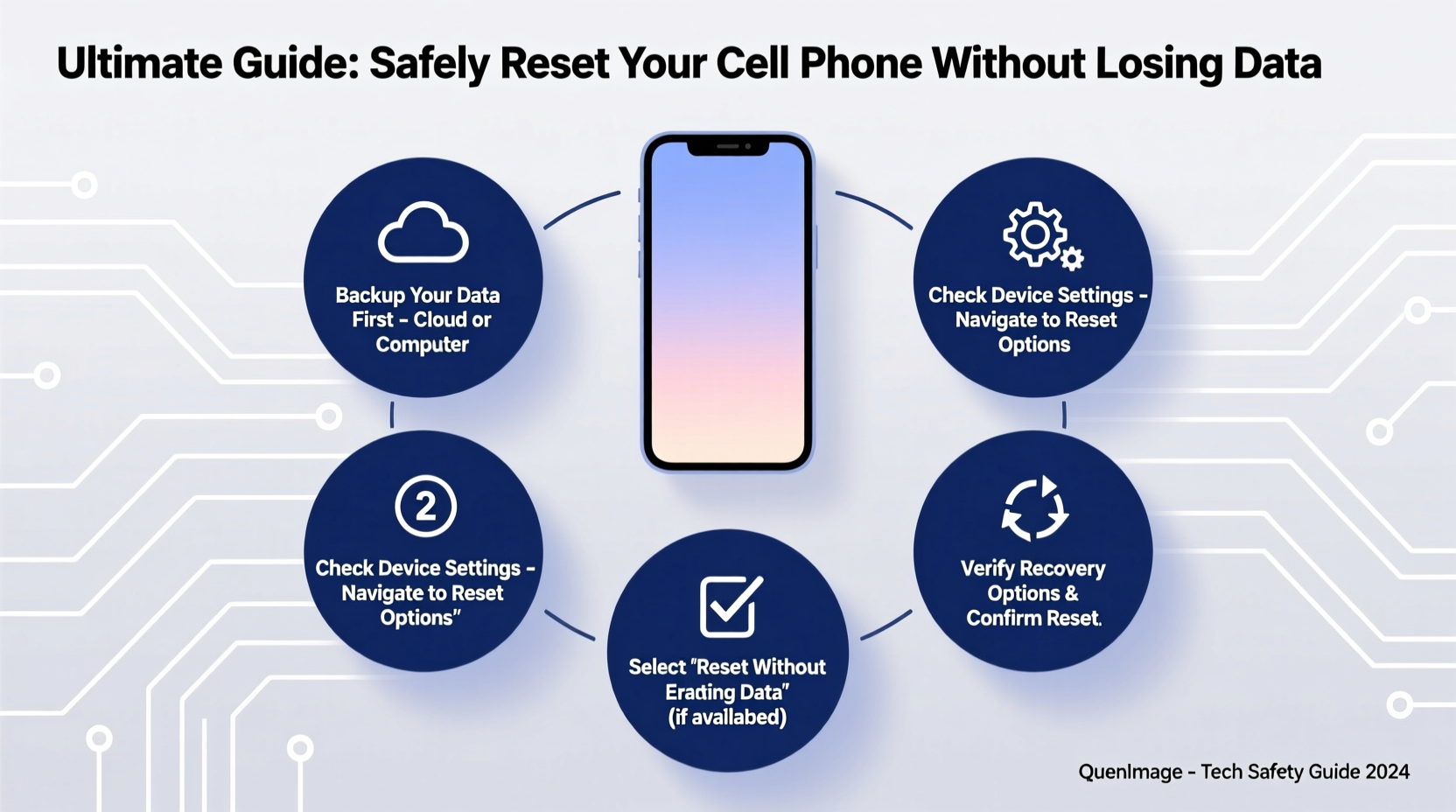
A factory reset returns your smartphone to its original operating state, erasing installed apps, settings, accounts, and locally stored files. This process is often necessary when troubleshooting persistent bugs, removing unauthorized access, or handing over the device. But unlike earlier mobile generations, today’s smartphones are deeply integrated with personal lives—containing years of memories, financial records, and communication history.
According to a 2023 report by the International Data Corporation (IDC), nearly 40% of users who performed an unsupervised reset lost critical data they believed was automatically backed up. That risk isn’t inevitable. With deliberate planning, every type of data—from WhatsApp chats to two-factor authentication tokens—can be preserved.
Step-by-Step: How to Back Up Before Resetting
Data preservation starts long before the reset option appears on screen. Follow this timeline to ensure full coverage across all critical categories.
- Charge your device to at least 80%. Interruptions during backup or reset can corrupt data.
- Connect to Wi-Fi. Large backups consume significant bandwidth; avoid cellular data limits.
- Sync your Google (Android) or Apple (iOS) account. Ensure contacts, calendars, and emails are updated in the cloud.
- Back up photos and videos using Google Photos or iCloud Photos. Enable “Original Quality” uploads if storage allows.
- Use built-in backup tools:
- iOS: Go to Settings > [Your Name] > iCloud > iCloud Backup > Back Up Now
- Android: Settings > System > Backup > Toggle on \"Back up to Google One\"
- Export app-specific data, especially for apps that don’t sync automatically (e.g., banking apps, password managers).
- Verify completion. On iOS, check Settings > General > iPhone Storage for backup timestamp. On Android, visit google.com/settings to confirm last backup time.
What Gets Saved — And What Doesn’t
Not all data behaves the same way during a reset. Understanding what survives and what requires manual intervention prevents unpleasant surprises.
| Data Type | Automatically Saved? | How to Secure It |
|---|---|---|
| Contacts | Yes (if synced) | Confirm sync with Google/iCloud before reset |
| Photos & Videos | Only if uploaded | Use cloud photo services with auto-upload enabled |
| Messages (SMS/MMS) | No (unless iMessage/Google Messages backup) | Enable chat backup in Messages settings |
| App Data | Sometimes | Check individual app sync status; use third-party tools if needed |
| Call History | No | Not recoverable unless logged externally |
| Wi-Fi Passwords | No | Re-enter manually after setup or use a password manager |
“Most data loss after a reset isn’t caused by the reset itself—it’s caused by assuming the backup worked without verification.” — Dr. Alan Reyes, Mobile Security Researcher at Stanford University
Performing the Reset Safely
Once your data is confirmed safe in the cloud or external storage, proceed with the reset using these verified methods.
For iPhone (iOS 15 and later):
- Go to Settings > General > Transfer or Reset iPhone.
- Select Erase All Content and Settings.
- Enter your passcode and Apple ID password when prompted.
- Wait for the process to complete (typically 5–10 minutes).
- The device will restart to the initial setup screen.
For Android (Stock Android & Samsung One UI):
- Navigate to Settings > System > Reset options.
- Choose Erase all data (factory reset).
- Confirm your decision. Some devices require Google Account credentials post-reset (Factory Reset Protection).
- Wait for reboot. Do not interrupt power or connection.
Mini Case Study: Recovering After an Accidental Reset
Jamila, a freelance photographer in Austin, accidentally triggered a factory reset while attempting to clear her phone’s cache. She had been shooting client events all weekend and assumed her photos were backed up via Google Photos. Unfortunately, she hadn’t realized that her upload setting was set to “Express Quality,” which compressed images and excluded some RAW files.
Luckily, she had connected her phone to her laptop the night before and exported a local copy. While cloud-synced JPEGs restored seamlessly, the high-resolution originals were only recoverable because of that manual export. Her experience highlights a crucial point: automated backups are powerful, but they aren’t infallible. A layered backup strategy—cloud plus local—is the safest approach.
Essential Checklist: Reset Without Data Loss
Print or save this checklist before beginning:
- ✅ Charge phone above 80%
- ✅ Connect to stable Wi-Fi
- ✅ Confirm iCloud or Google account sync is active
- ✅ Run final backup and verify completion timestamp
- ✅ Export critical documents, notes, and passwords
- ✅ Disable Find My iPhone / Find My Device (optional but recommended pre-reset)
- ✅ Write down Wi-Fi passwords and two-factor recovery codes
- ✅ Perform reset using official menu (not recovery mode unless necessary)
- ✅ Restore from backup during initial setup
- ✅ Verify key data (photos, messages, apps) after restoration
Frequently Asked Questions
Will resetting my phone remove my Google or Apple account?
No. Your account remains intact in the cloud. However, you’ll need to sign back in after reset. On modern devices, Factory Reset Protection (FRP) may require your credentials to reactivate the phone.
Can I restore only certain apps or data after reset?
Yes. During setup, both iOS and Android allow selective restoration. For example, you can skip restoring old apps but keep photos and messages. Third-party tools like iTunes (for iOS) or Samsung Smart Switch offer granular control.
What if my backup fails after the reset?
If restoration fails, first ensure you’re using the same Apple ID or Google account used for the backup. Check internet stability and retry. If no backup appears, contact Apple Support or Google Play Help. In rare cases, professional data recovery services may retrieve remnants from internal memory—but success isn't guaranteed.
Final Thoughts: Reset Smart, Not Scared
Resetting your phone shouldn’t feel like gambling with your digital life. With today’s robust cloud ecosystems, combined with user awareness, it’s entirely possible to wipe and rebuild your device without losing a single memory or message. The key lies in preparation: backing up early, verifying thoroughly, and understanding what each system preserves.
Technology evolves fast, but one rule remains constant—your data is only as safe as your last verified backup. Take the time now to audit your current setup. Test a restore on a secondary device if possible. Build confidence in the process so that when the moment comes to reset, you do it with calm precision.




 浙公网安备
33010002000092号
浙公网安备
33010002000092号 浙B2-20120091-4
Comments
No comments yet. Why don't you start the discussion?