
In today’s fast-paced digital world, email remains a primary communication tool—especially through Microsoft Outlook. For many users, especially those with visual impairments or prolonged screen exposure, default font sizes can be too small, causing eye strain and reduced productivity. Fortunately, Outlook offers multiple ways to adjust and personalize text across emails, calendars, and contacts. This comprehensive guide walks you through every method available on desktop, web, and mobile platforms to make your Outlook experience more comfortable and accessible.
Why Font Customization Matters in Outlook
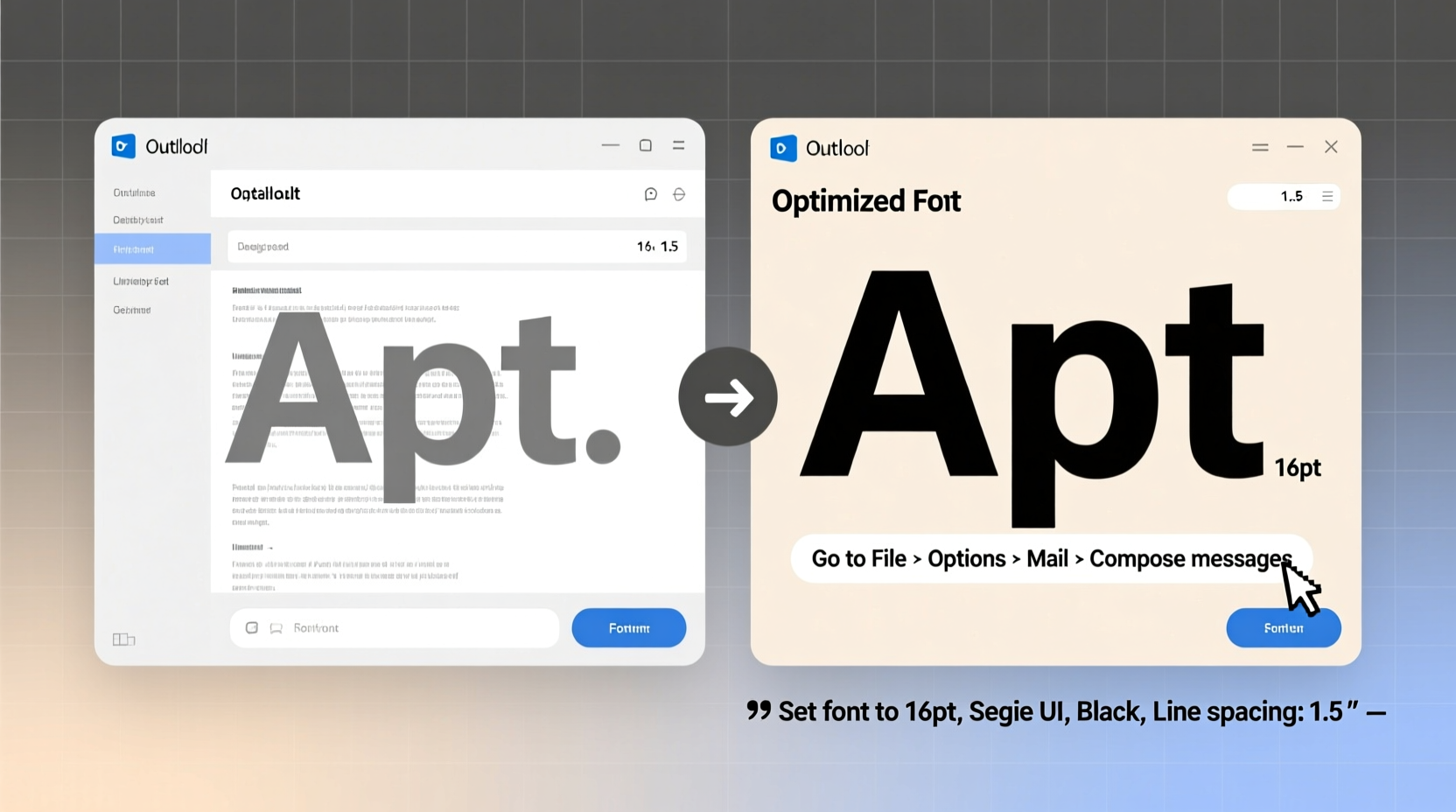
Clear, readable text isn’t just about comfort—it’s about efficiency and accessibility. Small or poorly styled fonts force users to squint, scroll repeatedly, or miss critical details in messages. According to the American Foundation for the Blind, over 7 million adults in the U.S. have a visual disability that affects daily tasks like reading emails. Even temporary issues such as screen glare or fatigue can make default font settings inadequate.
Microsoft has recognized these challenges and built robust customization tools into Outlook. Whether you're managing a high-volume inbox or simply want a cleaner interface, adjusting font size and style improves legibility, reduces mental load, and supports long-term eye health.
“Customizing font settings in email clients like Outlook is one of the simplest yet most effective ways to enhance digital accessibility.” — Dr. Linda Chen, Vision & Ergonomics Researcher, Johns Hopkins University
How to Change Font Settings in Outlook Desktop (Windows)
The Outlook desktop application for Windows provides the most control over font appearance. You can modify fonts for new messages, replies/forwards, and even the message list pane.
Step-by-Step: Customize Composing Fonts
- Open Outlook and go to File > Options.
- Select Mail from the left menu.
- Click the Stationery and Fonts button near the bottom.
- In the new window, choose:
- Personal Stationery tab
- Click Font under “New mail messages”
- Select your preferred font (e.g., Calibri, Arial), style (Regular, Bold), size (e.g., 12, 14, or 16), and color.
- Repeat for “Replies/forwards” if desired.
- Click OK to save all changes.
Adjust Reading Pane Font Size
To change how emails appear when previewed in the reading pane:
- Navigate to View > View Settings > Other Settings.
- Under “Message preview,” click Font.
- Choose a larger size and confirm.
Note: This only affects preview text, not full message bodies.
Customizing Font Display in Outlook on the Web (Outlook.com / Office 365)
Outlook on the web (formerly Outlook.com and Outlook.office365.com) doesn’t allow direct font changes within the app settings, but you can still improve readability using browser-level adjustments and add-ins.
Browser Zoom: Quick Fix for All Text
The fastest way to enlarge everything—including fonts—is to zoom in your browser:
- Press Ctrl + + (Windows) or Cmd + + (Mac) to increase zoom.
- Press Ctrl + 0 to reset.
This scales the entire interface, making it ideal for temporary use or quick access.
Using Accessibility Add-ins
Microsoft AppSource offers accessibility-focused add-ins like “High Contrast” or “Read Aloud” that indirectly improve text visibility. While they don’t change font styles directly, they enhance contrast and offer voice-assisted reading.
Mobile Adjustments: Outlook App for iOS and Android
On mobile devices, Outlook adapts to system-wide accessibility settings, but limited in-app options exist.
iOS Instructions
- Open the Settings app on your iPhone or iPad.
- Go to Accessibility > Display & Text Size > Larger Text.
- Enable “Larger Accessibility Sizes” and slide to desired font size.
- Launch Outlook—the app will reflect the system text scaling.
Android Instructions
- Open Settings > Accessibility > Font size.
- Adjust the slider to increase text across all apps, including Outlook.
- For advanced control, enable Magnification gestures for zooming specific areas.
Best Practices for Optimal Readability
Changing font size is just the beginning. To create a truly comfortable reading environment, consider the following holistic approach.
| Setting | Recommended Option | Benefit |
|---|---|---|
| Font Type | Sans-serif (Arial, Calibri, Segoe UI) | Clean lines, easier to read on screens |
| Font Size | 12–16 pt for composing; 14+ for reading | Balances space and legibility |
| Line Spacing | 1.15 or 1.5 | Reduces visual crowding |
| Contrast | Dark text on light background (or vice versa with care) | Minimizes eye strain |
| Zoom Level (Web) | 110%–130% | Fits content while enlarging text |
Avoid These Common Mistakes
- Using overly decorative fonts—they may look stylish but reduce readability.
- Setting different fonts for compose vs. reply—creates inconsistency in tone and appearance.
- Ignoring system accessibility features—like high contrast mode or screen readers that work seamlessly with Outlook.
Real-World Example: Sarah’s Transition to Accessible Email
Sarah, a project manager in her late 50s, began experiencing eye fatigue after switching to remote work. She spent hours daily in Outlook reviewing team updates and client requests. The default 10-point Calibri was increasingly difficult to read, especially during back-to-back virtual meetings.
She followed the desktop customization steps, increasing her composing font to 14pt Segoe UI and adjusting the reading pane font via View Settings. She also set her browser zoom to 125% for Outlook on the web. Within days, she reported fewer headaches and improved focus. Her team noticed quicker response times and clearer messaging—proof that small typographic changes yield real productivity gains.
Comprehensive Checklist: Optimize Your Outlook Fonts
Follow this checklist to ensure your Outlook environment is fully optimized for readability:
- ✅ Set default compose font to 14pt sans-serif (Windows desktop)
- ✅ Adjust reply/forward font to match new messages
- ✅ Increase reading pane preview font size
- ✅ Use browser zoom (Ctrl/Cmd + +) on Outlook Web
- ✅ Enable system-level large text on mobile devices
- ✅ Test font changes by sending a test email to yourself
- ✅ Pair font adjustments with dark mode or high-contrast themes
- ✅ Review settings quarterly to adapt to changing vision needs
Frequently Asked Questions
Can I make the Outlook interface fonts larger without changing email content?
Yes. In Windows, use the Ease of Access Center to increase display scaling (e.g., 125% or 150%). This enlarges menus, folders, and buttons without affecting the text inside emails.
Will changing my font settings affect how others see my emails?
No. Your font choices apply only to messages you send. Recipients will see them in their own default or customized fonts unless you use rich text formatting (bold, size changes). However, avoid extreme sizes or colors that might not render well on all devices.
Why doesn’t Outlook on the web let me change fonts directly?
Outlook Web prioritizes cross-device consistency and security. Direct font editing could interfere with responsive design and phishing protections. Instead, rely on browser zoom and system accessibility settings for personal adjustments.
Final Thoughts: Take Control of Your Digital Experience
Reading should never be a struggle. With a few strategic adjustments, you can transform Outlook from a source of eye strain into a comfortable, efficient workspace. Whether you're using a desktop, laptop, or smartphone, the tools are available to tailor your experience to your visual needs.
Start today: open your Outlook settings, pick a clear, spacious font, and scale up to a size that feels natural. Combine this with good lighting and regular screen breaks, and you’ll notice an immediate improvement in both comfort and concentration.




 浙公网安备
33010002000092号
浙公网安备
33010002000092号 浙B2-20120091-4
Comments
No comments yet. Why don't you start the discussion?