
In today’s digital age, children are exposed to smartphones and tablets at increasingly younger ages. While Android devices offer educational tools and creative opportunities, they also expose young users to inappropriate content, excessive screen time, and online risks. Setting up parental controls is no longer optional—it's essential. This comprehensive guide walks through every aspect of configuring robust parental safeguards on Android devices, from built-in tools to third-party solutions, ensuring your child’s digital experience remains safe, balanced, and age-appropriate.
Why Parental Controls Matter on Android
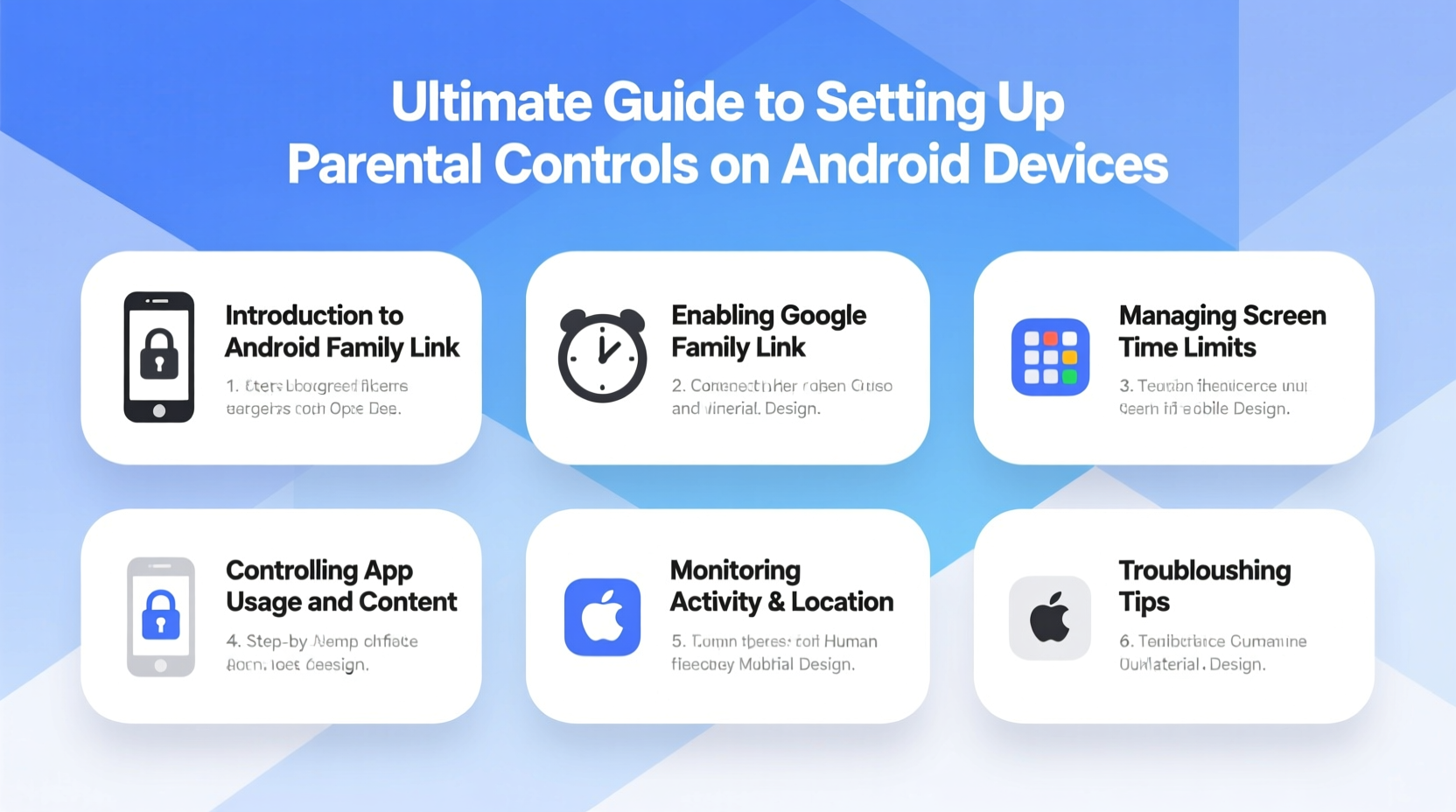
Android powers over 70% of mobile devices worldwide, making it the most common platform in households with children. Unlike closed ecosystems, Android’s open nature increases flexibility but also potential exposure to unfiltered content. Without proper supervision, children can access mature apps, unrestricted web browsing, in-app purchases, or even interact with strangers online.
Effective parental controls help mitigate these risks by allowing parents to:
- Restrict access to age-inappropriate apps and games
- Filter explicit content on browsers and YouTube
- Set daily screen time limits
- Monitor usage patterns without invading privacy
- Prevent unauthorized purchases
The goal isn’t surveillance—it’s guidance. With thoughtful configuration, parents can foster responsible digital habits while giving kids space to learn and explore safely.
Step-by-Step: Setting Up Google Family Link
Google Family Link is the official parental control solution for Android, integrating seamlessly with Google services. It allows you to manage up to six family members, including children under 13, and works across phones, tablets, and Chromebooks.
- Download Family Link: Install “Google Family Link” on your own Android device (parent device) from the Play Store.
- Create a Child Account: Open the app and select “Create account for child.” Follow prompts to enter your child’s name, birthdate, and basic details.
- Set Up Device: On the child’s Android device, sign in with the newly created Google account. If the device already has data, back it up and perform a factory reset first.
- Pair Devices: Use your phone to scan the QR code shown on the child’s device during setup to link them.
- Approve or Block Apps: Once linked, you’ll receive notifications when your child requests to download new apps. You can approve, block, or set time limits remotely.
- Manage Daily Usage: Set screen time schedules (e.g., no device use after 8 PM) and daily limits (e.g., 2 hours max).
- Lock Device Remotely: Use the app to lock the child’s device instantly—useful at bedtime or during homework.
Family Link supports devices running Android 7.0 (Nougat) and above. For children aged 13+, the app transitions into a monitoring tool rather than a restrictive one, promoting digital responsibility.
“Parents who actively manage their children’s digital boundaries report higher levels of trust and better communication about online behavior.” — Dr. Lisa Montgomery, Child Digital Wellness Researcher, Stanford University
Managing App & Content Restrictions
Not all apps are suitable for every age group. The Google Play Store includes robust filtering options that can be controlled via Family Link or directly on the device.
Filtering Apps by Age Rating
Navigate to Settings > Digital Wellbeing & parental controls > Parental controls > Apps & games. Turn on parental controls and set an access PIN. Then choose an age rating (e.g., “Everyone,” “Mature 17+”) to block higher-rated content.
Restricting YouTube Access
YouTube is one of the biggest sources of unregulated content. To protect younger viewers:
- Use YouTube Kids, which offers curated, age-based channels and parental passcodes.
- If using main YouTube, enable Restricted Mode in settings. Note: This must be manually enabled per device and can be bypassed if disabled by the user unless locked via Family Link.
- In Family Link, go to Controls > Content restrictions > YouTube and choose between “Approved content only” or “No restrictions.”
Blocking Inappropriate Websites
Chrome browser filtering is limited unless managed through external DNS services or third-party tools. However, within Family Link:
- Enable content filters for Google Search (blocks explicit results).
- Use supervised profiles in Chrome to restrict site access.
- Consider changing DNS settings to use family-friendly filters like OpenDNS FamilyShield (more on this below).
| Feature | Available in Family Link? | Notes |
|---|---|---|
| App Approval System | Yes | Parent must approve downloads outside allowed categories |
| Screen Time Scheduling | Yes | Set bedtimes and daily limits per day of week |
| Location Tracking | Yes | View child’s device location; requires location services enabled |
| Web Filtering (Non-Chrome) | No | Third-party browsers like Firefox bypass Google filters |
| In-App Purchases | Yes | All purchases require parent approval |
Enhancing Protection with Third-Party Tools
While Family Link covers core needs, some families require advanced features such as social media monitoring, detailed activity reports, or cross-platform compatibility. Consider supplementing with trusted third-party apps:
- Qustodio: Offers real-time alerts, social media monitoring, and panic button features. Supports Android, iOS, Windows, and macOS.
- Norton Family: Provides deep web filtering, search monitoring, and location tracking with geofencing.
- Kaspersky Safe Kids: Strong focus on content filtering and screen time scheduling with gamified rewards for good behavior.
These tools often require installing an agent app on the child’s device and may involve subscription fees. They typically provide more granular control than Family Link alone.
Setting Up OpenDNS FamilyShield (Router-Level Filtering)
- Log into your home router’s admin panel (usually via 192.168.1.1 or similar).
- Navigate to DNS settings under Internet or WAN configuration.
- Replace current DNS addresses with:
- Primary: 208.67.222.123
- Secondary: 208.67.220.123
- Save changes. All devices connected to your Wi-Fi will now have adult content filtered.
This method works independently of device settings and cannot be easily disabled by tech-savvy kids.
Real-World Example: The Patel Family Setup
The Patels, a family of four in Austin, Texas, struggled with their 10-year-old son spending late nights watching unmoderated videos and downloading random games. After discovering he’d made $47 in accidental in-app purchases, they decided to act.
They started by wiping his tablet and setting up a dedicated Google account via Family Link. They blocked all app downloads without approval, set a daily limit of 90 minutes, and enforced a “bedtime” lock from 7 PM to 7 AM on school nights. They also installed YouTube Kids and configured OpenDNS on their router.
Within two weeks, screen time dropped by 40%, and the child began requesting educational apps like Khan Academy Kids and Toca Life World—both approved by his parents. Monthly check-ins helped maintain open dialogue about digital choices.
“It wasn’t about taking away freedom,” said Mr. Patel. “It was about teaching balance. Now he asks, ‘Is this app okay?’ before downloading. That’s progress.”
Essential Checklist for Securing Your Child’s Android Device
- Ensure your child uses a separate Google account (not yours).
- Install and configure Google Family Link on both parent and child devices.
- Enable app and content restrictions based on age ratings.
- Set daily screen time limits and enforce device downtime (e.g., bedtime).
- Switch to YouTube Kids or restrict main YouTube via Family Link.
- Block in-app purchases or require parental approval.
- Configure OpenDNS or another network-level filter on your home Wi-Fi.
- Review weekly activity reports and discuss usage habits regularly.
- Update software regularly to ensure security patches are applied.
- Educate your child on online safety, cyberbullying, and responsible sharing.
Frequently Asked Questions
Can my child disable parental controls?
Yes, if they know the password or have administrative access. Always use strong, non-obvious PINs and avoid saving them on shared devices. Family Link sends alerts if someone attempts to remove supervision, helping detect tampering.
What if my child uses multiple devices?
Family Link supports managing multiple devices per child, as long as each runs Android 7.0+. For iOS devices, consider using Apple Screen Time in parallel or opt for cross-platform tools like Qustodio or Kaspersky Safe Kids.
Do parental controls work offline?
Most restrictions (like app blocking and timers) function offline since they’re enforced at the OS level. However, web filtering via cloud services (e.g., OpenDNS) only works when connected to the internet. Location tracking also requires connectivity.
Final Thoughts: Building Trust Through Technology
Setting up parental controls isn’t about control—it’s about care. The right configuration empowers children to explore the digital world with guardrails, not walls. As they grow, these tools should evolve from restriction to mentorship, gradually handing over autonomy as responsibility is demonstrated.
Start with the basics: create a child account, install Family Link, set time limits, and filter content. Then layer in additional protections like DNS filtering or third-party monitoring if needed. Most importantly, pair technology with conversation. Talk to your kids about why these measures exist. Explain digital risks without fear-mongering. When children understand the purpose behind the rules, they’re more likely to respect them—and eventually self-regulate.




 浙公网安备
33010002000092号
浙公网安备
33010002000092号 浙B2-20120091-4
Comments
No comments yet. Why don't you start the discussion?