
Capturing what's on your screen is one of the most common digital tasks—whether you're troubleshooting an error, sharing instructions, or saving a moment from a video call. Yet many users rely on outdated methods or don’t know the full range of options available. From built-in OS features to third-party tools and advanced editing capabilities, mastering screenshots can save time and improve communication across work, education, and personal use.
This guide covers everything you need to take efficient, high-quality screenshots on any PC, regardless of operating system. You’ll learn keyboard shortcuts, discover powerful tools, and adopt best practices that go beyond just pressing “Print Screen.”
Understanding Screenshot Types and Their Uses
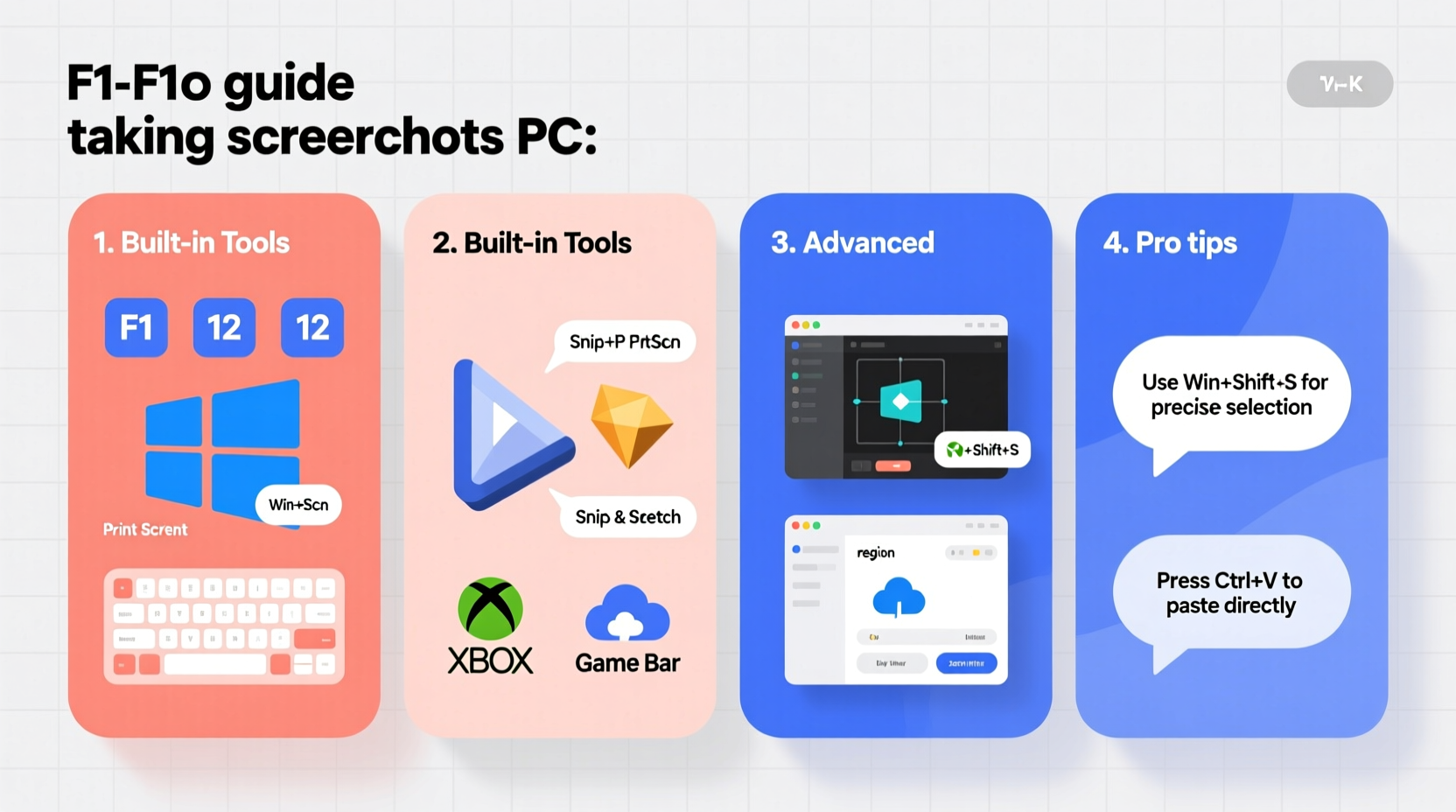
Not all screenshots are created equal. The method you choose should depend on your goal:
- Full-screen capture: Ideal for showing an entire desktop layout or capturing multi-window workflows.
- Active window capture: Best when focusing on a single application without background distractions.
- Custom region selection: Perfect for highlighting specific details like text snippets, buttons, or errors.
- Timed captures: Useful for menu states or tooltips that disappear when clicked.
- Scrolling screenshots: Capture long web pages or documents in one continuous image (available in select tools).
Essential Keyboard Shortcuts by Operating System
Knowing the right shortcut eliminates the need for extra software in most cases. Here’s a breakdown across major platforms:
| OS | Action | Shortcut |
|---|---|---|
| Windows 10/11 | Entire screen | Print Screen (PrtScn) |
| Windows 10/11 | Current window only | Alt + PrtScn |
| Windows 10/11 | Custom area (Snip & Sketch) | Windows + Shift + S |
| Windows 10/11 | Open Snipping Tool | Windows + Shift + S or search \"Snipping Tool\" |
| macOS | Entire screen | Command + Shift + 3 |
| macOS | Selected portion | Command + Shift + 4, then drag |
| macOS | Specific window | Command + Shift + 4, then press Spacebar and click window |
| Linux (GNOME) | Entire screen | PrtScn |
| Linux (GNOME) | Selected area | Shift + PrtScn |
| Linux (KDE) | Region capture | Meta + R |
“Efficiency in digital communication starts with precision. A well-cropped screenshot can replace paragraphs of explanation.” — Daniel Lin, UX Consultant at TechFlow Labs
Step-by-Step Guide to Capturing a Region on Windows 11
If you want to capture only part of your screen using native tools, follow this process:
- Press
Windows + Shift + S. The screen dims and a toolbar appears at the top. - Select “Rectangular snip” (or try freeform, window, or fullscreen options).
- Click and drag to highlight the area you want to capture.
- Release the mouse; the selection is copied to your clipboard.
- Paste (
Ctrl + V) into an app like Word, Paint, Slack, or email. - To save it directly, open the Snipping Tool app after capture and click “Save.”
Powerful Tools Beyond Built-In Options
While OS-native tools suffice for basic needs, third-party applications unlock advanced functionality:
- Lightshot (Free): Lightweight cross-platform tool with instant upload and sharing via URL.
- Greenshot (Free, Open Source): Highly customizable with OCR support, export options, and direct JIRA/Trello integration.
- ShareX (Free, Windows): Feature-rich with GIF recording, auto-upload, blur effects, and workflow automation.
- Snagit (Paid): Industry standard for professionals needing annotated images, video screen captures, and templates.
- Monosnap (Freemium): Clean interface with cloud sync, team folders, and annotation tools.
These tools often include editing features such as arrows, highlights, cropping, and blurring—critical for creating clear instructional content.
Mini Case Study: Resolving a Software Bug with Visual Evidence
Sophie, a customer support agent at a SaaS company, received a vague report: “The dashboard isn’t loading.” Instead of exchanging multiple emails, she asked the user to press Windows + Shift + S and send the result. The screenshot revealed a console error hidden behind a collapsed panel. With that visual clue, her engineering team identified a JavaScript timeout issue affecting users on slow connections. Within two hours, a patch was deployed. What could have taken days was resolved in under three.
The takeaway? A precise screenshot reduces ambiguity and accelerates problem-solving.
Best Practices for Professional and Personal Use
To make your screenshots truly effective, follow these guidelines:
- Keep it focused: Only include what’s necessary. Avoid cluttered backgrounds or irrelevant windows.
- Add context if needed: Use annotations to point out key areas, especially in tutorials or feedback.
- Use consistent formatting: Stick to the same font, arrow style, and color scheme across related images.
- Choose the right file format: PNG for clarity (especially text), JPG for photos, GIF for short animations.
- Name files clearly: Use descriptive names like “Login_Error_After_Update.png” instead of “Screenshot_123.jpg”.
Checklist: Optimize Your Screenshot Workflow
- ✅ Know your OS-specific shortcuts
- ✅ Install a reliable third-party tool if you capture frequently
- ✅ Enable delay timers for capturing transient UI elements
- ✅ Blur or redact personal/sensitive information
- ✅ Annotate when sending instructions or feedback
- ✅ Save in appropriate resolution and format
- ✅ Organize files with meaningful names and folders
Frequently Asked Questions
Where do my screenshots go after I take them?
On Windows, pressing PrtScn copies the image to the clipboard—you must paste it manually. Screenshots taken with Windows + Shift + S also go to the clipboard. However, if you use the Game Bar (Windows + G), they’re saved automatically in Video/Captures. On macOS, screenshots appear on your desktop by default unless changed in Settings > Screenshot.
Can I capture a scrolling window, like a long webpage?
Native tools generally don’t support scrolling screenshots. However, apps like Snagit, ShareX, and browser extensions (e.g., GoFullPage, Nimbus Screenshot) can stitch together multiple sections into one long image. Some modern browsers also offer developer tools or flags to enable this feature experimentally.
How do I edit a screenshot immediately after capture?
Windows’ Snip & Sketch opens automatically after using Windows + Shift + S, allowing quick annotation. On Mac, a thumbnail appears in the corner after capture—click it to open markup tools. Third-party tools like Greenshot can launch an editor directly upon capture, letting you add text, shapes, or blur before saving.
Conclusion: Turn Every Capture Into Clear Communication
Taking a screenshot may seem trivial, but doing it effectively transforms how you share information. Whether you're a remote worker documenting bugs, a teacher explaining online tools, or someone helping a family member with tech issues, a well-executed screenshot bridges gaps faster than words alone. By mastering shortcuts, leveraging smart tools, and applying clean presentation habits, you turn a simple snapshot into a powerful communication asset.




 浙公网安备
33010002000092号
浙公网安备
33010002000092号 浙B2-20120091-4
Comments
No comments yet. Why don't you start the discussion?