
In today’s fast-paced digital work environment, screen real estate directly influences productivity. Whether you're editing video timelines, managing spreadsheets across departments, or coding full-stack applications, how you organize your workspace matters. Two dominant setups have emerged as top contenders: ultra-wide monitors and dual monitor configurations. Both promise enhanced multitasking, but they deliver it in fundamentally different ways. Choosing between them isn’t just about preference—it’s about workflow compatibility, ergonomic impact, and long-term usability.
This comparison dives deep into the strengths and limitations of each system, backed by real usage patterns, expert insights, and practical considerations that affect daily efficiency. By the end, you’ll understand not only which setup suits your tasks better—but why.
The Multitasking Imperative
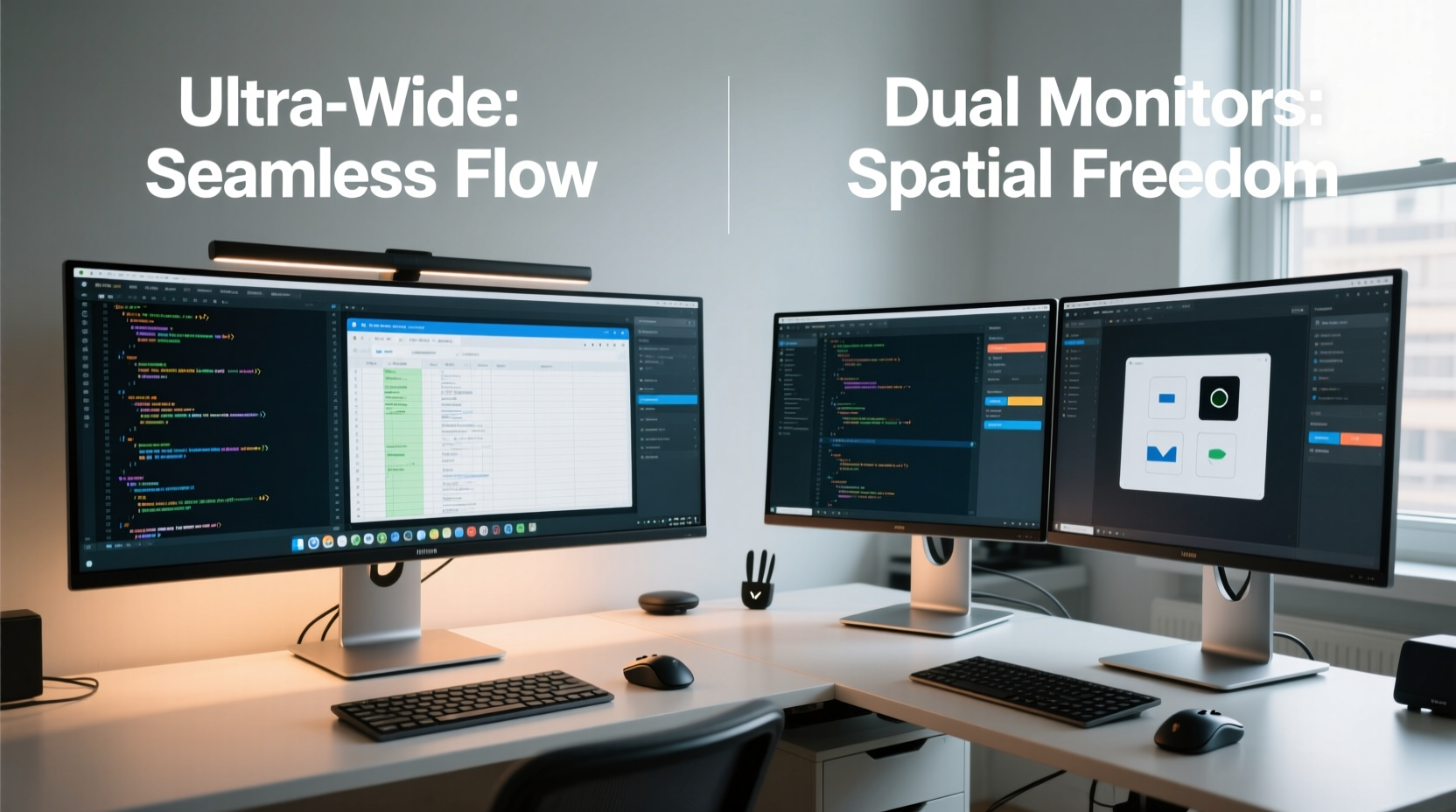
Multitasking is no longer optional. Professionals routinely juggle communication tools, reference materials, active documents, and monitoring dashboards simultaneously. A constrained screen forces constant tab switching, window resizing, and mental context shifts—all of which degrade focus and slow output.
According to a 2023 study by the University of Utah, workers using extended desktop space completed complex tasks up to 35% faster than those confined to single displays. The key wasn't just more pixels—it was seamless access without interruption. This underscores the importance of choosing a display strategy that minimizes friction during task-switching while maximizing spatial awareness.
Understanding Ultra-Wide Monitors
An ultra-wide monitor typically features an aspect ratio of 21:9 or even 32:9, offering a continuous panoramic view far beyond standard 16:9 screens. Common resolutions include 2560x1080 (FWHD), 3440x1440 (UWQHD), and 5120x2160 (5K). These panels simulate a single, expansive canvas ideal for immersive workflows.
For creative professionals—especially video editors, financial analysts, and coders—the uninterrupted horizontal span allows side-by-side application placement with minimal bezel interference. Imagine having your timeline on the left, preview window in the center, and effects panel on the right—all visible at once, without overlapping windows.
Advantages of Ultra-Wide Setups
- No bezel interruption: Unlike dual monitors, there's no physical gap splitting content, improving visual continuity.
- Better immersion: Especially useful for media editing, simulation software, and gaming.
- Cleaner desk aesthetic: One cable, one stand, less clutter.
- Easier eye tracking: Eyes move smoothly across a single plane without refocusing over a central gap.
Limits of Ultra-Wide Displays
- Poor vertical space: Despite width, height remains limited (~1440px max common), making long documents hard to view fully.
- Software compatibility issues: Some legacy apps don’t scale well or default to awkward positions.
- Higher cost per inch: Premium pricing compared to two mid-range 16:9 panels.
- Viewing angle distortion: On curved models, extreme edges may appear stretched if seated too close or off-center.
Dual Monitor Configurations Explained
Dual monitors involve two separate displays running in tandem, usually arranged side-by-side. Most users opt for identical 24”–27” 1080p or 1440p panels, though mixed sizes and orientations are possible. This modular approach has been a staple in control rooms, trading floors, and design studios for decades.
The core benefit lies in flexibility. You can dedicate one screen exclusively to communication (Slack, email, Zoom), another to active work (code editor, CAD tool), and rotate orientation—for instance, turning one vertically for coding or reading long PDFs.
“Dual monitors give you functional compartmentalization. It’s like having separate offices for different roles within the same job.” — Dr. Lena Patel, Human-Computer Interaction Researcher, MIT Media Lab
Benefits of Dual Monitor Systems
- Customizable layout: Mix sizes, resolutions, and orientations based on need.
- Cost-effective scalability: Upgrade one monitor at a time; reuse existing hardware.
- Superior vertical visibility: Rotate one monitor portrait mode for code, legal docs, or social media feeds.
- Redundancy: If one fails, the other remains operational.
Drawbacks of Using Two Screens
- Bezel dead zone: The middle gap disrupts continuous content like timelines or spreadsheets.
- Cable clutter: More power, video, and USB cables to manage.
- Inconsistent color calibration: Matching brightness and tone across brands/models takes effort.
- Eye strain from head movement: Constantly turning your head increases neck fatigue over time.
Direct Comparison: Ultra-Wide vs Dual Monitors
| Feature | Ultra-Wide Monitor | Dual Monitors |
|---|---|---|
| Screen Continuity | ✅ Seamless, no bezel break | ❌ Central bezel interrupts flow |
| Setup Simplicity | ✅ One cable, one mount | ❌ Multiple cables, alignment needed |
| Vertical Space | ❌ Limited (same as single 16:9) | ✅ Can rotate one screen vertically |
| Cost Efficiency | ❌ Higher upfront cost | ✅ Reuse old monitors, incremental upgrades |
| Ease of Calibration | ✅ Single panel, uniform colors | ❌ Requires manual tuning across units |
| Flexibility | ❌ Fixed configuration | ✅ Adjustable positioning and rotation |
| Immersion & Focus | ✅ Superior peripheral vision engagement | ❌ Visual separation may reduce cohesion |
Real-World Application: A Day in the Life of a Data Analyst
Meet James, a senior data analyst at a fintech startup. His typical day involves pulling SQL queries, visualizing trends in Power BI, cross-referencing market news, and presenting findings via Teams calls. He tested both setups over four weeks to measure efficiency gains.
With dual 27” 1440p monitors, he placed his database IDE on the left, BI dashboard on the right, and rotated the secondary screen vertically for long JSON responses. While effective, he found himself constantly adjusting window sizes due to the central bezel cutting through charts. During presentations, moving slides across screens felt disjointed.
Switching to a 34” UWQHD monitor changed his workflow. He used virtual desktop zones: left third for queries, center for live dashboards, right for documentation. No bezel meant full-chart visibility. However, when reviewing lengthy API logs, he missed the vertical space he had with the portrait monitor.
Verdict: For 80% of his tasks, the ultra-wide improved fluidity. But for deep debugging sessions, he occasionally missed the dual setup’s adaptability. His compromise? Keep the ultra-wide as primary and add a small vertical monitor as a tertiary log viewer.
Which Setup Boosts Multitasking Efficiency?
The answer depends on your definition of “efficiency.”
If efficiency means minimizing cognitive load and reducing window management overhead, **ultra-wide monitors win**. Their seamless expanse reduces distractions caused by bezels and promotes smoother transitions between adjacent apps. They excel in linear workflows: video editing, coding with split views, financial modeling across wide spreadsheets.
If efficiency means maximizing functional versatility and customization, **dual monitors take the lead**. The ability to isolate tasks physically—email on one, project work on the other—or orient one screen vertically offers unmatched adaptability. This benefits developers, researchers, and anyone working with tall content.
Hybrid solutions are also gaining traction. Some professionals use an ultra-wide as a primary display and supplement it with a smaller vertical monitor for notifications, logs, or chat apps—a \"three-zone\" approach that combines the best of both worlds.
Actionable Checklist: Choosing Your Optimal Setup
Your Decision Checklist
- ✅ Assess your most frequent multitasking pattern: Do you work horizontally (timelines, spreadsheets) or vertically (code, documents)?
- ✅ Measure your desk depth and viewing distance—ultra-wides require more front-to-back space.
- ✅ Check GPU output capability—driving dual 1440p screens or a 5K ultra-wide demands robust graphics.
- ✅ Consider future-proofing—can you repurpose current monitors in a hybrid setup?
- ✅ Test ergonomics—position mockups with tape to visualize sightlines and head movement.
- ✅ Prioritize software compatibility—does your main app suite support multi-window layouts?
Frequently Asked Questions
Can I use an ultra-wide monitor like dual screens?
Yes—with operating system tools like Windows Snap Layouts or third-party utilities such as DisplayFusion and Magnet (macOS), you can partition an ultra-wide into distinct virtual zones that mimic separate monitors. Many users run two browsers side-by-side or keep Slack pinned to one edge.
Do dual monitors increase productivity more than ultra-wides?
Not necessarily. Studies show increased productivity comes from expanded screen area, not quantity of monitors. A high-resolution ultra-wide providing equivalent or greater pixel count than dual 1080p screens often delivers smoother performance due to fewer context switches and bezel interruptions.
Is eye strain worse with dual monitors?
Potentially. Turning your head repeatedly between distant screens increases cervical strain over time. Positioning both monitors close together with minimal gap helps. Curved ultra-wides promote more natural eye movement across the field of view, potentially reducing fatigue during prolonged use.
Final Recommendation: Match Setup to Workflow
There is no universal winner. The optimal choice aligns with your specific tasks, physical workspace, and long-term goals.
Choose an **ultra-wide monitor** if:
- You prioritize clean aesthetics and minimal cabling.
- Your work involves wide-format content (video, audio, Gantt charts).
- You value immersive focus and reduced visual fragmentation.
Opt for **dual monitors** if:
- You frequently compare documents or monitor multiple streams.
- You want to rotate one screen vertically for coding or reading.
- Budget constraints favor reusing existing hardware.
And don’t overlook the emerging sweet spot: combining an ultra-wide with a compact vertical monitor. This trifurcated layout delivers panoramic breadth, deep vertical reach, and dedicated utility space—all while maintaining visual hierarchy.
Conclusion: Take Control of Your Digital Workspace
Your monitor setup should serve your mind—not distract it. Whether you lean toward the sleek continuity of an ultra-wide or the adaptable power of dual screens, the goal remains the same: reduce friction, enhance clarity, and let your ideas flow unimpeded.
Don’t settle for convention. Test configurations, leverage snapping tools, and tailor your environment to how you actually work—not how manufacturers assume you do. Small changes in screen layout can yield outsized gains in concentration, speed, and satisfaction.




 浙公网安备
33010002000092号
浙公网安备
33010002000092号 浙B2-20120091-4
Comments
No comments yet. Why don't you start the discussion?