
In today’s digital workspace, screen real estate directly impacts efficiency. Whether you're editing video, coding, managing spreadsheets, or juggling multiple applications, how you configure your display can make a tangible difference in focus, multitasking ability, and overall output. Two dominant setups dominate the conversation: ultra-wide monitors and dual-screen configurations. Each offers expanded viewing space, but they differ fundamentally in design, usability, and workflow integration. Choosing between them isn’t just about preference—it’s about aligning your tools with your work style.
The Core Differences: Design and Functionality
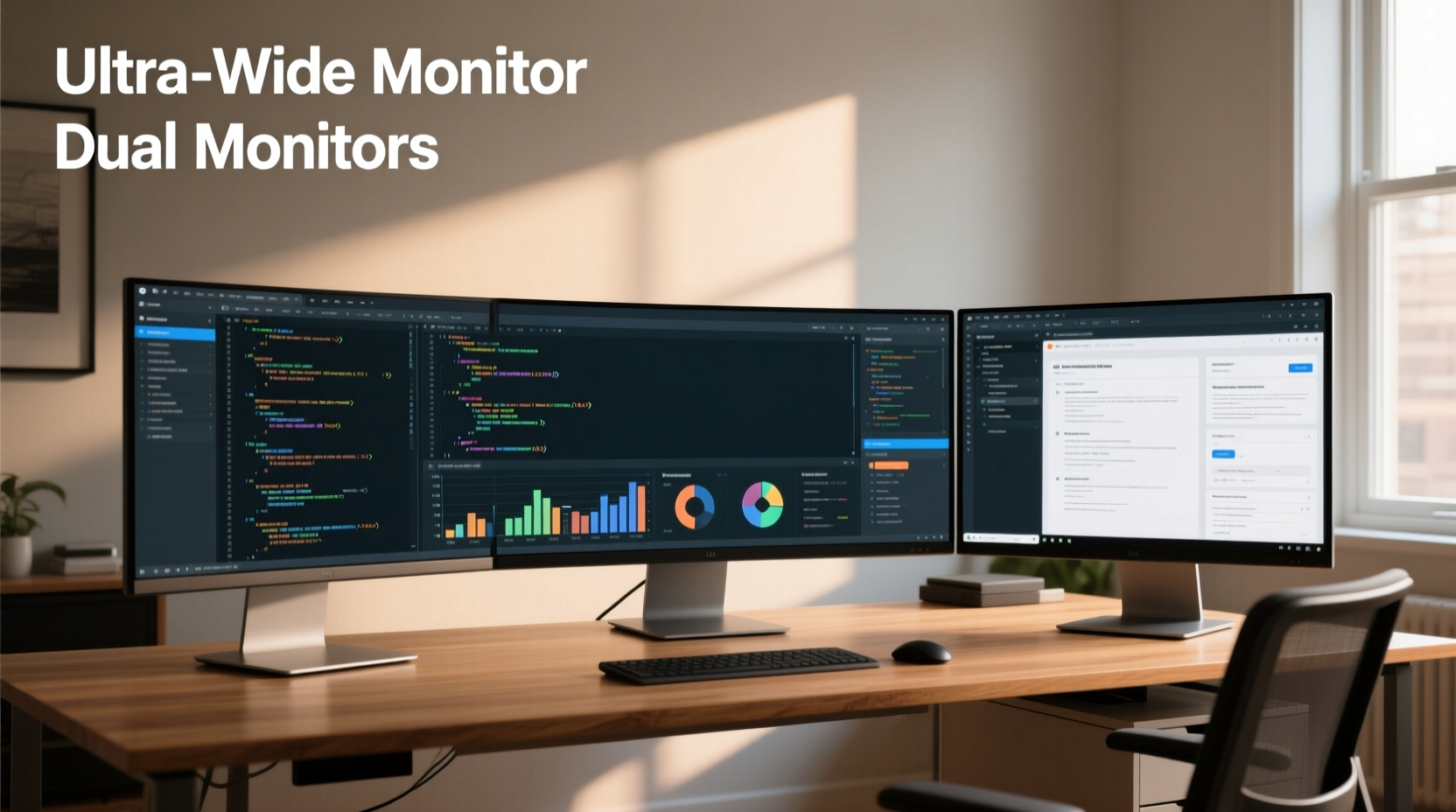
An ultra-wide monitor typically features a single display panel with an aspect ratio of 21:9 or even 32:9, offering a continuous horizontal field of view. In contrast, a dual-screen setup involves two separate monitors placed side by side, usually at standard 16:9 ratios. While both aim to increase screen area, their implementation leads to distinct user experiences.
The seamless nature of an ultra-wide eliminates the bezel interruption found in dual-monitor arrangements. This makes it ideal for tasks requiring lateral continuity—such as video timelines, architectural blueprints, or panoramic data dashboards. However, dual monitors offer greater flexibility in orientation and application separation. You can rotate one vertically for coding or document editing while keeping the other horizontal for reference materials.
One often-overlooked factor is cable management and desk footprint. An ultra-wide requires only one video connection and occupies less depth on your desk. Dual monitors demand two video outputs (or daisy-chaining support), more cables, and deeper desk space—especially if using larger panels.
Workflow Performance: Task-Specific Analysis
Not all workflows benefit equally from either setup. The optimal choice depends heavily on your primary tasks.
Creative Professionals: Video Editors and Designers
For video editors, the extended timeline visibility on an ultra-wide monitor reduces constant horizontal scrolling. Adobe Premiere Pro and DaVinci Resolve users report smoother scrubbing and easier multi-track management when the preview window and timeline coexist seamlessly across the same panel. Designers working in Illustrator or Figma appreciate the uninterrupted canvas, particularly when aligning elements across wide artboards.
However, dual monitors allow dedicated use of one screen for tools and palettes, reserving the second for the main workspace. This division minimizes clutter and keeps frequently used functions accessible without overlapping the creative zone.
Developers and Coders
Programmers often benefit from vertical space. A dual-monitor setup allows one screen in portrait mode for code, with the other in landscape for documentation, terminal windows, or browser testing. This mimics the traditional developer workstation layout favored in tech environments.
While ultra-wides provide width, they don’t inherently improve line visibility unless paired with high resolution (e.g., 3440x1440). Even then, developers splitting their ultra-wide into three virtual zones (code, terminal, browser) may find the central section too narrow compared to using two full 27-inch displays.
Financial Analysts and Data Workers
Spreadsheets, dashboards, and real-time data feeds thrive on horizontal expansion. Ultra-wide monitors enable side-by-side comparison of multiple Excel sheets or large pivot tables without constant tab switching. Bloomberg Terminal users, for example, historically favor wide formats for monitoring numerous tickers simultaneously.
Dual screens also serve well here, allowing one monitor for live data and another for analysis or reporting. The key advantage is independent scaling and zoom levels per screen—a feature not always smoothly handled on ultra-wides when running multiple apps.
“Display ergonomics are as critical as keyboard layout. The right visual setup reduces cognitive load by minimizing context switches.” — Dr. Lena Torres, Human-Computer Interaction Researcher, MIT Media Lab
Comparative Breakdown: Ultra-Wide vs Dual Screens
| Feature | Ultra-Wide Monitor | Dual Screens |
|---|---|---|
| Seamless Display | ✅ Yes – no bezel gap | ❌ No – visible middle bezel |
| Flexibility in Orientation | ❌ Limited – fixed landscape | ✅ High – mix portrait/landscape |
| Cable Management | ✅ Simple – one connection | ❌ Complex – two connections |
| Desk Depth Required | ✅ Minimal | ❌ Greater |
| Multitasking Efficiency | ✅ Good for lateral workflows | ✅ Excellent for app segregation |
| Gaming Immersion | ✅ Superior field of view | ❌ Less immersive |
| Cost (Equivalent Resolution) | ❌ Often higher | ✅ Potentially lower |
| OS Window Management | ⚠️ Can be tricky with snapping | ✅ Mature support across systems |
Real-World Scenario: A Financial Analyst’s Experience
Sarah Kim, a senior financial analyst at a mid-sized investment firm, transitioned from dual 24-inch monitors to a 34-inch ultrawide (3440x1440) after six months of hesitation. Her daily routine involves pulling live market data, building models in Excel, and presenting findings via Zoom.
Initially skeptical, she found that the ultrawide eliminated the “jump” her eyes made between screens, reducing fatigue during long sessions. She uses the left third for Bloomberg data, center for Excel modeling, and right for email and Slack. The absence of a bezel meant charts spanning columns didn’t break visually.
However, challenges emerged during team meetings. When sharing her screen, colleagues struggled to follow because the entire desktop was visible at once, making navigation confusing. She now uses virtual desktops and window grouping to isolate content before sharing. Additionally, she missed the ability to tilt one monitor independently for glare reduction—an adjustment not possible on a single curved panel.
After nine months, Sarah concluded that while the ultrawide improved personal focus, dual monitors would have been better suited for collaborative workflows requiring frequent screen sharing and flexible app positioning.
Choosing the Right Setup: A Step-by-Step Decision Guide
Selecting between an ultrawide and dual monitors shouldn’t be arbitrary. Follow this structured approach to match your needs with the optimal solution.
- Assess Your Primary Work Type
List your top three daily tasks. Are they linear (e.g., video editing, spreadsheet analysis)? Or modular (e.g., coding, research, email + writing)? Linear tasks favor ultrawides; modular ones benefit from dual screens. - Evaluate Physical Workspace
Measure desk depth. Ultrawides need less depth but more width. Dual monitors require stable support and sufficient clearance. Ensure your stand or mount can handle the configuration. - Check Hardware Compatibility
Verify your GPU supports the resolution and refresh rate of your chosen setup. Ultrawides often require DisplayPort 1.4 or HDMI 2.0+. Dual monitors may need MST support or two video outputs. - Test Window Management Habits
Do you frequently drag windows between screens? Do you use one app per screen? If yes, dual monitors enhance this behavior. If you prefer tiling apps side-by-side within a continuous space, go ultrawide. - Consider Future Scalability
Think long-term. Will you add a third monitor later? Dual setups scale more easily. Want to reduce clutter? An ultrawide simplifies future upgrades.
Common Pitfalls and How to Avoid Them
- Ignoring Ergonomics: Curved ultrawides must be centered properly. Sitting too far off-axis distorts text readability. Position your chair so your gaze hits the center of the screen first.
- Overlooking Software Optimization: Some legacy applications don’t scale well on ultrawides. Test critical software in split-screen mode before committing.
- Underestimating Bezel Impact: On dual monitors, thick bezels can disrupt video playback or design alignment. Opt for thin-bezel models like Dell Ultrasharp or LG UltraFine series.
- Misjudging Resolution Needs: A 29-inch 2560x1080 ultrawide lacks pixel density for detailed work. For professional use, choose at least 3440x1440.
Frequently Asked Questions
Can I run dual ultrawide monitors?
Technically yes, but it’s rare and often excessive. Triple-monitor enthusiasts sometimes pair two ultrawides, but most find the central bezel disruptive. More commonly, professionals use one ultrawide as a primary and a secondary vertical monitor for tools or communication apps—blending the best of both worlds.
Does an ultrawide reduce eye strain compared to dual screens?
For many users, yes. The lack of a central bezel means fewer abrupt shifts in focus and reduced saccadic eye movement. However, improper curvature or poor positioning can cause distortion at the edges, leading to discomfort. Adjust viewing distance (recommended: 80–100 cm) and ensure ambient lighting minimizes reflections.
Are ultrawide monitors good for office productivity?
Absolutely—if configured correctly. Running Outlook on one side and Word on the other, or comparing two PDFs side-by-side, becomes effortless. However, organizations relying on legacy ERP systems with fixed window sizes may encounter layout issues. Pilot test with a single unit before enterprise rollout.
Final Recommendation: It Depends on Your Workflow
There is no universal winner between ultrawide monitors and dual screens. The decision hinges on the nature of your work, physical environment, and personal interaction patterns with digital tools.
If your workflow thrives on continuity—editing timelines, analyzing wide datasets, or immersive gaming—an ultrawide delivers a sleek, distraction-free experience. Its clean aesthetics and minimal cabling suit modern minimalist desks and remote workers who value simplicity.
Conversely, if your day involves constant context switching between unrelated applications, rotating displays, or collaborating across multiple platforms, dual monitors offer unmatched versatility. Their adaptability makes them a staple in programming, academic research, and control room environments.
The future likely belongs to hybrid solutions: a primary ultrawide supplemented by a smaller secondary display. This configuration leverages panoramic space for core tasks while preserving dedicated zones for notifications, video calls, or reference material.
Take Action: Optimize Your Setup Today
Your monitor setup is not just hardware—it’s a productivity architecture. Don’t settle for default configurations. Experiment with window layouts, test both setups if possible, and measure changes in task completion time and mental fatigue. Many manufacturers offer return windows; take advantage of them.
Start by auditing your current screen usage. What apps do you keep open? How often do you resize or reposition windows? Use this data to guide your next upgrade. Whether you choose the sweeping horizon of an ultrawide or the segmented efficiency of dual screens, the goal remains the same: fewer distractions, faster execution, and sustained focus.




 浙公网安备
33010002000092号
浙公网安备
33010002000092号 浙B2-20120091-4
Comments
No comments yet. Why don't you start the discussion?