
It’s a common but unsettling experience: stepping outside on a frosty morning, pulling out your phone or tablet, and seeing the screen flash erratically before dimming or turning completely unresponsive. Or perhaps you’ve noticed your laptop display flickering when used in an unheated garage during winter. Screen flickering in cold environments isn’t just annoying—it can signal deeper hardware stress and may lead to permanent damage if ignored. This behavior affects smartphones, tablets, laptops, and even car infotainment systems. Understanding the science behind it and knowing how to respond can save both device performance and user frustration.
The Science Behind Cold-Induced Screen Flickering
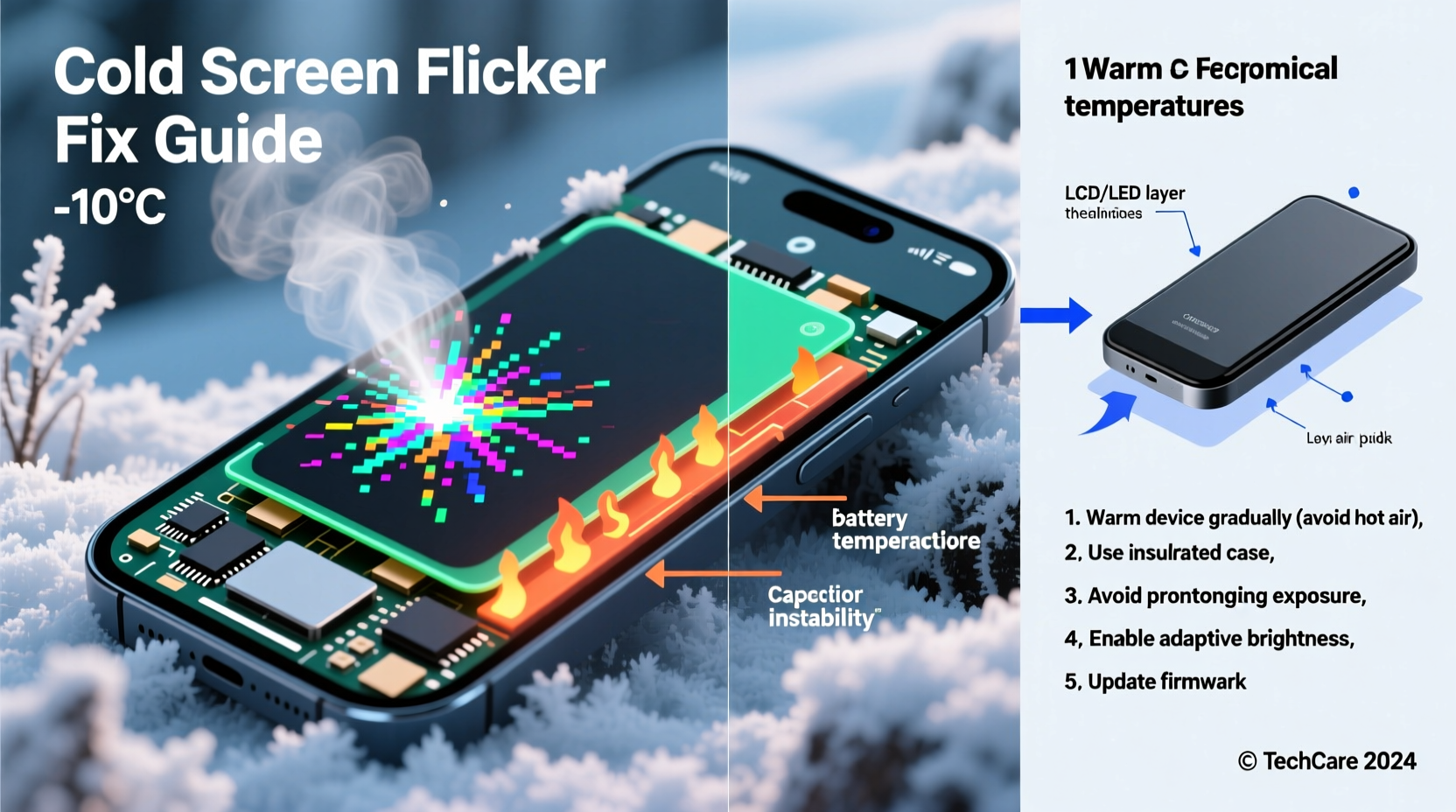
Liquid crystal displays (LCDs), which are still widely used in many devices despite the rise of OLED technology, rely on liquid crystals that change orientation when electric current passes through them. These crystals are housed between glass panels and require a certain level of fluidity to function correctly. In low temperatures, especially below 0°C (32°F), the liquid crystals begin to thicken and slow down, impairing their ability to respond quickly to electrical signals. This sluggishness causes delayed pixel transitions, resulting in visible flickering, ghosting, or temporary image freezing.
OLED screens, while more responsive and energy-efficient, aren't immune either. Although they don’t use liquid crystals, their organic compounds become less conductive in extreme cold. The reduced electron mobility slows down pixel refresh rates, leading to similar visual disturbances. Additionally, the materials contract at different rates under thermal stress, potentially causing micro-gaps in circuitry or delamination over time.
“Cold doesn’t just affect performance—it accelerates wear. Repeated exposure below recommended operating temperatures can shorten a display’s lifespan by up to 40%.” — Dr. Lena Torres, Materials Scientist at Northern Tech Labs
How Temperature Affects Different Devices
Not all screens react the same way to cold. The severity and type of flickering depend on the display technology, device design, and environmental conditions. Here's a breakdown across common device types:
| Device Type | Display Technology | Cold Tolerance | Common Symptoms Below 0°C |
|---|---|---|---|
| Smartphones | Mixed (OLED/LCD) | Varies; typically -10°C to 5°C | Flickering, touch lag, sudden shutdowns |
| Tablets | LCD dominant | 0°C to 16°C optimal | Image ghosting, color distortion |
| Laptops | LCD with LED backlight | -20°C storage, 5°C+ operation | Backlight flicker, uneven brightness |
| Car Infotainment | LCD or resistive touchscreen | Limited cold compensation | Delayed response, screen blackouts |
| E-Readers | E-Ink | High tolerance (-10°C to 40°C) | Slow refresh, no flicker but sluggish updates |
Manufacturers specify operating temperature ranges for a reason. Apple, for example, recommends using iPhones between 0°C and 35°C. Samsung advises keeping Galaxy devices above -15°C. Operating outside these bounds—even briefly—can trigger temporary malfunctions like flickering or complete screen failure.
Real-World Example: Winter Commuter Struggles
Take Mark, a field technician in Minnesota who uses a ruggedized tablet for site inspections. During a particularly harsh January, he began noticing persistent flickering every time he stepped outside with his device. At first, he assumed it was a software glitch and rebooted multiple times. But the issue recurred daily. After consulting the manufacturer, he learned that although his tablet was rated for cold storage, its LCD panel had a minimum operating temperature of 5°C. His habit of reviewing data immediately upon exiting his heated vehicle exposed the screen to sub-zero air too quickly. By storing the tablet in an insulated case and waiting 10 minutes before use, the flickering stopped. His experience highlights how real-world usage often pushes devices beyond their designed limits—even when labeled “rugged.”
Step-by-Step Guide to Prevent Cold-Related Screen Flickering
If you live in or frequently travel to cold climates, proactive measures are essential. Follow this sequence to protect your screens and maintain usability:
- Know Your Device’s Limits: Check the manufacturer’s specifications for operating and storage temperatures. Don’t assume “cold-resistant” means “fully functional in freezing weather.”
- Use Insulated Cases: Invest in a padded, insulated case or sleeve designed for electronics. These reduce rapid temperature changes and provide a buffer against wind chill.
- Avoid Rapid Temperature Shifts: When coming indoors from the cold, leave your device in a bag or coat pocket for 15–20 minutes. This allows it to acclimate slowly and prevents condensation inside the housing.
- Warm Devices Gradually: If a screen is flickering due to cold, do not place it near direct heat sources. Instead, carry it close to your body (e.g., inside a jacket) to warm it gently.
- Limit Outdoor Usage Time: Try to minimize prolonged exposure. Use voice commands, gloves-friendly interfaces, or pre-download necessary data before going outside.
- Enable Power-Saving Mode: Lower brightness and disable animations to reduce strain on the display driver during cold operation.
- Update Firmware Regularly: Some manufacturers release firmware patches that improve thermal management and screen responsiveness in edge conditions.
Checklist: Cold-Weather Device Protection
- ✅ Review your device’s operating temperature range
- ✅ Use an insulated protective case
- ✅ Avoid touching the screen with bare fingers in extreme cold
- ✅ Allow gradual warming before use after cold exposure
- ✅ Keep spare batteries warm (if removable)
- ✅ Disable auto-brightness in freezing conditions (can exacerbate flicker)
- ✅ Store devices in an inner layer of clothing when outdoors
Do’s and Don’ts of Using Screens in the Cold
| Do’s | Don’ts |
|---|---|
| Store devices in an inside pocket or insulated bag | Leave devices in cars overnight during winter |
| Use voice assistants to minimize screen interaction | Expose wet or damp devices to cold (increases ice risk) |
| Wear touchscreen-compatible gloves | Attempt to charge a frozen device immediately |
| Reduce screen brightness to ease pixel load | Place cold devices near radiators or hair dryers |
| Wait 10–20 minutes for acclimatization indoors | Ignore repeated flickering as “just temporary” |
FAQ: Common Questions About Cold-Induced Screen Flickering
Can cold weather permanently damage my screen?
Yes. Prolonged exposure to temperatures below the recommended range can cause irreversible damage. Liquid crystals may crystallize, OLED layers can degrade, and thermal contraction can crack internal connections. Even if the screen recovers after warming, repeated stress reduces long-term reliability.
Why does my phone shut off in the cold even with battery left?
Lithium-ion batteries lose efficiency in cold temperatures. The chemical reactions that generate power slow down, causing voltage to drop suddenly. The system interprets this as a dead battery and shuts down to protect itself. Once warmed, the device often powers back on with remaining charge.
Are there any apps that help reduce flickering in the cold?
No app can fix the physical limitations of display materials in cold environments. However, reducing screen refresh rate, disabling dynamic wallpapers, and lowering brightness via settings can reduce flicker severity. Some Android devices offer “monochrome mode” or grayscale options that simplify pixel activity and may help stability.
When to Seek Professional Help
Occasional flickering in extreme cold is usually reversible once the device returns to normal temperatures. However, if flickering persists at room temperature, or if you notice dark spots, lines, or unresponsive areas after a cold incident, internal damage may have occurred. Condensation, cracked flex cables, or delaminated layers require professional diagnosis. Stop using the device and consult an authorized repair center. Attempting DIY fixes on moisture-compromised electronics increases the risk of short circuits.
Conclusion: Protect Your Screen Like You Dress for Winter
Just as you wouldn’t go outside in freezing weather without a coat, you shouldn’t expose your electronic devices to cold without protection. Screen flickering in low temperatures is not merely a nuisance—it’s a warning sign from your device. By understanding the underlying causes and adopting simple preventive habits, you can maintain screen integrity, extend device life, and avoid costly replacements. Whether you're a daily commuter, outdoor worker, or winter adventurer, treating your gadgets with the same care you give yourself in cold weather makes all the difference.




 浙公网安备
33010002000092号
浙公网安备
33010002000092号 浙B2-20120091-4
Comments
No comments yet. Why don't you start the discussion?