
In today’s interconnected world, your search history follows you across smartphones, tablets, laptops, and even smart TVs. While this synchronization enhances convenience, it also creates a detailed digital trail that can expose personal interests, locations, and habits. Managing this data is no longer optional—it’s essential for protecting your privacy. Understanding where your search history is stored, how it's linked across devices, and what tools are available to control it empowers you to take back ownership of your online identity.
Understanding How Search History Syncs Across Devices
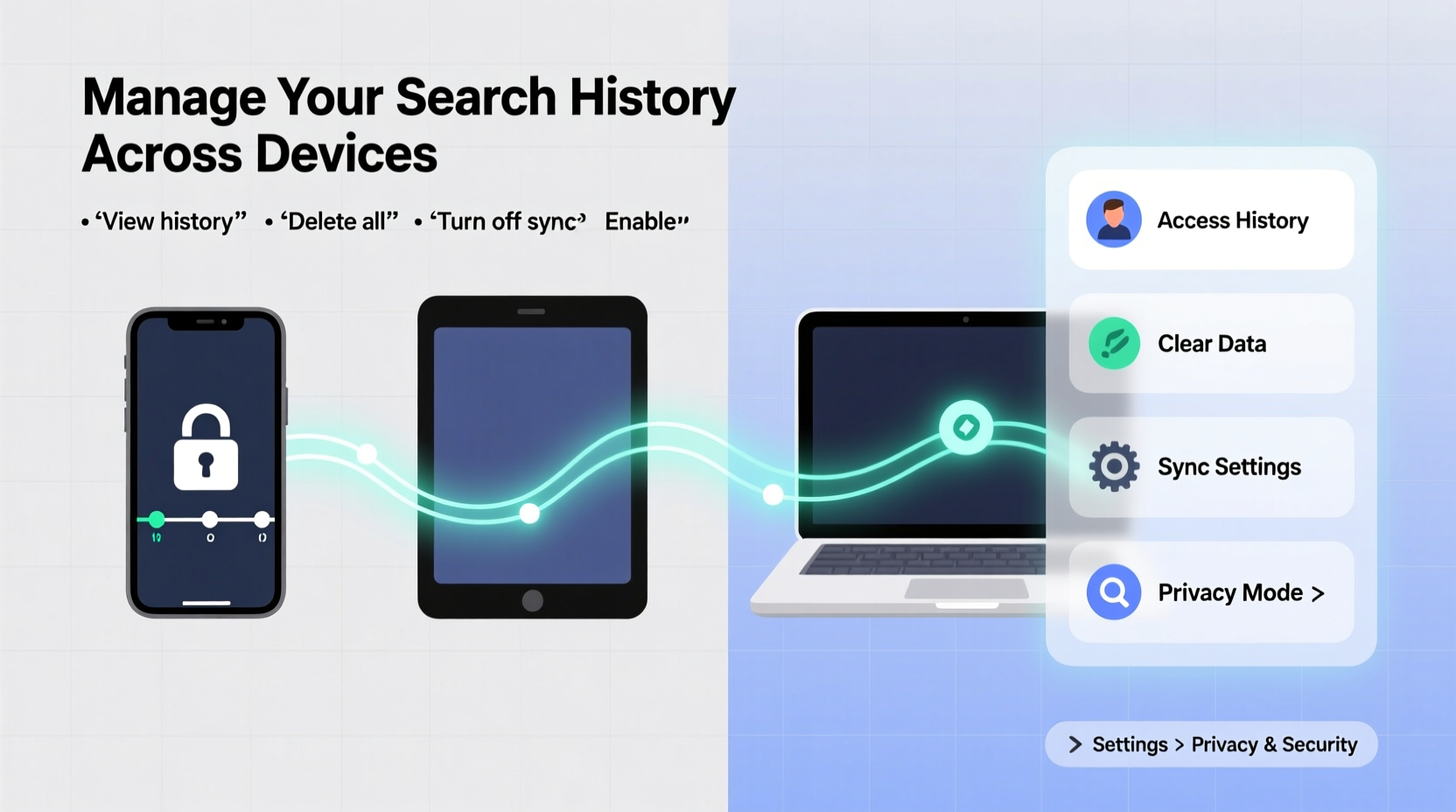
Most users rely on a single ecosystem—Google, Apple, or Microsoft—that automatically syncs browsing activity when signed in. For example, if you search for “best hiking trails near me” on your phone while logged into your Google account, the same query may appear later in Chrome on your desktop. This happens through cloud-based syncing powered by your login credentials.
The underlying mechanism varies slightly between platforms:
- Google Account: Syncs Chrome history, Google app searches, and voice queries via Web & App Activity settings.
- Apple iCloud: Uses Safari’s iCloud History feature to mirror browsing data across iOS and macOS devices.
- Microsoft Edge: Syncs browsing history through your Microsoft account when enabled in browser settings.
This seamless integration improves user experience but often operates without explicit awareness. Many people don’t realize their searches are being aggregated into long-term profiles used for targeted advertising and algorithmic recommendations.
“Your search history is one of the most revealing datasets about your private life. It shows health concerns, financial stress, relationship issues—all things you might never share publicly.” — Dr. Lisa Chen, Digital Privacy Researcher at Stanford University
Step-by-Step Guide to Accessing Your Search History
To regain control, start by reviewing what has already been collected. Below is a platform-specific walkthrough:
For Google Users
- Go to myactivity.google.com and sign in.
- Select “Filter by product” and choose “Search,” “Chrome,” or “Assistant” to narrow results.
- Browse entries chronologically or use the search bar at the top to find specific terms.
- To delete individual items, hover over an entry and click the three-dot menu → Delete.
- To erase everything, click “Delete activity by” on the left sidebar and select a time range (e.g., “All time”).
For Apple Users
- Open Safari on any device with iCloud enabled.
- Tap the two-page icon (history tab) at the bottom right.
- Swipe left on any entry to delete it individually.
- To clear all history: Settings → Safari → Clear History and Website Data.
- Note: This action clears data locally unless synced via iCloud. To manage iCloud-wide history, go to Settings → [Your Name] → iCloud → Safari and toggle off syncing if desired.
For Microsoft Edge Users
- Open Edge and click the three-dot menu → History (or press Ctrl+H).
- Review recent searches organized by date.
- Select multiple entries using checkboxes, then delete them.
- To disable syncing: Settings → Profiles → Sync → Manage what you sync → Turn off “Browsing history.”
Strategies to Limit Cross-Device Tracking
Deleting past history is helpful, but preventing future exposure requires proactive configuration. Consider these strategies:
- Disable Web & App Activity: In your Google Account settings under “Data & Personalization,” turn off “Web & App Activity.” This stops new searches from being saved to your timeline.
- Use Incognito/Private Mode: Browsing in private windows prevents local history storage, though some network-level tracking may still occur.
- Limit Device Syncing: Only enable history sync on devices you fully control. Avoid signing into shared or public computers.
- Enable Auto-Delete Rules: Google allows automatic deletion of activity after 3 months or 18 months—set this under “My Activity” → “Auto-delete.”
Comparison of Major Platforms’ Privacy Controls
| Platform | Can Disable Search Sync? | Auto-Delete Option? | Private Browsing Default? |
|---|---|---|---|
| Google Chrome | Yes (via Web & App Activity) | Yes (3 or 18 months) | No |
| Apple Safari | Yes (toggle off iCloud History) | No | Optional per session |
| Microsoft Edge | Yes (Sync settings) | No | No |
Real Example: Recovering Control After a Privacy Breach
Sophie, a freelance writer from Portland, noticed targeted ads following her around the web after researching anxiety treatments on her work laptop. She hadn’t realized she was logged into her personal Google account during those sessions. Within days, mental health clinics and supplement brands began appearing in her social media feeds.
Determined to stop the leakage, Sophie visited myactivity.google.com and discovered over 200 stored searches related to health, finances, and travel plans. She deleted six months of data, turned off Web & App Activity, and set up auto-delete for future logs. She also started using separate browser profiles—one for personal use with strict privacy settings, another for research in incognito mode.
Within a week, the intrusive ads disappeared. More importantly, Sophie regained confidence in her digital autonomy.
Essential Checklist for Managing Search History
Follow this checklist to secure your cross-device search data:
- ✅ Log into your primary account (Google, Apple, Microsoft).
- ✅ Navigate to the activity or history dashboard.
- ✅ Review recent searches across all devices.
- ✅ Delete unwanted or sensitive entries in bulk or individually.
- ✅ Disable syncing for browsing history if not needed.
- ✅ Enable auto-delete or set calendar reminders for routine cleanups.
- ✅ Use private browsing for sensitive topics.
- ✅ Sign out of accounts on shared or untrusted devices.
Frequently Asked Questions
Does deleting search history stop companies from tracking me completely?
No. While removing history limits personalized ads and profile building, IP addresses, cookies, and device fingerprints can still be used for tracking. Combine history management with ad blockers, tracker prevention tools (like Privacy Badger), and DNS privacy services for stronger protection.
Is my search history backed up somewhere even after I delete it?
Major providers typically honor deletion requests, but temporary backups may exist for system integrity. According to Google’s transparency report, permanently deleted data is removed from production systems within months. However, legal or compliance holds could delay full erasure in rare cases.
Can someone else see my search history if they have my phone?
If the device is unlocked and the user remains signed in to their account, yes. Always use strong passcodes, biometric locks, and sign out of browsers after sensitive sessions. On shared devices, consider guest modes or restricted profiles.
Take Charge of Your Digital Footprint Today
Your search history isn't just a list of queries—it's a reflection of your inner life. By understanding how it moves across devices and taking deliberate steps to manage it, you reclaim agency over your personal information. Privacy isn’t about hiding; it’s about choosing what to share and with whom. Start small: spend 15 minutes auditing your current history, adjust one setting, and schedule your next review. Over time, these actions build a more secure, intentional digital presence.




 浙公网安备
33010002000092号
浙公网安备
33010002000092号 浙B2-20120091-4
Comments
No comments yet. Why don't you start the discussion?