
For software developers, the right workspace can mean the difference between hours of focused flow and constant context switching. As coding environments grow more complex—with IDEs, terminals, documentation, and communication tools open simultaneously—the demand for expansive screen real estate has never been higher. Two dominant solutions have emerged: ultrawide monitors and dual-screen setups. Each promises improved productivity, but they deliver in fundamentally different ways. Choosing between them isn't just about preference—it's about workflow, physical space, budget, and long-term comfort.
Ergonomic Design and Physical Space
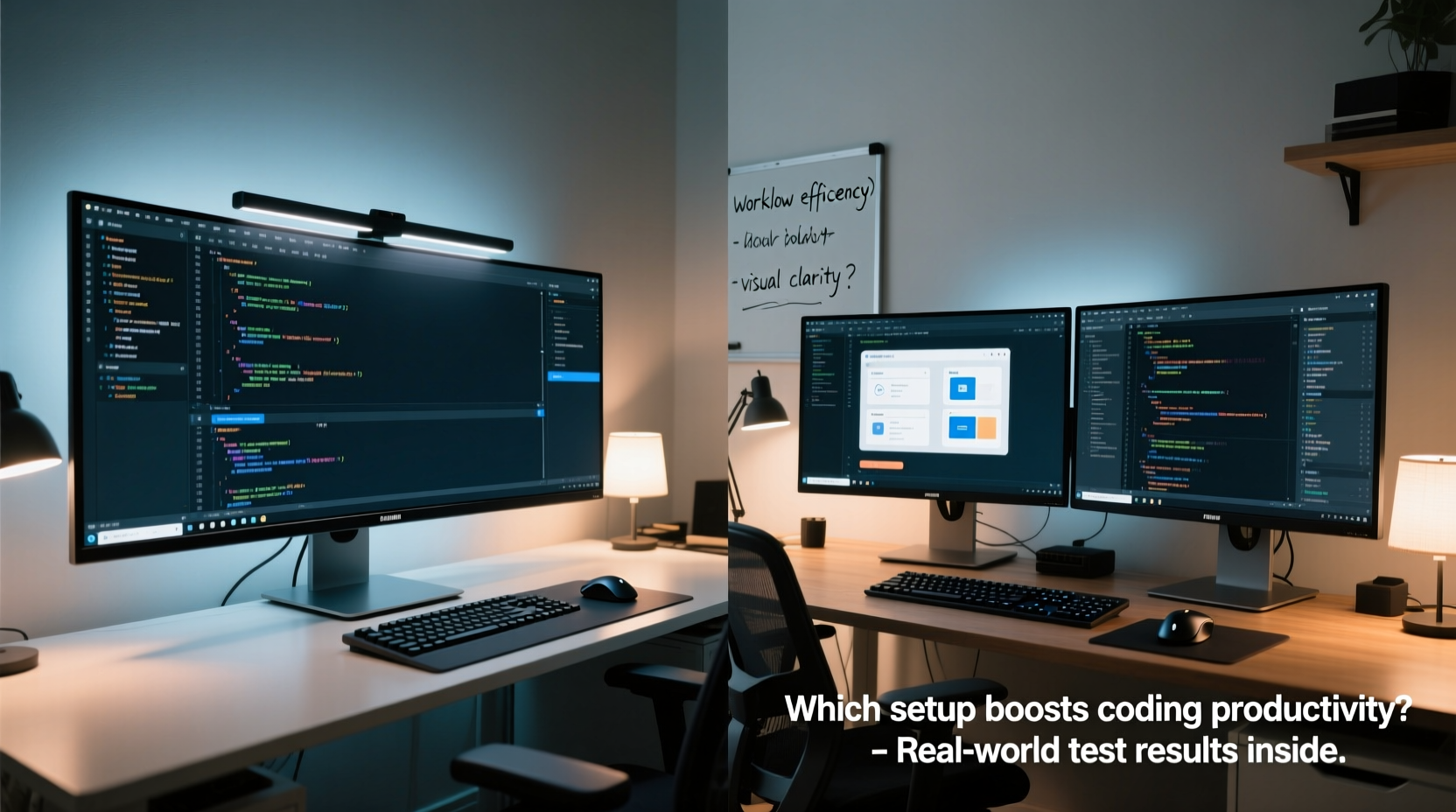
One of the most immediate differences between an ultrawide monitor and a dual-screen configuration lies in desk footprint and ergonomic flexibility. A single ultrawide monitor—typically 34 to 49 inches with a 21:9 or 32:9 aspect ratio—occupies less depth and width than two standard 24-inch displays placed side by side. This compact design reduces clutter, simplifies cable management, and often results in a cleaner, more minimalist desk setup.
In contrast, dual monitors require more desk space, especially if using larger panels or adding vertical mounts. The gap between screens—whether a bezel or physical space—can disrupt visual continuity, forcing your eyes to adjust when moving between windows. This may contribute to eye strain over extended coding sessions.
However, dual-screen users gain flexibility in orientation. Many developers run one screen in landscape mode for code and another vertically for documentation or terminal output—a configuration difficult to replicate on a single ultrawide without sacrificing horizontal space.
Workflow Efficiency and Multitasking
Coding is inherently multitask-heavy. You might be writing code in one window, reviewing logs in another, referencing API docs in a browser, and monitoring version control changes—all while staying active in Slack or Teams. How each setup handles this load determines its real-world utility.
An ultrawide monitor offers seamless horizontal expansion. With resolutions like 3440x1440 (QHD) or even 5120x1440 (super ultrawide), you can arrange multiple windows side-by-side without interruption. Modern operating systems support advanced tiling—macOS Stage Manager, Windows Snap Layouts, or Linux tiling window managers—making it easy to divide the screen into precise zones.
Dual monitors, meanwhile, allow complete independence. You can extend desktop space freely, assign different scaling settings per screen, or even connect devices with mismatched resolutions. Some developers dedicate one monitor exclusively to debugging tools or database queries, keeping their main screen reserved for active development.
“With an ultrawide, I finally stopped losing windows off-screen. The continuous span means I don’t waste time hunting for minimized panes.” — David Lin, Senior Backend Engineer at TechNova
But fragmentation remains a concern. Dragging a window across two separate monitors can feel jarring, particularly if there’s a noticeable color or brightness mismatch. Ultrawides eliminate this inconsistency with uniform backlighting and panel calibration.
Cost and Hardware Considerations
Budget plays a crucial role in deciding between these setups. Entry-level dual-monitor configurations can be affordable—two 24-inch 1080p IPS panels might cost under $300 combined. However, upgrading both to high-refresh, high-resolution models quickly escalates costs, especially when factoring in additional mounts, arms, or docking stations.
Ultrawide monitors start at around $400 for mid-tier models but can exceed $1,200 for premium variants with curved screens, HDR support, or Thunderbolt connectivity. While initially more expensive, they consolidate functionality into one device, potentially reducing long-term expenses related to accessories and maintenance.
| Feature | Ultrawide Monitor | Dual Screen Setup |
|---|---|---|
| Average Price (Mid-Range) | $500–$800 | $400–$900 (combined) |
| Cable Management | Simpler (one video input) | More complex (two inputs + power) |
| Scalability | Limited to single-unit upgrades | Flexible; add third screen later |
| Failure Risk | Single point of failure | Redundant—if one fails, other works |
| Portability | Difficult due to size/curve | Easier to disassemble/relocate |
Another consideration is GPU capability. Driving a 5K ultrawide requires robust graphics output, whereas dual 1080p screens are far less demanding. Developers using integrated graphics may find dual monitors more accessible unless investing in external GPUs or compatible laptops.
Real-World Developer Experience: A Mini Case Study
Consider Maria Chen, a full-stack developer working remotely from Barcelona. For three years, she used a dual-monitor setup: a 27-inch primary display and a 24-inch secondary mounted vertically. She appreciated the ability to keep her terminal and Jira board always visible. But after moving to a smaller apartment, desk space became limited.
Maria switched to a 34-inch ultrawide with a 1440p resolution. Initially skeptical about losing independent screen control, she adapted within two weeks. Using i3wm (a tiling window manager), she divided her screen into three vertical columns: code editor on the left, browser/docs in the center, and terminal on the right. The absence of bezels made transitions smoother, and she reported fewer instances of \"lost focus\" when switching tasks.
“I didn’t realize how much mental energy I was spending managing window positions until I streamlined everything onto one plane,” she said. “Now my workflow feels more cohesive.”
Still, she acknowledged trade-offs. When pair programming, sharing her entire screen via Zoom meant collaborators saw too much at once. She now uses virtual desktops to isolate workspaces during remote sessions.
Which Setup Suits Your Coding Style?
The best choice depends on your specific development patterns:
- Frontend developers who frequently compare designs across browsers benefit from ultrawide horizontal space.
- Data engineers analyzing large datasets in spreadsheets or notebooks gain from the uninterrupted expanse of an ultrawide.
- DevOps specialists managing multiple servers may prefer dual screens—one for live logs, another for configuration files.
- Mobile developers testing UIs across device sizes often use one screen for the emulator and another for code.
Step-by-Step Guide to Evaluating Your Needs
- Map your current workflow: Track how many windows you typically have open during peak coding hours.
- Measure your desk space: Ensure you have enough room—especially depth—for either setup.
- Test window management: Use built-in OS tools (like Windows Snap or macOS Split View) to simulate layouts.
- Assess portability needs: If you move offices or work in co-working spaces, consider ease of transport.
- Benchmark performance: Confirm your system can drive high-resolution displays smoothly.
- Try before you buy: Visit electronics stores or borrow equipment from colleagues to test both options.
Expert Insight: What Industry Leaders Recommend
“The future of developer workstations leans toward integration. Single, high-quality displays reduce cognitive load associated with fragmented attention.” — Dr. Lena Patel, Human-Computer Interaction Researcher, MIT Media Lab
Dr. Patel’s research highlights that frequent shifts between physically separated screens increase task-switching time by up to 20%. Her team found that developers using ultrawide monitors completed debugging tasks faster and reported lower fatigue levels over eight-hour periods.
Still, some experts caution against one-size-fits-all recommendations. “Flexibility matters,” says Rajiv Mehta, infrastructure lead at OpenStack Collective. “In our team, we let engineers choose based on project type. Those doing low-level systems programming tend to prefer dual screens; application developers lean toward ultrawides.”
Frequently Asked Questions
Can I use an ultrawide monitor with a laptop?
Yes, provided your laptop supports DisplayPort 1.4 or HDMI 2.0 (or newer). Most modern MacBooks and Windows laptops can drive 3440x1440 ultrawides via USB-C/Thunderbolt. Check refresh rate compatibility to avoid lag.
Do ultrawide monitors cause distortion at the edges?
Potentially. Curved ultrawides minimize edge distortion by matching the natural arc of human vision. Flat ultrawides may exhibit slight warping in peripheral view, but this rarely affects coding where focus stays central.
Is screen burn-in a risk with ultrawide monitors?
Most modern IPS ultrawides are resistant to burn-in, unlike older OLED models. However, displaying static elements (like dock bars or IDE sidepanels) for days on end can cause temporary image retention. Enable screen savers or auto-dimming features as a precaution.
Checklist: Choosing Between Ultrawide and Dual Screens
- ✅ Assess available desk space and viewing distance
- ✅ Determine typical number of simultaneous applications
- ✅ Evaluate need for vertical screen orientation
- ✅ Confirm GPU and port compatibility
- ✅ Test window snapping and tiling capabilities
- ✅ Consider long-term scalability and upgrade path
- ✅ Factor in remote collaboration needs (screen sharing)
- ✅ Set a realistic budget including mounts and cables
Final Verdict: It’s About Intentional Design
There is no universal winner in the ultrawide versus dual-screen debate. The ultrawide excels in providing immersive, distraction-free coding environments with superior visual continuity. It suits developers who value minimalism, seamless multitasking, and clean aesthetics. Meanwhile, dual screens offer unmatched flexibility, redundancy, and adaptability—ideal for hybrid workflows requiring diverse toolsets.
Ultimately, the decision should stem from intentionality. Ask not which setup is “better,” but which aligns with how you think, code, and solve problems. Whether you choose the unified elegance of a 34-inch ultrawide or the modular versatility of dual displays, optimize it deliberately: calibrate colors, position at eye level, automate window placement, and revisit your setup every few months as your projects evolve.




 浙公网安备
33010002000092号
浙公网安备
33010002000092号 浙B2-20120091-4
Comments
No comments yet. Why don't you start the discussion?