
In the evolving landscape of remote work, screen real estate has become a critical factor in efficiency, focus, and long-term comfort. As professionals seek ways to optimize their home offices, two dominant setups have emerged: ultrawide monitors and dual-screen configurations. Both promise enhanced multitasking, reduced clutter, and improved workflow—but which truly delivers superior productivity for remote workers? This article dives deep into performance metrics, ergonomic considerations, user experiences, and expert-backed findings to reveal which setup offers the most tangible benefits.
The Productivity Challenge of Remote Work
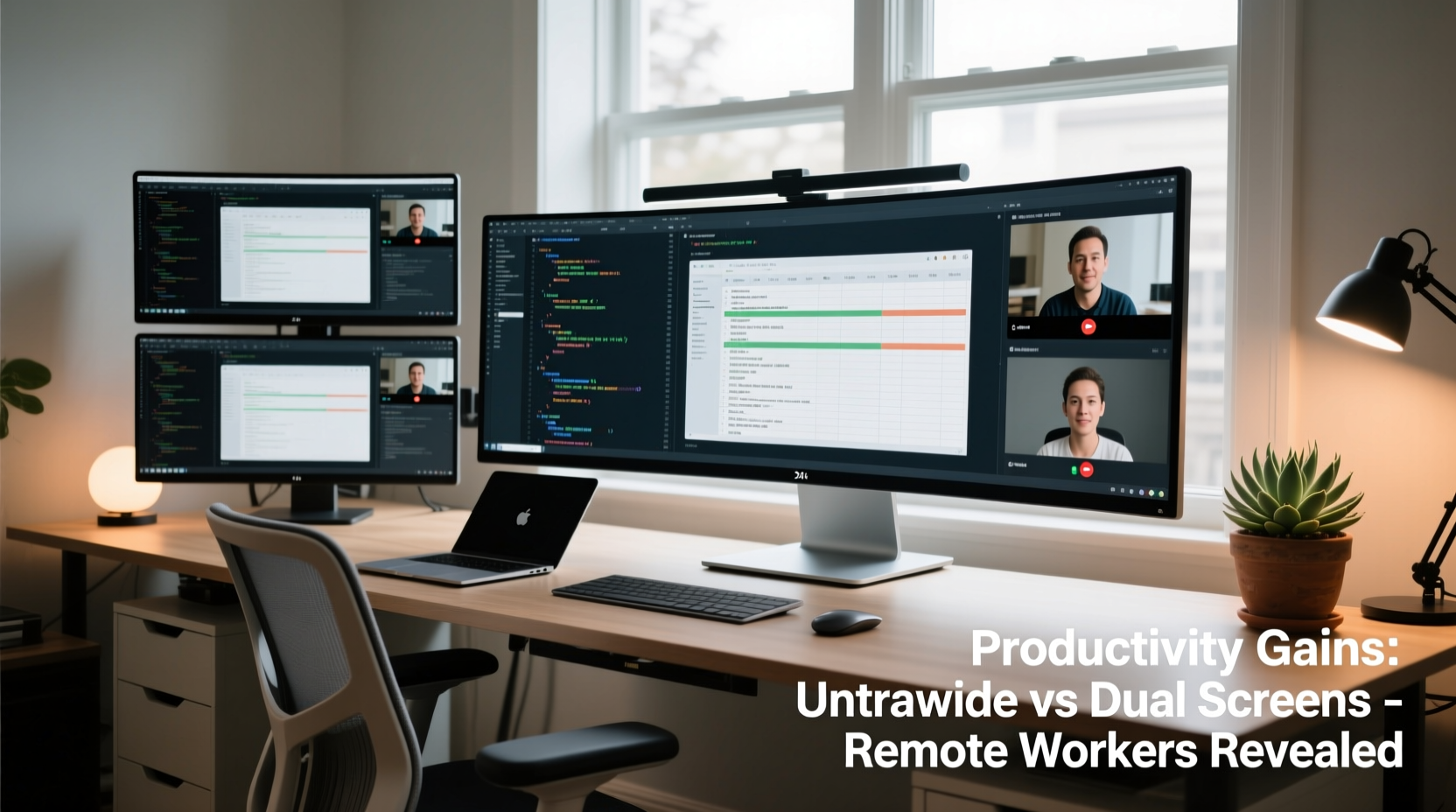
Remote work eliminates the commute but introduces new distractions and inefficiencies. One of the most consistent pain points is screen management. Juggling between email, video calls, documents, and web research on a single 16:9 display often leads to constant tab switching, mental fatigue, and lost time. According to a 2023 study by the University of Utah, workers using extended desktop space completed tasks up to 35% faster than those limited to a single standard monitor.
This has led many remote professionals to explore multi-display solutions. Yet, choosing between an ultrawide monitor (typically 21:9 or 32:9 aspect ratio) and a dual-monitor setup isn’t straightforward. Each comes with trade-offs in cost, usability, software compatibility, and physical footprint.
Ultrawide Monitors: Seamless Space and Immersive Focus
An ultrawide monitor—usually 34 to 49 inches with resolutions like 3440x1440 or 5120x1440—offers a continuous, bezel-free workspace. The absence of a center gap makes it ideal for applications requiring uninterrupted horizontal viewing, such as video editing timelines, financial spreadsheets, or coding environments.
One key advantage is spatial continuity. Because there’s no physical divider between windows, dragging and resizing applications feels fluid. Designers, data analysts, and content creators often report fewer cognitive interruptions when working across multiple panes on a single ultrawide surface.
Moreover, ultrawides reduce cable clutter and desk footprint. A single power and video connection simplifies setup and maintenance. For minimalist home offices or small workspaces, this streamlined approach is a major plus.
However, ultrawides are not universally compatible. Some older software doesn’t scale well to extreme aspect ratios, leading to letterboxing or awkward UI layouts. Gamers may love the immersive experience, but spreadsheet users might find Excel columns stretched too thin at default zoom levels.
Dual Monitor Setups: Flexibility and Customization
Dual screens remain the go-to choice for many remote workers due to their adaptability. Two separate displays allow users to dedicate one screen to communication tools (Slack, Zoom, email), while reserving the other for deep work (writing, coding, design). This separation helps enforce mental boundaries between collaboration and concentration.
A significant benefit is hardware flexibility. You don’t need matching models—many users pair a high-resolution primary monitor with a secondary budget-friendly display. Upgrades can be incremental. If one screen fails, the other remains functional, reducing downtime.
Rotation capability is another strength. One monitor can be turned vertically for reading PDFs, reviewing code, or managing long web pages—a configuration nearly impossible with most ultrawide panels.
“Dual monitors offer unparalleled task segregation. When I’m writing, my research stays on the left, draft on the right. No overlapping windows, no Alt+Tab fatigue.” — Daniel Park, Technical Writer & Remote Team Lead
Yet, dual setups come with drawbacks. The bezel down the middle disrupts panoramic workflows. Misaligned heights or angles cause neck strain over time. And managing two sets of cables, brightness settings, and input sources increases complexity.
Head-to-Head Comparison: Key Metrics
| Feature | Ultrawide Monitor | Dual Screens |
|---|---|---|
| Total Screen Real Estate | High (34”+) | High (2 x 24–27”) |
| Bezel Interruption | None | Yes (center gap) |
| Ease of Setup | Simple (one cable) | Moderate (two cables, alignment needed) |
| Software Compatibility | Good (with modern apps) | Excellent (universal support) |
| Ergonomic Flexibility | Low (fixed orientation) | High (adjustable tilt, rotation) |
| Cost Efficiency | Higher upfront cost | Potentially lower (can mix old/new) |
| Best For | Media editing, coding, finance | General office work, multitasking |
Real-World Case Study: From Dual to Ultrawide
Sarah Kim, a freelance UX researcher based in Portland, used a dual 24-inch monitor setup for three years. Her typical day involved analyzing user interview transcripts on one screen while coding affinity diagrams on the other. She frequently rotated her secondary monitor vertically for long-form notes.
Last year, she switched to a 34-inch 21:9 ultrawide after noticing persistent eye strain from shifting focus between two separate displays. “The first week was an adjustment,” she admits. “I missed having a dedicated vertical panel. But once I configured virtual desktops and started using split-screen snapping, my flow improved dramatically.”
She now uses the left third for communications, the center for active drafting, and the right for reference materials. “It’s like having lanes on a highway—everything has its place. I estimate I save at least 45 minutes a day just from not resizing or hunting for windows.”
However, Sarah did purchase a laptop riser and external keyboard to maintain proper ergonomics, as the ultrawide required a different desk layout. “It wasn’t just about the screen—it was rebuilding my entire workstation around it.”
Expert Insight: What Ergonomists Recommend
Dr. Lena Torres, an occupational health specialist focusing on digital workspaces, emphasizes that productivity gains depend less on the number of screens and more on how they’re used.
“The biggest mistake people make is assuming more screen = better output. Without intentional window management, both ultrawide and dual setups can lead to visual overload. The goal should be minimizing cognitive load, not maximizing pixels.” — Dr. Lena Torres, PhD, Workplace Ergonomics Institute
Torres recommends a task-based zoning strategy regardless of setup:
- Zone 1: Active work (current document, code editor)
- Zone 2: Reference material (research, emails, chat)
- Zone 3: Notifications (calendar, alerts—set to minimal visibility)
She also warns against prolonged static postures. “Even with perfect screen alignment, you should shift positions every 30 minutes. No monitor setup replaces movement.”
Action Plan: Choosing the Right Setup for You
Selecting between ultrawide and dual screens shouldn’t be based on trends or aesthetics. Follow this step-by-step evaluation:
- Assess Your Primary Tasks: Do you edit video, analyze large datasets, or write long-form content? An ultrawide may suit you. If you constantly switch between unrelated apps (e.g., CRM, email, phone), dual screens offer clearer separation.
- Measure Your Desk Space: Ultrawides require depth. Ensure at least 30 inches of front-to-back clearance. Dual monitors need width—verify you have 40+ inches side-to-side.
- Test Software Compatibility: Open your most-used applications. Does your IDE, analytics tool, or design software support ultrawide scaling? Check community forums for known issues.
- Consider Future-Proofing: Will your next laptop support dual 4K outputs or ultrawide resolution? Verify GPU and port capabilities (DisplayPort 1.4 or Thunderbolt 4 recommended).
- Try Before You Buy: Rent or borrow both setups for a week. Track time-on-task, comfort level, and interruptions. Quantify what works best for your workflow.
Checklist: Optimize Any Multi-Screen Setup
- ✅ Align top edges of screens to prevent neck strain
- ✅ Position center of screens at or slightly below eye level
- ✅ Use dark mode or blue light filters during evening hours
- ✅ Enable OS-level window management tools (Snap Assist, Mission Control)
- ✅ Label virtual desktops by function (e.g., “Writing,” “Meetings,” “Research”)
- ✅ Take a 20-second screen break every 20 minutes (20-20-20 rule)
Frequently Asked Questions
Can I use an ultrawide monitor for dual-monitor-like behavior?
Yes. Modern operating systems support advanced window snapping. On Windows, drag a window to the left or right third to create balanced splits. Third-party tools like DisplayFusion or Magnet (Mac) enhance control further. Many users effectively simulate a dual-screen experience on ultrawides with proper configuration.
Is eye strain worse with ultrawide monitors?
Not inherently. Eye strain typically results from poor brightness contrast, glare, or improper viewing distance. However, some users report needing to move their heads more across wide screens. To mitigate this, sit at least 2.5 feet away and ensure ambient lighting matches screen brightness.
Do dual monitors use more GPU power than ultrawide?
Generally, yes—but only slightly. Driving two 1080p or 1440p displays consumes comparable resources to a single ultrawide of similar total resolution. The difference becomes noticeable only in GPU-intensive tasks like 4K video rendering or gaming. For typical office work, the impact is negligible.
Final Verdict: It Depends on Workflow, Not Hype
The debate isn’t settled by specs alone. Data shows both ultrawide and dual-screen setups can increase productivity by 20–40% compared to single monitors. But the optimal choice hinges on individual work patterns.
Ultrawide monitors excel in continuous workflows: video editors, coders, financial modelers, and writers benefit from the seamless expanse. They reduce visual fragmentation and simplify cable management. However, they demand careful ergonomic setup and may require software tweaks.
Dual screens win in versatility. They allow mixed orientations, independent scaling, and easier upgrades. Knowledge workers juggling communication, documentation, and research often find dual monitors more intuitive for task compartmentalization.
Ultimately, the most productive setup is the one that reduces friction, supports healthy posture, and aligns with your daily tasks. Don’t follow trends—follow your workflow.




 浙公网安备
33010002000092号
浙公网安备
33010002000092号 浙B2-20120091-4
Comments
No comments yet. Why don't you start the discussion?