
In today’s digital workspace, screen real estate is more than a luxury—it's a productivity multiplier. Whether you're editing video, coding, managing spreadsheets, or juggling multiple communication platforms, your display setup can dramatically influence how fast and effectively you work. Two of the most popular high-efficiency configurations are ultrawide monitors and dual-screen setups. But which one actually delivers better workflow performance?
This article breaks down both options with practical insights, expert perspectives, and real-world comparisons to help professionals decide which setup aligns best with their workflow demands.
The Case for Ultrawide Monitors
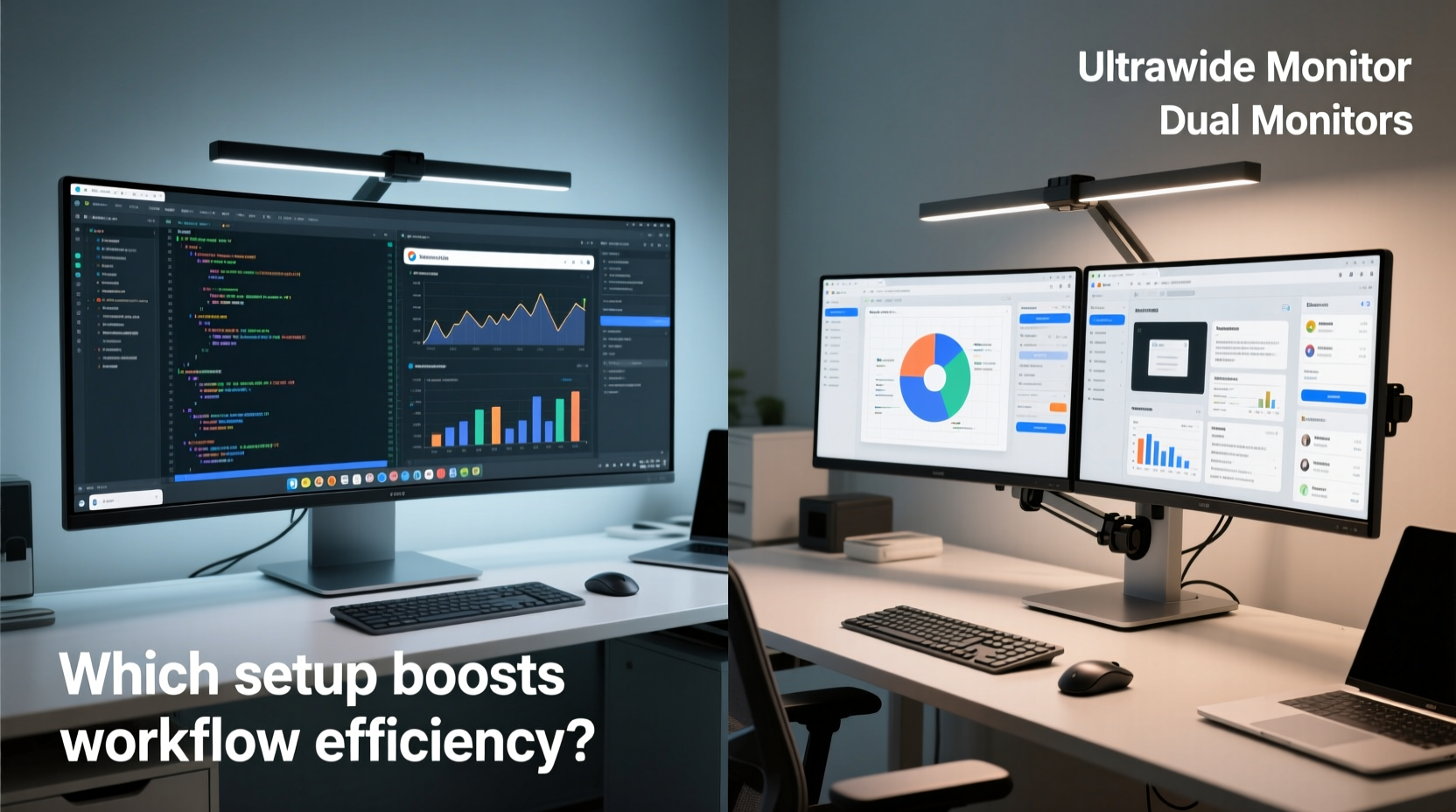
An ultrawide monitor typically features an aspect ratio of 21:9 or even 32:9, offering significantly more horizontal space than standard 16:9 displays. This expansive canvas allows users to view multiple windows side by side without physical bezels interrupting the visual flow.
For professionals in creative fields—such as video editors, graphic designers, and data analysts—an ultrawide monitor provides a seamless workspace ideal for timeline scrubbing, multi-track editing, or monitoring large datasets across a single pane.
One major advantage is continuity. With no middle bezel cutting through applications, dragging windows from left to right feels natural. This uninterrupted experience reduces eye strain caused by constant refocusing when crossing between two separate screens.
Modern ultrawides also support advanced features like Picture-by-Picture (PbP) and Picture-in-Picture (PiP), allowing simultaneous input from two sources—ideal for developers testing code on different machines or traders monitoring multiple markets.
Dual-Screen Setups: Flexibility and Customization
Dual monitors have long been the go-to solution for power users. By running two independent displays, professionals gain flexibility in orientation, resolution, and task separation. For example, one screen can remain vertical for email and messaging, while the other stays horizontal for document editing or design work.
This modularity is especially valuable in hybrid roles. A financial analyst might dedicate one screen to live market feeds and the other to Excel modeling. Similarly, software developers often use one monitor for code and another for documentation or terminal output.
Dual setups also allow incremental upgrades. If budget is limited, users can start with one quality monitor and add a second later. They can mix sizes and resolutions based on specific needs—something not possible with a fixed ultrawide panel.
“Dual monitors give me control over my environment. I keep Slack and calendar on the left, full-time, while rotating tasks on the right. It’s like having dedicated zones.” — Daniel Reeves, Senior UX Developer at TechFlow Inc.
However, dual monitors come with trade-offs. The bezel between screens disrupts panoramic views, making them less suitable for immersive media work. Additionally, alignment issues—especially if monitors differ in size or height—can lead to neck strain over time.
Direct Comparison: Key Performance Factors
To determine which setup enhances workflow efficiency, consider these critical factors:
| Factor | Ultrawide Monitor | Dual Screens |
|---|---|---|
| Seamless Multitasking | ✅ Excellent – continuous desktop space | ⚠️ Moderate – interrupted by bezel |
| Ease of Setup | ✅ Simple – single cable, one mount | ⚠️ More complex – cabling, alignment, VESA adjustments |
| Cost Efficiency | ⚠️ Higher upfront cost | ✅ Can scale incrementally |
| Ergonomics | ✅ Better for central viewing; reduced head movement | ⚠️ Requires wider desk space; increased neck rotation |
| Application Compatibility | ⚠️ Some apps don’t optimize for 21:9 | ✅ Universal compatibility |
| Media & Gaming Experience | ✅ Immersive, cinematic feel | ❌ Less engaging; split focus |
The table highlights that neither option is universally superior. The decision hinges on individual workflows, software requirements, and physical workspace constraints.
Real-World Example: Video Editor vs Data Analyst
Consider two professionals: Maya, a freelance video editor, and James, a corporate data analyst.
Maya uses Adobe Premiere Pro daily. Her timeline, preview window, effects panel, and audio meters need to be visible simultaneously. An ultrawide monitor lets her arrange all panels in a fluid layout, minimizing tab switching and scroll navigation. She reports a 25% reduction in project completion time after switching from dual 1080p screens to a 34-inch 21:9 display.
James, meanwhile, spends his day toggling between Power BI dashboards, SQL query tools, Outlook, and Teams. He prefers dual 27-inch 1440p monitors—one landscape for reports, one portrait for email and chat. This configuration allows him to keep communication channels always visible while focusing deeply on analytics. He finds that splitting functions across screens reduces cognitive load compared to managing everything within a single wide interface.
Their contrasting preferences underscore a key insight: optimal efficiency isn’t about screen count or width alone—it’s about alignment with task structure.
Actionable Checklist: Choosing Your Ideal Setup
Before investing in new hardware, evaluate your needs using this checklist:
- ✅ Identify your primary applications: Do they benefit from horizontal sprawl (e.g., timelines, spreadsheets) or vertical stacking (e.g., code, documents)?
- ✅ Measure your desk depth and width: Ultrawides require deep desks; dual monitors need broad surface area.
- ✅ Assess GPU capabilities: Driving a 3440x1440 ultrawide or dual 1440p screens demands a capable graphics card.
- ✅ Test ergonomics: Position mock outlines with tape to simulate screen placement and check viewing angles.
- ✅ Consider future-proofing: Will your next role require different tools? Choose adaptable hardware.
- ✅ Budget for accessories: Include mounts, cables, and calibration tools in your total cost estimate.
Expert Insight: What Industry Leaders Recommend
Dr. Lena Torres, Human-Computer Interaction researcher at MIT Media Lab, emphasizes context-driven design:
“The most efficient display isn't the largest or newest—it's the one that minimizes task-switching and supports sustained attention. In our studies, ultrawide users showed faster cross-application navigation in linear workflows, while dual-screen users excelled in parallel monitoring tasks.” — Dr. Lena Torres, MIT Media Lab
Her research confirms that workflow architecture matters more than raw specs. Linear processes—like writing, editing, or coding sequences—benefit from horizontal expansion. Concurrent monitoring—like customer support, trading, or DevOps—gains from spatial separation.
Step-by-Step Guide to Optimizing Your Chosen Setup
Whichever configuration you choose, follow these steps to maximize its impact:
- Assess Current Workflow Bottlenecks: Track how often you minimize/maximize windows or switch apps during a typical workday.
- Define Core Use Cases: List your top three productivity tasks (e.g., coding, reporting, video rendering).
- Simulate Both Setups: Use cardboard cutouts or painter’s tape to outline potential monitor footprints on your desk.
- Research Compatible Models: Prioritize resolution (1440p minimum), refresh rate (60Hz+), and connectivity (HDMI 2.0, DisplayPort 1.4).
- Test Before Buying: Visit electronics stores or borrow units to trial actual usage patterns.
- Configure Software Settings: Enable snapping, virtual desktops, and hotkeys to reduce mouse dependency.
- Calibrate for Comfort: Adjust brightness, color temperature, and positioning to reduce glare and eye fatigue.
- Review After 30 Days: Reassess productivity metrics and comfort levels to confirm long-term fit.
Frequently Asked Questions
Can I use an ultrawide monitor with dual-monitor workflows?
Yes. Many ultrawides support KVM switches or multi-input modes, letting you connect two computers and toggle between them. You can also simulate dual-screen behavior using window management software like Divvy or Magnet to partition the display into distinct zones.
Do ultrawide monitors cause distortion at the edges?
Some early models had noticeable edge warping, but modern curved ultrawides (e.g., 34” with 1500R curvature) minimize this effect. Ensure the monitor has IPS or OLED panels for consistent color and viewing angles across the entire screen.
Is eye strain worse with dual monitors?
Only if improperly aligned. When monitors are uneven in height or angle, your eyes constantly refocus, leading to fatigue. Use adjustable arms to position both screens at equal height, with the center of each aligned to eye level. Avoid placing one screen significantly farther than the other.
Final Recommendation: Match the Tool to the Task
There is no universal winner in the ultrawide monitor vs dual screens debate. Each offers distinct advantages depending on how you work.
Choose an **ultrawide monitor** if you:
- Work with linear, horizontally-oriented content (video editing, music production, long-form writing)
- Prefer clean, minimalist desk aesthetics
- Want fewer cables and simpler setup
- Value immersive viewing experiences
Opt for **dual screens** if you:
- Manage multiple independent applications simultaneously
- Need flexible orientation (portrait + landscape)
- Are upgrading gradually on a budget
- Work in environments requiring constant context switching
Ultimately, workflow efficiency stems not from hardware alone, but from intentional design. The best setup is the one that reduces friction, supports focus, and adapts to your evolving responsibilities.




 浙公网安备
33010002000092号
浙公网安备
33010002000092号 浙B2-20120091-4
Comments
No comments yet. Why don't you start the discussion?