
Modern smartphones are designed to last all day, but over time, their performance declines—not because of software or hardware failure, but due to the natural degradation of the lithium-ion batteries they rely on. Most users notice their phones charging faster in the morning and dying by mid-afternoon after just a year or two. This isn’t magic; it’s chemistry. Understanding your phone’s battery health and usage patterns empowers you to make informed decisions that extend its functional life and improve daily reliability.
How Lithium-Ion Batteries Work (and Why They Degrade)
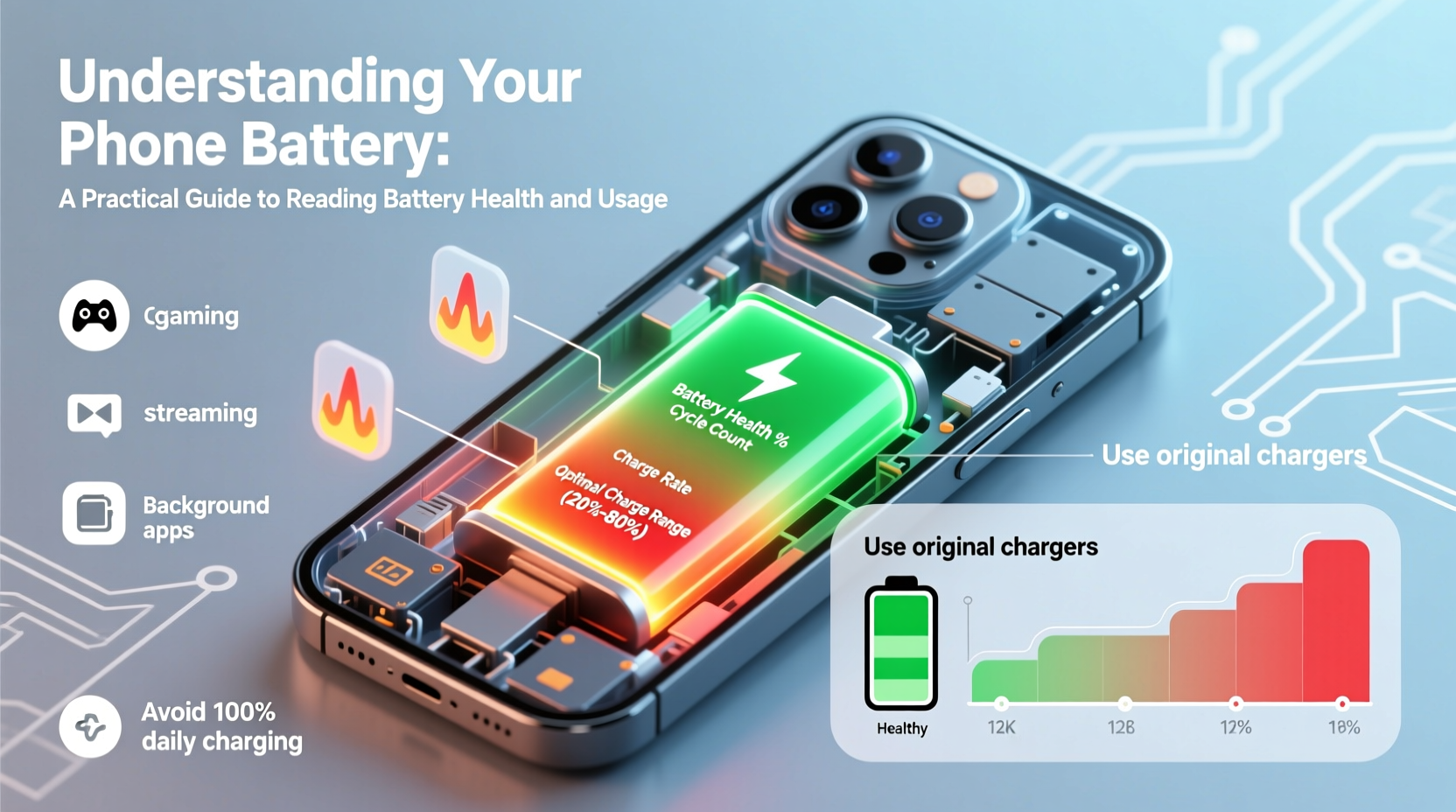
Lithium-ion batteries power nearly every smartphone today. They operate by moving lithium ions between a positive cathode and a negative anode through an electrolyte. When you charge your phone, ions move to the anode; when discharging (using the phone), they return to the cathode. This process is efficient but not infinite.
Each full charge cycle—defined as using 100% of the battery’s capacity, not necessarily from 0% to 100%—causes microscopic wear. Over hundreds of cycles, the electrodes degrade, reducing their ability to hold a charge. Heat accelerates this process significantly. Even under ideal conditions, most phone batteries lose about 20% of their original capacity within two years.
“Battery longevity isn’t about avoiding use—it’s about managing stress factors like heat, deep discharges, and long-term full charges.” — Dr. Lena Park, Electrochemical Engineer at MIT Energy Initiative
How to Check Your Battery Health
Knowing your battery’s current condition is the first step toward smarter usage. Both iOS and Android now offer built-in tools for assessing battery health.
iOS Devices (iPhone)
Apple introduced Battery Health metrics with iOS 11. To access them:
- Open Settings.
- Tap Battery, then Battery Health & Charging.
- Review “Maximum Capacity” (e.g., 88%) and “Peak Performance Capability.”
If maximum capacity drops below 80%, Apple considers the battery significantly degraded and may recommend service.
Android Devices
Android’s approach varies by manufacturer. Stock Android (Pixel phones) includes a “Battery Health” section under Settings > Battery. Samsung devices display battery status in Settings > Device Care > Battery. Some brands require third-party apps like AccuBattery or GSam Battery Monitor to view detailed health data.
Interpreting Battery Usage Patterns
Beyond health percentage, your phone tracks how power is consumed. This insight reveals which apps drain energy and when usage spikes.
In Settings > Battery, both platforms show:
- Total battery consumption over the past 24 hours or 7 days
- Screen-on time vs. background activity
- App-specific usage ranked by percentage
If Instagram uses 35% of your battery over six hours while only being open for 45 minutes, it’s likely running background processes—such as location tracking or push notifications—that can be adjusted.
| Usage Type | What It Means | Action Step |
|---|---|---|
| High screen-on time | You're actively using the device | Reduce brightness or enable auto-brightness |
| High background activity | Apps running unseen tasks | Restrict background data for non-essential apps |
| Short charge cycles, frequent top-ups | Partial charging throughout the day | This is actually better than full discharges |
| Overnight battery drop | Significant drain while idle | Check for rogue apps or update OS |
Best Practices to Extend Battery Lifespan
You don’t need to baby your phone, but adopting a few key habits dramatically slows battery aging.
Charge Between 20% and 80%
Lithium-ion batteries experience more stress at extreme states—fully empty or completely full. Keeping your charge within the 20–80% range reduces chemical strain. Modern phones include “Optimized Charging” features (iOS) or “Adaptive Charging” (Android) that learn your routine and delay full charging until you need it.
Avoid Heat at All Costs
Heat is the number one enemy of battery longevity. Leaving your phone in a hot car, under a pillow while charging, or in direct sunlight during summer can permanently damage cells. Even fast charging generates heat—use it sparingly unless necessary.
Use Original or Certified Chargers
Cheap, uncertified chargers often deliver inconsistent voltage, which stresses the battery management system. Stick to manufacturer-approved accessories or those with official certification (e.g., USB-IF, MFi).
Step-by-Step: Monthly Battery Maintenance Routine
Perform this quick check once a month to keep your battery in optimal shape:
- Review Battery Health: Note your maximum capacity (iPhone) or estimated health (via app on Android).
- Analyze Top Apps: In Settings > Battery, identify any app consuming more than 15% without heavy use.
- Adjust Settings: Disable background refresh, location access, or notifications for inefficient apps.
- Calibrate if Needed: Let the phone discharge to 5%, charge uninterrupted to 100%, then reboot to recalibrate the gauge.
- Update Software: Install OS updates, which often include battery optimization patches.
Real Example: Recovering a Drained iPhone in Three Days
Sarah, a freelance photographer, noticed her iPhone 13 was shutting down at 30% battery. After checking Battery Health, she found her capacity had dropped to 76%. She followed these steps:
- Disabled background app refresh for editing apps she used infrequently.
- Turned off Location Services for social media apps.
- Enabled Low Power Mode during commutes.
- Switched from wireless to wired charging to reduce heat.
Within three days, her screen-on time increased by 2.5 hours. While the physical battery couldn’t be restored, smarter usage gave her back reliable performance until replacement.
Frequently Asked Questions
Does closing background apps save battery?
Not significantly. iOS and Android are designed to suspend inactive apps efficiently. Manually closing them uses more energy due to repeated reloading. Focus instead on disabling background permissions for power-hungry apps.
Is it bad to charge my phone overnight?
Not with modern safeguards. Phones stop charging at 100% and only top up when needed. However, staying at 100% for hours increases voltage stress. Use “Optimized Battery Charging” to mitigate this.
When should I replace my battery?
Consider replacement when maximum capacity falls below 80% and you experience unexpected shutdowns, rapid draining, or diminished performance even after software troubleshooting.
Conclusion: Take Control of Your Phone’s Power
Your phone’s battery isn’t just a disposable component—it’s a dynamic system influenced by how you use and care for it. By monitoring health, interpreting usage data, and adjusting everyday habits, you can delay degradation, maintain performance, and avoid premature replacements. Small changes add up: skipping one fast charge, lowering brightness, or updating settings can preserve months of battery life.




 浙公网安备
33010002000092号
浙公网安备
33010002000092号 浙B2-20120091-4
Comments
No comments yet. Why don't you start the discussion?