
Multimedia Messaging Service (MMS) allows users to send photos, videos, audio clips, and group messages beyond the 160-character limit of standard SMS. While most modern smartphones support MMS out of the box, many users still encounter issues with sending or receiving picture messages. These problems often stem from incorrect settings, carrier restrictions, or network misconfigurations. This guide provides a clear path to unlocking MMS functionality on any mobile device, regardless of brand or carrier, and offers practical troubleshooting steps when things go wrong.
Understanding MMS vs. SMS: Why It Matters
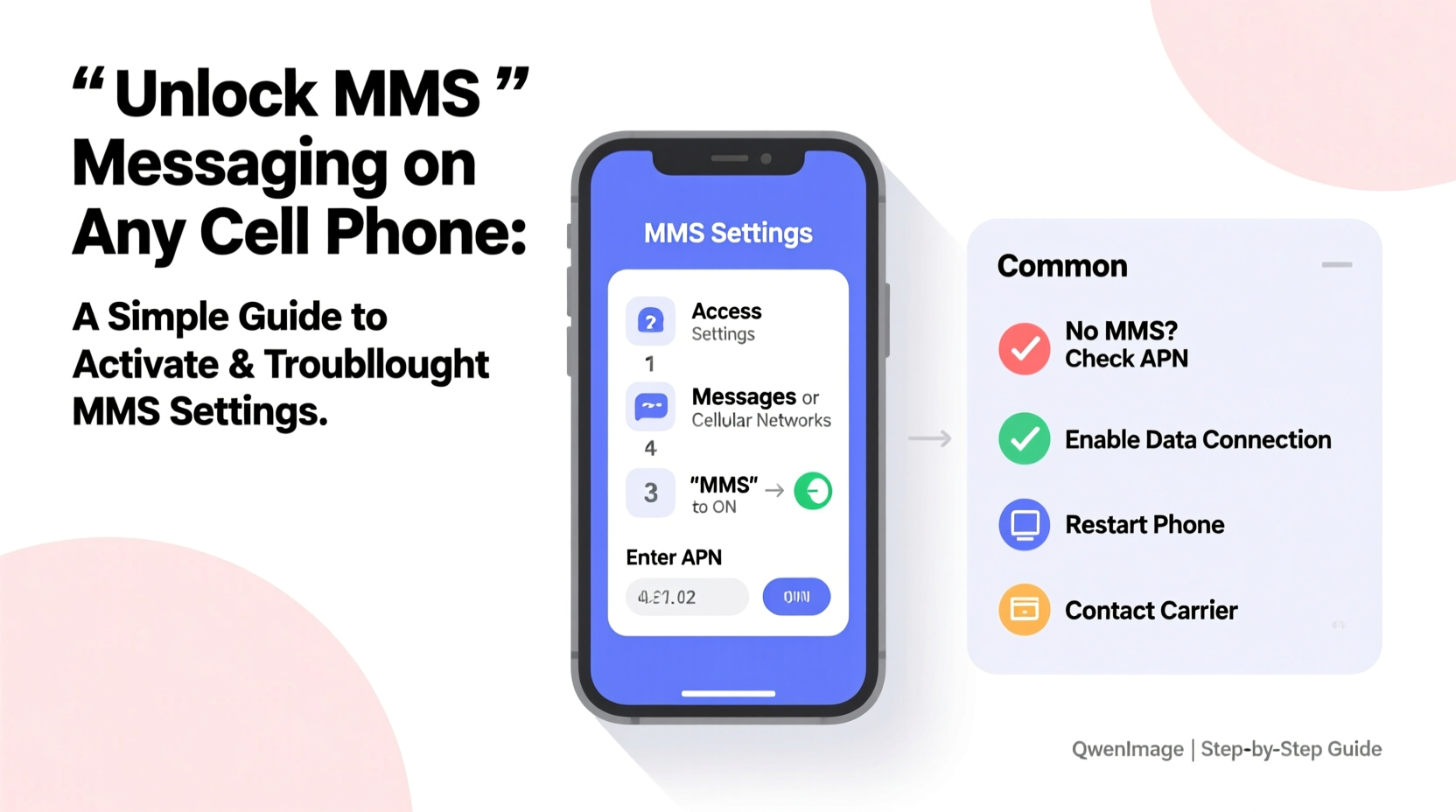
SMS (Short Message Service) is limited to plain text and supports only up to 160 characters per message. When you attach an image, video, or send a message longer than that limit, your phone automatically switches to MMS. Unlike SMS, MMS requires an active data connection because it transmits media over the internet via your carrier’s APN (Access Point Name).
Without proper configuration, your phone may fail to send or receive multimedia messages—even if your cellular signal is strong. Common symptoms include:
- Messages stuck in “sending” status
- Notifications saying “Download failed”
- Inability to receive photo messages from friends
- Group texts not loading properly
The root cause is usually misconfigured APN settings or disabled mobile data for MMS. Fortunately, these can be corrected manually or through automated tools provided by carriers.
Step-by-Step Guide to Activate MMS on Any Phone
Follow this universal procedure to enable MMS on Android, iPhone, or lesser-known smartphone platforms. While interface names may vary slightly between manufacturers, the underlying principles remain consistent.
- Verify Mobile Data Connection: Ensure mobile data is turned on. MMS relies on data, even if you have unlimited texting. Go to Settings > Network & Internet > Mobile Network (Android) or Settings > Cellular (iPhone) and confirm data is enabled.
- Check Carrier Support: Not all plans include MMS. Prepaid or budget carriers sometimes disable it by default. Contact customer service or check your plan details online to confirm MMS is included.
- Enable MMS in Messaging App: Open your default Messages app. Tap the menu (three dots or gear icon), go to Settings > Advanced or Chat Features, and ensure “Multimedia messages” or “MMS” is toggled on.
- Verify APN Settings: Access Point Names tell your phone how to connect to your carrier’s data network. Incorrect APNs prevent MMS from working.
- Android: Settings > Network & Internet > Mobile Network > Advanced > Access Point Names
- iPhone: Settings > Cellular > Cellular Data Network
- Enter Correct APN Details: Use your carrier’s official APN settings. If unsure, refer to the table below.
- Restart Your Device: After making changes, reboot your phone to apply new configurations.
- Test with a Photo Message: Send a picture to a friend or use a known number that accepts MMS to verify functionality.
APN Settings by Major Carrier
Different carriers require specific APN configurations. Below is a reference table for major U.S. providers. Replace placeholders like [username] and [password] only if required by your carrier—most do not need them.
| Carrier | APN Name | APN | MMS Proxy | MMS Port | MMSC |
|---|---|---|---|---|---|
| Verizon | VZWINTERNET | internet | proxy.mobile.vzw.com | 80 | http://mms.vtext.com/servlets/mms |
| AT&T | ATT | phone | proxy.mobile.att.net | 80 | http://mmsc.cingular.com |
| T-Mobile | T-Mobile Web | fast.tmobile.com | Not Required | 80 | http://mms.msg.eng.t-mobile.com/mms/wapenc |
| Cricket Wireless | Cricket | cricketwap.ziggo | 192.168.224.10 | 8080 | http://mmsc.cricketwireless.net |
| Metro by T-Mobile | Metro Web | fast.metropcs.com | Not Required | 80 | http://mms.msg.eng.t-mobile.com/mms/wapenc |
“Incorrect APN settings are responsible for over 70% of MMS failures we see in technical support cases.” — Carlos Mendez, Senior Network Engineer at Midwest Telecom Solutions
Common MMS Issues and How to Fix Them
Even after correct setup, some users experience persistent problems. Here are frequent issues and their solutions:
Issue: “Message Failed to Download”
This typically occurs when MMS cannot connect to the MMSC (Multimedia Messaging Service Center). Check:
- If Wi-Fi is on, try turning it off—some phones won’t download MMS over Wi-Fi unless specifically allowed.
- Ensure the date and time on your phone are set correctly. Incorrect timestamps break secure connections to MMS servers.
Issue: MMS Sends but Isn’t Received
Your recipient might be on a different carrier with filtering policies. Some carriers block large files or unrecognized senders. Try reducing the file size or sending via iMessage (iPhone) or RCS (Android), which bypass traditional MMS.
Issue: Group MMS Shows as Multiple SMS Threads
This happens when group messaging is disabled. In your messaging app settings, enable “Group MMS” or “Merge conversations.” Note: Each participant must support MMS for full functionality.
Mini Case Study: Sarah’s Cross-Network MMS Failure
Sarah switched from AT&T to a smaller MVNO (Mobile Virtual Network Operator) but kept her iPhone. She could send texts fine but never received pictures from her family, who were all on Verizon. After weeks of frustration, she discovered her APN settings hadn’t updated post-porting. The MVNO provided a custom APN profile via email. Once installed, her MMS worked instantly. Her issue wasn’t device-related—it was a silent configuration gap common among users switching carriers without proper setup guidance.
Quick MMS Troubleshooting Checklist
Use this checklist to diagnose and resolve MMS problems efficiently:
- ✅ Mobile data is enabled
- ✅ Airplane mode is off
- ✅ APN settings match carrier requirements
- ✅ Date and time are set automatically
- ✅ Messaging app has permission to access data and storage
- ✅ Wi-Fi is temporarily disabled (for testing)
- ✅ Carrier supports MMS on your plan
- ✅ Restarted phone after configuration changes
Frequently Asked Questions
Can I use MMS without a data plan?
No. MMS requires mobile data to transmit media. Even if you’re not browsing the web, your phone needs background data access for MMS to function. However, MMS usage is minimal—usually under 1 MB per message.
Why does my Android phone say “Auto-retrieve MMS”?
This setting controls whether your phone automatically downloads incoming multimedia messages. If disabled, you’ll need to manually tap to download each one. Enable it in Messages > Settings > Advanced > Auto-retrieve MMS to avoid missing content.
Do iPhones use MMS differently than Android?
Yes. iPhones default to iMessage for Apple-to-Apple communication. When messaging Android users, they fall back to SMS/MMS. Ensure “Send as SMS” and “MMS Messaging” are enabled in Settings > Messages to maintain cross-platform compatibility.
Final Steps: Keep MMS Running Smoothly
Once MMS is working, maintain it by periodically checking for carrier updates, especially after software upgrades. Some OS updates reset APN settings. Also, if you travel internationally, verify that data roaming is enabled and that your carrier supports MMS abroad—or consider using messaging apps like WhatsApp or Signal instead.
Unlocking MMS isn’t about technical wizardry—it’s about ensuring your phone speaks the same language as your carrier’s network. With the right settings, a little patience, and this guide, you can restore full messaging functionality on any device.




 浙公网安备
33010002000092号
浙公网安备
33010002000092号 浙B2-20120091-4
Comments
No comments yet. Why don't you start the discussion?