
Artificial intelligence is no longer reserved for data scientists or tech giants. Today, AI tools are embedded directly into applications you already use—like Microsoft Excel. Far from being just a buzzword, AI in Excel can streamline workflows, reduce errors, and transform how you analyze data. Whether you're managing budgets, tracking inventory, or forecasting sales, integrating AI-driven features can save hours every week. The key lies not in knowing advanced programming, but in understanding how to apply these tools effectively.
Understanding AI Features Built into Excel
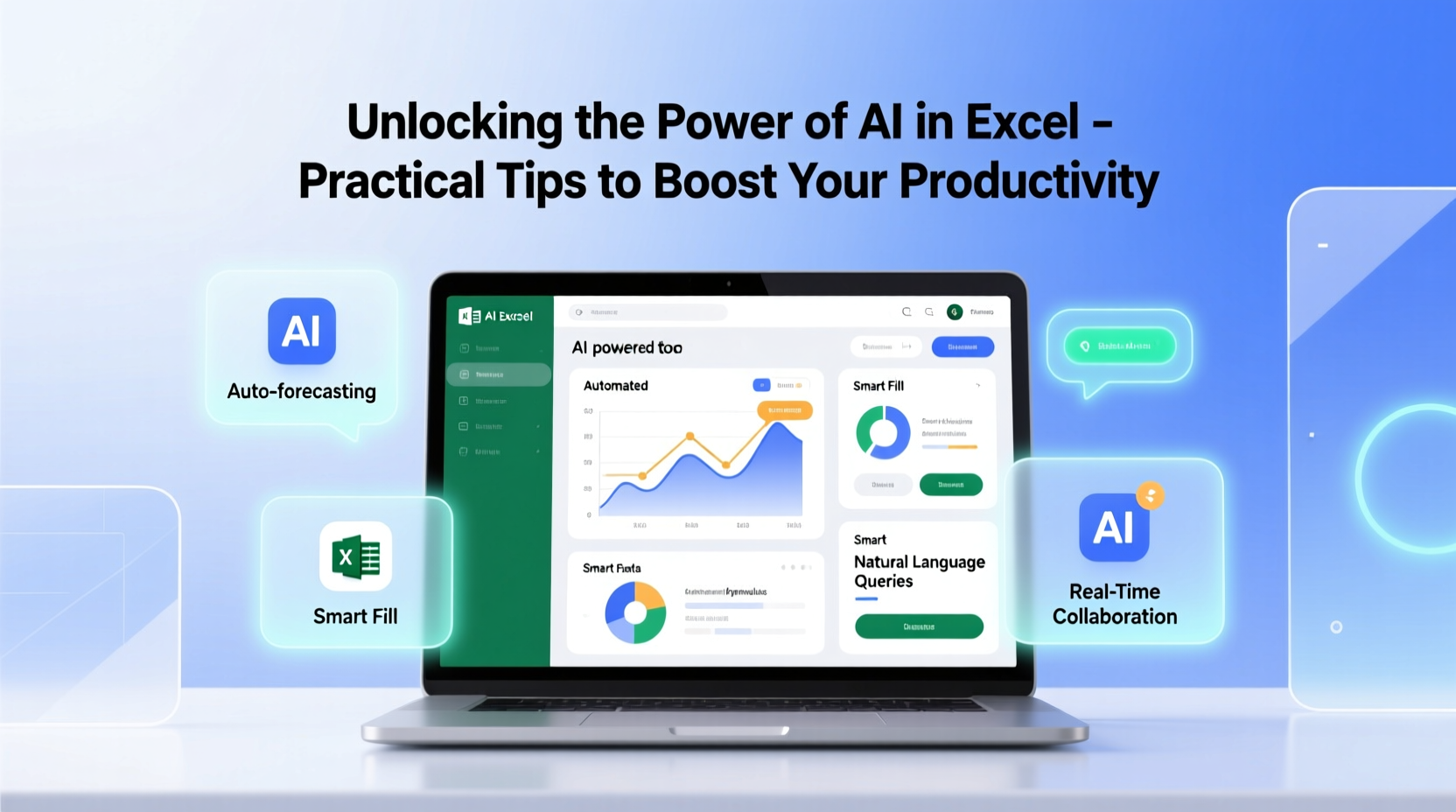
Microsoft has integrated several AI-powered capabilities into Excel through cloud-connected services like Microsoft 365. These include natural language processing, predictive analytics, and automated formatting—all accessible without writing a single line of code. Key components include:
- Insights: Automatically detects patterns, trends, and outliers in your data.
- Flash Fill: Learns from your input to auto-complete repetitive formatting tasks.
- Predictive Functions (FORECAST.ETS): Uses machine learning to project future values based on historical data.
- Ideas Pane: Offers visual suggestions by analyzing your dataset’s structure.
- Designer and Ideas: Suggests charts and layouts tailored to your content.
These tools work behind the scenes, learning from your behavior and adapting to your needs. They’re designed to make complex analysis intuitive—even for non-experts.
Automating Repetitive Tasks with Flash Fill and AI Suggestions
One of the most underused yet powerful AI tools in Excel is Flash Fill. Imagine having a column with full names and needing to extract first names only. Instead of using formulas, simply type the desired result once, press Ctrl+E, and Excel fills the rest automatically.
This feature uses pattern recognition to infer what you want. It works across various scenarios:
- Splitting addresses into street, city, and ZIP code.
- Formatting phone numbers consistently.
- Converting date formats across thousands of rows.
The real advantage? You don’t need to know LEFT(), RIGHT(), or TEXTSPLIT() functions. Excel learns from example—a concept known as “programming by demonstration.”
“AI in spreadsheets isn’t about replacing users—it’s about amplifying human intuition with machine speed.” — Dr. Lena Patel, Productivity Research Lead at Microsoft
Step-by-Step Guide: Forecast Sales Using AI-Powered ETS
Predicting future outcomes used to require statistical expertise. Now, Excel’s FORECAST.ETS function leverages exponential smoothing algorithms to generate accurate forecasts with minimal effort.
Follow this timeline to create a 6-month revenue forecast:
- Organize your data: Place dates in one column and corresponding sales figures in the next.
- Select an empty cell: Where you want the first predicted value to appear.
- Enter the formula:
=FORECAST.ETS(target_date, values_range, timeline_range) - Drag down: To fill predictions for subsequent periods.
- Visualize: Highlight both actual and forecasted data, then insert a line chart.
Excel automatically detects seasonality and adjusts its model accordingly. For even better results, use the Create Forecast Worksheet button under the Data tab, which generates a full report with confidence intervals.
Enhancing Decision-Making with the Ideas Pane
The Ideas pane acts as your personal data analyst. When enabled, it scans your spreadsheet and surfaces meaningful visualizations, correlations, and anomalies. For instance, if you have monthly expense data, Ideas might suggest a bar chart showing seasonal spikes or highlight an unusually high entry that could indicate an error.
To activate it:
- Select any cell within your dataset.
- Click the “Analyze Data” button on the Home tab (or press Ctrl+Shift+I).
- Review the AI-generated summaries and visuals in the right-hand sidebar.
You can ask questions in plain English, such as “Which category had the highest spending?” or “Show me trends over time,” and Excel will return relevant charts and tables.
| Feature | Best Use Case | Access Method |
|---|---|---|
| Flash Fill | Cleaning and reformatting text | Ctrl + E or Data > Flash Fill |
| FORECAST.ETS | Sales, demand, or budget projections | Formula bar or Data > Forecast Sheet |
| Ideas Pane | Quick insights and anomaly detection | Home > Analyze Data |
| Design Suggestions | Improving chart aesthetics | Click chart > Design Ideas |
Real Example: Streamlining Monthly Reporting at a Marketing Agency
A mid-sized digital marketing agency was spending nearly 15 hours each month compiling client performance reports. Team members manually extracted campaign data, reformatted KPIs, and built dashboards from scratch.
After implementing AI tools in Excel, they transformed their process:
- Used Flash Fill to standardize campaign names across platforms (e.g., turning “FB_Ad_Campaign_July” into “Facebook – July Campaign”).
- Leveraged FORECAST.ETS to predict client ROI, allowing proactive strategy adjustments.
- Activated the Ideas Pane to auto-generate weekly trend summaries, reducing manual analysis time by 70%.
Within two months, reporting time dropped to under four hours per cycle. More importantly, the team shifted focus from data entry to strategic planning—delivering higher-value insights to clients.
Checklist: Getting Started with AI in Excel
Ready to harness AI in your daily workflow? Follow this checklist to ensure success:
- ✅ Ensure you're using Microsoft 365 (desktop or web)—most AI features require a subscription.
- ✅ Update Excel regularly to access the latest AI enhancements.
- ✅ Organize your data in clean, structured tables (Ctrl+T to format as table).
- ✅ Try Flash Fill on repetitive formatting tasks before reaching for formulas.
- ✅ Run the Ideas pane on new datasets to uncover hidden patterns.
- ✅ Use FORECAST.ETS for time-based predictions instead of linear estimates.
- ✅ Review AI suggestions critically—verify outputs against known facts.
Frequently Asked Questions
Do I need internet access to use AI features in Excel?
Some features, like the Ideas pane and cloud-powered Insights, require an active internet connection and a Microsoft 365 account. Offline functions like Flash Fill and FORECAST.ETS work locally but may have limited scope without cloud integration.
Is my data safe when using AI tools?
Microsoft states that data processed through AI features is protected under enterprise-grade security and compliance standards. However, sensitive information should be anonymized before analysis, especially when using cloud-based suggestions.
Can AI replace VBA or Power Query?
No—AI complements these tools rather than replaces them. While AI excels at pattern recognition and quick automation, VBA and Power Query offer deeper control for complex workflows. Use AI for speed, and scripting for precision.
Maximize Your Potential with Smarter Spreadsheets
The integration of AI into Excel marks a turning point in how we interact with data. What once demanded technical skill can now be achieved through observation, intent, and a few smart clicks. By embracing AI-powered features like Flash Fill, Ideas, and forecasting tools, professionals across industries can shift from reactive number-crunching to proactive decision-making.
Start small: pick one repetitive task this week and try solving it with an AI tool. You might be surprised how quickly efficiency compounds. As AI continues to evolve within familiar software, those who adapt early won’t just save time—they’ll gain a competitive edge.




 浙公网安备
33010002000092号
浙公网安备
33010002000092号 浙B2-20120091-4
Comments
No comments yet. Why don't you start the discussion?