
As technology evolves, so do the standards that connect our devices. USB 3.0 and USB 3.1 are two generations of the same high-speed interface, but the differences between them aren’t always obvious—especially when you're staring at a tangled drawer full of cables. Should you replace your older USB 3.0 cables with newer USB 3.1 versions? The answer depends on what you’re doing with your devices, what hardware you own, and whether theoretical speed improvements translate into real-world gains.
This guide breaks down the technical distinctions, performance benchmarks, and practical considerations to help you decide if upgrading is truly worthwhile—or just a marketing push disguised as progress.
Understanding the Generations: USB 3.0 vs USB 3.1
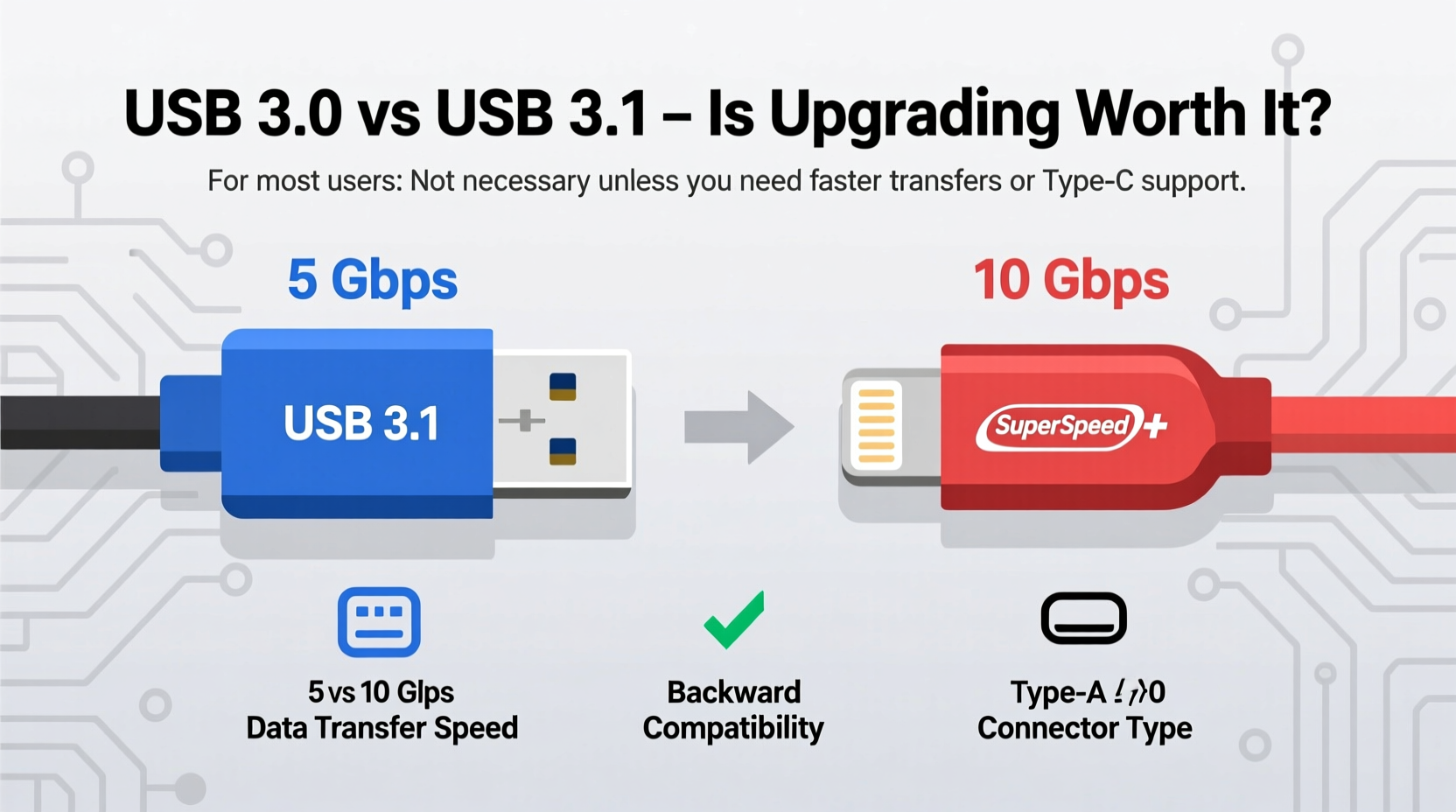
The naming conventions for USB standards have been confusing for years. USB 3.0 was introduced in 2008, offering a significant leap over USB 2.0 with transfer speeds up to 5 Gbps. It was later rebranded as **USB 3.1 Gen 1** when the next version arrived. Meanwhile, **USB 3.1 Gen 2** (often just called USB 3.1) doubled that speed to 10 Gbps.
This rebranding has led to widespread confusion. When someone says “USB 3.1,” they might mean either the original 5 Gbps standard or the faster 10 Gbps version. Always check the specification details—not just the label on the cable or port.
Speed Comparison: What’s the Real Difference?
At the core of the debate is data transfer speed. Here's how the two standards stack up:
| Standard | Max Speed | Released | Common Labeling |
|---|---|---|---|
| USB 3.0 / USB 3.1 Gen 1 | 5 Gbps | 2008 | SuperSpeed USB |
| USB 3.1 Gen 2 | 10 Gbps | 2013 | SuperSpeed USB 10 Gbps |
In theory, USB 3.1 Gen 2 can transfer a 1 GB file in about 0.8 seconds compared to 1.6 seconds on USB 3.0—under ideal conditions. But real-world performance rarely hits maximums due to drive limitations, protocol overhead, and host controller efficiency.
For most users transferring photos, documents, or music, the difference between 1.6 and 0.8 seconds is imperceptible. However, professionals working with large video files, high-resolution images, or external SSDs may notice smoother workflows when using USB 3.1 Gen 2 with compatible hardware.
“Doubling bandwidth matters most when bottlenecking shifts from the cable to the storage medium. With modern NVMe-based external drives, USB 3.1 Gen 2 isn’t just future-proof—it’s necessary.” — David Lin, Peripheral Systems Engineer at TechEdge Labs
Compatibility and Backward Support
One of the strongest points in favor of USB 3.1 is its backward compatibility. A USB 3.1 cable will work perfectly with USB 3.0 and even USB 2.0 ports and devices. You simply won’t get the higher speeds unless both the source and destination support USB 3.1 Gen 2.
However, not all USB Type-A or Type-C cables labeled as “3.1” actually support 10 Gbps. Some manufacturers use the term loosely to imply premium quality without delivering full spec compliance. True USB 3.1 Gen 2 cables must be built with better shielding, higher-grade conductors, and stricter manufacturing tolerances to maintain signal integrity at higher frequencies.
- Ensure both your device and host (e.g., laptop, desktop) support USB 3.1 Gen 2
- Use certified cables from reputable brands like Anker, Cable Matters, or StarTech
- Avoid ultra-cheap cables—even if labeled “USB 3.1”—as they often fail to deliver stable 10 Gbps connections
When Upgrading Makes Sense: A Step-by-Step Guide
Before spending money on new cables, follow this evaluation process to determine if the upgrade benefits you.
- Check your current devices: Do your computer, external drive, or docking station support USB 3.1 Gen 2? Look for terms like “10 Gbps,” “SuperSpeed+,” or “USB 3.1 Gen 2” in the specifications.
- Assess your usage patterns: Are you regularly moving files larger than 10 GB? Working with 4K video editing, virtual machines, or large databases? If yes, faster transfers reduce wait times.
- Inspect existing cables: Are they frayed, slow, or prone to disconnecting? Replacing worn cables with reliable USB 3.1 versions improves stability—even if speed gains are minimal.
- Evaluate cost vs. benefit: High-quality USB 3.1 Gen 2 cables typically cost $10–$25. Weigh this against your productivity needs.
- Future-proof your setup: If you plan to buy new peripherals soon (like a Thunderbolt dock or fast SSD), investing in compliant cables now avoids repeated upgrades later.
Mini Case Study: Video Editor’s Workflow Upgrade
Samantha, a freelance video editor based in Portland, used a USB 3.0 connection to transfer raw 4K footage from her camera to an external hard drive. Each 64 GB card took nearly 14 minutes to offload. After upgrading to a USB 3.1 Gen 2-compatible SSD and cable, the same transfer completed in under 7 minutes.
While she didn’t double her editing speed, the time saved during daily ingest added up. Over a month, she reclaimed more than five hours previously spent waiting for files to copy. For her, the upgrade wasn’t revolutionary—but it was consistently valuable.
Do’s and Don’ts of USB Cable Upgrades
| Do | Don't |
|---|---|
| Verify device compatibility before buying | Assume all “USB 3.1” cables offer 10 Gbps |
| Invest in shielded, braided cables for durability | Cheap out on cables for critical data transfers |
| Use USB 3.1 cables for charging high-power devices | Use damaged or kinked cables even if they still work |
| Label your cables by generation for easy identification | Mix untested third-party cables in professional setups |
Frequently Asked Questions
Can I use a USB 3.1 cable with a USB 3.0 port?
Yes. USB 3.1 cables are fully backward compatible. You’ll get USB 3.0 speeds (up to 5 Gbps), but the connection will remain stable and functional.
Is USB 3.1 the same as USB-C?
No. USB-C refers to the physical connector shape; USB 3.1 is a data transfer standard. A USB-C cable can support USB 2.0, 3.0, or 3.1, depending on internal wiring. Always check the supported protocols.
Does upgrading to USB 3.1 improve charging speed?
Not directly. Charging performance depends on power delivery (PD) standards. However, many USB 3.1 cables also support USB PD, allowing faster charging for compatible devices like laptops and smartphones.
Final Verdict: Should You Upgrade?
For casual users who sync phones, transfer documents, or plug in peripherals occasionally, upgrading from USB 3.0 to USB 3.1 cables offers negligible benefits. Your current setup likely performs just fine, and the investment won’t pay off in noticeable improvements.
But for power users—photographers, videographers, engineers, or anyone relying on fast external storage—the upgrade can streamline workflows. Pairing a certified USB 3.1 Gen 2 cable with compatible hardware unlocks real performance gains, reduces downtime, and prepares your system for next-gen devices.
If your cables are aging or unreliable, replacing them with USB 3.1-certified versions is smart—even if only for improved build quality and longevity. Think of it less as a speed upgrade and more as an investment in stability and readiness.




 浙公网安备
33010002000092号
浙公网安备
33010002000092号 浙B2-20120091-4
Comments
No comments yet. Why don't you start the discussion?