
For professionals working with multiple displays—graphic designers, video editors, software developers, or financial analysts—the ability to connect several external monitors is not just a convenience; it's a necessity. As laptops slim down and eliminate legacy ports, users rely on expansion solutions like USB-C hubs and Thunderbolt docks to restore connectivity. But when it comes to driving multiple high-resolution screens, not all devices are created equal. Understanding the technical differences between a standard USB-C hub and a Thunderbolt dock can make the difference between a seamless multi-monitor experience and frustrating display limitations.
Understanding the Core Differences
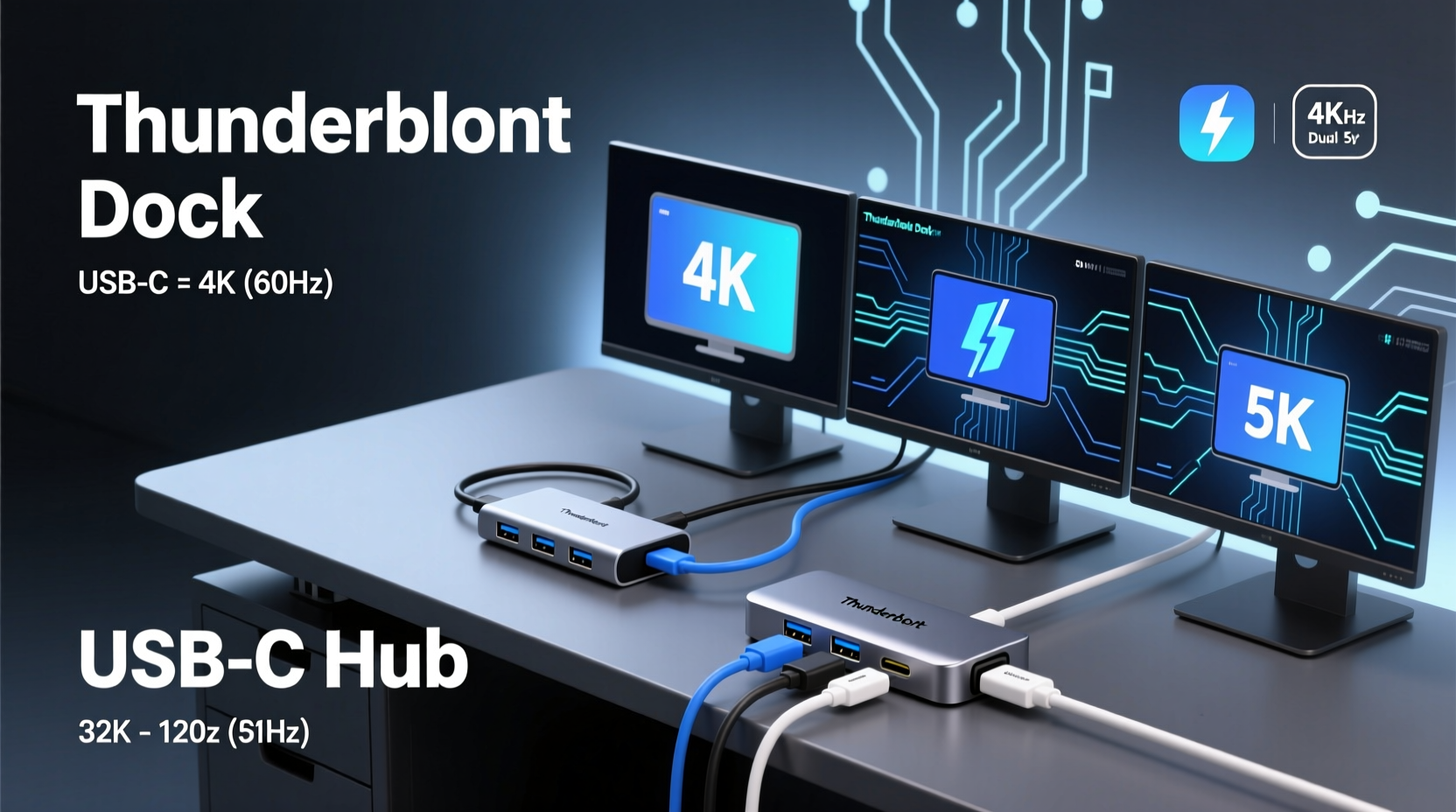
The confusion between USB-C hubs and Thunderbolt docks often stems from their similar physical appearance. Both typically use a USB-C connector and may offer additional ports such as HDMI, DisplayPort, Ethernet, and USB-A. However, the underlying technology and bandwidth capabilities vary dramatically.
USB-C is a **connector type**, not a data or video standard. It can carry various protocols including USB 3.2, USB4, DisplayPort Alternate Mode (DP Alt Mode), and Thunderbolt. In contrast, Thunderbolt is a **high-speed interface protocol** developed by Intel in collaboration with Apple. Thunderbolt 3 and 4 use the USB-C physical port but deliver significantly higher bandwidth—up to 40 Gbps—compared to USB 3.2 Gen 2’s maximum of 10 Gbps.
This fundamental distinction affects everything from data transfer speeds to video output capacity. When evaluating support for external monitors, the number, resolution, and refresh rate of displays your setup can handle depend largely on whether you're using a basic USB-C hub or a full-featured Thunderbolt dock.
How Monitor Support Works Over USB-C and Thunderbolt
Video output over USB-C relies on either DP Alt Mode or tunneling through Thunderbolt. DP Alt Mode allows a USB-C port to transmit native DisplayPort signals directly to a monitor via an adapter or cable. This works on many modern laptops and mid-tier USB-C hubs, but with limitations.
A typical USB-C hub supporting DP Alt Mode can usually drive one 4K display at 60Hz or two 1080p monitors. Some advanced hubs may support dual 4K displays, but only if they incorporate special chipsets like DisplayLink, which compresses video data and sends it over USB before decompressing it at the monitor end. While functional, this method introduces slight latency and increased CPU usage, making it less ideal for creative workflows or fast-paced applications.
Thunderbolt, on the other hand, uses packetized data transmission that can encapsulate PCIe, DisplayPort, and USB data simultaneously. Each Thunderbolt 3 or 4 port provides up to four lanes of DisplayPort 1.4 bandwidth, enabling support for up to two 4K displays at 60Hz or even a single 8K display. With daisy-chaining via DisplayPort Multi-Stream Transport (MST), some configurations allow three or more monitors—provided the host system and GPU support it.
“Thunderbolt isn’t just faster—it fundamentally changes what’s possible in terms of peripheral integration, especially for multi-display productivity.” — Dr. Lena Torres, Senior Systems Architect at Peripheral Dynamics Lab
Comparative Analysis: USB-C Hub vs Thunderbolt Dock
| Feature | USB-C Hub (Standard) | Thunderbolt Dock |
|---|---|---|
| Bidirectional Bandwidth | 5–10 Gbps (USB 3.2 Gen 1/Gen 2) | 40 Gbps (Thunderbolt 3/4) |
| Max External Monitors | 1–2 (often limited to 1080p or 4K@30Hz without DisplayLink) | Up to 2x 4K@60Hz or 1x 8K@60Hz (plus integrated laptop screen) |
| Video Protocol | DP Alt Mode or DisplayLink compression | Native DisplayPort tunneling over Thunderbolt |
| Daisy-Chaining Support | Rare; limited by hub chipset | Yes, via MST over Thunderbolt |
| Power Delivery (PD) | Up to 100W (varies by model) | Up to 100W (standard on certified docks) |
| GPU Passthrough / eGPUs | Not supported | Supported (requires Thunderbolt compatibility) |
| Cost Range | $30–$80 | $150–$350 |
| CPU Usage for Video | Moderate to high (with DisplayLink) | Low (direct GPU offload) |
Real-World Example: A Video Editor’s Setup
Samantha, a freelance motion graphics designer based in Austin, recently upgraded her 13-inch MacBook Pro to support a triple-monitor workspace. Her primary goal was to have dedicated screens for timeline editing, preview output, and reference material—all running at 4K resolution.
She first tried a $60 USB-C hub with dual HDMI outputs. The device could only drive one 4K display at 30Hz and struggled to maintain stability when both monitors were active. Color accuracy fluctuated, and playback stuttered during rendering previews. After researching alternatives, she invested in a CalDigit TS4 Thunderbolt dock.
With the Thunderbolt solution, Samantha connected two LG UltraFine 4K displays via DisplayPort and HDMI, both running at 60Hz, while using the MacBook’s built-in Retina display as her third workspace. The change was immediate: smoother scrubbing in Final Cut Pro, accurate color grading, and no noticeable lag. Additionally, the dock powered her laptop at 98W and allowed her to connect a high-speed SSD array for project files—all through a single cable.
This case illustrates how professional-grade workflows benefit significantly from Thunderbolt’s superior bandwidth allocation and direct GPU communication, particularly when handling large video assets across multiple high-resolution displays.
Step-by-Step Guide to Choosing the Right Solution
Selecting between a USB-C hub and a Thunderbolt dock requires assessing your actual needs rather than opting for the cheapest or most feature-rich option. Follow this sequence to make an informed decision:
- Evaluate Your Monitor Requirements: Determine how many external displays you need, their resolutions (1080p, 1440p, 4K, 8K), and desired refresh rates (60Hz or higher).
- Check Your Laptop’s Port Specifications: Consult your device manual or manufacturer website to confirm whether your USB-C port supports Thunderbolt 3/4 or only DP Alt Mode. Look for the lightning bolt icon next to the port.
- Assess Total Bandwidth Needs: If you plan to use high-resolution displays alongside fast storage or networking, Thunderbolt becomes essential due to its shared 40 Gbps pool optimized for mixed workloads.
- Consider Future-Proofing: Even if you currently use only one monitor, investing in a Thunderbolt dock prepares you for future expansions, such as adding an eGPU or upgrading to 5K/6K displays like Apple Studio Display or Dell UltraSharp.
- Compare Models Within Budget: For casual use (e.g., home office with one 1080p or 4K monitor), a quality USB-C hub with DP Alt Mode suffices. For creative pros or power users, prioritize Thunderbolt-certified docks from brands like Anker, Belkin, CalDigit, or Dell.
Common Misconceptions and Pitfalls
- All USB-C Hubs Can Drive Multiple 4K Screens: False. Most cannot without relying on compressed video via DisplayLink, which impacts performance.
- More Ports Mean Better Performance: Not necessarily. A hub packed with ports may split limited bandwidth inefficiently, causing bottlenecks.
- Thunderbolt Is Only for Mac Users: Outdated. Modern Windows laptops increasingly include Thunderbolt 4, especially those with Intel Evo branding.
- If It Looks Like Thunderbolt, It Is Thunderbolt: Beware of “USB4” hubs marketed as equivalent. While USB4 shares Thunderbolt 3’s underlying tech, not all USB4 devices support full 40 Gbps or dual 4K output.
Frequently Asked Questions
Can a USB-C hub support dual 4K monitors?
It depends. Most standard USB-C hubs cannot natively support dual 4K@60Hz displays. Some achieve this using DisplayLink technology, which compresses video and transmits it over USB. This works but increases CPU load and may introduce minor lag, making it less suitable for video editing or gaming.
Do I need a Thunderbolt dock for two monitors?
If both monitors are 4K at 60Hz, yes. A Thunderbolt dock ensures sufficient bandwidth for smooth, lag-free performance. For lower resolutions (e.g., dual 1080p or one 4K + one 1080p), a well-designed USB-C hub with DP Alt Mode may suffice.
Is Thunderbolt backward compatible with USB-C?
Yes. Thunderbolt 3 and 4 are fully compatible with USB-C devices and cables. However, connecting a Thunderbolt dock to a non-Thunderbolt host limits functionality to standard USB-C speeds and features.
Action Plan: Maximizing Multi-Monitor Potential
- Confirm your laptop has a Thunderbolt-enabled USB-C port.
- Determine your exact monitor configuration (resolution, quantity, layout).
- Choose a dock that exceeds your current needs slightly—e.g., supports one more display than you currently own.
- Use certified Thunderbolt or high-quality passive cables (avoid cheap adapters).
- Update your system firmware and dock drivers regularly for optimal compatibility.
Conclusion
When comparing USB-C hubs and Thunderbolt docks for external monitor support, the verdict is clear: Thunderbolt docks provide superior performance, scalability, and reliability for multi-display environments. They leverage high-bandwidth architecture to deliver crisp, responsive visuals across multiple 4K screens, making them indispensable for demanding professional workflows. USB-C hubs serve well for basic setups but fall short under heavy graphical loads.
Your choice should align with both current requirements and future ambitions. If you value efficiency, visual fidelity, and streamlined connectivity, a Thunderbolt dock is a worthwhile investment. Don’t let cost deter you—consider it not as an expense, but as an upgrade to your productivity infrastructure.




 浙公网安备
33010002000092号
浙公网安备
33010002000092号 浙B2-20120091-4
Comments
No comments yet. Why don't you start the discussion?