
In today’s hybrid work environment, a cluttered desk isn’t just unsightly—it’s inefficient. As laptops become thinner and more portable, they often sacrifice ports for sleekness. This creates a dependency on external devices to connect monitors, keyboards, storage drives, and more. Two popular solutions dominate the market: USB hubs and docking stations. While both aim to expand connectivity, they serve different needs, capabilities, and levels of integration. Choosing the wrong one can lead to frustration, bottlenecks, or underutilized hardware. Understanding the distinction is essential for anyone looking to streamline their setup without sacrificing performance.
Understanding the Core Differences
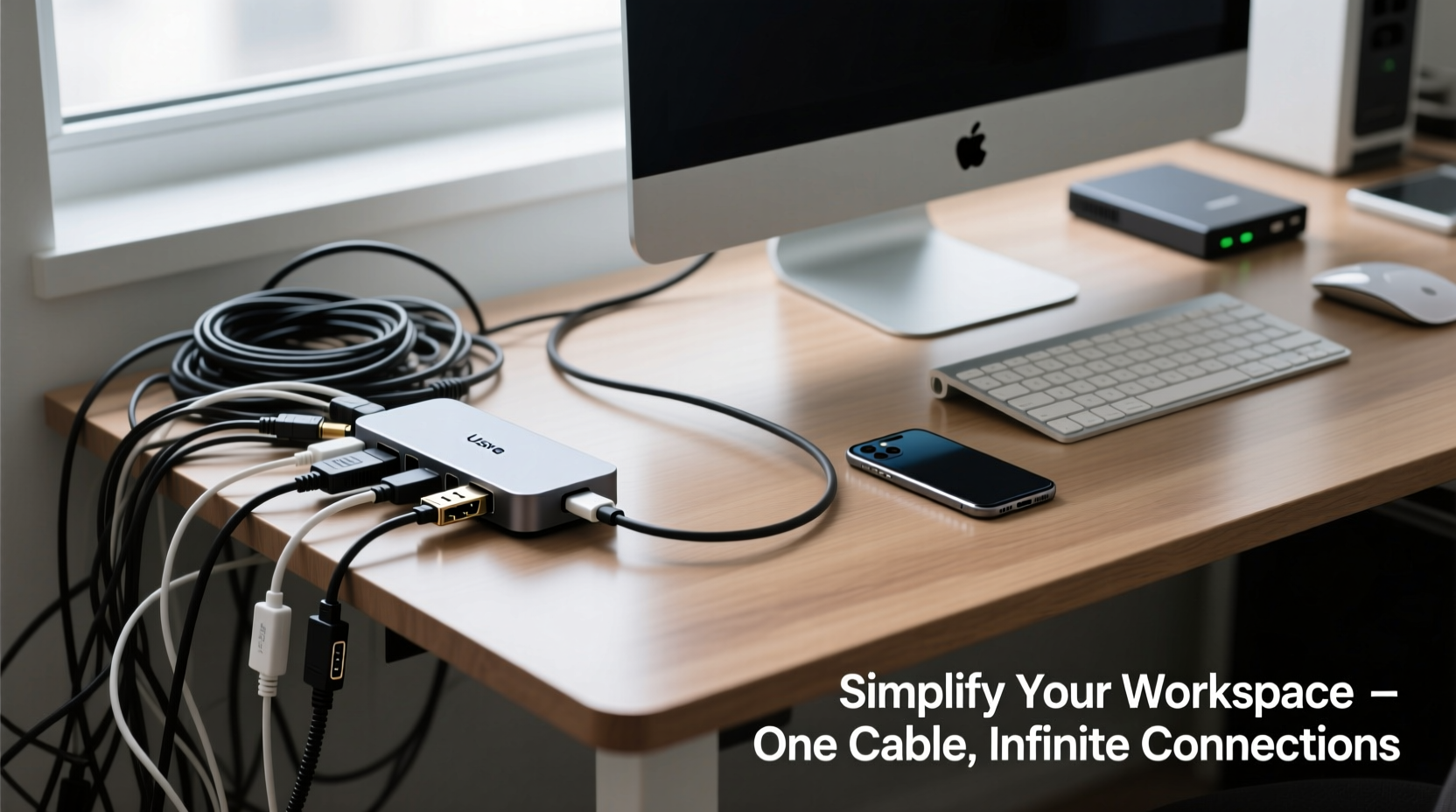
A USB hub and a docking station may look similar at first glance—both are compact boxes with multiple ports. However, their functionality diverges significantly in terms of scope, power delivery, and system integration.
A USB hub is primarily designed to multiply the number of available USB ports from a single connection. It allows you to plug in multiple USB devices—such as a mouse, keyboard, flash drive, and phone—into one upstream port on your laptop. Most hubs are bus-powered, meaning they draw energy from the host device, though some include external power adapters for better performance with high-demand peripherals.
In contrast, a docking station functions as a centralized connection point that transforms your laptop into a full desktop workstation. Beyond expanding USB connectivity, it typically supports video output (HDMI, DisplayPort), Ethernet, audio jacks, and even AC power pass-through. Docking stations often emulate a mini-desktop motherboard, enabling seamless transitions between mobile and desk-bound workflows.
Performance and Bandwidth: What You’re Really Getting
The performance gap between USB hubs and docking stations stems from underlying technologies and bandwidth allocation. Most modern USB hubs use USB 3.0, USB 3.1, or USB-C with varying data transfer rates—typically up to 5 Gbps (USB 3.0) or 10 Gbps (USB 3.1 Gen 2). However, this total bandwidth is shared across all connected devices.
For example, plugging in a high-speed SSD, an external HDD, and a 4K webcam simultaneously may result in throttled speeds because the hub must divide its maximum throughput among them. This limitation becomes noticeable during large file transfers or real-time video processing.
Docking stations, especially those based on USB-C with DisplayPort Alt Mode or **Thunderbolt 3/4**, offer far greater bandwidth. Thunderbolt docks provide up to 40 Gbps, support dual 4K displays at 60Hz, fast charging (up to 100W), and dedicated lanes for data, video, and power. These docks communicate directly with your system’s PCIe bus, enabling near-native performance for external GPUs, NVMe enclosures, and professional-grade monitors.
“Docking stations aren’t just about adding ports—they’re about creating a persistent, high-performance workspace.” — David Lin, Senior Systems Engineer at TechFlow Labs
Comparison Table: USB Hub vs Docking Station
| Feature | USB Hub | Docking Station |
|---|---|---|
| Primary Purpose | Expand USB connectivity | Create a full workstation experience |
| Video Output | Rarely supported; limited to display adapters via USB | Common (HDMI, DisplayPort); supports dual 4K |
| Network Connectivity | No Ethernet port (unless built-in) | Usually includes Gigabit Ethernet |
| Power Delivery | Limited; may not charge laptop | Supports 60W–100W passthrough charging |
| Bandwidth | Shared (5–10 Gbps) | Dedicated channels (up to 40 Gbps with Thunderbolt) |
| Plug-and-Play | Yes, universally compatible | May require drivers or firmware updates |
| Price Range | $15–$50 | $100–$300+ |
| Ideal For | Light users, travelers, students | Professionals, remote workers, creatives |
Real-World Use Case: Remote Worker Transforms Her Setup
Sarah, a freelance graphic designer working remotely from her apartment, initially used a basic USB hub to connect her mouse, keyboard, and external hard drive to her ultrabook. She frequently experienced lag when transferring design files and had no way to extend her screen space. Frustrated by the inefficiency, she upgraded to a Thunderbolt 4 docking station.
The change was transformative. With the dock, she connected two 27-inch 4K monitors, a wired Ethernet cable for stable uploads, and her peripheral devices—all through a single USB-C cable. The laptop now charges automatically upon connection, and file transfers between her NVMe drive and cloud server became nearly instantaneous. Her workflow improved by an estimated 30%, and she reported reduced eye strain thanks to proper screen positioning.
This case illustrates how the right tool aligns with specific demands. Sarah didn’t just want more ports—she needed a unified ecosystem. A USB hub couldn’t deliver that level of integration.
Choosing the Right Option for Your Workflow
Selecting between a USB hub and a docking station depends on your daily tasks, equipment, and long-term goals. Consider the following checklist before making a decision:
✅ USB Hub: Choose This If…
- You mainly need extra USB-A or USB-C ports for peripherals.
- Your laptop already has HDMI or Ethernet ports, but you lack USB availability.
- You travel frequently and prioritize portability and low cost.
- You don’t use multiple monitors or high-bandwidth external storage.
- You're on a tight budget and need a simple plug-and-play solution.
✅ Docking Station: Choose This If…
- You work with dual monitors or require high-resolution displays.
- Stable internet is critical (e.g., video conferencing, live streaming).
- You want one-cable simplicity to connect and disconnect quickly.
- You rely on fast external storage (SSDs, RAID arrays) for editing or backups.
- You use your laptop as a desktop replacement and value consistency.
Step-by-Step Guide to Setting Up a Clean Workspace
Whether you choose a hub or a dock, organizing your workspace effectively enhances both aesthetics and efficiency. Follow this sequence to minimize cable clutter and maximize usability:
- Assess your current devices: List every peripheral you regularly use—monitor, keyboard, mouse, headset, printer, etc.
- Determine connection types: Identify whether each device uses USB-A, USB-C, HDMI, Ethernet, or audio jacks.
- Evaluate your laptop’s ports: Note which ports are available and their specifications (e.g., USB 3.1, Thunderbolt 4).
- Decide on expansion needs: Based on your list, determine if you need only USB expansion or full workstation capabilities.
- Select the appropriate device: Purchase a USB hub for basic needs or a docking station for advanced setups.
- Route cables strategically: Use adhesive clips or under-desk trays to bundle and secure cables. Avoid dangling wires.
- Label connections (optional): Use small tags to identify which cable goes where, especially useful in shared environments.
- Test the setup: Connect everything and ensure all devices are recognized and functioning properly.
- Optimize placement: Position the hub or dock near the edge of your desk for easy access and minimal strain on the laptop port.
- Maintain regularly: Dust ports periodically and check for firmware updates for docking stations.
“The fewer actions required to get into ‘work mode,’ the faster your brain adapts to productivity.” — Dr. Lena Patel, Cognitive Ergonomics Researcher
Frequently Asked Questions
Can a USB hub support multiple monitors?
Generally, no. Standard USB hubs do not support video output. Some specialized USB hubs come with built-in DisplayLink technology, allowing connection to one external monitor via compressed video over USB. However, performance may lag compared to native video ports, and dual-monitor support is rare and often unstable.
Do docking stations work with all laptops?
No. Compatibility depends on your laptop’s ports and supported protocols. A Thunderbolt docking station requires a Thunderbolt-enabled laptop. Similarly, USB-C docks need a USB-C port that supports DisplayPort Alt Mode and Power Delivery. Always check your laptop’s technical specifications before purchasing.
Is it safe to leave a docking station plugged in all the time?
Yes. Modern docking stations are designed for continuous use and include thermal protection and surge suppression. Leaving it powered ensures quick readiness when you return to your desk. Just make sure it’s placed in a well-ventilated area to prevent overheating.
Final Thoughts: Simplify Smartly
Cable clutter isn’t just a visual nuisance—it disrupts focus, slows down transitions, and increases the risk of accidental disconnections. The choice between a USB hub and a docking station should reflect not just what you need today, but how you plan to work tomorrow.
If your routine involves frequent movement and minimal peripheral use, a compact USB hub keeps things light and functional. But if you’re building a permanent or semi-permanent workspace—especially in creative, technical, or corporate roles—a docking station offers unmatched convenience, speed, and professionalism.
Investing in the right tool means investing in your productivity. Take inventory of your workflow, test compatibility, and build a setup that feels effortless. A single cable connecting your entire digital ecosystem isn’t futuristic—it’s achievable right now.




 浙公网安备
33010002000092号
浙公网安备
33010002000092号 浙B2-20120091-4
Comments
No comments yet. Why don't you start the discussion?