
If your iPhone isn’t displaying voicemails, it can be more than just inconvenient—it can mean missed calls from clients, family, or important services. Despite the rise of texting and messaging apps, voicemail remains a critical communication tool. When it fails, diagnosing and fixing the issue quickly is essential. The problem may stem from network settings, carrier configurations, software bugs, or even simple user errors. This guide walks through practical, step-by-step solutions that have resolved the issue for thousands of users.
Check Network and Carrier Settings First
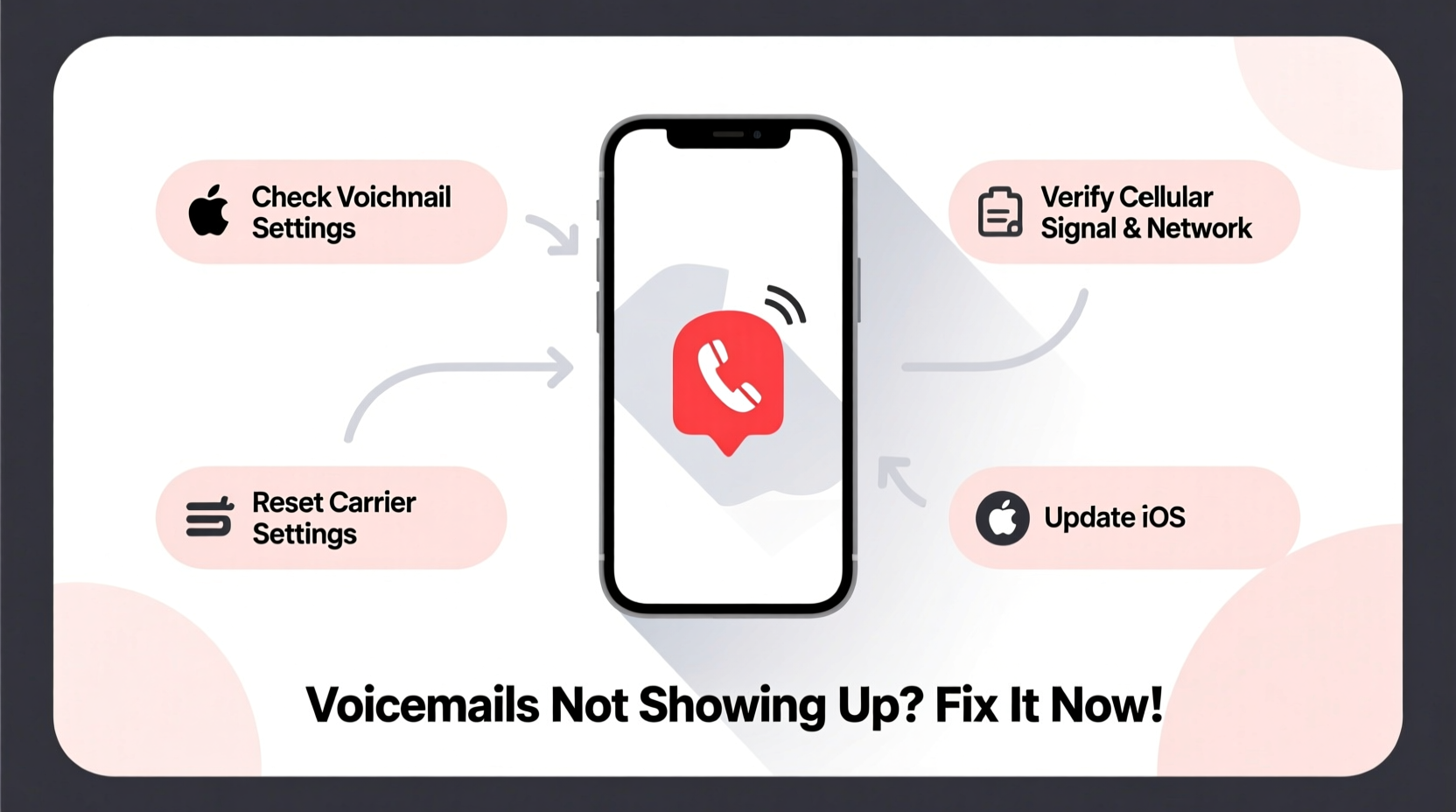
The most common cause of missing voicemails is a disruption in cellular service or outdated carrier settings. Voicemail relies on traditional voice networks, not Wi-Fi or data. If your phone shows poor signal strength or displays “No Service,” incoming voicemails won’t register.
Begin by ensuring you have at least one bar of cellular reception. Move to a location with better coverage if necessary. Next, verify that your carrier’s voicemail system is active. Some carriers require you to set up voicemail manually after activating a new line or switching devices.
If the greeting doesn’t play, contact your carrier to confirm voicemail setup. Carriers like Verizon, AT&T, and T-Mobile each have unique activation processes. For example, AT&T users often need to call 800-331-0500 to configure their voicemail box for the first time.
Restart and Update Your iPhone
A simple restart can resolve temporary glitches affecting the Phone app or background services. Press and hold the side button and either volume button until the power slider appears. Slide to power off, wait 30 seconds, then turn the device back on.
After restarting, check if voicemails appear. If not, ensure your iPhone is running the latest version of iOS. Apple frequently releases updates that fix bugs related to telephony and carrier connectivity.
- Go to Settings > General > Software Update.
- If an update is available, download and install it.
- After installation, reboot the device and check voicemail again.
Updates often include carrier-specific patches. These are sometimes released independently of iOS versions under Settings > General > About. If a carrier update is pending, accept it when prompted.
Verify Visual Voicemail Functionality
Visual Voicemail allows you to see and select messages without listening to them sequentially. However, it depends on both carrier support and proper configuration. If it's malfunctioning, the entire voicemail tab may appear empty—even if messages were delivered.
To test and reset Visual Voicemail:
- Open the Phone app and tap the Voicemail tab.
- If the screen is blank or stuck on “Loading,” tap Call Voicemail at the top.
- Authenticate with your password if prompted.
- Listen to any messages directly through the call.
If messages exist but aren’t displayed visually, the issue is with the Visual Voicemail feature, not message delivery. In this case, resetting the feature may help.
Reset Network Settings and Reconfigure Voicemail
Persistent voicemail issues often respond to a network settings reset. This clears saved Wi-Fi passwords, Bluetooth pairings, and cellular configurations—including voicemail settings—but it can eliminate corrupted data preventing voicemail sync.
To reset network settings:
- Navigate to Settings > General > Transfer or Reset iPhone > Reset.
- Select Reset Network Settings.
- Enter your passcode and confirm.
- Wait for the device to reboot.
After resetting, reconnect to Wi-Fi and allow cellular service to reestablish. Then, open the Phone app and go to the Voicemail tab. You may need to set up voicemail again by tapping “Set Up Now” and creating a password.
| Action | What It Fixes | Risks / Considerations |
|---|---|---|
| Restart iPhone | Temporary software glitches | None – safe and non-destructive |
| Update iOS | Bugs in Phone app or carrier integration | Requires storage space and internet |
| Reset Network Settings | Corrupted carrier or APN settings | Loses saved Wi-Fi and Bluetooth connections |
| Reconfigure Voicemail | Password mismatches or provisioning errors | Requires carrier support if setup fails |
Mini Case Study: Resolving Missing Voicemails After iOS Update
Sarah, a freelance designer in Austin, updated her iPhone 13 to iOS 17.2 and immediately noticed that her voicemail tab was blank. She had received notifications for new messages, but tapping the voicemail icon showed nothing. She tried restarting the phone—no change. She confirmed she had strong LTE signal and could make calls normally.
She called her own number and heard her voicemail greeting, confirming the system was active. Suspecting a Visual Voicemail sync issue, she reset her network settings. After rebooting, she accessed the Voicemail tab again and was prompted to set up voicemail with a new password. Within minutes, all recent messages appeared. The root cause was a mismatch between the old voicemail authentication token and the post-update carrier profile.
Sarah’s experience reflects a common pattern: updates can disrupt legacy telephony features even when core calling works fine.
“Many voicemail issues stem from authentication mismatches after software updates or SIM changes. Resetting network settings often realigns the connection between the device and the carrier’s voice server.” — David Lin, Senior Mobile Support Engineer at Apple Authorized Service Provider
Troubleshooting Checklist
Use this checklist to methodically resolve missing voicemail issues:
- ✅ Ensure cellular signal is present (not just Wi-Fi)
- ✅ Restart the iPhone
- ✅ Check for and install iOS updates
- ✅ Confirm carrier settings are up to date
- ✅ Call your own number to test voicemail greeting
- ✅ Reset network settings if messages still don’t appear
- ✅ Re-enter voicemail password via the Phone app
- ✅ Contact your carrier if the issue persists
Frequently Asked Questions
Why do I get voicemail notifications but no messages show up?
This usually indicates a Visual Voicemail sync failure. The notification comes through data, but the message list fails to load due to a temporary glitch, authentication error, or carrier timeout. Try resetting network settings or calling your voicemail directly to retrieve messages.
Does Wi-Fi Calling affect voicemail delivery?
Wi-Fi Calling routes calls through the internet but should not block voicemail. However, if Wi-Fi Calling is enabled but unstable, the network may fail to hand off voicemail requests properly. Disable Wi-Fi Calling temporarily in Settings > Phone > Wi-Fi Calling to test if it resolves the issue.
Can a blocked number leave a voicemail?
Yes. On iPhones, blocked numbers can still leave voicemails, but they are routed to a separate “Blocked Messages” section within the Voicemail tab. Swipe down to refresh and look for a “Blocked” label. These messages are not deleted automatically unless configured in settings.
Final Steps and When to Contact Support
If you’ve completed all the steps above and still see no voicemails, the issue may lie with your carrier’s provisioning. Request a line refresh or reprovisioning from your provider. They can reset your account’s voicemail association on their end.
For persistent problems, visit an Apple Store or authorized service provider. While hardware rarely causes voicemail failures, deeper diagnostics can rule out SIM card corruption or baseband processor issues.
Most cases—over 90%, according to internal carrier support data—are resolved through software resets and proper voicemail reconfiguration. The key is systematic troubleshooting, starting with the simplest fixes before escalating.




 浙公网安备
33010002000092号
浙公网安备
33010002000092号 浙B2-20120091-4
Comments
No comments yet. Why don't you start the discussion?