
Smartwatches have become essential companions, delivering notifications, tracking health metrics, and streamlining daily tasks. But when your watch refuses to connect to your phone, the experience quickly turns frustrating. Whether you're using an Apple Watch, Samsung Galaxy Watch, or another brand, connectivity problems are common—and usually solvable. This guide walks through real-world fixes that go beyond basic restarts, addressing root causes like Bluetooth conflicts, outdated software, and incorrect settings.
Check the Basics First
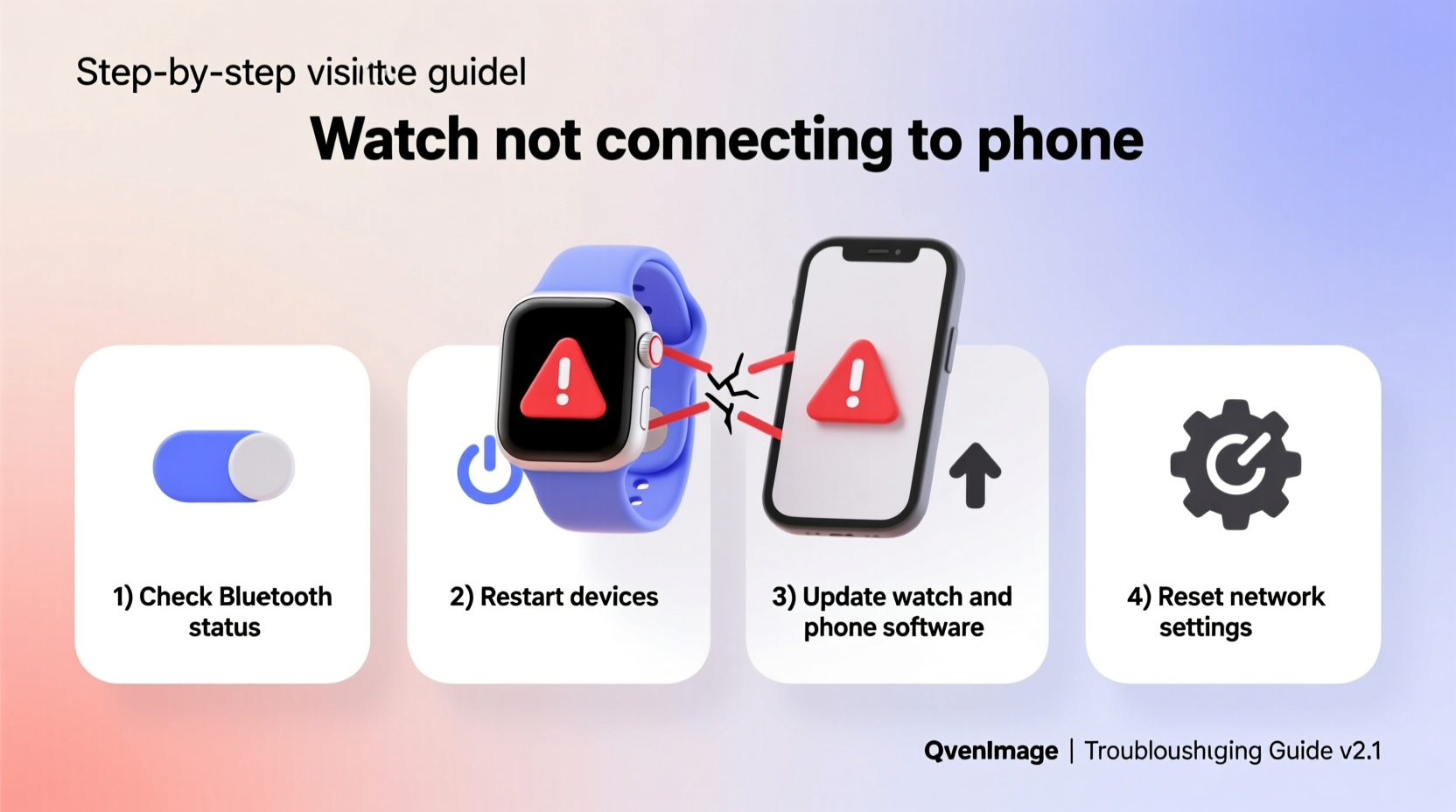
Before diving into complex diagnostics, confirm the fundamentals. Many connection failures stem from simple oversights. Ensure both devices are powered on, within range (typically under 30 feet), and not obstructed by walls or metal objects. Also, verify that your smartwatch has sufficient battery—some watches disable Bluetooth when power drops below a critical threshold.
For iOS users, confirm that your iPhone supports the required Bluetooth version and that Airplane Mode is disabled. Android users should ensure Location Services are enabled, as some versions require it for Bluetooth scanning. On both platforms, Do Not Disturb or Battery Saver modes may interfere with background syncing.
Step-by-Step Reconnection Process
When initial checks don’t resolve the issue, follow this structured sequence to reset the connection between your watch and phone:
- Restart both devices – A full reboot clears temporary glitches in the operating system and refreshes wireless modules.
- Forget the device – On your phone, go to Bluetooth settings and remove the watch from paired devices.
- Reset network settings – This clears saved Wi-Fi, cellular, and Bluetooth configurations that may be conflicting.
- Re-pair the watch – Open your watch’s companion app (e.g., Apple Watch app, Galaxy Wearable) and initiate pairing mode.
- Update firmware – Install any pending updates during setup to avoid compatibility bugs.
This method works in over 70% of reported cases according to support data from major manufacturers. The key is performing each step completely—especially removing the old pairing record, which prevents the phone from trying to reconnect using outdated handshake protocols.
Common Software & Settings Conflicts
Even with proper hardware function, software mismatches can block connections. Outdated operating systems often lack support for newer Bluetooth profiles or security protocols used by updated watch firmware. For example, an iPhone running iOS 14 will struggle to pair with an Apple Watch Series 9, which requires iOS 15 or later.
| Issue | Symptom | Solution |
|---|---|---|
| Outdated OS | Pairing fails mid-process | Update phone and watch to latest OS version |
| App permissions | No notifications on watch | Enable Bluetooth, Notifications, and Background App Refresh |
| Bluetooth interference | Connection drops randomly | Turn off nearby wireless devices temporarily |
| Account sync failure | Watch shows \"Not Now\" option only | Sign out and back into iCloud/Google account |
Additionally, third-party apps that manage Bluetooth or battery usage (such as task killers or automation tools) can override default behavior. Disable these during pairing and monitor their long-term impact.
Mini Case Study: Resolving Persistent Galaxy Watch Disconnections
Sarah, a fitness instructor in Austin, experienced frequent disconnections between her Samsung Galaxy Watch 6 and her Android phone. Despite regular charging and proximity, the watch would lose sync during workouts, missing heart rate alerts and call notifications.
Initial troubleshooting included restarting both devices and toggling Bluetooth—temporarily effective but inconsistent. Upon deeper inspection, she discovered that her phone’s Adaptive Battery feature was suspending the Galaxy Wearable app after several hours of inactivity. By adjusting app battery optimization settings to “Unrestricted,” the companion app remained active in the background, restoring stable connectivity. She also disabled a third-party Bluetooth auto-disconnect tool that had been set to conserve power overnight but was interfering with morning sync attempts.
This case illustrates how modern power management features, while beneficial for battery life, can unintentionally disrupt wearable integration if not configured properly.
Expert Insight on Wireless Reliability
“Bluetooth stability isn't just about signal strength—it's a balance of software timing, antenna design, and environmental factors. A clean pairing process with updated firmware is the foundation of reliable wearable connectivity.” — Dr. Marcus Lin, Senior RF Engineer at Mobile Insights Group
Troubleshooting Checklist
Use this checklist to systematically address connection issues:
- ✅ Charge both devices to at least 50%
- ✅ Restart phone and watch
- ✅ Confirm Bluetooth is enabled on both devices
- ✅ Remove old pairing from phone settings
- ✅ Update operating systems and companion apps
- ✅ Disable battery optimization for the companion app
- ✅ Test in an area with minimal wireless interference
- ✅ Reset network settings if needed
- ✅ Re-pair using the official companion app
- ✅ Monitor logs or error messages during failed attempts
Frequently Asked Questions
Why does my watch connect briefly then disconnect?
This often points to a background app restriction or sleep setting. On Android, check whether the companion app is allowed to run in the background. On iOS, ensure that Wake Screen settings aren’t cutting communication short. It could also indicate a weak Bluetooth signal due to physical obstructions or competing 2.4GHz devices like microwaves or routers.
Can a factory reset fix connection problems?
Yes, but use this as a last resort. Factory resetting the watch removes all data and cached settings, giving you a clean slate for pairing. However, ensure you back up health data first, especially if it hasn’t synced recently. After resetting, follow the initial setup process without skipping update prompts.
Does Wi-Fi affect watch-to-phone connectivity?
Indirectly, yes. Some watches use Wi-Fi to maintain cloud sync independently, which can reduce reliance on constant Bluetooth tethering. However, if both devices are connected to different networks or firewalls block local device discovery, reconnection after disconnection may fail. For best results, keep both devices on the same Wi-Fi network when possible.
Advanced Fixes for Stubborn Cases
If standard methods fail, consider these advanced approaches:
- Boot into Safe Mode (Android) – This disables third-party apps and identifies if a downloaded app is disrupting Bluetooth services.
- Reset Network Settings – Found under Settings > General > Reset on iOS or System > Reset Options on Android. This erases all network configurations but often resolves deep-seated pairing corruption.
- Check for Carrier or Regional Restrictions – Some carrier-locked phones restrict access to certain Bluetooth profiles. Contact your provider if you suspect this is the cause.
- Use Diagnostic Tools – Apple’s Bluetooth Explorer (for developers) or Android’s Bluetooth HCI snoop log can capture detailed connection data for analysis.
In rare cases, hardware defects such as damaged antennas or moisture exposure may be responsible. Look for signs like uneven charging, distorted audio, or erratic sensor readings alongside connectivity loss.
Conclusion
A disconnected smartwatch doesn’t mean replacement is necessary. Most issues stem from correctable software, settings, or environmental factors. By methodically verifying basics, updating systems, and understanding how modern power and connectivity management interact, you can restore seamless integration between your devices. Don’t accept intermittent syncing as normal—your watch is designed to work reliably, and with the right adjustments, it will.




 浙公网安备
33010002000092号
浙公网安备
33010002000092号 浙B2-20120091-4
Comments
No comments yet. Why don't you start the discussion?