
Gaming should be smooth, responsive, and immersive. When you're hit with sudden stutters, frame drops, or unplayable latency, it’s more than frustrating—it breaks the entire experience. If you’ve ever asked yourself, “Why am I lagging so badly?” while playing your favorite title, you’re not alone. Lag isn’t always about a slow internet connection. It can stem from a mix of hardware limitations, software conflicts, network inefficiencies, or even in-game settings. The key to fixing it lies in understanding where the bottleneck occurs and addressing it systematically.
Understanding the Types of Lag
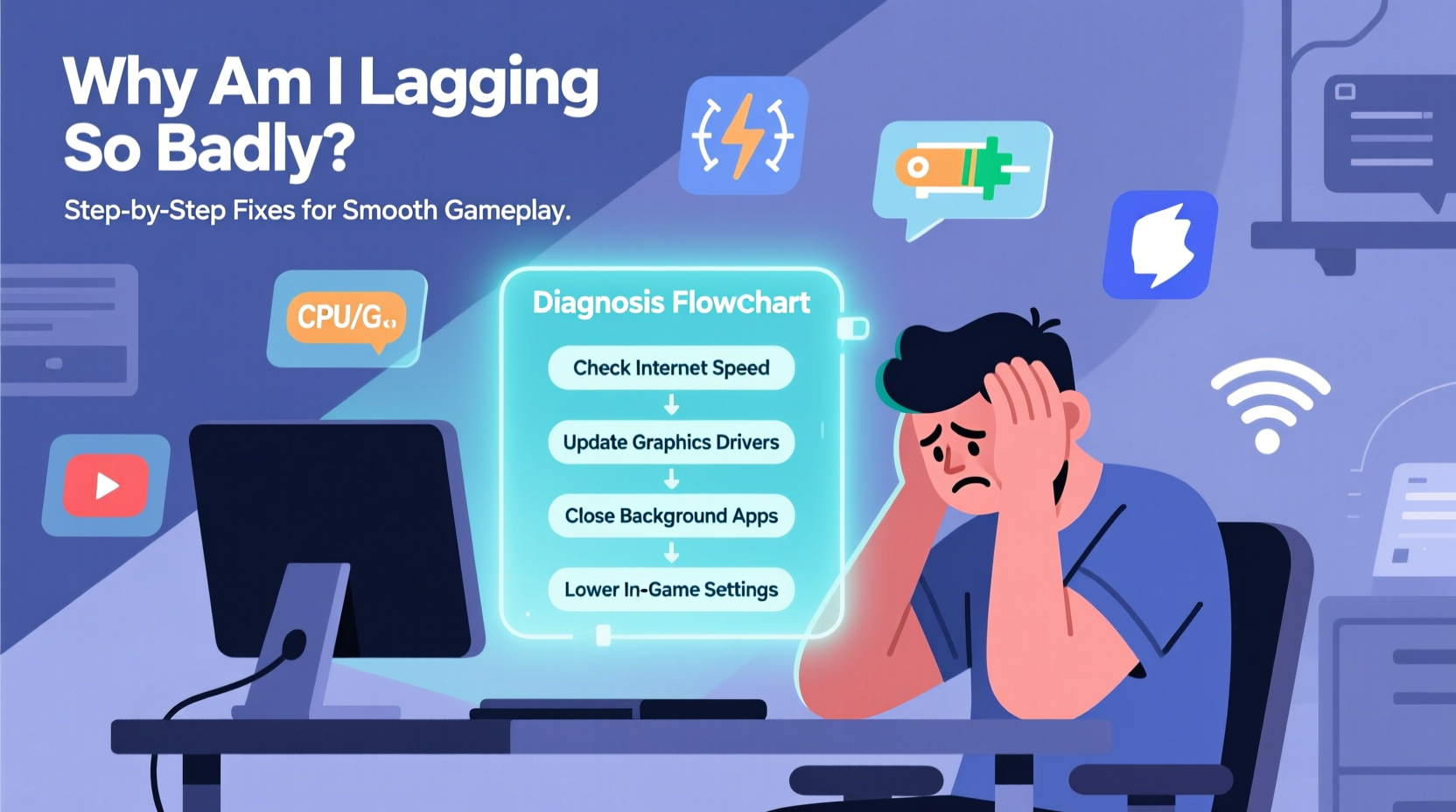
Lag isn't a single issue—it manifests in different forms, each pointing to a distinct root cause:
- Input Lag: Delay between your mouse click or button press and the action appearing on screen. Often caused by display settings or peripheral latency.
- Network Lag (Latency/Ping): High ping results in delayed responses between your device and the game server. Measured in milliseconds (ms), anything above 100ms is noticeable; over 150ms becomes disruptive.
- Framerate Lag (Low FPS): Choppiness due to low frames per second. Caused by insufficient GPU/CPU power, overheating, or poorly optimized game settings.
- Packet Loss: Data sent from your device fails to reach the server, causing rubberbanding or disconnections. Common with unstable Wi-Fi or congested networks.
Identifying which type you're experiencing is the first step toward resolution. For example, if enemies teleport around you, it's likely network-related. If your screen stutters during fast movements, it’s probably a framerate issue.
Step-by-Step Guide to Diagnose and Fix Game Lag
Follow this structured approach to isolate and eliminate sources of lag:
- Check Your Internet Connection
Run a speed test at speedtest.net. Look for:- Ping under 50ms (ideal), below 100ms (acceptable)
- Download speed suitable for your game (usually 10+ Mbps)
- Negligible packet loss (0–1%)
- Switch to Wired Ethernet
Wi-Fi introduces variability. A wired connection reduces jitter and latency significantly. - Close Background Applications
Apps like Discord, Chrome, or cloud sync tools consume bandwidth and system resources. Shut down unnecessary programs. - Update Drivers and Game Patches
Outdated GPU drivers are a common culprit. Visit NVIDIA, AMD, or Intel’s website to install the latest version. Ensure the game itself is up to date. - Adjust In-Game Graphics Settings
Lower resolution, shadows, anti-aliasing, and texture quality. Prioritize performance over visuals if needed. - Monitor System Temperatures
Use HWMonitor or Core Temp. Sustained CPU/GPU temps above 85°C lead to thermal throttling and lag. - Restart Router and PC
A simple reboot clears memory leaks and resets network handshakes.
Common Causes and Solutions at a Glance
| Issue | Symptoms | Solution |
|---|---|---|
| High Network Latency | Delayed actions, enemy teleportation | Use Ethernet, close bandwidth-heavy apps, choose closer servers |
| Low FPS | Stuttering, choppy motion | Lower graphics settings, update GPU drivers, ensure proper cooling |
| Background Processes | Random stutters, high CPU usage | Disable startup apps via Task Manager |
| Overheating | Performance drops after 10–15 minutes | Clean fans, reapply thermal paste, improve airflow |
| Packet Loss | Disconnections, rubberbanding | Switch to wired, avoid crowded Wi-Fi channels, contact ISP |
Real Example: Solving Persistent Lag in Apex Legends
Take Mark, a competitive Apex Legends player who started experiencing severe lag despite having a 300 Mbps connection. His ping fluctuated between 60 and 250 ms, making gameplay inconsistent. He followed these steps:
- First, he switched from Wi-Fi to an Ethernet cable—ping stabilized at 48 ms.
- He noticed Discord was uploading clips in the background, consuming upload bandwidth. Disabling auto-upload reduced jitter.
- His GPU usage was maxing out at 99% with temperatures hitting 88°C. After cleaning dust from his PC and adjusting fan curves, temps dropped to 76°C, and frame pacing improved.
- Finally, he lowered in-game render resolution from 100% to 90%, which boosted average FPS by 18 without noticeable visual loss.
The result? Consistent 120+ FPS and sub-60ms ping. What felt like an unsolvable issue turned out to be multiple small fixes stacking into a major improvement.
“Most gamers blame their ISP when the real bottleneck is often local—whether it’s thermal throttling, background apps, or outdated drivers.” — Raj Patel, Senior Systems Engineer at GameOptimize Labs
Troubleshooting Checklist: Is Your Setup Optimized?
Before diving into advanced tweaks, run through this essential checklist:
- ✅ Connected via Ethernet, not Wi-Fi
- ✅ No downloads or streaming running in the background
- ✅ GPU drivers updated to the latest stable version
- ✅ Game installed on an SSD, not HDD
- ✅ Power plan set to \"High Performance\" (Windows)
- ✅ V-Sync disabled if prioritizing responsiveness over screen tearing
- ✅ Router firmware updated and QoS enabled for gaming devices
- ✅ In-game resolution matches monitor native resolution
- ✅ Overclocking stable (if applicable); instability causes crashes and lag
- ✅ Antivirus not scanning during gameplay
Frequently Asked Questions
Does RAM affect game lag?
Yes, but only if you don’t have enough. Modern games typically require 16GB of RAM for smooth performance. If your usage consistently exceeds available memory, the system uses slower disk storage (page file), causing stutters. Check RAM usage via Task Manager during gameplay.
Can my router cause game lag even with fast internet?
Absolutely. Older or low-end routers struggle with handling multiple devices and sustained connections. They may lack Quality of Service (QoS) features, leading to bandwidth contention. Upgrade to a gaming router with MU-MIMO and traffic prioritization.
Why do I lag more at certain times of day?
This often points to network congestion—either on your home network (e.g., family streaming) or your ISP’s end. Peak hours (6 PM–10 PM) see higher latency due to regional traffic. Consider using a gaming VPN that routes through less congested paths.
Final Steps: Take Control of Your Gaming Experience
Lag doesn’t have to be a constant companion. By methodically evaluating your hardware, software, and network environment, you can identify and eliminate the weak links. Start with the basics: use a wired connection, close unnecessary apps, and keep your system cool and updated. Then fine-tune settings based on your rig’s capabilities. Remember, optimization is personal—what works for one setup might not suit another.
Don’t accept lag as inevitable. With the right knowledge and adjustments, you can transform a frustrating session into a fluid, competitive edge.




 浙公网安备
33010002000092号
浙公网安备
33010002000092号 浙B2-20120091-4
Comments
No comments yet. Why don't you start the discussion?