
If your Instagram posts appear fuzzy, pixelated, or less crisp than expected, you're not alone. Many creators—professional photographers, small business owners, and casual users alike—struggle with blurry content despite using high-end devices. The issue often lies not in the camera but in how files are processed, uploaded, or formatted before hitting “Share.” Understanding Instagram’s compression standards, optimal dimensions, and upload workflows is essential for preserving image quality. This guide breaks down the root causes of blurry posts and delivers actionable solutions to keep your feed looking polished and professional.
Why Instagram Posts Become Blurry: The Core Reasons
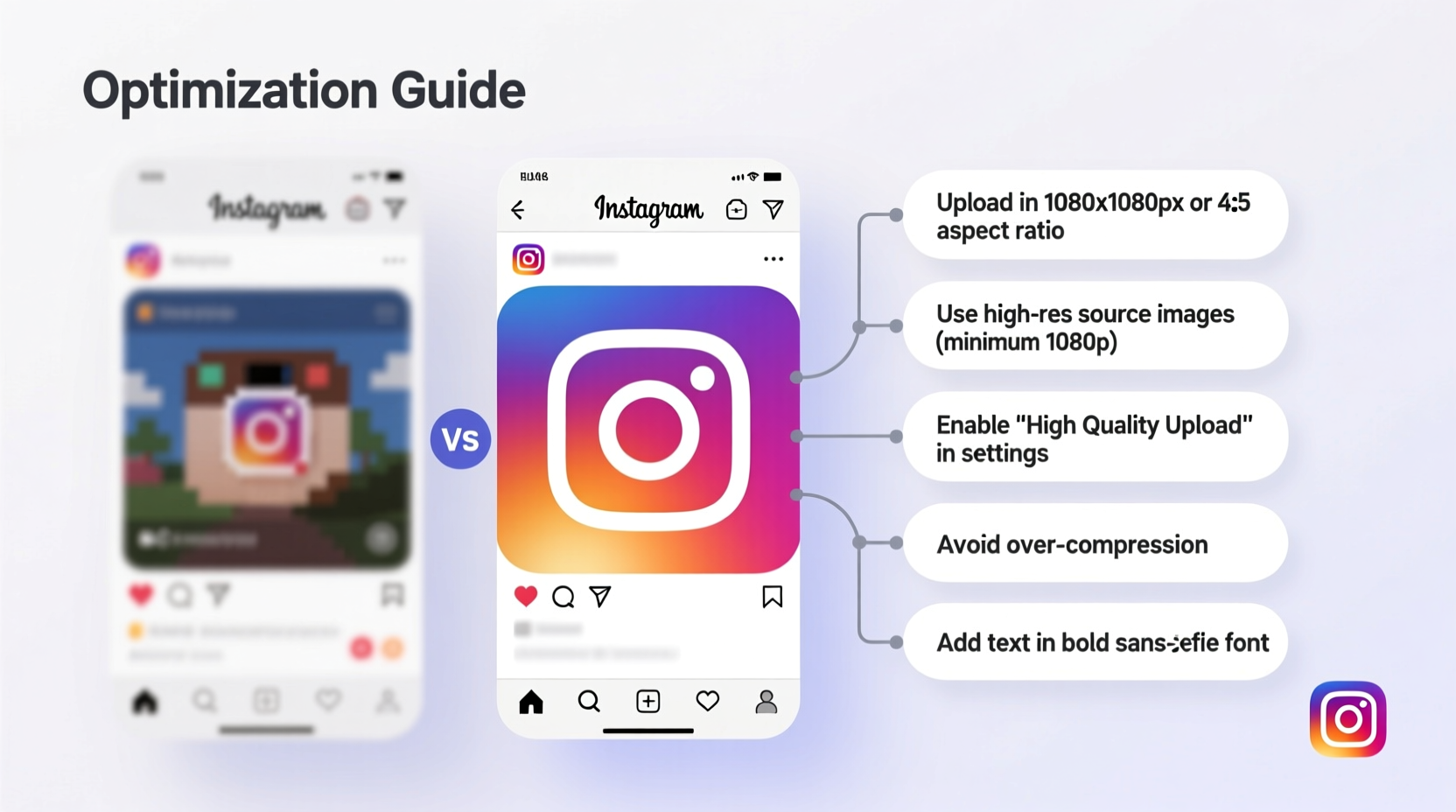
Instagram applies automatic compression to all uploaded media to reduce server load and improve loading times across global networks. While this benefits performance, it can degrade visual fidelity—especially if the original file isn’t optimized. Several factors contribute to blurriness:
- File compression: Instagram re-compresses images and videos, reducing resolution and introducing artifacts.
- Incorrect aspect ratios: Non-standard dimensions force cropping or stretching, which distorts pixels.
- Low-resolution source files: Uploading under 1080px wide triggers upscaling, resulting in softness.
- Multiple exports or edits: Each time a file is saved, especially in JPEG format, quality degrades slightly.
- Poor internet connection: Interrupted uploads may cause incomplete data transfer, leading to blurry previews.
“Even top-tier smartphones capture more detail than Instagram displays. The key is delivering the right format so the platform doesn’t have to guess.” — Jordan Lee, Digital Media Engineer at VisualFlow Studios
Optimal Image & Video Specifications for Instagram
To avoid unwanted compression or resizing, align your content with Instagram’s recommended technical standards. Use the table below as a reference when preparing posts:
| Content Type | Aspect Ratio | Resolution (Width) | File Format | Max File Size |
|---|---|---|---|---|
| Square Post | 1:1 | 1080px | JPEG (sRGB), PNG | 30MB |
| Landscape Post | 1.91:1 | 1080px (width) | JPEG, PNG | 30MB |
| Portrait Post | 4:5 | 1080px (width) | JPEG, PNG | 30MB |
| Instagram Reels | 9:16 | 1080px (width) | MP4 (H.264), MOV | 650MB |
| IGTV (long-form) | 9:16 or 16:9 | 1080px+ | MP4 | 3.6GB |
Note: Always export at exactly 1080 pixels on the shortest side for vertical and square content, and 1080px wide for horizontal. Going higher offers no benefit and increases processing time.
Step-by-Step Guide to Sharper Instagram Posts
Follow this workflow to maximize clarity from creation to upload:
- Capture in high resolution: Use your phone’s native camera app or a DSLR, ensuring settings are set to maximum quality.
- Edit with care: Apply adjustments in apps like Lightroom or Snapseed, avoiding excessive sharpening that amplifies noise.
- Export correctly: Save images as JPEG at 90–100% quality or PNG for transparency. For video, use H.264 codec in MP4 format.
- Resize precisely: Crop to one of Instagram’s supported aspect ratios (1:1, 4:5, 1.91:1, or 9:16) at exactly 1080px on the short edge.
- Avoid third-party schedulers: Tools that compress or re-upload through APIs often degrade quality. Upload directly via the Instagram app.
- Upload over stable Wi-Fi: Ensure a strong connection to prevent partial uploads and corrupted rendering.
- Preview before posting: Check the preview screen in the app. If it looks blurry there, cancel and re-export.
Common Mistakes That Cause Blurry Posts
Even experienced users fall into traps that compromise image quality. Here are frequent errors and how to avoid them:
- Using screenshots: Screenshots are often lower resolution and inconsistently sized. Recreate graphics in proper dimensions instead.
- Over-editing in-app: Applying multiple filters or brightness corrections within Instagram can trigger additional compression.
- Sharing from messaging apps: Forwarded images from WhatsApp or iMessage are heavily compressed. Always go back to the original file.
- Ignoring bit rate for video: Low-bitrate videos appear blocky. Aim for at least 10 Mbps for 1080p clips.
- Posting zoomed-in crops: Enlarging a small portion of an image beyond its native resolution leads to pixelation.
Mini Case Study: How a Lifestyle Blogger Fixed Her Blurry Feed
Amy Tran, a travel content creator with 42K followers, noticed her landscape photos looked dull and soft on mobile feeds despite looking sharp on desktop. After testing various upload methods, she discovered she was exporting images at 2000px wide, assuming “higher resolution = better quality.” Instagram was scaling these down aggressively, causing blur.
She adjusted her workflow: editing in Adobe Lightroom, exporting at exactly 1080px wide in 4:5 ratio for portrait posts, and uploading directly via the Instagram app over Wi-Fi. Within a week, engagement increased by 18%, with comments praising the improved clarity. “I thought I was doing everything right,” Amy said. “But it was the tiny details in export settings that made the biggest difference.”
Checklist: How to Prevent Blurry Instagram Posts
Use this quick-reference checklist before every upload:
- ✅ Capture in the highest available resolution
- ✅ Edit without over-sharpening or excessive contrast
- ✅ Crop to Instagram-supported aspect ratios (1:1, 4:5, 1.91:1, 9:16)
- ✅ Export at exactly 1080px on the shortest side
- ✅ Save as JPEG (90–100% quality) or PNG
- ✅ Avoid social sharing chains (e.g., reposting from Stories or DMs)
- ✅ Upload directly through the Instagram mobile app
- ✅ Use a stable Wi-Fi connection during upload
- ✅ Review the preview before finalizing the post
Frequently Asked Questions
Can Instagram make high-quality photos look blurry even if I follow all guidelines?
Yes, occasionally. Instagram’s algorithms prioritize fast delivery over fidelity. Even properly formatted images undergo some compression. However, following best practices minimizes visible degradation. If your post still appears blurry, check whether it was uploaded via a third-party tool or a weak network.
Why do my Reels look worse than regular posts?
Reels are streamed dynamically and subject to adaptive bitrate delivery. Lower bandwidth viewers see compressed versions, which affects overall sharpness. To counter this, export Reels at 1080x1920 (9:16), use high bit rates (10–20 Mbps), and avoid text overlays that become unreadable when compressed.
Does using a professional camera guarantee sharper Instagram posts?
Not necessarily. A DSLR captures more data, but if the final exported file exceeds Instagram’s specs or is improperly converted, quality loss occurs. The limiting factor isn’t the camera—it’s the export and upload process. A well-optimized smartphone photo often outperforms a poorly exported RAW shot.
Final Tips for Consistently Crisp Content
Consistency matters more than perfection. Develop a repeatable workflow that prioritizes correct sizing, clean exports, and direct uploads. Disable auto-sync features in cloud storage apps that might push low-quality versions. Stick to trusted editing tools with export presets tailored for Instagram. And always review your post on multiple devices—what looks sharp on a large tablet may reveal softness on a smaller phone screen.




 浙公网安备
33010002000092号
浙公网安备
33010002000092号 浙B2-20120091-4
Comments
No comments yet. Why don't you start the discussion?