
If you've ever sent a message from your iPhone and noticed the bubble turned green instead of blue, you're not alone—and it's more than just a color change. That shift from blue to green carries real implications about how your message was delivered, who received it, and which technology was used. Understanding this distinction is key to making the most of Apple’s messaging ecosystem and avoiding confusion in conversations.
The color of your message bubbles—blue or green—is determined by whether your message is being sent via iMessage (Apple’s proprietary messaging service) or SMS/MMS (standard cellular texting). While it might seem like a minor visual detail, knowing what these colors mean can help explain delivery delays, missing features, and even privacy considerations.
What Do Blue and Green Message Bubbles Mean?
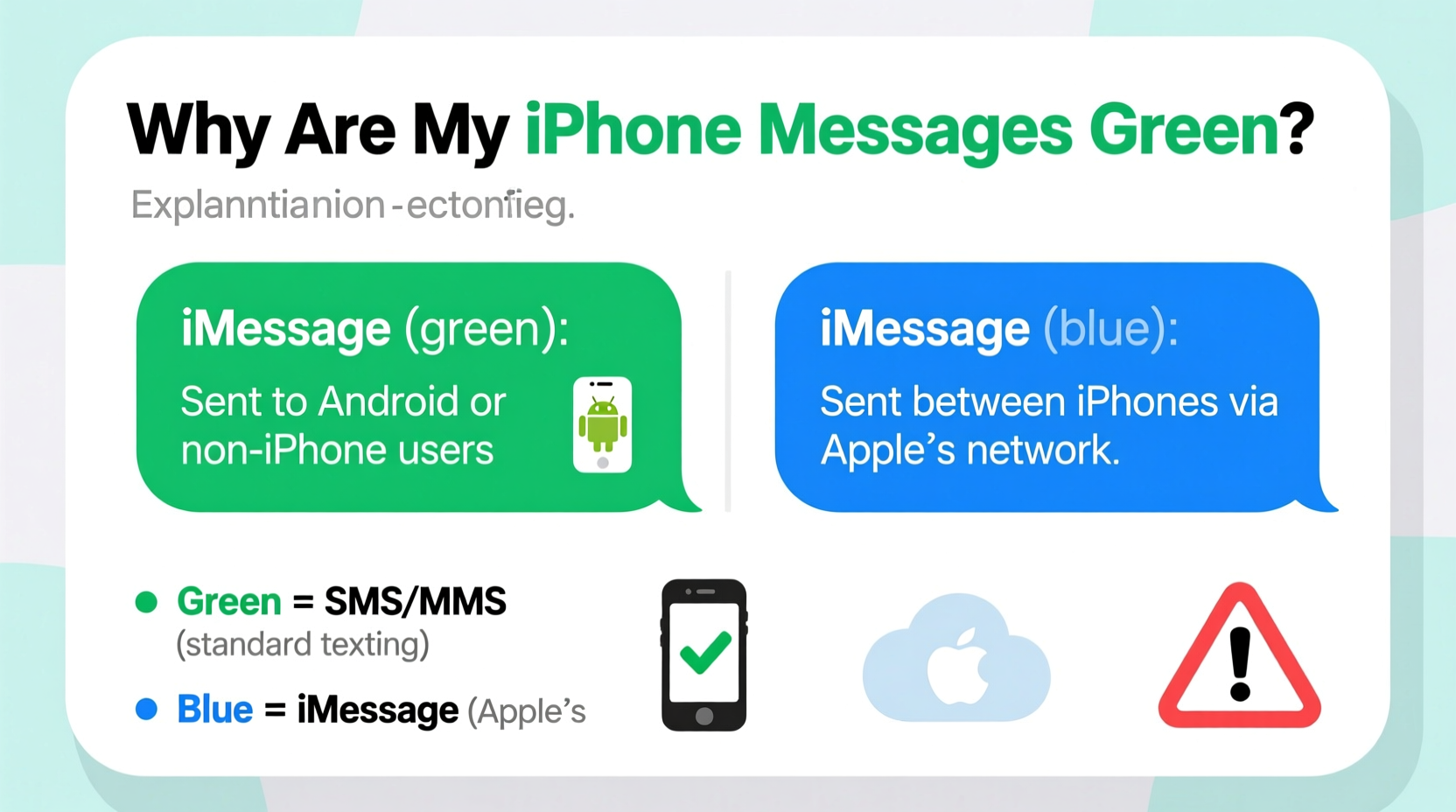
At its core, the difference between blue and green message bubbles on an iPhone comes down to the protocol used to send the message:
- Blue bubbles: These indicate messages sent through iMessage, Apple’s internet-based messaging system. iMessage works only between Apple devices and requires Wi-Fi or cellular data.
- Green bubbles: These are traditional SMS (text) or MMS (picture/video) messages sent through your cellular provider. They work with any phone, including Android devices.
iMessage offers enhanced features such as read receipts, typing indicators, high-quality media sharing, end-to-end encryption, and seamless syncing across Apple devices. When you see a green bubble, those features are unavailable for that particular conversation.
Why Are My Messages Green Instead of Blue?
There are several common reasons why your messages appear green. Understanding each can help you troubleshoot and maintain consistent communication:
- The recipient uses a non-iPhone device. This is the most common reason. If someone has an Android, Windows Phone, or basic phone, your messages will default to SMS and appear green.
- iMessage is turned off on your device. If you’ve disabled iMessage in Settings > Messages, all outgoing messages will be sent as SMS.
- Poor or no internet connection. iMessage requires data. Without Wi-Fi or cellular data, your iPhone automatically falls back to SMS.
- The recipient has iMessage disabled. Even if they own an iPhone, they may have turned off iMessage, forcing replies to come through as SMS.
- Apple’s iMessage servers are temporarily down. Rarely, outages can prevent iMessage from functioning, causing fallback to SMS.
It’s important to note that green messages aren’t inherently “bad”—they still deliver reliably via your carrier’s network. However, you lose advanced functionality and increased security offered by iMessage.
Key Differences Between iMessage (Blue) and SMS (Green)
| Feature | iMessage (Blue) | SMS/MMS (Green) |
|---|---|---|
| Encryption | End-to-end encrypted | No encryption |
| Delivery Method | Internet (Wi-Fi or data) | Cellular network |
| Read Receipts | Available (if enabled) | Not available |
| Typing Indicators | Yes | No |
| Group Messaging Features | Names, replies, effects, etc. | Limited or carrier-dependent |
| Media Quality | High resolution | Compressed (MMS limits) |
| Cross-Device Sync | Yes (iPhone, iPad, Mac) | No |
“iMessage fundamentally changes the texting experience by adding reliability, privacy, and richer interaction—but only when both parties are in the Apple ecosystem.” — David Lin, Mobile Communication Analyst
Troubleshooting: How to Get Blue Messages Back
If you’re seeing green bubbles unexpectedly—even when texting other iPhone users—here’s a step-by-step guide to restore iMessage functionality:
- Check your internet connection. Ensure Wi-Fi or cellular data is active and stable.
- Verify iMessage is enabled. Go to Settings > Messages and confirm iMessage is toggled on.
- Sign in to your Apple ID. If iMessage shows “Waiting for Activation,” sign in with your Apple ID under Settings > Messages > Send & Receive.
- Ensure the recipient has iMessage enabled. Ask them to check their Messages settings.
- Restart your iPhone. A simple reboot can resolve temporary glitches.
- Update iOS. Outdated software can interfere with iMessage. Go to Settings > General > Software Update.
- Reset network settings (if needed). In Settings > General > Transfer or Reset iPhone > Reset > Reset Network Settings. Note: This erases saved Wi-Fi passwords.
Real-World Example: The Misunderstood Green Bubble
Consider Sarah, who recently switched from iPhone to Android. Her friends continued sending messages assuming iMessage was active. But because Sarah’s new phone doesn’t support iMessage, all incoming texts appeared green on her friends’ phones. One friend, Alex, became concerned when he didn’t see a “read” receipt after sending a time-sensitive message. He assumed Sarah was ignoring him—when in reality, the message was delivered instantly via SMS, but without read notifications.
This scenario highlights how green bubbles can lead to miscommunication. Once Alex understood that green meant SMS—not iMessage—he adjusted his expectations and avoided unnecessary tension.
Common Myths About Green Messages
Several misconceptions persist around green message bubbles. Let’s clarify them:
- Myth: Green means the message wasn’t delivered.
Truth: Green messages are delivered via your carrier and appear as “Delivered” or with no indicator, depending on the network. - Myth: I’m blocked if my messages are green.
Truth: Being blocked typically results in a “Not Delivered” error, not a color change. Green alone does not indicate a block. - Myth: iMessage is always better.
Truth: While iMessage offers more features, SMS is often more reliable in areas with poor data coverage.
FAQ: Common Questions About Message Bubble Colors
Can I force a message to send as iMessage instead of SMS?
You cannot manually override the system, but ensuring iMessage is enabled and both devices are connected to the internet increases the likelihood of blue bubbles. If a message starts as green, tap and hold it, then choose “Send as Text Message” only if it failed to send initially.
Why do some iPhone users still get green messages from other iPhones?
This usually happens when one user has iMessage turned off, isn’t signed into iCloud, or lacks an internet connection. It can also occur during number transfers or after resetting a device.
Are green messages less secure?
Yes. SMS messages are not encrypted and can be intercepted more easily than iMessage, which uses end-to-end encryption. For sensitive conversations, aim to stay within the blue bubble ecosystem.
Final Thoughts: Embrace the Color Code
The color of your message bubbles isn’t arbitrary—it’s a real-time indicator of how your message travels from sender to recipient. Blue means you’re leveraging Apple’s modern, secure, feature-rich platform. Green signals a fallback to older, universal texting standards that ensure delivery but lack sophistication.
Rather than viewing green bubbles as a flaw, think of them as a bridge to anyone, regardless of their device. But if you value read receipts, typing indicators, and better media quality, encourage your close contacts to stay within the Apple ecosystem—or consider the implications when communicating outside of it.




 浙公网安备
33010002000092号
浙公网安备
33010002000092号 浙B2-20120091-4
Comments
No comments yet. Why don't you start the discussion?