
In today’s hyperconnected world, mobile applications have become essential tools for communication, entertainment, productivity, and commerce. Yet, many users find themselves baffled by rapidly depleting data plans—even when they’re not actively streaming videos or downloading files. The culprit? Data-heavy apps that operate in the background, preload content, and sync constantly. Understanding why certain apps consume disproportionate amounts of data is the first step toward regaining control over your bandwidth and extending your monthly data allowance.
Data consumption isn’t just a financial concern; it also affects device performance, battery life, and user experience—especially on slower networks or limited-data plans. By identifying the behaviors behind high data use and implementing smart management strategies, you can significantly reduce your app-related data footprint while still enjoying full functionality.
Why Some Apps Are So Data Heavy
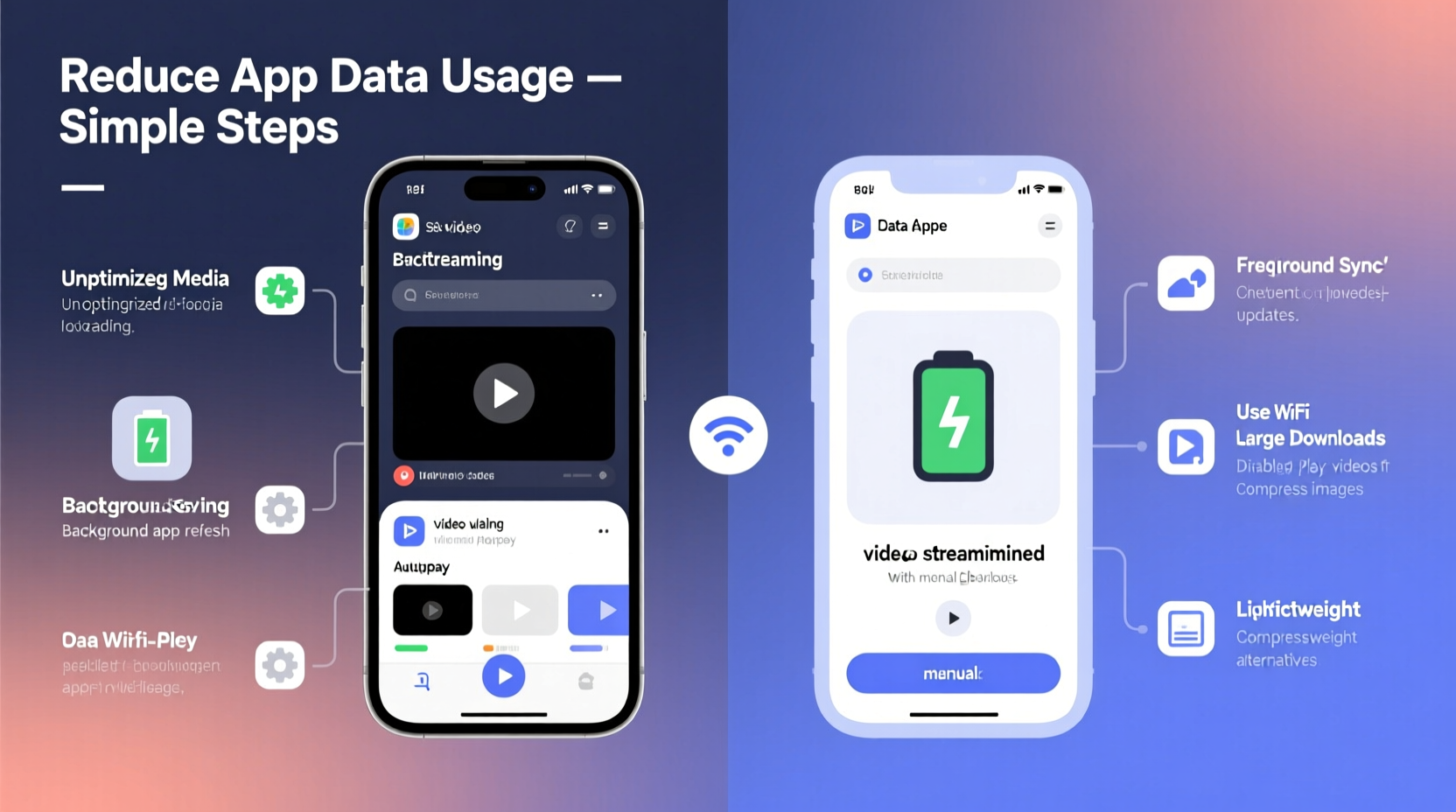
The reasons behind high data usage vary depending on the app's design, purpose, and backend infrastructure. However, several common factors explain why some apps drain data more aggressively than others.
1. Media-Rich Content Delivery
Apps like YouTube, Instagram, TikTok, and Netflix are inherently designed around video, audio, and high-resolution images. These formats require large file sizes. For example:
- A single minute of HD video (720p) can use up to 5–10 MB.
- Streaming music at standard quality consumes about 1 MB per minute.
- Auto-playing videos in social media feeds load even if you don’t watch them fully.
Many such apps default to high-quality playback unless manually adjusted, leading to unintentional overuse.
2. Background Syncing and Updates
Productivity and communication apps—like Gmail, Slack, WhatsApp, and Microsoft Outlook—routinely sync emails, messages, attachments, and calendars in the background. While this ensures real-time updates, each sync uses small but cumulative amounts of data. Over time, especially with frequent syncing intervals, these transfers add up.
3. Cloud Backup and File Syncing
Services like Google Drive, iCloud, Dropbox, and OneDrive automatically upload photos, documents, and backups. A single photo from a modern smartphone can be 3–5 MB, and videos can exceed hundreds of megabytes. If cloud backup runs over cellular data, usage spikes quickly.
4. Ad-Heavy Interfaces
Free versions of apps often rely on advertising revenue. These ads aren’t just text—they include animated banners, embedded videos, and tracking scripts that download every time the app opens. According to research by PageFair, some ad-laden apps can increase data usage by 20–30% solely due to third-party ad content.
5. Real-Time Features and Push Notifications
Live chat, location tracking, multiplayer gaming, and push notifications require constant server communication. Each ping may be small, but thousands per day across multiple apps create a significant aggregate load. Ride-sharing apps like Uber or food delivery platforms like DoorDash continuously update location and status, consuming data silently.
“Modern apps are built for immediacy, not efficiency. They prioritize speed and engagement over data conservation.” — Dr. Lena Patel, Mobile Network Analyst at TechInsight Research
How to Identify Data-Hungry Apps
Before reducing data usage, you need visibility into which apps are consuming the most. Both iOS and Android provide detailed breakdowns of data usage by app.
iOS: Settings > Cellular
Navigate to Settings → Cellular (or Mobile Data). Scroll down to see a list of apps and their respective data consumption. Pay attention to:
- Apps with high “Cellular Data” usage.
- Those using more data than Wi-Fi (indicating aggressive background activity).
Android: Settings > Network & Internet > Data Usage
Go to Settings → Network & Internet → Data Usage → Mobile Data Usage. Tap individual apps to view daily averages and background usage patterns.
Look for anomalies—such as Facebook using more data than YouTube—or apps running in the background without your knowledge.
Third-Party Monitoring Tools
For deeper insights, consider using network monitoring apps like NetGuard (Android) or GlassWire (cross-platform). These tools show real-time traffic, identify hidden background processes, and allow blocking specific apps from accessing data.
Practical Strategies to Reduce App Data Usage
Reducing data consumption doesn’t mean abandoning your favorite apps. With targeted adjustments, you can maintain usability while cutting unnecessary bandwidth waste.
1. Adjust Media Quality Settings
Most streaming and social apps offer options to limit video resolution on cellular networks.
| App | Data-Saving Option | Potential Savings |
|---|---|---|
| YouTube | Enable “Data Saver” mode or choose 480p max on cellular | Up to 60% reduction |
| Netflix | Set video quality to “Low” or “Medium” | Saves ~1 GB/hour |
| TikTok | Turn on “Data Saver” in settings | Reduces auto-play and preload |
| Spotify | Lower audio quality to 96 kbps on mobile | Cuts usage in half |
2. Restrict Background Data
Prevent apps from refreshing or syncing when not in use.
On Android:
Settings → Apps → [Select App] → Mobile Data → Toggle off “Background data.”
On iOS:
Settings → General → Background App Refresh → Disable for non-essential apps.
This stops email clients, weather apps, and social networks from checking for updates every few minutes.
3. Disable Auto-Play and Preload Features
Social media platforms often preload videos as you scroll. This means data is downloaded before you decide to watch.
- Facebook: Settings & Privacy → Settings → Media and Contacts → Autoplay → Set to “Never Autoplay Videos.”
- Instagram: Settings → Account → Cellular Data Use → Enable “Use Less Data.”
- TikTok: Profile → Menu → Data Saver → Turn On.
4. Manage Cloud Backups
Ensure photos, videos, and documents back up only over Wi-Fi.
iCloud: Settings → [Your Name] → iCloud → Photos → Optimize iPhone Storage + Upload Only on Wi-Fi.
Google Photos: Open app → Settings → Backup & Sync → Choose “Wi-Fi Only” and disable “Back Up Over Mobile Data.”
5. Limit Push Notifications and Location Services
Every notification involves a data request. Similarly, continuous GPS tracking (e.g., fitness trackers, maps) sends frequent location pings.
- Disable non-essential notifications in app settings.
- Set location access to “While Using” instead of “Always.”
- Turn off location services for apps that don’t genuinely need it (e.g., games, calculators).
Step-by-Step Guide: Weekly Data Audit Routine
To stay in control, perform a quick weekly review of your data habits. Follow this timeline:
- Day 1 – Check Data Usage: Go to your phone’s data settings and note the top three data-consuming apps.
- Day 2 – Adjust Top Offenders: Apply data-saving settings (e.g., lower video quality, disable background refresh).
- Day 3 – Clear Caches: In Android: Settings → Storage → Clear Cache. On iOS: Offload unused apps (Settings → General → iPhone Storage).
- Day 4 – Update Over Wi-Fi: Ensure all apps and OS updates occur only on Wi-Fi.
- Day 5 – Monitor Results: After changes, observe whether data usage drops mid-cycle.
- Ongoing: Repeat audit every Sunday to maintain awareness.
Mini Case Study: Reducing Monthly Data from 12GB to 5GB
Mark, a remote worker and frequent traveler, was consistently exceeding his 10GB monthly plan, incurring extra charges. His initial data report showed:
- YouTube: 4.2 GB
- Instagram: 2.8 GB
- Google Photos Backup: 2.1 GB
- Email & Messaging: 1.5 GB
- Other: 1.4 GB
He implemented the following changes:
- Enabled YouTube’s “Data Saver” mode.
- Turned off Instagram auto-play and switched to “Use Less Data.”
- Configured Google Photos to back up only on Wi-Fi.
- Disabled background refresh for Slack and Gmail.
After one billing cycle, his total data usage dropped to 4.9 GB—well under his limit—with no impact on productivity or enjoyment. He saved $15/month on overage fees and experienced improved battery life due to reduced background activity.
Frequently Asked Questions
Can an app use data even when I’m not using it?
Yes. Many apps run background processes such as syncing, updating feeds, fetching ads, or sending analytics. Even when closed, they can consume data unless restricted via settings.
Does turning off mobile data stop all usage?
Yes, disabling mobile data prevents any app from using cellular bandwidth. However, the device will still connect to Wi-Fi unless that’s turned off separately. This is useful when traveling or avoiding overages.
Are lightweight or “Lite” versions of apps worth using?
Absolutely. Apps like Facebook Lite, Messenger Lite, or Twitter Lite are optimized for low bandwidth and older devices. They strip away animations, auto-play, and heavy scripts, often reducing data use by 50–70%.
Checklist: 10 Ways to Reduce App Data Usage
- ✅ Enable data saver modes in streaming apps.
- ✅ Restrict background data for non-essential apps.
- ✅ Set video quality to 480p or lower on cellular.
- ✅ Disable auto-play for videos in social media.
- ✅ Schedule cloud backups for Wi-Fi only.
- ✅ Turn off push notifications for unused apps.
- ✅ Use app-specific data limits (available on Android).
- ✅ Clear app caches monthly.
- ✅ Switch to Lite versions where available.
- ✅ Perform weekly data audits using built-in tools.
Conclusion
Data-heavy apps are a product of modern design priorities—speed, engagement, and rich media—but they don’t have to dominate your bandwidth. With awareness and simple configuration changes, you can dramatically reduce unnecessary consumption. The key is not to eliminate apps, but to optimize how they operate on your device.
Start today by checking your top data users and applying one or two of the strategies outlined here. Small changes compound quickly, leading to longer data plans, better battery life, and a smoother digital experience. Take control of your data—your wallet and your phone will thank you.




 浙公网安备
33010002000092号
浙公网安备
33010002000092号 浙B2-20120091-4
Comments
No comments yet. Why don't you start the discussion?