
Sharing your real-time location with friends, family, or colleagues has become a routine part of modern digital life—whether you're coordinating meetups, ensuring safety during travel, or simply letting someone know you’re on your way. But when the feature fails, it can be more than just inconvenient; it can disrupt plans and raise concerns. If you've found yourself asking, “Why can’t I share my location?” you're not alone. This guide dives deep into the most common causes and offers precise, actionable solutions to get location sharing working again—on both iOS and Android devices.
Understanding the Core Components of Location Sharing
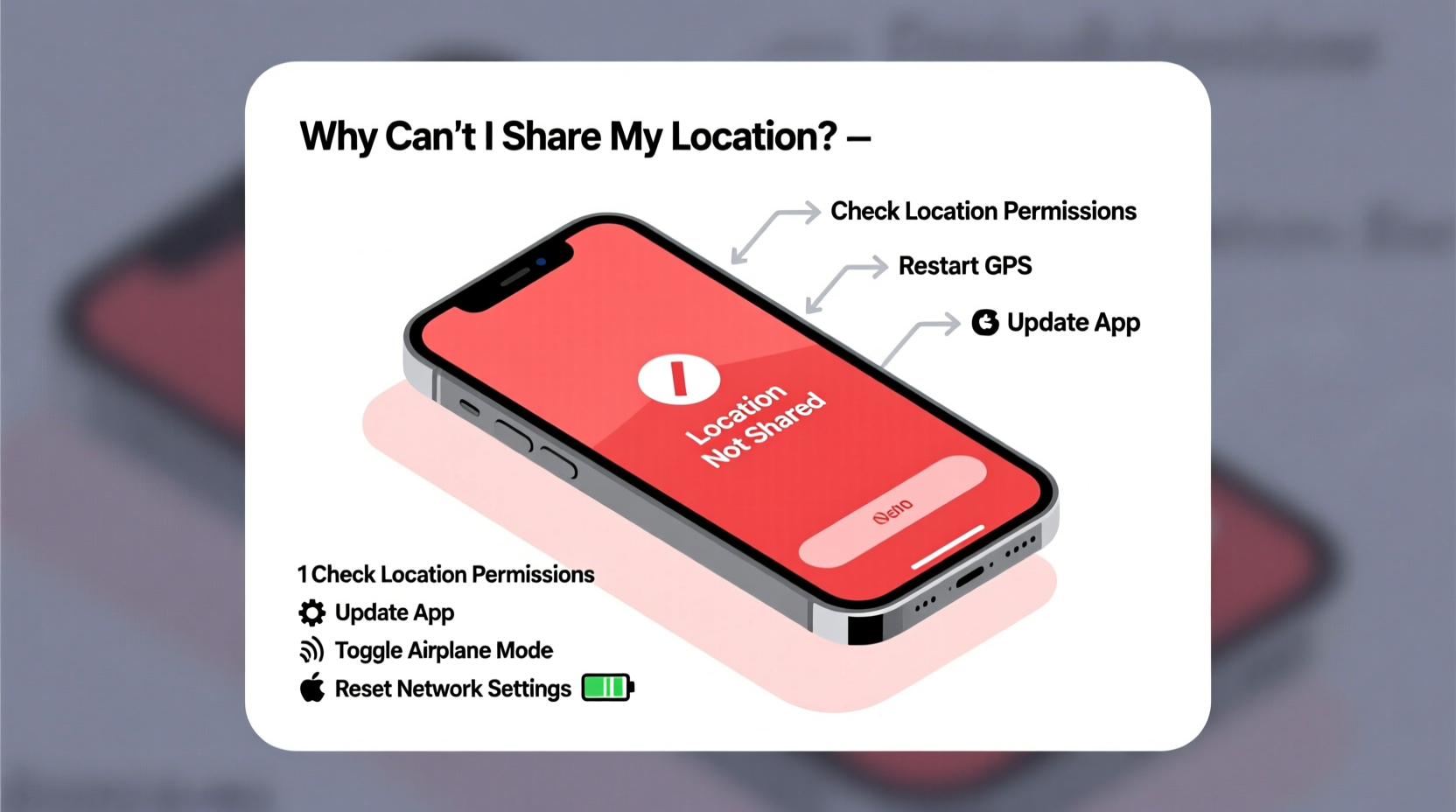
Before jumping into fixes, it helps to understand how location sharing works. It’s not a single function but a chain of interconnected systems: GPS satellites, Wi-Fi and cellular networks, device operating systems, and specific apps like Apple Maps, Google Maps, or WhatsApp. Each link must function properly for your location to be detected and transmitted.
Common culprits behind failed location sharing include disabled GPS, incorrect app permissions, poor network connectivity, outdated software, or even battery-saving modes that restrict background activity. The good news is that most of these issues are fixable with a few targeted steps.
Step-by-Step Guide to Restore Location Sharing
Follow this structured sequence to systematically identify and resolve the issue:
- Check if Location Services Are Enabled
On iPhone: Go to Settings > Privacy & Security > Location Services. Ensure it’s turned on.
On Android: Navigate to Settings > Location. Make sure “Use Location” is enabled. - Verify App-Specific Permissions
Even if global location services are active, individual apps may lack permission. Check whether the app you’re using (e.g., Messages, WhatsApp, Find My) has access to your location. - Ensure Network Connectivity
Location sharing often requires an internet connection. Test whether you have stable Wi-Fi or cellular data. Try loading a webpage to confirm. - Restart Your Device
A simple reboot clears temporary glitches in GPS modules and networking stacks. Hold the power button, restart, then attempt to share your location again. - Update Your Operating System and Apps
Bugs in older versions of iOS or Android can interfere with location accuracy. Install any pending updates under Settings > General > Software Update (iOS) or Settings > System > System Update (Android).
Do’s and Don’ts When Troubleshooting Location Issues
| Action | Do | Don’t |
|---|---|---|
| Permission Settings | Grant \"While Using the App\" or \"Always\" access where needed. | Don’t set to \"Never\"—this blocks all location requests. |
| Battery Optimization | Allow location apps to run in the background. | Don’t enable aggressive battery savers that kill background processes. |
| Network Use | Use Wi-Fi or strong cellular signal for faster GPS lock. | Don’t rely solely on GPS in dense urban areas without network assistance. |
| Testing | Test location sharing in open areas away from tall buildings. | Don’t test indoors or underground where signals are weak. |
Real-World Example: A Commuter’s Location Fail
Sarah regularly shares her location with her partner during her evening commute. One day, he reports that her location hasn’t updated in over 30 minutes. She checks her iPhone and sees the blue location arrow spinning endlessly. After verifying that Location Services were on and she had cellular data, she realized she had enabled Low Power Mode earlier that day. This mode restricts background app refresh—including location updates for non-essential apps. Disabling Low Power Mode immediately restored her live location feed. The issue wasn’t hardware or software failure—it was a hidden system setting interfering with functionality.
This case illustrates how easily overlooked features can disrupt critical functions. Always consider system-wide modes before assuming a deeper technical fault.
Expert Insight: What Developers See Behind the Scenes
“Over 60% of location-sharing failures we analyze stem from misconfigured permissions or background restrictions. Users often grant initial access but don’t realize later updates or settings changes can revoke them silently.” — Raj Patel, Senior Mobile Engineer at GeoSync Labs
Patel emphasizes that operating systems increasingly prioritize privacy and battery life, sometimes at the expense of seamless feature performance. He recommends periodically auditing app permissions, especially after major OS updates.
Troubleshooting Checklist: Regain Control Over Location Sharing
- ✅ Confirm Location Services are globally enabled
- ✅ Verify the specific app has location permission (set to \"Always\" or \"While Using\")
- ✅ Disable Battery Saver or Low Power Mode temporarily
- ✅ Ensure Wi-Fi and/or cellular data are active and connected
- ✅ Restart your phone to refresh GPS and network modules
- ✅ Check for OS and app updates
- ✅ Test location sharing outdoors or near a window for better signal
- ✅ Sign out and back into your Apple ID (iOS) or Google Account (Android) if syncing fails
Frequently Asked Questions
Why does my location show as “No Location Found” on Find My?
This typically means the device is powered off, offline, or location services are disabled. It can also occur if the user has paused sharing or if there's a sync delay between iCloud servers. Wait a few minutes and ask the person to check their settings.
Can I share my location without using data or Wi-Fi?
No. While GPS can determine your position without internet, sharing that location with others requires a data connection—either cellular or Wi-Fi—to transmit the coordinates.
Does airplane mode affect location sharing?
Yes. Airplane mode disables GPS, cellular, and Wi-Fi by default, preventing both location detection and transmission. Even if you manually re-enable Wi-Fi or Bluetooth, GPS may remain restricted depending on the device and OS version.
Advanced Fixes for Persistent Problems
If basic troubleshooting doesn’t resolve the issue, try these advanced measures:
- Reset Location & Privacy Settings: On iPhone, go to Settings > General > Transfer or Reset iPhone > Reset > Reset Location & Privacy. This clears all permissions—re-enable them afterward.
- Toggle System Services (iOS): Under Location Services > System Services, ensure features like Networking & Wireless, Setting Time, and Compass Calibration are enabled.
- Clear Cache for Google Play Services (Android): Go to Settings > Apps > Google Play Services > Storage > Clear Cache. This resolves many location-related bugs.
- Check Date & Time Settings: Incorrect time can break secure connections needed for location sync. Enable “Set Automatically” in Date & Time settings.
In rare cases, hardware issues such as a damaged GPS antenna may be responsible—especially after water exposure or physical drops. If none of the above steps work across multiple apps and networks, contact Apple Support or your Android manufacturer for diagnostics.
Conclusion: Take Back Control of Your Digital Presence
Not being able to share your location can feel isolating or frustrating, especially when others are counting on you. But in nearly every case, the solution lies in one of several predictable areas: permissions, connectivity, or system settings. By methodically checking each component—from app access to background processes—you can restore functionality quickly and reliably.




 浙公网安备
33010002000092号
浙公网安备
33010002000092号 浙B2-20120091-4
Comments
No comments yet. Why don't you start the discussion?