
Smart Christmas lights bring convenience, color control, and festive automation to holiday decorating. But when they suddenly stop responding—refusing to turn on, failing to sync with an app, or ignoring voice commands—it can be frustrating. The good news: most issues are fixable without replacing the entire string. Understanding common causes and knowing how to properly reset your smart lights can restore their function in minutes.
From Wi-Fi disruptions to firmware glitches, multiple factors can interrupt communication between your device and smart lighting system. This guide dives into the root causes, provides a detailed reset process for major brands, and offers long-term prevention strategies backed by technical insight and real user experiences.
Common Reasons Smart Christmas Lights Stop Responding
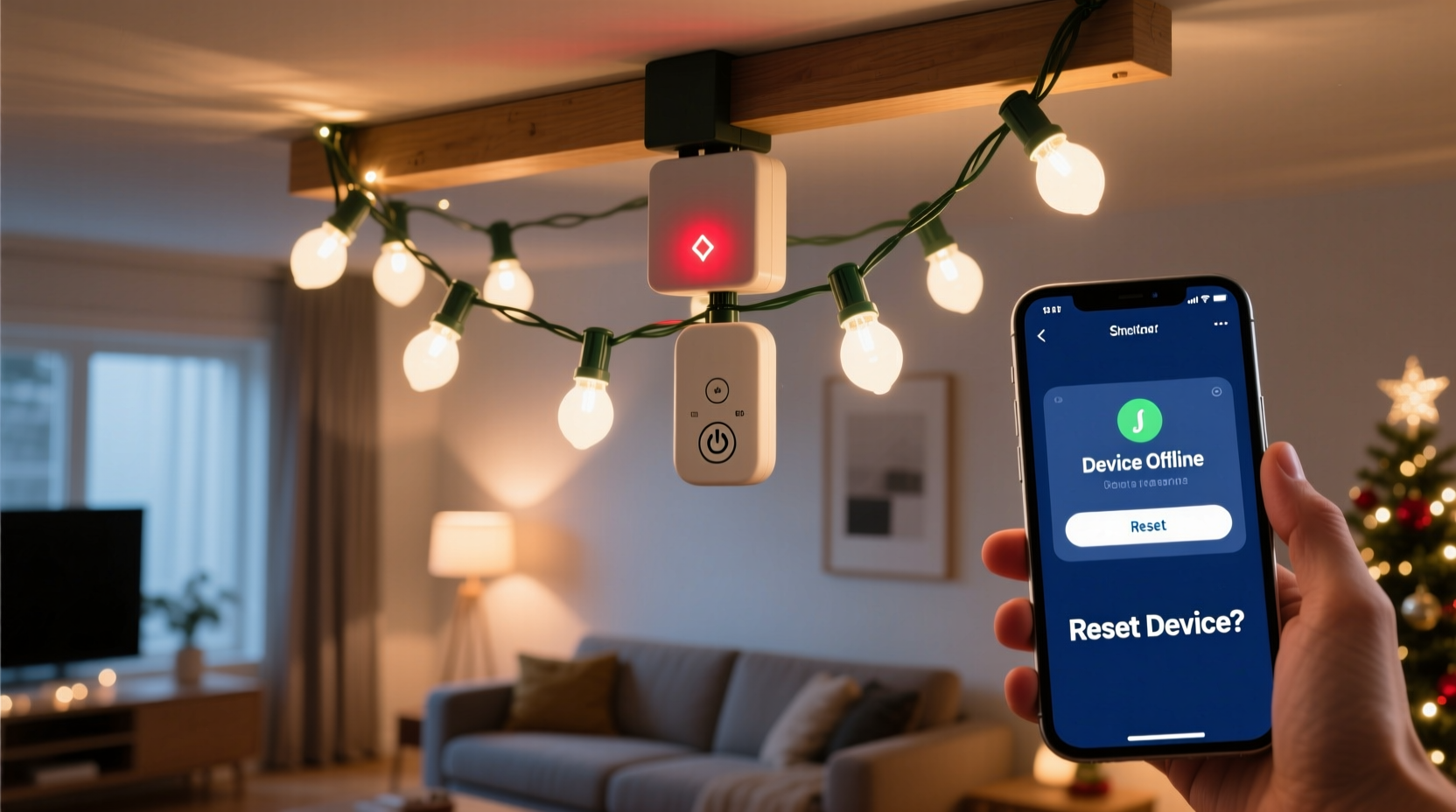
Before attempting a reset, it’s essential to identify what caused the malfunction. Unlike traditional lights, smart LEDs rely on a combination of hardware, software, and network connectivity. A failure in any one component can render the system unresponsive.
- Wi-Fi signal loss: If your router restarts or signal strength drops, smart lights may disconnect and fail to reconnect automatically.
- Power interruptions: Brief outages or unstable power sources can corrupt temporary settings stored in the light controller.
- Firmware bugs: Outdated or corrupted firmware may cause lag, unresponsiveness, or complete shutdown.
- App or cloud server issues: Some systems depend on remote servers. If the brand’s service is down, local control may still work—but app features won’t.
- Overloaded circuits: Connecting too many strings together can exceed voltage limits, causing erratic behavior or failure.
- Physical damage: Moisture ingress, bent connectors, or frayed wires from outdoor exposure can disrupt data transmission.
Step-by-Step Guide to Resetting Smart Christmas Lights
A proper reset clears cached configurations and forces the lights to re-enter pairing mode. The exact method varies by brand, but the general principle remains consistent: interrupt power in a specific sequence to trigger a factory reset.
- Unplug the lights completely from the wall outlet or power strip. Do not leave them plugged into a switched outlet—even if the switch is off.
- Wait at least 30 seconds. This allows capacitors in the control box to discharge fully, clearing temporary memory.
- Press and hold the physical button (if present) on the light controller while plugging the unit back in. Hold for 5–10 seconds after power is restored.
- Observe LED indicators. Most models will flash rapidly or change color (e.g., from red to blinking blue) to indicate reset success.
- Reconnect via the manufacturer’s app. Open the app, go to device setup, and follow instructions to rediscover the lights as a new device.
If no button exists, consult the product manual—some brands use timed plug/unplug cycles instead. For example, Govee lights often require three consecutive power cycles within 10 seconds to initiate reset.
Brand-Specific Reset Instructions
| Brand | Reset Method | Indicator After Reset |
|---|---|---|
| Govee | Unplug, plug back in three times quickly (within 10 sec each) | Lights blink white rapidly |
| Philips Hue (Hue Lightstrips Holiday) | Use Hue Bridge; remove device in app, then reset bridge if needed | Strip flashes green-white-green |
| Twinkly | Hold power button for 10+ seconds until lights flash red/green alternately | Enters AP mode (creates own Wi-Fi network) |
| HitLights / LIFX Z | Cycle power five times; last cycle must stay on for 10 seconds | Flashes rainbow pattern |
| Feit Electric (via HomeKit) | Remove from Home app, then press and hold built-in button for 15 seconds | Flashes amber and white repeatedly |
Troubleshooting Beyond the Reset
Even after a successful reset, problems may persist. Here’s how to diagnose deeper issues:
Check Network Compatibility
Many smart lights only support 2.4 GHz Wi-Fi networks. If your router broadcasts a combined 2.4/5 GHz SSID, the lights might connect to the wrong band. Create a separate 2.4 GHz network name (SSID) and manually connect your lights to it.
Verify Power Supply Adequacy
Underpowered adapters cause flickering or partial illumination. Check the label on the power supply—output should match the total wattage requirement of all connected strings. When daisy-chaining multiple sets, never exceed 80% of the adapter’s rated capacity.
Update Firmware Regularly
Manufacturers release firmware updates to patch bugs and improve stability. In the app, navigate to device settings and look for “Check for Updates.” Enable automatic updates if available.
Test Physical Connections
For modular systems (like Twinkly or HitLights), inspect connector pins between segments. Corrosion or misalignment can break the data signal even if power flows. Clean contacts gently with isopropyl alcohol and a cotton swab.
“Most ‘dead’ smart light failures we see in diagnostics are actually communication breakdowns—not hardware faults. A clean reset and fresh network handshake solve over 70% of cases.” — Daniel Ruiz, Senior IoT Support Engineer at Govee Tech Support
Mini Case Study: Recovering a Non-Responsive Outdoor Display
Sarah from Portland installed 120 feet of Govee RGBIC lights around her roofline in November. By mid-December, the lights wouldn’t respond to voice commands or the app, though they remained powered. She tried restarting her phone and router with no effect.
After reading online forums, she attempted a triple-plug reset. The lights blinked white once but didn’t enter pairing mode. Suspecting moisture damage (due to heavy rain), she disconnected the first segment and tested it indoors. Using a hairdryer on cool setting, she dried the controller box for 15 minutes.
She repeated the reset process—this time, the lights flashed blue and appeared in the Govee app as a new device. Once reconnected, full functionality returned. Sarah later added a weatherproof enclosure for future protection.
This case illustrates that environmental factors and minor moisture exposure can interfere with electronics, but simple interventions often restore performance.
Prevention Checklist: Keep Your Smart Lights Reliable
Once you’ve restored functionality, take proactive steps to prevent future disruptions:
- ✅ Perform a test reset once per season before storage
- ✅ Store controllers and power supplies in sealed plastic bins with desiccant packs
- ✅ Use surge protectors rated for outdoor use
- ✅ Avoid wrapping lights tightly around sharp edges that could damage internal wiring
- ✅ Update firmware before and after the holiday season
- ✅ Limit daisy-chained length to manufacturer specifications (usually 10–15m max per run)
- ✅ Install near a secondary Wi-Fi access point or mesh node if used outdoors
Frequently Asked Questions
Can I reset smart lights without the app?
Yes. Most smart lights have physical reset procedures using buttons or power cycling. The app is only needed for reconfiguration after the reset. Refer to your model’s manual for exact timing.
Why do my lights keep disconnecting every few days?
Recurrent disconnections usually stem from weak Wi-Fi signals or IP address conflicts. Try assigning a static IP to the lights in your router settings or moving the nearest access point closer. Also, ensure your router firmware is up to date.
Will resetting delete my custom light effects?
Yes. A factory reset erases all saved scenes, schedules, and group assignments. Take screenshots of your favorite settings beforehand so you can recreate them easily.
Conclusion: Restore Control and Enjoy the Holidays Stress-Free
Smart Christmas lights enhance the holiday experience, but like any connected device, they occasionally need maintenance. When they stop responding, don’t assume they’re broken. Start with a structured diagnosis—check power, network, and physical connections—then proceed with a targeted reset based on your brand’s protocol.
Understanding the underlying causes empowers you to fix issues quickly and implement preventive habits that extend the life of your investment. With proper care, many smart light systems last five seasons or more, delivering vibrant displays year after year.




 浙公网安备
33010002000092号
浙公网安备
33010002000092号 浙B2-20120091-4
Comments
No comments yet. Why don't you start the discussion?