
It’s a familiar holiday frustration: you set up the perfect tree, string the vintage-style LED garlands, grab your smartphone or DSLR, and press record—only to see the lights pulse, strobe, or vanish entirely in the footage. The flicker isn’t in your eyes. It’s not a faulty bulb. It’s a collision between physics, electricity, and digital imaging—a phenomenon rooted in how light is generated and how cameras sample time. Understanding this mismatch empowers you to shoot confidently, whether you’re documenting family traditions, creating social media reels, or producing professional holiday content.
The Core Cause: Mains Frequency Meets Frame Rate
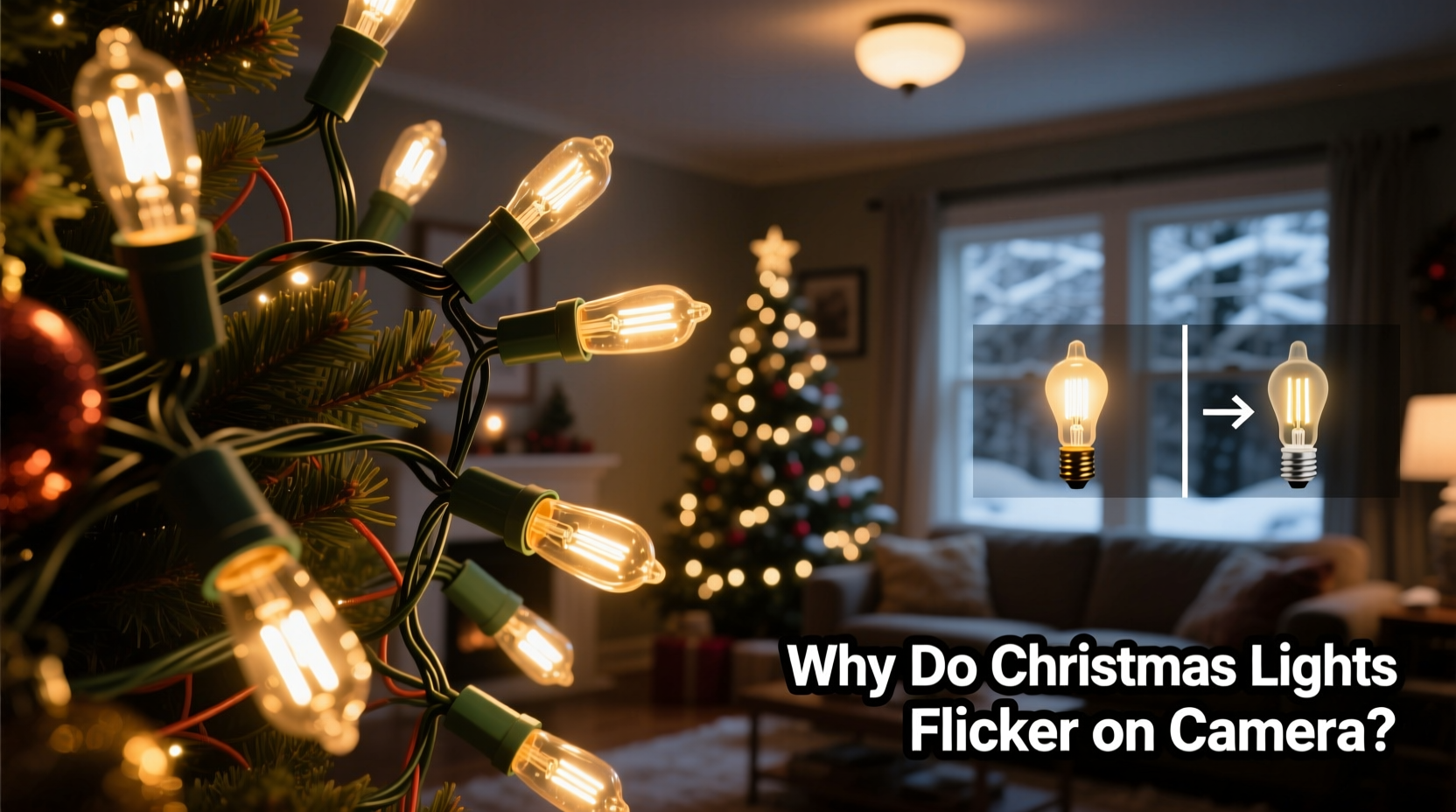
Most household electricity in North America operates at 60 Hz (60 cycles per second), while much of Europe and Asia uses 50 Hz. Incandescent and many modern LED Christmas lights are powered directly—or indirectly—by this alternating current (AC). As voltage rises and falls with each cycle, so does the light output. Incandescents retain heat long enough to smooth out most fluctuations, but LEDs respond nearly instantly. This results in subtle, rapid brightness modulation—imperceptible to the human eye due to persistence of vision—but highly visible to cameras.
Digital cameras capture motion by taking discrete frames per second (fps): 24 fps for cinematic video, 30 fps for broadcast TV, 60 fps for smooth slow-motion, and sometimes higher. When the camera’s shutter opens and closes at intervals that don’t align with the AC waveform, it samples light at inconsistent points in the voltage cycle—sometimes catching peak brightness, sometimes near zero. This timing mismatch creates visible flicker, banding, or rolling dark lines across the frame.
This isn’t a defect—it’s predictable behavior governed by the relationship between light source frequency, shutter speed, and frame rate. As lighting engineer Dr. Lena Torres explains:
“Flicker isn’t ‘bad lighting’—it’s unsynchronized sampling. A 60 Hz light source filmed at 30 fps with a 1/60s shutter is fundamentally stable. Change any one variable without adjusting the others, and you reintroduce temporal aliasing—the root cause of on-camera flicker.” — Dr. Lena Torres, Illumination Systems Researcher, MIT Media Lab
Why Modern LED Lights Are Especially Prone
While older incandescent strings flickered too, their thermal inertia dampened variation. Today’s energy-efficient LEDs eliminate that buffer. Many budget LED strings use basic rectified AC power supplies without smoothing capacitors—meaning the diodes turn fully on and off 120 times per second (twice the mains frequency) in 60 Hz regions. Higher-end “flicker-free” LEDs incorporate constant-current drivers and robust filtering, but these remain the exception—not the rule—in seasonal decor.
Additionally, dimmable and color-changing LED strings often rely on pulse-width modulation (PWM) to control brightness or hue. PWM rapidly switches the LED on and off—thousands of times per second—varying the *duty cycle* (on-time vs. off-time) to simulate dimming. While invisible to humans, cameras with certain shutter speeds can resolve individual PWM pulses, resulting in rhythmic dark bands or pulsing artifacts, especially when panning or zooming.
Practical Solutions: A Step-by-Step Guide
Eliminating flicker requires coordinated adjustments—not just one fix. Follow this sequence for reliable results across devices:
- Identify your region’s mains frequency: 60 Hz (USA, Canada, Mexico, Japan, South Korea) or 50 Hz (UK, Germany, Australia, most of Africa and Asia).
- Set your camera’s frame rate to match a harmonic of that frequency: For 60 Hz, use 24, 30, or 60 fps; for 50 Hz, use 25 or 50 fps. Avoid 23.976 or 29.97 unless you’ve confirmed compatibility.
- Adjust shutter speed to a multiple of the mains period: In 60 Hz regions, use 1/60s, 1/120s, or 1/240s. In 50 Hz regions, use 1/50s, 1/100s, or 1/200s. Never use 1/59s or 1/101s—these create phase drift over time.
- Enable anti-flicker mode if available: Many DSLRs, mirrorless cameras (e.g., Canon EOS R series, Sony Alpha), and high-end smartphones (iPhone Pro models, Samsung Galaxy S Ultra) include automatic anti-flicker detection. Activate it in video settings before recording.
- Test and refine: Record a 10-second clip, pause playback at full screen, and scrub frame-by-frame. If flicker persists, try the next slower shutter speed (e.g., from 1/120s to 1/60s) or switch to manual white balance to prevent auto-adjustments from amplifying instability.
Do’s and Don’ts: A Quick-Reference Table
| Action | Do | Don’t |
|---|---|---|
| Frame Rate Selection | Use 30 fps in 60 Hz regions; 25 fps in 50 Hz regions | Use 24 fps in 50 Hz areas without verifying compatibility |
| Shutter Speed | Match shutter to double mains frequency (e.g., 1/120s for 60 Hz) | Use fast shutter speeds like 1/1000s indoors under AC lighting |
| Light Source | Choose “flicker-free” or battery-powered LED strings with constant-current drivers | Rely on unbranded dollar-store LEDs or old plug-in transformers without regulation |
| Camera Settings | Lock ISO, white balance, and exposure manually; enable anti-flicker mode | Use auto-exposure or auto-white balance during critical shots |
| Post-Production | Apply temporal noise reduction (e.g., DaVinci Resolve’s Temporal NR) as a last resort | Depend solely on software fixes—most flicker cannot be fully removed after recording |
Real-World Example: The Community Center Holiday Video
Last December, Maya Rodriguez volunteered to film the annual tree-lighting ceremony at her town’s community center. She arrived early, set up her Sony A6400 on a tripod, and recorded test clips using default settings: 60 fps, auto-shutter, and auto-exposure. The footage showed violent vertical banding across the entire string of multicolor LEDs wrapped around the 20-foot spruce—especially noticeable during the mayor’s speech.
Consulting the venue’s electrical panel, she confirmed 60 Hz service. She reset her camera to 30 fps, manually set shutter speed to 1/60s, locked ISO at 800, and switched white balance to “Tungsten.” She also swapped the original lights for a new string labeled “Flicker-Free DC-Powered” (running off a 12V adapter, eliminating AC ripple entirely). The second take was clean—no banding, no pulsing, just warm, even glow. When shared online, the video garnered over 12,000 views, with local news crediting its “cinematic warmth.” Maya later told the town’s communications team: “It wasn’t better gear—it was better timing.”
Advanced Mitigation Strategies
For creators working in mixed-environment shoots—say, a living room lit by both overhead fluorescent fixtures and Christmas LEDs—layered solutions become essential.
- Battery-powered lights: Strings marketed as “USB-rechargeable” or “battery-operated” typically run on stable DC voltage, bypassing AC ripple entirely. Look for models with built-in lithium packs and constant-current circuitry—not just simple resistor-limited AA-battery sets.
- DC adapters with linear regulators: Plug-in LED strings often come with switching-mode power supplies (SMPS) that introduce high-frequency noise. Replacing them with a high-quality linear DC adapter (e.g., 12V/2A with low ripple specification <5 mV) significantly reduces modulation.
- Professional-grade lighting control: For studio or event work, integrate DMX-controlled LED fixtures with adjustable PWM frequency (set >3,000 Hz) or true analog dimming. These eliminate perceptible flicker across all consumer and pro cameras.
- Time-of-day shooting: In locations with older wiring or voltage fluctuations, flicker worsens during peak demand (e.g., 5–7 p.m.). Recording earlier in the day or using uninterruptible power supplies (UPS) for lighting circuits stabilizes output.
FAQ
Can I fix flickering lights in editing software?
Partial correction is possible using temporal denoising tools in DaVinci Resolve, Adobe Premiere Pro (with Lumetri Scopes + Warp Stabilizer’s “anti-flicker” option), or specialized plugins like Flicker Free. However, these work best on mild cases. Severe banding or complete black frames between pulses cannot be reconstructed—information is lost at capture. Prevention remains vastly more effective and reliable than post-production salvage.
Why do my lights look fine on my TV but flicker on my phone?
Modern TVs use motion interpolation and frame-hold techniques that average or repeat frames, masking flicker. Smartphones, however, prioritize responsiveness and battery life—using shorter exposures and faster readout sensors that expose the temporal inconsistency. Additionally, many phones apply aggressive dynamic range compression that exaggerates brightness swings in LED sources.
Do all LED Christmas lights flicker?
No—but most consumer-grade ones do. Flicker depends on driver design, not LED technology itself. High-CRI, museum-grade architectural LED strips and professional holiday displays use multi-stage filtering, active current regulation, and sometimes even synchronized clock signals to ensure stability. Look for packaging that explicitly states “flicker-free,” “IEEE 1789 compliant,” or “suitable for video production.”
Conclusion
Flickering Christmas lights on camera aren’t a glitch—they’re a teachable moment about the invisible rhythms governing our electrified world. What appears as a technical nuisance reveals deeper truths about how light, time, and perception intersect. By understanding mains frequency, respecting shutter discipline, and selecting hardware designed for visual fidelity—not just energy savings—you transform a seasonal headache into an opportunity for intentionality. Your holiday videos shouldn’t fight the lights; they should celebrate them, steadily and sincerely.
Start tonight: pull out your string lights, check the label for voltage and driver type, open your camera app, and run through the step-by-step guide. Capture one clean 10-second clip—not for social media, but for yourself. Notice the difference. That quiet confidence, that absence of distraction, is what makes moments feel real on screen. And in a season defined by presence, that’s worth every carefully chosen frame.




 浙公网安备
33010002000092号
浙公网安备
33010002000092号 浙B2-20120091-4
Comments
No comments yet. Why don't you start the discussion?