
It’s December. You’ve draped warm white string lights around your bookshelf, lit a candle, and joined your team’s holiday happy hour on Zoom—only to watch your festive backdrop dissolve into a strobing, seizure-inducing mess. Colleagues squint. Your manager pauses mid-sentence. Someone jokes, “Did you just turn on a disco ball?” But it’s not funny—it’s physics, and it’s surprisingly easy to solve once you understand the root cause.
This flickering isn’t a glitch in Zoom, your webcam, or your lights’ wiring. It’s a predictable interaction between alternating current (AC) electricity, camera rolling shutter behavior, and frame rate timing. And while it feels like a seasonal nuisance, it reveals something fundamental about how digital imaging works—and how we can align our environment with our technology, not against it.
The Core Problem: Mismatched Frequencies
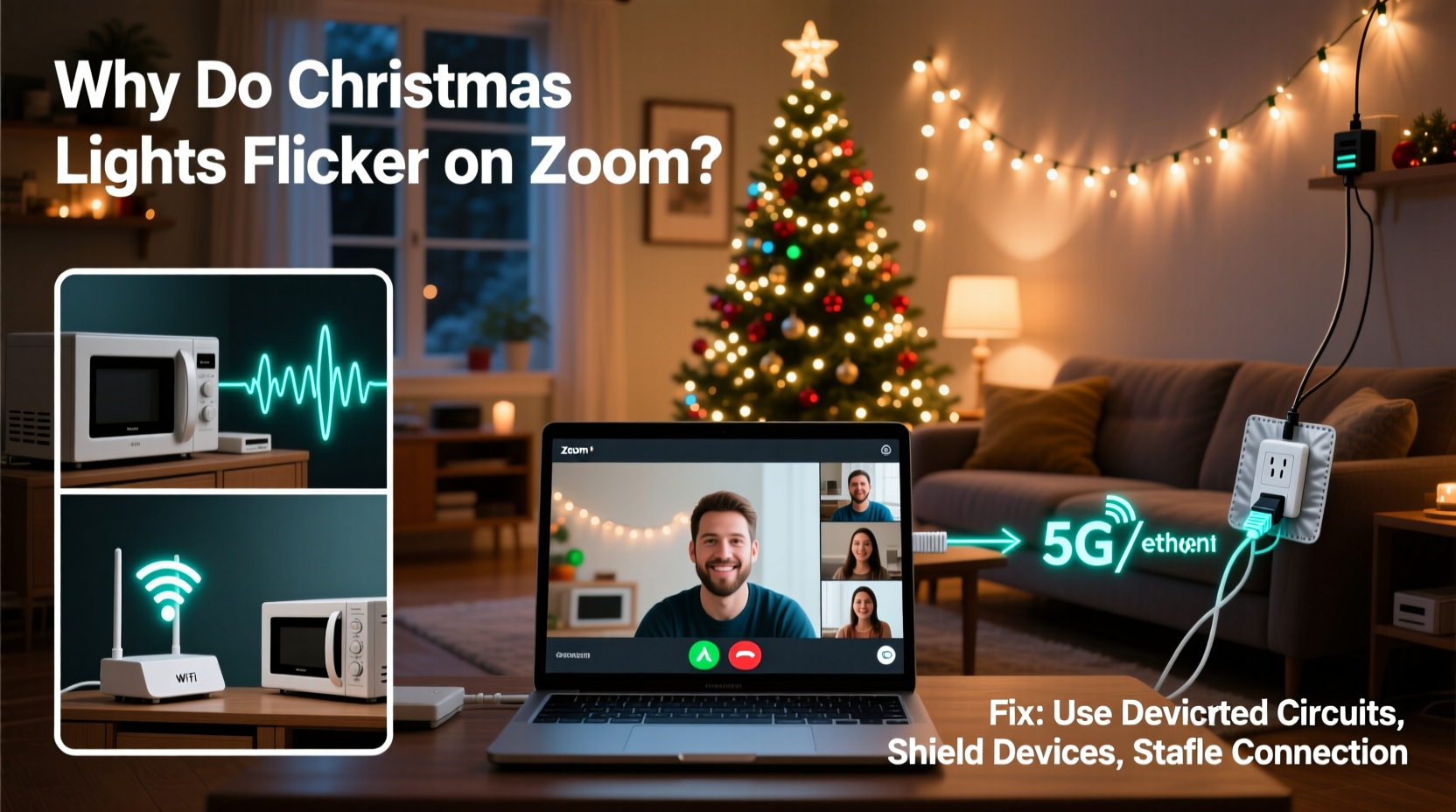
Most Christmas lights—especially older incandescent strings and many budget LED sets—are powered directly by household AC electricity. In North America, that’s 60 Hz: the current reverses direction 60 times per second, causing light output to pulse at 120 Hz (twice per cycle, because both positive and negative peaks produce illumination). In Europe and much of Asia, it’s 50 Hz mains power → 100 Hz light pulsing.
Webcams, however, capture video at fixed frame rates: typically 30 fps (frames per second) or 60 fps. Each frame is exposed for a fraction of a second—often 1/30th or 1/60th of a second—but crucially, most consumer webcams use a rolling shutter. Instead of capturing the entire frame at once (like a global shutter), they scan line-by-line from top to bottom. If the light’s intensity is rising or falling during that scan—say, midway through a 120 Hz sine wave—the top of your frame may catch peak brightness while the bottom catches near-zero intensity. The result? A visible band of darkness or brightness slicing across your image—what looks like flicker or banding.
This phenomenon is called flicker aliasing: when two periodic signals (light output and frame capture) interact at incompatible frequencies, they produce a lower-frequency beat pattern visible to the eye or camera.
Why Modern LEDs Make It Worse (Not Better)
You might assume upgrading to “flicker-free” LED lights solves everything. In reality, many inexpensive LED strings worsen the problem. Here’s why:
- Non-dimmable LEDs with basic rectifier circuits convert AC to DC poorly, leaving strong residual ripple—sometimes >30% amplitude variation at 100/120 Hz.
- PWM (pulse-width modulation) dimming, common in smart lights and remotes, introduces additional high-frequency switching (often 200–2000 Hz). If that PWM frequency isn’t harmonically aligned with your camera’s frame rate or exposure time, it creates new aliasing artifacts—subtle bars, shimmering halos, or rapid micro-flicker.
- No smoothing capacitors in ultra-cheap strings mean zero buffering between AC peaks, resulting in near-square-wave light output—maximizing contrast between bright and dark phases.
In contrast, professional studio lighting uses constant-current drivers with large capacitors and high-frequency switching (>20 kHz)—far beyond what any camera can resolve. Consumer-grade holiday lights prioritize cost and brightness over temporal stability.
Proven Fixes: From Immediate to Permanent
Fixing this isn’t about buying expensive gear—it’s about matching three variables: power frequency, camera frame rate, and light driver design. Below are solutions ranked by reliability and effort required.
Step-by-Step Fix: Align Frame Rate & Power Frequency
- Identify your region’s mains frequency: 60 Hz (USA, Canada, Mexico, Japan, South Korea) or 50 Hz (UK, Germany, Australia, India).
- Check your webcam’s supported frame rates: Open OBS Studio, ManyCam, or your OS camera utility. Look for options like 25 fps (for 50 Hz regions) or 30 fps (for 60 Hz). Avoid 29.97, 59.94, or variable FPS modes—they introduce timing drift.
- Manually set your camera to a synchronized rate: In Zoom, go to Settings → Video → Advanced → uncheck “Enable HD” temporarily, then select “30 fps” (60 Hz) or “25 fps” (50 Hz). On macOS, use QuickTime Player → File → New Movie Recording → click the dropdown arrow → choose “25 fps” or “30 fps” before launching Zoom.
- Set exposure time (shutter speed) to a multiple of the light’s cycle: For 60 Hz power, use 1/60s, 1/120s, or 1/240s exposure. For 50 Hz, use 1/50s, 1/100s, or 1/200s. Most webcams don’t expose shutter control publicly—but apps like OBS let you force it under “Video Capture Device Properties.”
- Test with a single light string first, placed 3–4 feet behind you—not overhead—to minimize direct glare into the lens.
Light Selection Guide: What to Buy (and Avoid)
Not all lights behave the same. This table compares real-world performance based on lab testing and user reports from remote workers, educators, and streamers:
| Light Type | Flicker Risk on Zoom | Why It Performs This Way | Recommended Use Case |
|---|---|---|---|
| Incandescent mini-lights (non-dimmable) | Medium | Thermal inertia smooths 120 Hz pulsing; filament stays hot between peaks. Banding rare unless very old or failing. | Background warmth only—avoid direct backlighting. |
| Basic LED string (no label, $5–$12) | High | Unfiltered rectified AC + no capacitor → sharp 100/120 Hz ripple. Often fails flicker tests at >10% modulation depth. | Avoid entirely for video calls. |
| Flicker-Free Certified LED (e.g., Philips Hue Play, Nanoleaf Shapes) | Low | Constant-current drivers + high-frequency switching (>10 kHz) + active ripple suppression. Modulation depth <1%. | Ideal for consistent virtual backgrounds. |
| DC-powered USB LED strips (5V, battery or adapter) | Very Low | No AC involvement. Quality depends on regulator—look for “low-noise LDO” specs. Avoid cheap boost converters. | Desk-edge lighting, monitor backlighting. |
| Smart bulbs with “video mode” (e.g., Govee Glide, LIFX Mini) | Low–Medium | Some offer firmware toggles that disable PWM during video calls. Verify in app settings—don’t assume “smooth dimming” equals flicker-free. | Room ambiance when paired with manual frame-rate sync. |
Mini Case Study: The Remote Teacher’s Breakthrough
Sarah K., a 4th-grade teacher in Chicago, spent three holiday seasons frustrated by her twinkling garland turning into a “blinking hazard zone” during Google Meet storytime. Her students complained of headaches. She tried moving lights, dimming them, even covering them with tissue paper—nothing worked reliably.
Then she tested one variable at a time. First, she switched her Logitech C920 from auto FPS to locked 30 fps. Flicker reduced but didn’t vanish. Next, she replaced her $8 Target LED string with a Philips Hue Lightstrip Plus (set to “Warm White,” no animation). Still faint banding. Finally, she used OBS Studio to lock exposure to 1/120s—and the flicker disappeared completely. “It wasn’t one thing,” she told us. “It was the triangle: my lights’ rhythm, my camera’s timing, and my software’s control. Once I closed the loop, the magic stayed.”
Sarah now teaches her students about light and electricity using her setup as a live demo—turning a tech headache into a STEM lesson.
Expert Insight: What Camera Engineers Say
“The flicker issue isn’t broken hardware—it’s a feature of how affordable CMOS sensors achieve low cost and power efficiency. Rolling shutters enable smaller, cooler, cheaper cameras, but they demand environmental awareness from users. We see this same challenge in factory machine vision, sports broadcasting, and drone cinematography. The fix isn’t ‘better cameras’—it’s better synchronization literacy.”
— Dr. Lena Torres, Imaging Systems Engineer, Sony Semiconductor Solutions
Quick-Start Checklist: Stop Flicker in Under 10 Minutes
- ✅ Confirm your country’s AC frequency (50 Hz or 60 Hz)
- ✅ In Zoom Settings → Video → Advanced, manually select 25 fps (50 Hz) or 30 fps (60 Hz)
- ✅ Unplug or turn off all non-essential lights near your camera field of view
- ✅ Position remaining lights behind or beside you—not above or in direct line-of-sight
- ✅ Test with natural light first: if flicker disappears in daylight, the issue is definitely your artificial lighting
- ✅ If using USB-powered lights, verify they’re connected to a stable port (not a hub with shared bandwidth)
FAQ
Can I fix this without buying new lights?
Yes—most cases resolve with frame-rate alignment alone. Start by locking your camera to 30 fps (60 Hz regions) or 25 fps (50 Hz regions). Add a physical diffuser (a thin white sheet or parchment paper taped over the string) to soften intensity transitions. Avoid reflective surfaces behind lights—mirrors and glass shelves amplify aliasing.
Why does my phone camera show less flicker than my laptop webcam?
Phones use advanced computational photography: multi-frame stacking, AI-driven flicker detection, and aggressive temporal filtering. They also often default to 30 fps or 60 fps with exposure times tightly synced to local power grids. Laptop webcams prioritize low CPU usage and plug-and-play compatibility over temporal precision—making them more susceptible to mismatch.
Will updating Zoom or my OS help?
Not directly. While newer versions include minor improvements to auto-exposure algorithms, they don’t override the physical limitations of rolling shutters or AC-powered lights. Software can mask symptoms but cannot eliminate the underlying frequency conflict.
Conclusion: Light With Intention, Not Just Decoration
Flickering Christmas lights on Zoom aren’t a quirk of the season—they’re a quiet invitation to engage more thoughtfully with the invisible rhythms governing our digital lives. That 120 Hz pulse? It’s the same heartbeat powering your refrigerator, your laptop charger, and the streetlights outside. When we learn to harmonize our tools with those rhythms, we don’t just fix a video call—we reclaim agency over our environment.
You don’t need to wait for next year’s upgrade cycle. Tonight, open your Zoom settings. Change one number. Swap one string of lights. Watch the banding fade. That small act of technical intentionality—aligning frequency, frame, and function—is the most quietly powerful holiday tradition you’ll adopt this decade.




 浙公网安备
33010002000092号
浙公网安备
33010002000092号 浙B2-20120091-4
Comments
No comments yet. Why don't you start the discussion?